How to check if your laptop is compatible with Windows 11
Step-by-step guide on how to check if laptop compatible with windows 11, covering TPM, Secure Boot, CPU, RAM, storage, and drivers. Learn how to interpret results and plan upgrades with My Compatibility guidance.


Looking to upgrade? This guide shows how to check if laptop compatible with windows 11. You’ll verify key requirements, run built-in checks, and interpret the results. Learn about TPM, CPU generations, RAM, storage, and supported features. By the end, you’ll know whether to upgrade, stay on Windows 10, or plan a hardware refresh.
How Windows 11 compatibility is determined on laptops
According to My Compatibility, determining whether a laptop can run Windows 11 is a mix of official requirements and practical hardware realities. If you’re asking how to check if laptop compatible with windows 11, you’ll start with core criteria and then verify your device against them. The My Compatibility team found that most modern laptops released in the last several years meet the basic thresholds, but a surprising number of older models fall short on TPM, Secure Boot, or CPU support. This guide explains the logic: what Microsoft requires, what hardware features signal readiness, and how to read results from built-in tools. You’ll come away with a clear checklist you can run in under an hour.
Core system requirements explained
Windows 11 imposes several baseline requirements beyond what you might expect. The most widely discussed are TPM 2.0, Secure Boot, a supported 64-bit processor, 4 GB of RAM, and 64 GB of storage. However, several nuance factors matter: some CPUs that are technically newer meet the worded requirements, while their firmware or drivers may lack Windows 11 optimizations. RAM and storage provide headroom for updates and optional features like virtualization and software previews. The My Compatibility team found that many mid-range laptops from recent years satisfy these thresholds, while older or budget devices often require a closer look at firmware and driver support. This section clarifies how to evaluate each criterion and what to do if a mismatch appears.
Quick checks you can run today
You don’t have to wait for a sticker shock moment to assess Windows 11 readiness. Start with the built-in Windows tools, then move to manufacturer resources if needed. Open Settings and navigate to System > About to confirm hardware basics. Use Windows Update and the PC Health Check tool to run automated checks. While these tools aren’t perfect, they give a reliable first pass. If any element flags a potential issue, don’t panic: some devices simply need a firmware or driver update, while others may require enabling features in BIOS/UEFI. The goal is to translate software prompts into concrete hardware outcomes, so you can decide whether to upgrade now, later, or pursue a hardware refresh.
TPM, Secure Boot, and firmware status
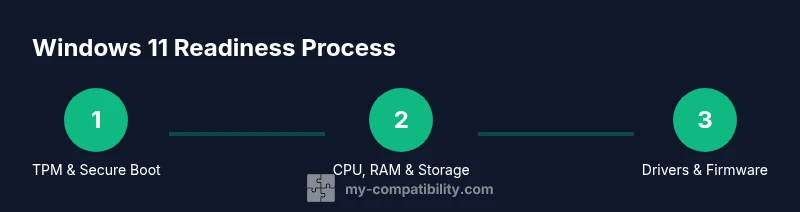
TPM and Secure Boot are security features that Windows 11 relies on. To verify TPM status, run tpm.msc from the Run dialog or check BIOS/UEFI security settings. For Secure Boot, reboot into BIOS/UEFI and confirm that Secure Boot is enabled. If TPM is unavailable or Secure Boot is disabled, you’ll often gain a path forward by performing a firmware update, enabling the features, or adjusting a BIOS setting. Firmware updates from the laptop manufacturer can also alter compatibility quickly, so check for new firmware before deciding to upgrade. My Compatibility notes that these steps are frequently overlooked, but they’re the fastest route to a genuine readiness signal.
CPU, RAM, and storage feasibility
A compatible CPU is essential, and RAM/ storage headroom determines how smoothly Windows 11 operates. Check your CPU model against Microsoft’s supported list, which will define whether your processor qualifies. Next, verify your installed RAM and free disk space. If RAM is below threshold, you may consider upgrading if the laptop supports it, and if storage has a healthy margin, upgrade or clean up files to create room for the upgrade files. The goal is to ensure the device can run Windows 11 without throttling performance or forcing frequent re-quiescence of features.
Drivers, firmware, and hardware support
Windows 11 depends on current drivers and firmware to deliver stability and feature parity. Visit the laptop manufacturer’s support site to compare the latest drivers with Windows 11 requirements. Update chipset, graphics, and network drivers before attempting an upgrade. If you rely on professional software, verify that the vendor has Windows 11-certified builds. In some cases, third-party peripherals may not have Windows 11 drivers yet, which could affect functionality. Regular updates from the device maker and Microsoft are the best way to maintain compatibility over time.
Planning your upgrade or alternative options
If, after checks, your laptop doesn’t meet Windows 11 prerequisites, you still have options. You can stay on Windows 10 with extended support until mid-decade, pursue a hardware upgrade that preserves portability, or explore alternative lightweight OS configurations for specific tasks. Plan for backups, ensure compatibility with essential apps, and set a realistic timeline for any hardware refresh. My Compatibility’s approach emphasizes practical, risk-managed decisions that minimize downtime while maintaining the user’s goals.
What to do if you’re unsure or find mixed signals
If some checks pass while others are inconclusive, document the exact results and consult official guidance. Use manufacturer FAQs and trusted reviews to confirm whether BIOS updates or driver releases have improved Windows 11 readiness. When in doubt, test with a non-critical workload to assess performance and stability before a full upgrade. The process is iterative: confirm, update, re-check, and decide. This method reduces the guesswork and helps you protect your data and workflows.
Tools & Materials
- Laptop with internet access(Active connection to download updates and view online guidance)
- Windows 11 compatibility tools(PC Health Check or alternative readiness tool)
- BIOS/UEFI access(Needed to verify TPM and Secure Boot; adjust settings if needed)
- Backup storage(External drive or cloud backup to protect data prior to upgrade)
- Current drivers and firmware access(Always fetch latest versions from the manufacturer site before upgrading)
- Notes or a checklist(Useful to track each check and decision)
Steps
Estimated time: 60-90 minutes
- 1
Open the official Windows 11 requirements page
Begin with the primary Microsoft resource to understand the baseline. Compare your device against each criterion and mark any gaps. This establishes a concrete target for the rest of the checks.
Tip: Bookmark the page for quick reference during later steps. - 2
Run built-in compatibility checks
Launch PC Health Check or a reputable alternative to get an at-a-glance verdict on your hardware. Record the outcome and note any specific warnings or blocks.
Tip: If the tool flags a component, don’t panic—often a firmware update resolves the issue. - 3
Verify TPM 2.0 status
Access TPM status via tpm.msc or BIOS/UEFI. Confirm TPM is present and enabled to support Windows 11 security features.
Tip: If TPM is disabled, enable it in BIOS/UEFI and reboot to recheck. - 4
Check Secure Boot status
Confirm Secure Boot is enabled in the BIOS/UEFI settings. This feature is a prerequisite for Windows 11’s security guarantees.
Tip: If Secure Boot isn’t available, verify firmware mode and firmware updates from the vendor. - 5
Assess CPU, RAM, and storage
Compare CPU model against the Windows 11 supported list and ensure RAM and storage headroom meet recommendations. Maintain your minimums with a cushion for updates.
Tip: A quick RAM and storage check can be done in System Information or Settings → System → Storage. - 6
Inspect drivers and firmware
Visit the manufacturer support site to confirm Windows 11-certified drivers. Update chipset, graphics, and network drivers before upgrading.
Tip: Prefer manufacturer-supplied drivers over generic alternatives for stability. - 7
Plan the upgrade or alternative path
Decide whether to upgrade, defer, or pursue hardware refresh based on the checks. Prepare backups and a rollback plan.
Tip: Create a system restore point and verify backups before proceeding.
Questions & Answers
What are the minimum system requirements for Windows 11 on a laptop?
Windows 11 requires a compatible 64-bit processor, 4 GB RAM, 64 GB storage, TPM 2.0, and Secure Boot. Some features also depend on updated drivers and firmware. Always verify against the official Microsoft list and your device manufacturer's guidance.
Windows 11 needs a compatible 64-bit CPU, at least 4 gigabytes of RAM, 64 gigabytes of storage, TPM 2.0, and Secure Boot. Check both Microsoft’s requirements and your device maker’s updates.
How do I check TPM 2.0 and Secure Boot on my laptop?
To check TPM 2.0, run tpm.msc or look in BIOS/UEFI security settings. For Secure Boot, enter BIOS/UEFI and confirm it is enabled. If either is missing, enable or update firmware as recommended by the manufacturer.
Open Run, type tpm.msc to check TPM 2.0, and verify Secure Boot in BIOS/UEFI settings.
What if my CPU isn’t on the supported Windows 11 list?
If your CPU isn’t on the supported list, Windows 11 may not install or run with official support. You can still try an upgrade, but you might encounter stability or feature limitations. Consider hardware refresh or sticking with Windows 10 with extended support.
If your CPU isn’t on the supported list, Windows 11 may not install with full support; you might need a hardware refresh or stay on Windows 10 for now.
Is Windows 11 free to upgrade from Windows 10?
In many cases, upgrading from Windows 10 to Windows 11 is a software upgrade offered by Microsoft, but availability can vary by device and region. Always confirm through Windows Update and your device manufacturer’s guidance before proceeding.
Upgrading from Windows 10 to Windows 11 is generally available, but check Windows Update for your device to confirm eligibility.
What are common reasons a device fails the readiness check?
Common reasons include missing TPM 2.0, Secure Boot disabled, unsupported CPU, insufficient RAM, or inadequate storage. Firmware or driver issues can also cause false negatives until updates resolve them.
Most failures come from TPM, Secure Boot, CPU, RAM, or storage issues, often corrected with firmware or driver updates.
What should I do if my device fails the compatibility check but I still want Windows 11?
Evaluate upgrade alternatives like updating firmware, enabling features, or hardware upgrades where feasible. If upgrade isn’t viable, consider continuing with Windows 10 while monitoring official support timelines.
If it fails, consider firmware updates or hardware upgrades; otherwise, stay on Windows 10 until supported.
Watch Video
Highlights
- Check TPM 2.0 and Secure Boot early to confirm security prerequisites.
- Verify CPU, RAM, and storage against Windows 11 requirements with care.
- Update drivers and firmware before upgrading to minimize issues.
- Back up data and plan a rollback in case of upgrade failure.
- If hardware falls short, consider a refresh or staying on Windows 10 with support.