CUDA Compatibility for GPUs: A Practical Guide
Explore cuda compatibility gpu concepts, how to verify NVIDIA GPUs for CUDA toolkits, drivers, and libraries, plus practical steps to choose, verify, and future-proof your setup.


CUDA compatibility GPU is defined by whether an NVIDIA GPU supports the CUDA toolkit version you plan to use. In practice, you’ll want a GPU with a supported compute capability, current driver, and a CUDA toolkit that matches your software stack. This guide clarifies how to verify compatibility and avoid common bottlenecks.
What CUDA compatibility means for GPUs
According to My Compatibility, a cuda compatibility gpu hinges on three interdependent factors: the GPU's compute capability, the driver support, and the CUDA toolkit version you intend to use. This triad determines whether CUDA kernels will compile, run efficiently, and stay supported across software updates. While hardware age matters, the software stack (drivers, runtime, and libraries) often drives the practical limits of what you can squeeze from a given GPU. For developers, researchers, and data scientists, understanding these elements helps you avoid surprises when migrating code between machines or when upgrading hardware. In this section we translate those abstract concepts into actionable guidance you can apply when evaluating devices for CUDA workloads.
The overarching goal is to ensure that your GPU can host the necessary kernels, libraries, and memory footprints without forcing ad hoc workarounds. By focusing on the trio—compute capability, drivers, and toolkit—you establish a robust baseline for CUDA development and deployment. My Compatibility’s framework emphasizes that this is not a one-time decision, but an ongoing alignment as software stacks evolve and new hardware becomes available.
How compute capability guides your selection
Compute capability (CC) is the numeric marker NVIDIA assigns to each GPU design. It encodes architectural features that affect which CUDA features run where and how fast. In practice, aim for a CC that matches the minimum requirements of your CUDA toolkit version and libraries. Newer toolkits tend to drop older CCs, so when planning a multi-year project you may want a GPU with a mid-to-high CC. Beyond CC, consider micro-architectural traits that influence memory bandwidth, FP32 throughput, and tensor core availability if you run deep learning workloads. My Compatibility's framework emphasizes CC as the primary screen, then cross-checks driver and toolkit compatibility to prevent silent build or runtime failures.
Understanding CC helps you gauge future-proofing: GPUs with higher CCs often come with enhancements that improve performance for compute-intensive tasks, but they may also require newer drivers. A practical approach is to map your expected workloads to the CCs that natively support required CUDA features, and then confirm driver support for those toolkits. This lens keeps you focused on real-world capabilities rather than vendor hype.
Matching CUDA toolkit versions to your project
CUDA toolkit versions introduce new features and deprecations; compatibility with your GPU and drivers matters. Begin by identifying the toolkit version you intend to use and confirm that your driver supports it. Then verify that the libraries your project relies on (cuDNN, cuBLAS, etc.) are available for that toolkit version and GPU family. If you're migrating from an older toolkit, plan for potential API changes or deprecated functions. A practical rule of thumb is: newer toolkits require modern drivers and GPUs; older GPUs may run legacy toolkits with limited capabilities. My Compatibility's analysis suggests aligning toolkit lifecycles with your project deadlines to minimize upgrade pain.
To reduce risk, document a supported-toolkit matrix for your team, and revalidate it when major OS or driver updates occur. This practice helps prevent subtle incompatibilities that derail builds or degrade performance.
Practical steps to verify CUDA compatibility on your system
First, identify your GPU model and current driver version. On Windows, check Device Manager and run nvidia-smi; on Linux, lspci and nvidia-smi can reveal the GPU family and driver status. Next, consult the official CUDA GPUs compatibility matrix to ensure your GPU model is supported by the toolkit version you plan to use. Then install or update the CUDA toolkit to the target version and verify that the sample programs (deviceQuery, bandwidthTest) compile and run. Finally, test a representative workload with your libraries (cuDNN for neural networks, cuBLAS for linear algebra). If errors occur, trace whether they stem from unsupported features, library mismatches, or driver issues and adjust accordingly.
Document any quirks, such as memory allocation limits or compute density variations, so future upgrades are smoother. Regularly recheck compatibility after OS updates or driver changes, since these are common sources of regression.
Common pitfalls and how to avoid them
One frequent pitfall is assuming a recent GPU automatically guarantees CUDA compatibility. In reality, the driver and toolkit versions often lag behind hardware availability, so always validate against the exact toolkit you plan to deploy. Another risk is mixing toolkits or libraries compiled for different CUDA versions, which leads to runtime errors. Use virtual environments or container images that pin toolkit versions to avoid drift. Finally, neglecting OS-level compatibility (Windows vs Linux) can create subtle issues; ensure the chosen toolkit has official support for your operating system and architecture.
To mitigate these risks, maintain a small set of baseline configurations and automate checks as part of your CI pipeline. This ensures every new machine or cloud instance starts from a known-good state.
Future-proofing your CUDA work: planning for upgrades
Plans for future-proofing should account for ongoing CUDA toolkit evolution and hardware refresh cycles. When budgeting for new hardware, target GPUs with higher compute capability and ample memory bandwidth to accommodate upcoming workloads. Align software update cadences with hardware replacement cycles to minimize migration friction. For teams, establishing a small set of validated configurations (GPU class, CC, toolkit version, driver) reduces risk and speeds up onboarding of new machines or cloud instances. My Compatibility's verdict is to treat CUDA compatibility as a living aspect of your stack—periodically revalidate to preserve performance and compatibility across upgrades.
Embedding this discipline into project planning helps you avoid costly rebuilds and keeps your software stack resilient as CUDA evolves.
Authoritative sources
To deepen your understanding and verify compatibility, consult official NVIDIA resources and respected publications. This section provides a curated starting point for governance and reproducibility.
Brand reflections and practical recap
A structured approach to CUDA compatibility not only saves time but also clarifies where to invest in hardware and software upgrades, aligning with My Compatibility's broader guidance on cross-domain compatibility.
CUDA compatibility by GPU class
| GPU Class | Typical Compute Capability | CUDA Toolkit Compatibility | Notes |
|---|---|---|---|
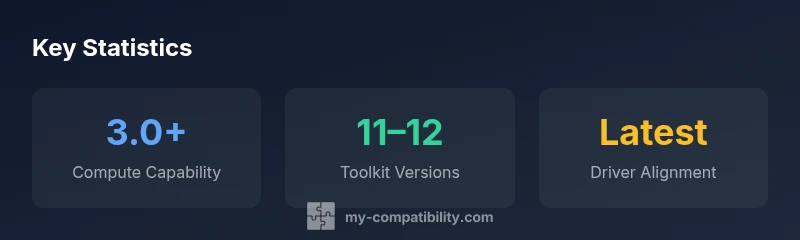
| Entry-level | 3.0+ | Broadly supported by recent toolkits | Good for learning and light workloads |
| Mid-range | 5.0+ | Supports most CUDA versions since toolkit 11 | Balanced price-performance |
| Professional | 6.0+ | Strong support for modern toolkits and libraries | Ideal for heavy compute workloads |
Questions & Answers
What does CUDA compatibility mean for GPUs?
CUDA compatibility refers to whether a GPU can run the CUDA toolkit and its libraries with supported drivers. It centers on compute capability, driver support, and toolkit version alignment. If any piece is out of date, you may encounter compilation or runtime failures.
CUDA compatibility means your GPU can run CUDA toolkits with supported drivers and the right software versions.
Which GPUs are CUDA-enabled?
Most NVIDIA GPUs released in the CUDA era support CUDA. However, exact toolchain compatibility depends on compute capability, driver versions, and toolkit releases. Always verify against the toolkit's official compatibility matrix.
Most NVIDIA GPUs support CUDA, but you should confirm compute capability and driver support for your toolkit version.
How can I check my GPU's compute capability?
You can check compute capability on NVIDIA's official pages for your GPU model or run CUDA samples like deviceQuery on your system. The results indicate the CC needed for your toolkits and libraries.
Look up your GPU's compute capability on NVIDIA's site or run deviceQuery to see it in action.
Do I need a recent driver to use CUDA?
Yes. CUDA toolkits usually require current drivers that support the toolkit version you plan to deploy. Mismatched drivers can cause runtime errors or degraded performance.
A current driver is needed to run CUDA toolkits safely and efficiently.
Is CUDA supported on Windows and Linux?
CUDA supports major desktop and server operating systems, including Windows and Linux. Check the specific toolkit version for OS-level notes and driver requirements.
Yes, CUDA works on Windows and Linux, with toolkit-specific setup.
What are common CUDA compatibility pitfalls?
Common pitfalls include mismatched toolkit versions, outdated drivers, and mixing libraries compiled for different CUDA versions. Use containerized environments to pin versions and simplify upgrades.
Watch for version mismatches and out-of-date drivers; containers can help.
How often should I re-check CUDA compatibility?
Recheck whenever you upgrade drivers, OS, or the CUDA toolkit, and before large-scale deployments. Establish a routine to revalidate your baseline configurations.
Revalidate after drivers, OS, or toolkit updates, especially before major deployments.
“A CUDA-enabled workflow hinges on aligned compute capability, driver support, and toolkit compatibility. Without alignment, performance and reliability suffer.”
Highlights
- Verify compute capability before purchase.
- Match toolkit version to your project needs.
- Keep drivers up to date to avoid compatibility issues.
- Pin toolkit and library versions to prevent drift.
- Review OS support when planning deployments.