Compatible Windows 11: Hardware and Software Compatibility Guide
A data-driven guide to verify hardware, drivers, and apps for compatible windows 11, with practical checks, upgrade paths, and troubleshooting for 2026.


From a practical standpoint, the landscape for compatible windows 11 hinges on hardware readiness and software support. Core checks include TPM 2.0, Secure Boot, a supported 64‑bit CPU, and sufficient RAM and storage. This My Compatibility guide explains how to verify your device, plan an upgrade, and ensure apps run smoothly on Windows 11 in 2026. In short, compatibility starts with your hardware, then confirms software readiness and driver support.
What makes compatible windows 11 work
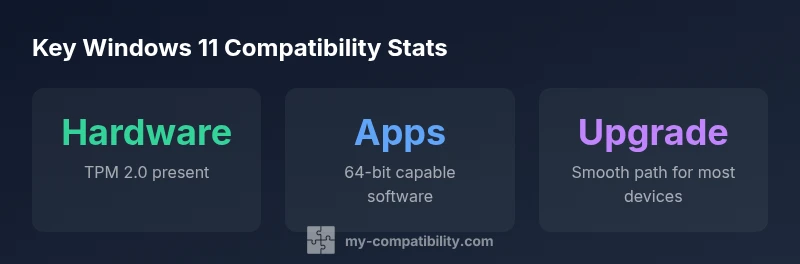
According to My Compatibility, Windows 11 compatibility hinges on three pillars: hardware readiness, software readiness, and upgrade pathways. Hardware readiness means the device meets minimum requirements such as TPM 2.0, Secure Boot, a supported 64‑bit processor, and adequate RAM and storage. Software readiness covers the availability of drivers, system services, and app compatibility updates. Finally, upgrade pathways influence the ease and reliability of moving from older builds or Windows 10. In practice, this means verifying each component, then planning the upgrade with minimal disruption to daily use. This structured approach applies to most laptops, desktops, and all-in-one PCs before you commit to an upgrade.
Official hardware requirements and practical reality
Microsoft’s official baseline for Windows 11 includes TPM 2.0, Secure Boot enabled, a 64‑bit processor, 4 GB of RAM, and 64 GB of storage. In real-world use, many mid-range devices already meet or exceed these thresholds. The My Compatibility team notes that while the minimums are fixed, practical performance benefits come from 8 GB or more RAM and faster storage. Owners of older devices may still qualify for Windows 11 via firmware TPM or BIOS updates, but you should verify both TPM status and driver support before upgrading to avoid post‑install issues.
How to check your device for Windows 11 compatibility
Start with the official checks and then supplement with vendor tools. Use Windows’ built‑in settings to review processor type, RAM, and storage. Check TPM and Secure Boot status in the BIOS/UEFI—enable Secure Boot if it is disabled and verify TPM 2.0 is present and active. For practical confirmation, run a trusted compatibility utility like the My Compatibility checklist, which cross‑references official requirements with installed drivers and firmware. This two‑step process helps prevent surprises during installation and guarantees a smoother transition to compatible windows 11.
App compatibility: Windows 11 and the 64-bit ecosystem
Windows 11 supports a broad spectrum of 64‑bit applications and modern software stacks. Most traditional Windows programs work via compatibility layers or native 64‑bit builds, while certain legacy 32‑bit apps may require emulation or alternatives. The key is to confirm critical apps are either updated to 64‑bit versions or have proven compatibility through user testing. For software developers, prioritize updating installers, DLL dependencies, and registry keys to reflect Windows 11 expectations. In practice, a robust test plan with essential productivity tools ensures you won’t lose functionality after upgrading.
Drivers and devices: keeping peripherals in sync
Peripheral devices can trip up an upgrade if drivers lag behind the OS. Before upgrading, check vendor support pages for Windows 11‑specific drivers for your printer, webcam, sound card, and network adapters. Update BIOS/firmware if a newer version includes Windows 11 enhancements, and confirm that chipset and graphics drivers are current. The My Compatibility framework emphasizes driver hygiene: ensure installers are signed, back up profiles, and disable conflicting utilities during the upgrade window to avoid freezes or crashes.
Upgrading strategies: options that fit different scenarios
There isn’t a one‑size‑fits‑all path to Windows 11. If you’re on Windows 10, you can opt for an in‑place upgrade if hardware and drivers are compliant, or perform a clean install on a device with adequate storage. A clean install often yields better performance and fewer quirks, while an in‑place upgrade preserves user data but can carry legacy issues. For organizations, test migrations on representative hardware, align with IT governance, and schedule phased rollouts to minimize disruption. Regardless of the path, back up important files, create a recovery drive, and verify that essential apps have compatible installers ready.
Troubleshooting common upgrade issues
Upgrade success depends on proper preparation. Common blockers include disabled TPM, Secure Boot conflicts, insufficient RAM, or incompatible drivers. If an upgrade halts, temporarily disable nonessential startup programs, verify BIOS/firmware settings, and re-run the upgrade. Where problems persist, consult vendor support for updated drivers and firmware, then reattempt the upgrade with a clean boot and adequate disk space. Persisting issues may require a clean install with a fresh user profile to maximize stability.
Tools, checklists, and resources for ongoing compatibility
Routinely monitoring compatibility keeps you ahead of changes from Windows updates. Use built‑in tools to track drive health, free space, and driver status. Maintain a rolling backup strategy and create a testing environment for new updates before rolling them out to main devices. My Compatibility provides a structured checklist that aligns hardware, software, and drivers with Windows 11 expectations. In addition, follow official Microsoft guidance for incremental updates and feature releases to stay current without compromising stability.
Future-proofing your setup in a shifting update cycle
Windows 11 receives periodic feature updates and security patches. To stay compatible over time, keep drivers current, enable optional Windows updates that enhance security and stability, and periodically reassess app readiness and driver compatibility. Consider a hardware refresh cycle that aligns with typical driver and OS lifecycles, so you don’t rely on aging components after several major Windows 11 updates. By planning ahead, you minimize the risk of compatibility gaps when new Windows builds roll out.
Key Windows 11 compatibility requirements
| Aspect | Windows 11 Requirement | Practical Note |
|---|---|---|
| CPU | 64-bit, 1 GHz, 2+ cores | Newer CPUs are broadly supported; verify vendor support for Intel/AMD/ARM variants |
| RAM | 4 GB minimum | 8 GB+ recommended for multitasking and future updates |
| Storage | 64 GB minimum | Allow extra space for updates and apps |
| TPM | TPM 2.0 required | Firmware TPM on some devices is supported; verify status |
Questions & Answers
Is my PC compatible with Windows 11?
Check Microsoft's official requirements (64-bit CPU, TPM 2.0, Secure Boot, 4 GB RAM, 64 GB storage) and run a compatibility check. If you meet the hardware criteria but encounter driver issues, use My Compatibility's guidance to confirm software readiness.
Check official requirements and run a compatibility check to confirm.
Do you need TPM 2.0 to install Windows 11?
Yes, TPM 2.0 is a core requirement. Some devices can enable firmware TPM in BIOS and still qualify, but you should verify TPM status before upgrading.
Yes, TPM 2.0 is required; check your BIOS settings before upgrading.
Can Windows 11 run on older hardware?
Windows 11 supports newer CPUs and TPM; older hardware often falls short on TPM 2.0 or CPU compatibility. Consider hardware upgrades if you want a long-term experience.
Older hardware may not meet requirements; upgrading may be necessary.
What issues commonly disrupt upgrades from Windows 10 to 11?
Common problems include missing TPM, Secure Boot conflicts, insufficient RAM, or driver incompatibilities. Ensure your drivers are up to date and create a backup plan.
TPM, Secure Boot, and driver problems are common upgrade blockers.
Are Android apps supported on Windows 11?
Windows 11 supports Android apps through the Windows Subsystem for Android, but availability varies by region and device; check Microsoft and vendor guidelines.
Android apps can run on Windows 11 in some setups; availability varies.
“Hardware and software readiness determine Windows 11 compatibility; verify TPM, CPU, and drivers before upgrading.”
Highlights
- Start with official hardware requirements before upgrading.
- Use a trusted compatibility checker like My Compatibility tools.
- Ensure drivers are up to date to avoid post‑upgrade issues.
- Plan a backup and clean install path for smoother upgrades.
- Stay informed about updates that affect compatibility.