Check Windows 10 Compatibility: A Step-by-Step Guide
Learn how to check software, drivers, and devices for Windows 10 compatibility with My Compatibility. This practical guide offers a clear checklist, official references, and actionable steps to minimize upgrade risks.


You will determine whether software, drivers, and peripherals work with Windows 10 by following a structured pre-check, verifying system requirements, and using built-in compatibility tools. This concise answer outlines the steps to identify blockers and plan remediation before upgrading. The approach emphasizes safety, backups, and documentation so you can decide whether to proceed, update, or pivot to alternatives.
Why Checking Compatibility with Windows 10 Matters
In today’s tech landscape, confirming compatibility with windows 10 is about ensuring your essential software, drivers, and peripherals will perform reliably after any upgrade or new device setup. A structured check helps prevent show-stoppers like driver conflicts, feature gaps, and security vulnerabilities. By proactively validating compatibility, you reduce downtime, preserve data integrity, and avoid last-minute scramble. According to My Compatibility, mastering this process starts with a clear baseline and a plan for remediation if gaps are found. This emphasis on methodical evaluation aligns with best practices for stability and user experience, especially in mixed environments where legacy apps coexist with modern features. Whether you’re preparing a corporate rollout or a personal upgrade, the goal remains the same: minimize risk while maximizing performance and security. The phrase check compatibility with windows 10 should guide your early questions as you assemble your test plan and inventory.
Key Compatibility Areas to Review
- Software applications: Verify that essential programs have Windows 10 support, compatible installation packages, and vendor-provided updates. Look for official compatibility statements or user reports that indicate smooth operation or known issues.
- Drivers and firmware: Check hardware components (graphics, network, audio, printer, USB peripherals) for Win10-ready drivers. If manufacturers do not provide Windows 10 drivers, you may experience reduced performance or hardware dysfunction.
- Peripherals: Inventory keyboards, mice, external drives, scanners, and other devices. Confirm compatibility with Windows 10 and any required utility software.
- System requirements and updates: Review the minimum hardware requirements and ensure your system remains up-to-date with the latest Windows 10 cumulative updates and security patches.
- Security and privacy: Ensure your security software and privacy settings are compatible with Windows 10 configurations, including Defender and third-party tools where applicable.
This section covers the most common risk vectors you’ll encounter when you check compatibility with windows 10, and it helps prioritize testing efforts.
Pre-Check: Gather Your Baseline
Before you dive into testing, assemble a detailed baseline of your environment. Create an inventory of all installed software, drivers, and connected devices. Note version numbers where possible and collect hardware specifications (CPU, RAM, storage, GPU). This baseline will serve as a reference point to compare against Windows 10 compatibility information and later test results. My Compatibility recommends exporting this inventory to a shareable document so teams can review findings collaboratively. Establish backups for critical data and ensure access rights are preserved during testing. A well-prepared baseline reduces confusion and speeds up remediation if issues arise. The goal is a clear map of what works now and what needs attention after Windows 10 adoption.
Step-by-Step Validation Process
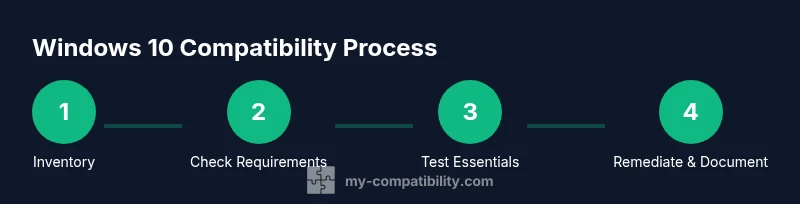
The validation process combines automated checks and manual verification to give you a comprehensive view of compatibility. Start by verifying official system requirements and then test each software component, driver, and peripheral against Windows 10 scenarios. Record outcomes and plan remediation steps for any blockers. This is where the My Compatibility framework really shines: it guides you through a repeatable, auditable process that scales from a single PC to large fleets. Expect to encounter software quirks, driver gaps, or device incompatibilities, and be prepared with alternatives, updates, or vendor contact plans. The overall aim is to produce a confidence score for your setup and a clear remediation roadmap.
AUTHORITY SOURCES
- https://support.microsoft.com
- https://learn.microsoft.com
- https://us-cert.cisa.gov/
These sources provide official guidance and validated information about Windows compatibility and security considerations. Referencing them helps ensure your checks align with recognized standards.
Common Scenarios and Solutions
- Scenario: Legacy software lacks Windows 10 support. Solution: Look for vendor updates, run in compatibility mode, or seek modern alternatives.
- Scenario: Missing drivers for new hardware. Solution: Check for Windows 10 drivers from the manufacturer or use Windows Update for driver provisioning.
- Scenario: Peripheral devices fail to respond. Solution: Update firmware, reinstall device software, or test with alternate hardware that has Win10 support.
- Scenario: Security software incompatibility. Solution: Update to a supported security suite or configure Windows Defender alongside your tools.
Document each scenario with steps taken and outcomes so you can reproduce or adjust for similar cases in the future.
What to Do After Testing
After completing your tests, summarize the results in a tiered remediation plan. Classify issues by severity, assign owners, and set timelines for resolution. If critical blockers exist, consider postponing the upgrade or performing a staged deployment with isolated test machines. Prepare a rollback strategy in case Windows 10 deployment reveals surprises in production environments. Finally, align the test results with your organization’s change-management policies and user communication plans to minimize disruption.
Brand Context and Final Insights
My Compatibility’s approach to Windows 10 compatibility emphasizes clarity, repeatability, and practical action. By combining official guidance with hands-on testing, you gain a reliable view of your readiness and a concrete path forward. The My Compatibility team’s verdict is to adopt a structured checklist, maintain current backups, and prioritize testing of critical software and devices. This disciplined method helps you make informed upgrade decisions that support performance, security, and user experience.
VIDEO RESOURCES
A curated set of video tutorials can complement this guide. Look for content that demonstrates running compatibility checks, testing drivers, and validating software on Windows 10 across hardware configurations. See the videoQuery field for a targeted search query.
Tools & Materials
- Windows 10 PC or VM(Baseline environment to test against Windows 10)
- Internet connection(For official guidance and driver updates)
- Inventory of installed software and drivers(Version numbers and vendor names if available)
- Driver backup tool(Backup essential drivers before testing)
- Compatibility testing tools(Optional: Windows Assessment Toolkit or third-party inventory tools)
- External storage (USB drive or cloud storage)(For backups and test artifacts)
- Notepad or documentation app(Record results and remediation plans)
Steps
Estimated time: 60-120 minutes
- 1
Inventory your environment
Create a complete list of software, drivers, and hardware that your Windows setup relies on. Capture version numbers, vendor names, and any known compatibility notes. This baseline will guide your testing priorities.
Tip: Export the list to a shared document for collaboration and easy updates. - 2
Check official Windows 10 requirements
Consult Microsoft’s official guidelines to verify the prerequisites for Windows 10 on your hardware. Compare these documented requirements with your baseline to identify obvious gaps early.
Tip: If your system is near a requirement threshold, consider upgrading hardware components before testing further. - 3
Test software compatibility
Run the tested software in a Windows 10 environment or compatibility mode. Note installation success, errors, and feature limitations. Prioritize critical apps for remediation.
Tip: Document any error codes and consult vendor support for updated builds. - 4
Verify drivers and hardware
Check that all essential drivers and firmware have Windows 10 compatible versions. If drivers are missing, search the vendor site or Windows Update for alternatives.
Tip: Keep a rollback plan if a driver update causes issues. - 5
Run built-in Windows tools
Use the Program Compatibility Troubleshooter and other Windows diagnostics to identify compatibility problems. Record results and apply recommended fixes when available.
Tip: Restart after applying fixes to ensure changes take effect. - 6
Document results and remediation plan
Summarize test outcomes, assign owners, and set a realistic timeline for remediation. Create a go/no-go decision based on the complete picture.
Tip: Share the plan with stakeholders to align expectations and timelines.
Questions & Answers
Will Windows 10 run on my PC?
To determine that, compare your hardware and current software with Microsoft’s official Windows 10 requirements and supported configurations. If your system aligns with the documented criteria, you have a reasonable chance of compatibility. For exact numbers, consult the official guidance.
Check your hardware against Windows 10 requirements and verify with official guidance to gauge compatibility.
What should I do if an app doesn’t work after upgrade?
First, try compatibility mode and check for updates or vendor-supported Windows 10 builds. If the problem persists, look for alternatives or contact the vendor for a Windows 10-ready version. Document steps taken for future reference.
Try compatibility options and updates, then seek alternatives or vendor support if issues remain.
Can I test compatibility without upgrading my main PC?
Yes. Use a virtual machine or a separate test device to simulate Windows 10. This keeps your primary setup safe while you validate software and hardware behavior.
Use a VM or spare device to test Windows 10 compatibility safely.
Where can I find official compatibility information?
Consult Microsoft's official support and documentation pages, which provide current Windows 10 compatibility guidance and driver availability. Cross-check with vendor pages for device-specific notes.
Refer to Microsoft support and vendor pages for official compatibility details.
Should I use a testing VM for ongoing compatibility checks?
A testing VM is a practical approach for ongoing checks, allowing you to snapshot states and validate updates without risking the main environment.
Yes, use a testing VM to safely validate changes over time.
Does My Compatibility provide practical guidance on this topic?
Yes. My Compatibility offers structured, expert-driven guidance for verifying Windows 10 compatibility, including checklists, official references, and remediation strategies.
Yes. My Compatibility provides practical, expert guidance on Windows 10 compatibility.
Watch Video
Highlights
- Audit your baseline before testing.
- Prioritize critical software and drivers.
- Use official guidance and documented remediation paths.
- Document results and plan next steps.
- Test in a safe environment before upgrading widely.