Computer Compatibility Check: A Complete How-To Guide
Learn how to perform a thorough computer compatibility check to ensure hardware, OS, drivers, and software work together smoothly. This step-by-step guide covers data gathering, requirement matching, testing, and remediation for reliable performance.


A computer compatibility check verifies that your hardware, operating system, drivers, and software meet each other’s requirements so tasks run smoothly and reliably. This step-by-step approach helps you gather system information, compare it against software needs, update components, run practical tests, and document results for ongoing maintenance.
What is a computer compatibility check?
A computer compatibility check is a structured process to confirm that all essential parts—CPU, RAM, storage, GPU, motherboard/firmware, operating system, drivers, and installed software—work in harmony. By validating minimum requirements, compatibility with updates, and driver support, you reduce crashes, slowdowns, and unexpected behavior. According to My Compatibility, a thorough assessment starts with a clear baseline, then compares real hardware capabilities with software demands to determine gaps and remediation steps.
Why compatibility matters for performance and stability
When hardware and software are out of sync, even small mismatches can cascade into stability issues, reduced performance, or incompatible features. A proactive computer compatibility check helps you avoid bottlenecks in heavy tasks—like video editing, 3D rendering, or gaming—and ensures long-term reliability. My Compatibility analysis emphasizes that regular checks—especially after OS updates or driver releases—keep your system healthy and predictable. This is not just about meeting minimum specs; it’s about ensuring the actual hardware can sustain typical workloads without unexpected throttling or crashes.
Key compatibility factors: hardware, software, and environment
Compatibility rests on three pillars: hardware (CPU, RAM, storage, GPU, motherboard firmware), software (OS version, application requirements, libraries), and environment (drivers, firmware updates, BIOS/UEFI settings, power and cooling). A mismatch in any pillar can create instability or degraded performance. You’ll also consider virtualization options if you rely on sandboxed environments or emulation, which can introduce additional requirements. Based on My Compatibility research, addressing all three pillars yields the most reliable results for diverse workloads.
How to gather system information quickly
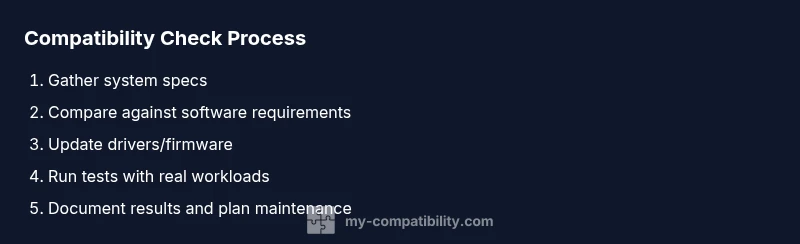
Start by collecting baseline data: CPU model, total RAM, available storage, graphics capabilities, and current OS version. Use built-in tools (like System Information on Windows, About This Mac on macOS, or lsblk/lshw on Linux) to generate a snapshot. Document driver versions and firmware levels, as outdated firmware or drivers are common sources of incompatibility. Keep a saved log or CSV to compare against software requirements later. This initial sweep creates a concrete foundation for the rest of the check.
Evaluating software requirements against your system
Next, identify the software you plan to run and fetch its official requirements—minimum and recommended. Compare those against your system data: RAM, CPU features (like virtualization support), GPU capabilities, available disk space, and OS compatibility. If requirements are tailored for specific hardware (e.g., CUDA-enabled GPUs), note any gaps and decide whether to upgrade, adjust workflows, or use alternatives. This stage translates abstract requirements into actionable gaps. My Compatibility notes that aligning software expectations with real hardware is often the fastest path to reliability.
Checking drivers and firmware
Driver and firmware congruence is a frequent pain point. Verify that you have current, signed drivers compatible with your OS, and confirm firmware/BIOS is up to date. Check for known conflicts with third-party utilities and ensure power management settings won’t throttle performance. If you rely on external hardware, verify vendor support and compatibility matrices. Regularly testing driver stacks during major updates helps catch issues early. My Compatibility guidance stresses proactive driver hygiene to minimize surprises.
Running practical tests: benchmarks and real-world tasks
Move from theory to practice by running representative tests that reflect real workloads. Use lightweight benchmarks to gauge CPU, memory bandwidth, and disk I/O, then run typical tasks such as editing a sample project, rendering a short video, or playing a game at your target settings. Record outcomes, temperatures, and any throttling alerts. If tests reveal bottlenecks, re-check drivers, adjust settings, or reallocate resources. This phase confirms theoretical compatibility with tangible results.
Case studies: scenarios for different user profiles
Consider common user profiles to illustrate how to tailor a compatibility check: a software developer on a mid-range desktop, a content creator on a high-demand workstation, a gamer building a budget PC, and an IT admin evaluating a laptop fleet. Each scenario has its own priority priorities (stability, speed, power efficiency, or portability). By mapping your needs to the three-pillar model (hardware, software, environment), you can optimize configurations without overhauling the entire system. My Compatibility’s framework helps translate these scenarios into concrete action steps.
Troubleshooting and remediation steps
When issues surface—crashes, hangs, or failed tests—start with the simplest fixes: verify OS updates, reinstall or update drivers, ensure sufficient cooling, and confirm power settings. If problems persist, roll back recent changes to identify the root cause, check for BIOS/UEFI firmware conflicts, and test with minimal startup programs. Document each remediation and re-test to verify stability. Remember to back up data before making significant changes to avoid data loss.
Creating a living compatibility plan and maintenance
Treat compatibility as an ongoing process rather than a one-time task. Create a maintenance calendar aligned with OS and driver release cycles, track software versions, and maintain an updated compatibility matrix for your most-used workloads. Periodically re-run the full check after major updates or new software installations. This proactive posture minimizes surprises and keeps your system aligned with evolving requirements, improving long-term reliability. The My Compatibility team recommends establishing a lightweight, repeatable workflow so you can reproduce results across devices and teams.
Tools & Materials
- System information tool (Windows: msinfo32, macOS: About This Mac, Linux: lshw/lsblk)(Capture CPU, RAM, storage, motherboard, and GPU details.)
- Storage space analyzer(Ensure sufficient free space for software and swaps.)
- Driver and firmware check utility(Verify latest supported versions from vendor sites.)
- Software requirement documents(Gather official minimum/recommended specs for target software.)
- Internet connection(For updates and driver downloads.)
- Baseline test suite(A small set of tests that simulate typical tasks (e.g., editing, rendering, gaming).)
- Notebook or logging tool(Record results, temperatures, and configurations.)
Steps
Estimated time: 30-120 minutes
- 1
Prepare baseline data
Enable a baseline capture of CPU, RAM, GPU, and storage. Open your system info tools and export a snapshot so you can compare against software requirements later.
Tip: Save the output as a timestamped file to track changes over time. - 2
Collect OS and software requirements
List the exact OS version you have and the software versions you intend to run. Note any minimum hardware or library dependencies (e.g., specific GPU features or driver versions).
Tip: If you’re unsure about a requirement, check the official vendor or developer docs. - 3
Map requirements to hardware
Create a side-by-side map showing where your hardware meets, exceeds, or falls short of each software requirement.
Tip: Highlight potential bottlenecks to decide between upgrades or alternatives. - 4
Verify drivers and firmware
Check driver and firmware versions, compare with vendor support matrices, and install any available updates.
Tip: Restart after updates to ensure changes take effect. - 5
Run a basic compatibility test
Execute lightweight benchmarks or real-work tasks to observe performance and stability under typical workloads.
Tip: Monitor temperatures and power usage during tests. - 6
Analyze results
Look for signs of throttling, crashes, or incompatibilities. Note any inconsistencies between expected and observed performance.
Tip: Document anomalies with screenshots and logs. - 7
Mitigate issues
Apply fixes such as updating drivers, adjusting settings, freeing disk space, or reallocating resources.
Tip: Avoid risky changes like flashing BIOS unless necessary. - 8
Document and report findings
Create a formal compatibility report summarizing baselines, gaps, fixes, and recommendations for next steps.
Tip: Share the report with stakeholders or team members. - 9
Schedule ongoing checks
Set a cadence for periodic reviews aligned with major OS or software releases.
Tip: Treat this as a living document you update through time.
Questions & Answers
What is a computer compatibility check and why do I need it?
A computer compatibility check verifies that your hardware, OS, drivers, and software align so programs run reliably. It helps prevent crashes and performance issues by identifying gaps before you install new software or updates.
A computer compatibility check makes sure your hardware and software work well together, preventing crashes and slowdowns before you install new programs.
Do I need to check BIOS/UEFI settings as part of the process?
Yes. Verifying BIOS/UEFI firmware and settings can prevent hardware compatibility problems, especially around memory timi ng, virtualization features, and boot options. Ensure firmware is up to date and settings align with your workload.
Yes, BIOS/UEFI checks matter, especially for memory and virtualization features.
How often should I run a compatibility check?
Run a check after major OS updates, driver releases, or when planning significant software installations. Periodic refreshes—every few months—help maintain reliability as software ecosystems evolve.
Run checks after big updates, and consider periodic refreshes every few months.
What if my hardware doesn’t meet software requirements?
If hardware falls short, options include upgrading components, adjusting software workflows, or using alternative tools that match your specs. Prioritize changes that yield the biggest impact on your typical tasks.
If hardware falls short, upgrade or adjust workflows to meet the needs.
Can a compatibility check improve gaming performance?
Yes, by confirming GPU, CPU, RAM, and driver compatibility, you can optimize settings and avoid bottlenecks. It also helps ensure the game runs smoothly at your target resolution and frame rate.
It helps ensure your system meets gaming requirements for smooth performance.
Watch Video
Highlights
- Run a formal baseline to anchor your checks
- Match software requirements to actual hardware and OS
- Update drivers/firmware before heavy testing
- Document findings for future maintenance
- Schedule regular compatibility reviews