Mac OS Compatibility Check: Step-by-Step Guide
Learn how to verify Mac OS compatibility for apps, hardware, and software with a practical, step-by-step approach from My Compatibility.


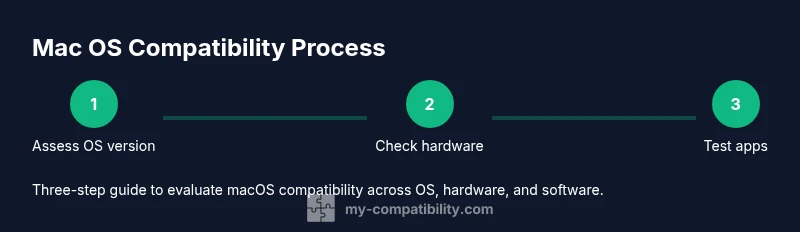
You're going to perform a comprehensive mac OS compatibility check that covers OS version support, hardware requirements, and software readiness. This quick guide shows you how to locate official requirements, run built-in checks, verify Rosetta compatibility if needed, and interpret results using a practical checklist. According to My Compatibility, planning for future macOS updates and cross-checking with your critical apps prevents surprises.
What is a macOS compatibility check?
A macOS compatibility check is a deliberate, structured review of whether your Mac, its operating system, and the software you rely on will work together now and after planned updates. It isn’t just about whether a program runs; it’s about compatibility across the OS version, hardware specs, and peripheral devices. A robust check helps you avoid failed updates, performance bottlenecks, and driver conflicts. At its core, the process combines official system requirements with practical testing on your actual setup. According to My Compatibility, a thorough check also considers future macOS version cycles so you stay prepared.
Key ideas include differentiating between hardware requirements (RAM, disk space, CPU/GPU), OS compatibility (minimum and recommended macOS), and app prerequisites (Rosetta, plugins, and native support). By structuring your review, you can identify gaps early and plan safe upgrades without downtime.
Understanding OS versions and hardware requirements
macOS releases come with explicit support matrices that tell you which Macs are compatible with a given version. A compatibility check starts by confirming your device model, RAM, storage capacity, and CPU/GPU capabilities against the official requirements. Don’t overlook ancillary components like network requirements, RAM bandwidth, and drive type (SSD vs HDD), which can influence overall performance. To stay aligned with best practices, capture your current macOS build number, machine model identifier, and available free disk space. My Compatibility’s analysis emphasizes cross-checking these details against both minimum and recommended specs to minimize surprises during upgrades.
When you compare requirements, keep a running tally of any gaps. If you’re close to the minimum, plan for a performance test and maybe a hardware upgrade path. In practice, this stage helps you prioritize which components to address first (memory upgrades, storage expansion, or relying on lighter software alternatives).
Verifying software compatibility: apps vs system apps
Software compatibility is multifaceted. Some apps require the latest macOS, while others run on older builds with the right plugins. Start by listing critical apps and their versions, then compare each against the official compatibility notes from developers or the Mac App Store. For third-party tools, verify whether they rely on Rosetta 2 on Apple Silicon or require native Silicon support. It’s equally important to check driver support for peripherals like printers, scanners, and audio interfaces. If an app lacks explicit support for your OS, consider alternatives or contact the vendor for an ETA on a compatible release.
A practical approach is to categorize apps into four groups: essential, preferred, optional, and legacy. Prioritize testing the first two before upgrading the OS. This helps you decide whether to stay on the current macOS version or schedule a controlled update window.
Checking hardware peripherals and drivers
Peripherals can introduce hidden incompatibilities even when software looks fine. The compatibility check should cover printers, scanners, external drives, docking stations, and audio interfaces. Start by confirming that each device’s model and firmware are current. Then verify driver availability for your macOS version. For devices that rely on vendor-specific software, ensure you have the latest driver bundle and confirm 64-bit compatibility if applicable. If drivers are absent or outdated, you may need to replace the device or revert to a safe alternative until compatibility is resolved.
Practical tip: test critical peripherals with your daily workflows before making any OS-wide changes. This reduces the risk that a new system update will leave essential devices non-functional.
Common pitfalls and how to avoid them
Rushed updates are a common source of friction. Avoid applying major macOS upgrades without confirming critical apps and devices have updated support. Another pitfall is underestimating the importance of backups; you should always have a verified restore point before major changes. Rosetta can solve many compatibility gaps for Intel-based apps on Apple Silicon, but not every app benefits from it, and some may run slower. Finally, remember that beta OS versions may introduce bugs or temporary compatibility issues, so plan testing on a non-production device if possible.
To minimize risk, adopt a staged update approach (test first, then deploy to production) and maintain a rollback plan. Keeping a rolling inventory of supported versions helps you stay ahead of vendor deprecations and security advisories.
A practical compatibility checklist you can use
- Confirm your macOS version and hardware specs meet minimum and recommended requirements for key software.
- List all essential apps and drivers; verify official compatibility notes.
- Check Rosetta availability and determine if native versions exist for critical Intel-based apps.
- Validate peripheral devices and firmware versions; update drivers when available.
- Back up your system before attempting upgrades; test critical workflows in a controlled environment.
- Schedule updates during low-usage periods and document outcomes for future reference.
- Plan for fallbacks and alternatives if needed (virtualization, alternative apps, or hardware upgrades).
This checklist is designed to be reused with each major macOS cycle so you stay prepared and productive.
Tools and methods for an accurate test
A reliable macOS compatibility check uses a mix of built-in tools and vendor-provided resources. Start with the Apple menu > About This Mac to grab OS version, model, and RAM. Use System Information for deeper hardware details like PCIe devices and storage layout. For software, review each app’s official site or App Store listing for compatibility notes and minimum requirements. When in doubt, run a fresh installer or update in a controlled environment to confirm behavior before applying changes to your primary setup. My Compatibility recommends supplementing these checks with third-party validation tools and a formal testing protocol.
Remember to document results and cross-reference them against a known-good baseline. This baseline will help you quantify improvements after upgrades and ease future audits.
Example scenarios: M1/M2 vs Intel Macs
Apple’s transition to Apple Silicon (M1/M2) introduced new performance and compatibility considerations. Some Intel-based apps run via Rosetta, which is generally straightforward but not universal. When evaluating your Mac, identify which critical apps are native to Apple Silicon and which rely on Rosetta. If essential software has limited Apple Silicon support, you may need to plan a phased upgrade path that includes virtualization options or alternative software. Additionally, you should assess hardware peripherals for Apple Silicon compatibility, because drivers and firmware may differ between architectures.
The goal is to map every dependency to an OS version or hardware configuration and to have contingency plans for any item with uncertain compatibility. This proactive stance reduces downtime and ensures smoother transitions across macOS releases.
Next steps after the check: planning upgrades and support
With your compatibility assessment complete, you’ll know which upgrades are essential, which apps require updates, and where potential bottlenecks lie. Create a prioritized upgrade roadmap that aligns with your production cycles and budget. If you discover gaps, consider a staged upgrade strategy: update non-critical components first, verify stability, and then proceed with core systems. Documentation is key—record the exact configurations tested, results, and any fixes implemented.
Finally, communicate findings to stakeholders and schedule periodic reevaluations. A recurring review cadence—quarterly in dynamic environments—helps catch deprecations early and keeps your Mac ecosystem healthy over time.
Tools & Materials
- Mac computer with macOS (latest supported)(Ensure admin rights; have enough free disk space for testing.)
- Reliable internet connection(Needed for downloading updates and verifying licenses.)
- List of critical apps and hardware peripherals(Include version numbers and model identifiers.)
- About This Mac / System Information access(Used to collect precise system specs.)
- Rosetta 2 installer (optional)(Needed for Intel-based apps on Apple Silicon when no native version exists.)
- Backup solution (Time Machine or external drive)(Create a verified restore point before testing.)
- Advanced testing tools (optional)(Terminal scripts or third-party validators for deeper checks.)
- Software updater/media (optional)(For controlled upgrades and driver updates if needed.)
Steps
Estimated time: 30-60 minutes
- 1
Gather system details
Open Apple menu > About This Mac to capture the macOS version, model identifier, RAM, and storage. Use System Information for deeper hardware data like USB devices and PCIe components. Document build numbers and available disk space to establish a baseline for checks.
Tip: Use Cmd+C to copy fields and Cmd+F to search within the System Information window. - 2
Check official OS and hardware requirements
Visit vendor pages or App Store listings to confirm minimum and recommended macOS versions, RAM, and GPU requirements for your essential apps. Create a simple comparison table listing each requirement next to your current specs.
Tip: Note any requirement that’s marked as 'recommended' rather than 'minimum' to set upgrade priorities. - 3
Verify Rosetta and app architecture needs
Identify apps that require Rosetta 2 on Apple Silicon. If an app has both Intel and Native Silicon versions, prefer the native version for performance and future compatibility. Consider testing in Rosetta if a native build isn’t available yet.
Tip: Check the app’s official documentation for Rosetta support timelines. - 4
Audit App Store and third-party software
List all critical apps, noting which are from the App Store and which are third-party. Confirm compatibility notes with each vendor and verify available updates. If a mandatory app is not compatible, decide on alternatives or escape routes (e.g., virtualization or dual-boot where appropriate).
Tip: Cross-check licenses and activation requirements before upgrading. - 5
Test hardware peripherals
Check printers, scanners, external drives, and other peripherals. Ensure drivers are current and macOS-compatible. If a device is unsupported, investigate alternatives or newer hardware.
Tip: Connect devices one at a time to isolate issues quickly. - 6
Run a controlled OS upgrade test
If possible, perform a staged upgrade on a non-production device or a cloned volume. Observe boot times, launcher performance, and key workflows. Restore from backup if issues arise.
Tip: Use a test user profile to avoid altering your main environment. - 7
Document outcomes and fixes
Record which items passed or failed, the actions taken (updates, driver installs, replacements), and any remaining risks. Keep this in a central reference for future upgrades.
Tip: Version-control your change log for traceability. - 8
Plan next steps and scheduling
Based on results, establish a timeline for upgrades, app updates, or hardware replacements. Schedule follow-up checks after each major macOS release to stay current.
Tip: Set reminders aligned with Apple’s release cadence.
Questions & Answers
What does macOS compatibility mean?
MacOS compatibility means your Mac’s OS version, hardware specs, and software work together without conflicts. It includes native app support, driver availability, and peripheral compatibility.
MacOS compatibility means your Mac, apps, and devices work together on a supported OS version without conflicts.
Do I always need Rosetta 2?
Rosetta 2 is needed for Intel-based apps on Apple Silicon when a native Apple Silicon version isn’t available. If every critical app has a native version, Rosetta may not be required.
Rosetta 2 helps run older Intel apps on Apple Silicon when a native version isn’t available.
How do I check hardware requirements?
Compare your RAM, storage, CPU, and GPU against official requirements for your key software. Note any shortfalls and plan upgrades accordingly.
Compare your RAM, storage, CPU, and GPU with the software requirements to identify gaps.
What if an app isn’t compatible?
Look for a newer native version, an alternative app, or a virtualization solution. If possible, contact the vendor for a timeline.
If an app isn’t compatible, consider alternatives or virtualization, and check for updates.
Is backing up before testing necessary?
Yes. Backups protect your data during OS upgrades, driver installs, or major configuration changes.
Always back up before making changes to avoid data loss.
How often should I re-check compatibility?
Re-check after major macOS updates or when you install new essential software to prevent surprises.
Re-check after big macOS updates and when adding critical software.
Watch Video
Highlights
- Verify OS version and hardware meet minimum requirements.
- Differentiate between app compatibility and hardware compatibility.
- Back up before upgrading or testing major changes.
- Plan for Rosetta and future macOS updates to avoid surprises.