Where is Compatibility Mode in Edge? A Step-by-Step Guide
Learn where compatibility mode (IE mode) lives in Microsoft Edge, how to enable it, per-site usage, and troubleshooting tips for legacy websites. A practical, enterprise-friendly guide by My Compatibility.


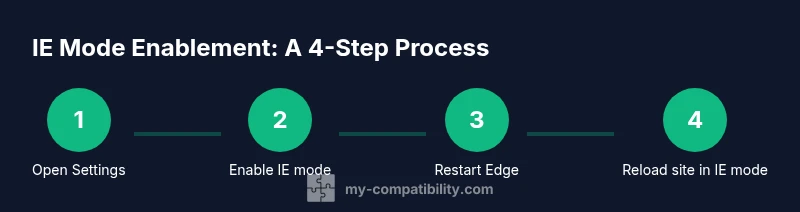
Edge's compatibility mode is Internet Explorer mode. Enable it under Settings > Default browser by turning on 'Allow sites to be reloaded in Internet Explorer mode' and restarting Edge. To render a page in IE mode, open the site and choose 'Reload in Internet Explorer mode' from the Edge menu. If you search where is compatibility mode in edge, this is the path to take.
What is compatibility mode in Edge?
Compatibility mode in Edge refers to Internet Explorer mode (IE mode), a built-in feature that lets you render older, legacy websites using the legacy rendering engine. This mode is essential for intranets, custom business apps, or sites that rely on older HTML/CSS/ActiveX components that modern Edge rendering may mishandle. By design, IE mode is a bridge between the present browser (Edge) and older web technologies, helping organizations maintain functionality without keeping a separate legacy browser.
For users, this means fewer compatibility headaches when visiting sites built for much older browsers. For administrators, it means you can selectively enable IE mode for specific sites while keeping the rest of Edge in its standard rendering mode. The My Compatibility team notes that IE mode is especially relevant in enterprise environments where legacy internal tools remain in use.
What is compatibility mode in Edge?
Compatibility mode in Edge refers to Internet Explorer mode (IE mode), a built-in feature that lets you render older, legacy websites using the legacy rendering engine. This mode is essential for intranets, custom business apps, or sites that rely on older HTML/CSS/ActiveX components that modern Edge rendering may mishandle. By design, IE mode is a bridge between the present browser (Edge) and older web technologies, helping organizations maintain functionality without keeping a separate legacy browser.
For users, this means fewer compatibility headaches when visiting sites built for much older browsers. For administrators, it means you can selectively enable IE mode for specific sites while keeping the rest of Edge in its standard rendering mode. The My Compatibility team notes that IE mode is especially relevant in enterprise environments where legacy internal tools remain in use.
Tools & Materials
- Edge browser (Chromium-based)(Ensure you’re on a supported version (latest stable or current beta).)
- Admin rights or policy access(IE mode may be controlled by organization-wide policies.)
- Test URL (optional)(Use a non-production site for testing before broad deployment.)
- Backup of current settings(Export or document current Edge settings before enabling IE mode.)
Steps
Estimated time: 8-15 minutes
- 1
Open Edge Settings
Launch Microsoft Edge and navigate to edge://settings/defaultBrowser or Settings > Default browser. This is where you enable the IE mode toggle. Knowing exactly where to click reduces confusion when you’re doing this for the first time.
Tip: Bookmark the Default browser page for quick access later. - 2
Enable IE mode globally (enterprise-ready toggle)
Find the option labeled 'Allow sites to be reloaded in Internet Explorer mode' and turn it on. This action enables IE mode rendering for sites that you choose to load in IE mode, rather than forcing it globally for every site.
Tip: If your organization uses Group Policy, coordinate with IT to avoid conflicts with existing policies. - 3
Restart Edge
Close and reopen Edge to apply the IE mode setting. A restart ensures the policy takes effect and avoids rendering issues on first retry.
Tip: Save any work before restarting to prevent loss of data. - 4
Load a site in IE mode
Open the target site, then click the Menu (three dots) in the upper-right and select 'Reload in Internet Explorer mode'. The page should render using IE’s rendering engine.
Tip: If the option isn’t visible, ensure the site is allowed under your IE mode policy. - 5
Verify IE mode indicators
Check for an IE mode banner or indicator in the address bar that confirms the page is rendering in IE mode. This helps verify that the specific site is loaded in the correct mode.
Tip: If the site doesn’t render correctly, try refreshing again in IE mode or test another page. - 6
Add per-site exceptions (optional)
For a controlled rollout, add sites that require IE mode to an allowed list. This keeps most of your browsing in normal Edge mode while enabling only the necessary sites.
Tip: Maintain an updated list to avoid misconfigurations and unnecessary IE mode activations. - 7
Exit IE mode for a site
To return to standard Edge rendering, use the page menu and choose 'Reload in Edge mode' or simply close the tab and reopen in normal mode.
Tip: If the site still uses IE resources after reload, clear the cache and retry. - 8
Review security and compatibility
Periodically audit sites in IE mode to ensure they still require IE rendering and to assess potential security risks. Plan for modernization when feasible.
Tip: Document any known limitations for legacy sites and communicate alternatives to stakeholders.
Questions & Answers
What exactly is compatibility mode in Edge?
Compatibility mode in Edge is IE mode, which uses the older Internet Explorer rendering engine to display legacy websites. It helps keep business tools functional without maintaining a separate browser.
Compatibility mode, known as IE mode, uses the IE rendering engine to display older websites.
How do I enable IE mode in Edge?
Enable IE mode by turning on the setting under Settings > Default browser: 'Allow sites to be reloaded in Internet Explorer mode', then restart Edge. Load pages via 'Reload in Internet Explorer mode' from the page menu.
Turn on the IE mode option in Settings and restart Edge, then reload pages in IE mode via the menu.
Do I need admin rights to turn on IE mode?
In many enterprise environments, yes. IE mode may be controlled by Group Policy or organizational policy. Check with IT to ensure you have the necessary permissions.
Usually yes; contact your IT team to confirm policy settings and permissions.
Can I enable IE mode per-site?
Yes. After enabling global IE mode, you can reload specific sites in IE mode using the browser menu’s 'Reload in Internet Explorer mode' option.
Yes, you can enable IE mode for individual sites through the page menu.
Is IE mode secure for everyday use?
IE mode runs within Edge's security framework but may involve legacy rendering paths. Use it only when necessary and monitor for security advisories.
IE mode uses Edge’s security but still requires cautious use for legacy sites.
How do I disable IE mode if a site breaks?
Reload the page in Edge mode or close and reopen the site in standard Edge rendering. Clear cache if rendering issues persist.
Reload in Edge mode or re-open the site normally; clear cache if needed.
Watch Video
Highlights
- IE mode in Edge enables legacy site rendering.
- Enable via Settings and reload pages in IE mode as needed.
- Use per-site or policy-based approaches for controlled rollout.
- Regularly audit sites and plan modernization when possible.