Where is Compatibility View Settings in Microsoft Edge
Learn where compatibility settings live in Microsoft Edge. This guide explains IE mode, how to enable it for legacy sites, and best practices for safe, reliable browsing.


Compatibility View in Edge is delivered through Internet Explorer mode. It lets you render older, incompatible sites using an IE-style engine while staying in the Chromium-based Edge experience. There is no separate “Compatibility View” toggle in Edge; instead, you enable IE mode and manage sites via an Enterprise Site List or per-site prompts.
Understanding Compatibility View and IE Mode in Edge
As organizations move to modern browsers, many legacy sites still require rendering by older engines. In the Chromium-based Microsoft Edge, compatibility with these sites is achieved through Internet Explorer mode, commonly referred to as IE mode. This is not a traditional browser feature called Compatibility View; instead, it's a compatibility layer that renders the site inside an IE-like rendering context. When you visit a legacy site, Edge can switch to IE mode automatically or per-site, depending on your configuration. This preserves layout, scripts, and behaviors that newer rendering engines may break, while keeping the rest of your browsing experience in Edge. For users, it's important to understand that IE mode is designed for compatibility, not a full replacement of an up-to-date browser. By using IE mode intentionally, you can minimize risk and keep productivity intact while accessing older enterprise tools and intranet sites.
How Edge Handles Legacy Sites: IE Mode vs Compatibility View
Edge’s IE mode is a targeted compatibility feature that loads specific content through an Internet Explorer-compatible engine. Traditional Compatibility View was a global switch; IE mode in Edge is more granular: you can enable it for individual sites or configure an enterprise site list. This approach reduces security exposure by limiting the legacy engine to known sites, while the majority of your daily browsing remains on the modern rendering stack. Use IE mode when a site’s scripts or layouts fail in Edge’s standard rendering, and always test critical pages to confirm expected behavior.
Where to Find IE Mode Settings in Edge
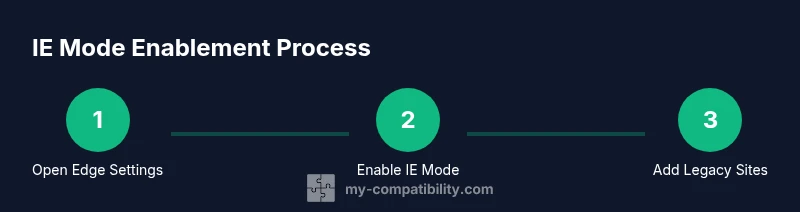
In Edge, compatibility is accessed through the Internet Explorer mode settings rather than a standalone Compatibility View toggle. Open Edge Settings, then locate the IE mode section (often under Default browser or Enterprise options). Look for phrases like “Sites that require Internet Explorer mode” or “Internet Explorer mode pages.” You can enable IE mode globally for sites that must render in the older engine or set up an Enterprise Site List for centralized control.
Step-By-Step Configuration Overview
This section outlines a high-level view of how to configure IE mode, including enabling the feature, preparing a site list, and testing. The exact steps are provided in the dedicated Step-by-Step block to ensure clarity. In short, you enable IE mode, add trusted legacy sites to a controlled list, and verify that those sites render correctly in IE mode while normal Edge usage remains unchanged for other sites.
Managing IE Mode Profiles and Site List
Site management is a critical part of IE mode. You can maintain an Enterprise Site List that specifies which sites should automatically open in IE mode, and you can override individual sites with per-site prompts. This separation helps IT teams deploy compatibility without broad permission for all sites. Regularly review your list to reflect site changes, decommission obsolete entries, and minimize exposure to legacy technologies.
Testing and Troubleshooting Common Issues
If a site does not render as expected in IE mode, verify that it is included in your site list and that the page URL matches exactly. Some modern features may still break due to legacy scripting or fonts. Use the Edge DevTools in IE mode to inspect errors, enable compatibility flags cautiously, and reduce caching during testing to avoid stale results. Revisit your list after changes.
Security, Privacy, and Policy Considerations
IE mode introduces a specialized rendering engine. Limit the scope of this engine to trusted sites and implement strict governance through an Enterprise Site List. Always keep Edge updated, monitor for security advisories related to IE mode, and avoid enabling compatibility for unrelated work sites. Educate users about the purpose of IE mode to reduce misconfigurations and security risks.
Practical Tips and Best Practices
- Use an Enterprise Site List to centrally control which legacy sites render in IE mode. - Regularly test prioritized legacy sites in IE mode before wider rollout. - Keep IE mode enabled only for sites that absolutely require it. - Periodically review the site list for accuracy and deprecations.
Tools & Materials
- Microsoft Edge (Chromium-based)(Install the latest stable version.)
- Enterprise Site List (XML)(Centralized control for allowed IE mode sites.)
- Admin access to Edge settings or Group Policy(Required for enterprise deployment.)
- Network access to enterprise resources(Needed for site list synchronization.)
Steps
Estimated time: Estimated total time: 15-25 minutes
- 1
Check Edge version and update
Open Edge, go to Settings > About Microsoft Edge to verify you’re on the current Chromium-based build. If an update is available, install and restart Edge to ensure IE mode features are supported.
Tip: Keeping Edge up to date ensures compatibility-mode features are present and secure. - 2
Enable IE mode (enterprise or per-site)
Access Edge Settings, locate Internet Explorer mode, and enable it. Decide whether to turn on IE mode for all sites that require it or enable per-site prompts when needed.
Tip: For an organization, prefer a centralized policy via Enterprise Site List. - 3
Create or import your Enterprise Site List
If you manage multiple legacy sites, import a vetted XML site list that marks sites to render in IE mode automatically. Ensure the list stays synchronized with your maintenance window.
Tip: Auto-update policies reduce manual work. - 4
Add a legacy site to the IE mode config
For ad-hoc testing, add a single URL to the IE mode entry so you can verify behavior before adding it to the full list.
Tip: Double-check the URL matches exactly to avoid misrouting. - 5
Test the site in IE mode
Navigate to the legacy site in Edge and confirm that it renders with IE-like behavior. Look for layout fixes or script issues that indicate compatibility problems.
Tip: Use DevTools to inspect rendering differences. - 6
Apply and monitor
Save changes, restart Edge if required, and monitor performance and security posture. Update the site list as the site changes or is retired.
Tip: Document changes for IT records.
Questions & Answers
What is the difference between Compatibility View and IE mode in Edge?
Compatibility View was a broad feature in older browsers, while IE mode in Edge is a targeted compatibility layer that only affects sites you specify. It preserves legacy rendering without changing your everyday Edge experience.
IE mode in Edge is a targeted compatibility tool for specific sites, not a global setting.
Can I enable IE mode for individual sites or only globally?
You can enable IE mode per-site or use an Enterprise Site List to automate which sites render in IE mode. This keeps the feature scoped to known legacy sites.
IE mode can be applied to specific sites or controlled by your organization.
Is IE mode supported in all Edge versions?
IE mode is supported in currently supported Edge versions. Always align with your organization's policy and keep Edge updated for compatibility.
Make sure your Edge version supports IE mode and follow IT guidance.
What should I do if a legacy site still doesn’t render correctly?
Double-check the site is in the IE mode list and verify exact URL matching. Consider alternative enterprise tools or updating the site if feasible.
If it still fails, verify the site is on the allowed list and test another page.
Are there security risks when using IE mode?
IE mode uses an older rendering engine, which can introduce risks. Limit usage to trusted sites and monitor for advisories.
Yes, limit usage and monitor updates.
Watch Video
Highlights
- IE mode provides legacy site support within Edge.
- Centralize control using an Enterprise Site List.
- Test legacy sites to confirm rendering before production use.
- Keep Edge and policies updated to reduce risk.