How to Set Compatibility Mode in Chrome on Windows
Learn how to enable compatibility mode for Chrome on Windows, test legacy-site rendering, and troubleshoot common issues with a practical, step-by-step guide.


If you're wondering how to set compatibility mode in chrome, this guide shows you how to do it on Windows. It explains what compatibility mode does for Chrome, when you should use it, and how to revert changes. Follow these clear steps to improve rendering for older websites while keeping your browser secure.
What compatibility mode means for Chrome
Compatibility mode is a Windows feature, not a setting you flip inside Chrome itself. It lets Windows alter how the program interacts with system components in order to recreate behavior from older Windows versions. When you apply compatibility mode to Chrome, you’re telling Windows to launch the browser with those older OS expectations behind the scenes. For most users, Chrome updates and modern web standards render sites reliably without any hacks. However, there are times when a legacy web app, internal intranet, or a specialized plugin behaves poorly in a current Windows environment. In those cases, compatibility mode can help by restoring a familiar API surface and rendering path that older code expects. It is important to emphasize that this is a Windows feature, not a Chrome feature, and it can influence how the browser interacts with security prompts, font rendering, and certain extensions. If you’re curious how to set compatibility mode in chrome, the key idea is that you’re adjusting how Windows starts Chrome, not changing Chrome’s own internal options. This distinction matters because it affects updates, security policies, and how other users on the same device experience the browser.
When and why you might need compatibility mode
Legacy sites and apps often assume a Windows environment that predates modern browsers. If your organization relies on an older internal web app, a legacy intranet portal, or a specialized plugin, compatibility mode can be a practical stopgap. Before enabling it, weigh the trade-offs: it may resolve specific rendering or script errors, but it can also disable new security features or affect performance. Use it as a targeted test, not as a default setting for every site. In addition, consider whether the site itself has alternatives—such as an updated interface or a supported browser version—that would reduce the need to rely on compatibility mode. Keep in mind that enabling compatibility mode can influence browser behavior for all users on the machine if you apply changes system-wide rather than per-user.
How Windows compatibility mode affects Chrome behavior
Windows compatibility mode can influence how system APIs are accessed, how certain security checks are performed, and how updates are delivered. While Chrome itself stays current with security patches, Windows’ compatibility shim layers can alter the environment Chrome runs in. You might notice changes in font rendering, window scaling, and even how keyboard shortcuts are handled in rare cases. In practice, the benefit is that a stubborn site or enterprise application may render more predictably, but the cost can be slower update cycles or unexpected prompts. The decision to enable this mode should be driven by concrete site-specific problems rather than a general preference for older software. Remember that compatibility mode is intended as a compatibility layer, not a substitute for updating the underlying web app.
Step-by-step overview (for context before you begin)
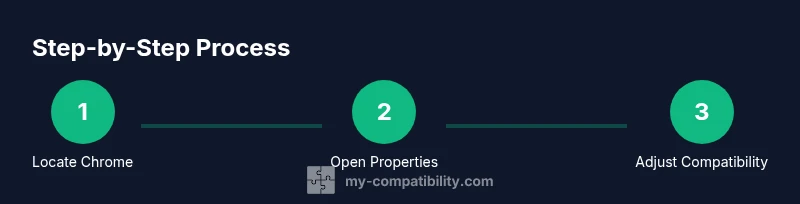
Before you start, know that the steps involve locating Chrome’s executable, adjusting per-user or all-users compatibility settings, and then testing the affected sites. You’ll also want a rollback plan in case the changes cause new issues. This overview prepares you for the actionable steps in the next sections and helps you understand when to use per-user settings or admin-level changes.
Testing and troubleshooting after enabling compatibility mode
After applying compatibility mode, launch Chrome and run the sites or apps that previously exhibited issues. Verify that core functionality remains intact and that the browser updates continue to install normally. If problems arise, revert the setting quickly by undoing the compatibility option, and test again. For ongoing deployments, use a separate user profile or a test machine to evaluate impact before broadening the change. If you require a more robust approach, pair compatibility mode with a controlled testing plan that documents the OS version chosen, the sites tested, and any observed behavior changes.
Alternatives and best practices to consider
Rather than relying exclusively on compatibility mode, explore other options: update the legacy site to a standards-compliant version, request vendor patches, or isolate legacy apps on a dedicated browser profile. Consider using a user-agent switch in developer tools for testing purposes (not as a daily workflow), and leverage enterprise policies or group policy to manage changes systematically. Finally, keep security and privacy in focus: compatibility mode can occasionally bypass certain protections, so document the rationale and monitor for unusual prompts or network behavior.
Tools & Materials
- Windows PC (Windows 10/11)(For best results, use a dedicated test user profile if possible)
- Chrome browser installed(Ensure you have the latest stable channel)
- Administration access(Needed if you plan to apply changes for all users)
- Backup of system settings(Create a system restore point before making changes)
Steps
Estimated time: 10-15 minutes
- 1
Locate the Chrome executable
Find the Chrome executable on your PC, typically in Program Files. You can also use a desktop shortcut and choose 'Open file location' to reach the actual chrome.exe. This is the file that will receive the compatibility settings.
Tip: Tip: Using a shortcut to the actual executable helps avoid changing a shortcut that might point to a different profile. - 2
Open Properties
Right-click the chrome.exe file or its shortcut and select Properties from the context menu. This opens the window where you can adjust launch settings.
Tip: Tip: If you don’t see Properties, ensure you opened the file’s location, not just the shortcut menu. - 3
Open the Compatibility tab
In the Properties dialog, switch to the Compatibility tab. This is where Windows stores compatibility-related options for the program.
Tip: Tip: If you don’t see the tab, you may be using a restricted account; try an admin account. - 4
Enable compatibility mode
Check the box labeled 'Run this program in compatibility mode for:' to enable the feature. This tells Windows to emulate behavior from an older Windows version when launching Chrome.
Tip: Tip: If the exact OS option isn’t clear, you can try Windows 7 or Windows XP SP3 as a starting point, then test the results. - 5
Choose a compatible OS version
From the dropdown, select the Windows version that best matches the site or app requirements. The choice should be based on the issues you’re seeing and the OS history of the app.
Tip: Tip: Document which OS version you chose for future reference. - 6
Decide on per-user vs. all-users scope
If you’re in a shared environment, decide whether to apply the setting to your user only or to all users. Per-user changes reduce risk to others.
Tip: Tip: For enterprise deployments, use admin controls to apply settings consistently. - 7
Apply and test
Click Apply, then OK. Close any running Chrome instances and relaunch the browser to test the affected sites or apps. Observe rendering, performance, and prompts.
Tip: Tip: Keep a separate test profile for rapid re-testing without affecting your main profile. - 8
Troubleshoot or revert
If issues persist, open the same Properties dialog and uncheck the compatibility option, then re-test. If needed, run Windows Compatibility Troubleshooter for guided diagnostics.
Tip: Tip: Use a rollback plan and document the changes so you can revert quickly if problems arise.
Questions & Answers
What is compatibility mode and why would I use it for Chrome?
Compatibility mode is a Windows feature that emulates older OS behavior for a program. You would use it for Chrome when a legacy site or app requires older system interactions that modern Windows versions don’t provide by default.
Compatibility mode mirrors older Windows behavior to help certain sites work with Chrome.
Is enabling compatibility mode safe for everyday browsing?
Enabling compatibility mode is generally safe for testing specific pages, but it can impact security prompts and automatic updates. Use it as a targeted fix rather than a daily setting.
It’s usually safe for testing, but may affect security and updates, so use it thoughtfully.
Will compatibility mode affect Chrome updates?
Compatibility mode can influence how Windows presents the environment to Chrome, which may impact update delivery in rare cases. Chrome itself still receives security patches, but the interaction with Windows can vary.
Updates may be impacted by the OS environment, though Chrome still updates with its own fixes.
Can I apply compatibility mode to all users at once?
Yes, you can apply per-machine settings via admin privileges. This affects all users on the machine, so plan carefully and document the change.
Admins can apply it machine-wide, so plan and document before proceeding.
How do I revert compatibility mode once enabled?
Open the Chrome executable’s Properties again, navigate to the Compatibility tab, and uncheck 'Run this program in compatibility mode for:' then apply changes. Restart Chrome to confirm.
Just uncheck the box and restart Chrome to revert.
Does compatibility mode help with extensions?
Compatibility mode might influence how some extensions interact with Windows APIs. If an extension behavior is part of the issue, test with and without compatibility mode to isolate the cause.
Extensions might act differently; test with and without the setting.
Watch Video
Highlights
- Identify when compatibility mode is appropriate for Chrome on Windows.
- Test changes on a per-user basis before wider deployment.
- Be prepared to revert quickly if issues arise.
- Document decisions and outcomes for traceability.
- Explore alternatives before relying on compatibility mode long-term.