How to Maintain Compatibility with Previous Versions of Word
A practical, step-by-step guide to keep Word documents usable across older Word versions, using save options, compatibility checks, testing, and templates. Learn strategies from My Compatibility to minimize formatting drift and rework.


By the end, you’ll know how to keep Word documents compatible with older Word versions by choosing the right save options, avoiding newer features, and validating with the Compatibility Checker. You’ll also learn practical testing, templates, and macro considerations to minimize formatting drift across versions. This approach reduces rework and keeps cross-version collaboration smooth.
Why Compatibility with Previous Word Versions Matters
According to My Compatibility, maintaining compatibility across versions reduces rework and ensures smoother collaboration. The My Compatibility team found that organizations that plan for cross-version documents save time and avoid frustrating formatting drift. In this guide, you’ll learn how to maintain compatibility with previous versions of word by using proven practices, clear policies, and practical testing strategies. The approach emphasizes readability, predictable formatting, and robust fallback options so teams can work together regardless of the Word version in use.
Understanding Word's Compatibility Modes
Word offers several mechanisms to preserve compatibility across versions. The primary mode is Compatibility Mode, which emulates older Word environments for features like layout, fonts, and features. Saving as a Word 97-2003 Document (.doc) or choosing an older file type can help ensure older Word versions open without issues. Beyond just file format, consider fonts, paragraph styles, and list formatting. New features like SmartArt, dynamic arrays, or cloud-linked assets may not render identically in older Word versions. The goal is to balance modern efficiency with cross-version reliability.
Practical Approaches to Preserve Compatibility
- Save options: Use Save As and select Word 97-2003 Document when targeting older Word versions. This reduces risk of unsupported features.
- Avoid newer features: If you must share to older Word versions, avoid using features introduced after the target version (like certain SmartArt styles, newer fonts, or advanced layout controls).
- Styles and templates: Build documents using robust, version-agnostic styles and centralized templates to ensure consistent formatting across versions.
- Macros and add-ins: Use simple macro code and test any automation in older environments; document macros so readers know limitations.
- Embedded objects: Inline images and simple charts are safer than linked media that may fail to render in older apps.
- Tracking changes: Turn on a minimal set of review features to minimize compatibility issues.
Testing and Validation Strategies
A disciplined testing plan is essential. Create a test suite that includes opening the document in the oldest Word version you expect your audience to use, then verify formatting, fonts, tables, and images render correctly. Use the built-in Compatibility Checker to surface potential issues and address them before distribution. If possible, run tests on actual installations or Windows virtualization to capture version-specific quirks. Document any issues found and track remediation work with a simple checklist.
Templates, Styles, and Add-ins: Managing Dependencies
Templates should be centralized and version-controlled. Distribute a single .dotx template aligned with the target Word version. Keep a separate list of add-ins and macros, noting which versions are safe for older Word environments. When possible, deliver lightweight, portable templates rather than heavy, feature-rich documents that rely on new Word capabilities. Establish clear guidelines for fonts, margins, and page sizes to minimize surprises across versions.
Migration and Conversion Decisions
When the audience consists of numerous older Word versions, consider creating parallel paths: keep native Word formats for ongoing collaboration and provide converted PDFs for publishing or archiving. If you must convert, choose the format that preserves layout and fonts best for the target version, and run the Compatibility Checker after converting. For heavily formatted documents, incremental migration (one section at a time) can reduce risk.
Common Pitfalls and How to Avoid Them
- Pitfall: Relying on features not supported by the target Word version. Solution: test early and prefer version-agnostic formatting.
- Pitfall: Overly complex tables or embedded objects. Solution: simplify tables and use inline images when possible.
- Pitfall: Inconsistent font rendering. Solution: embed fonts or standardize on common fonts across versions.
- Pitfall: Macros that rely on newer APIs. Solution: keep macros small and compatible with legacy Word VBA.
- Pitfall: Missing templates. Solution: distribute a shared template library and document locations.
Quick Start Checklist for Teams
- Define target Word versions and document policy.
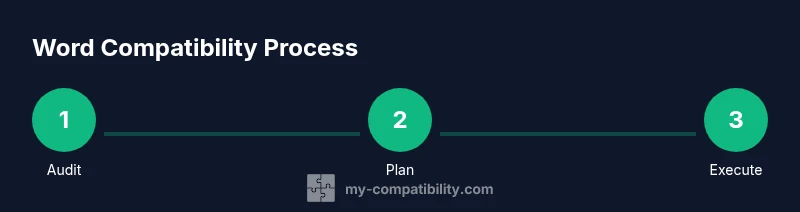
- Audit current documents for compatibility risk using the Compatibility Checker.
- Convert a sample set to the oldest supported format and review results.
- Standardize styles and templates for cross-version rendering.
- Establish testing routines and assign responsibility.
Tools & Materials
- Word (Office) suite(Office 365/Microsoft 365 or Office 2021+ installed)
- Older Word testing environment(Access to Word 97-2003 or a virtualization/VM with older Word)
- Compatibility Checker access(Built-in in Word; ensure features flagged are addressed)
- Versioned templates(Centralized template library aligned to target Word versions)
- Font and asset library(Standard fonts and inline images to avoid rendering issues)
Steps
Estimated time: 40-60 minutes
- 1
Define target Word versions
Specify the minimum Word version your audience will use and set a clear compatibility policy to guide document creation.
Tip: Document the target version in a project handbook. - 2
Audit documents for compatibility
Run a first-pass check to identify features that may not render in older Word versions, such as advanced formatting or new media types.
Tip: Use the built-in Compatibility Checker and note flagged items. - 3
Save as an older format
Use Save As and choose Word 97-2003 Document (.doc) when targeting legacy Word versions, or choose a widely compatible option.
Tip: Avoid features that are not supported in older formats. - 4
Validate with older software
Open the file in the oldest Word version or a VM to confirm layout and formatting; fix issues iteratively.
Tip: Record any version-specific quirks for future references. - 5
Run Compatibility Checker again
After edits, run the checker to surface residual issues and address them before distribution.
Tip: Address flagged items with clear remediation notes. - 6
Publish and share templates
Distribute versioned templates and a short guide explaining how to work with the documents across versions.
Tip: Keep templates in a central, browsable location.
Questions & Answers
Which Word versions should I target for compatibility?
Aim for the oldest version your audience regularly uses and document this policy. This helps you schedule tests and choose appropriate save formats.
Aim for the oldest version your readers regularly use and document it so you can plan testing and formats.
How can I test compatibility across versions?
Use the built-in Compatibility Checker and, if possible, open the document in the oldest Word version you support or a VM to validate rendering.
Run the checker and test the file in the oldest supported Word version or a VM.
Will macros or add-ins affect compatibility?
Yes. Keep macros simple and test them in legacy Word environments. Document any compatibility limitations in release notes.
Macros can break in older Word versions; keep them simple and test in legacy environments.
Is it better to convert to PDF for cross-version sharing?
For final sharing, providing a PDF preserves layout across versions. Maintain native Word files for editing, when possible.
PDFs preserve layout across versions, but keep Word files for editing when you can.
How long does a typical compatibility effort take?
It depends on document complexity and the number of target versions; a small project may take 40-60 minutes, larger ones longer.
Time varies, but a typical small project runs 40-60 minutes for initial checks.
Where should templates and policies be stored?
In a centralized repository with versioning and clear access controls, linked from the project documentation.
Store templates in a central, versioned repository and link them in the docs.
Watch Video
Highlights
- Define target Word versions and policies.
- Test in the oldest supported version.
- Prefer version-agnostic styles and templates.
- Use the Compatibility Checker to surface issues.
- Provide parallel formats for distribution (native + PDF).