Why Is My Word Document in Compatibility Mode and How to Fix It
Discover why your Word document opens in compatibility mode and how to fix it. Fast steps to convert, protect formatting, and prevent future issues across versions.


Compatibility mode in Word means the document was saved in an older Word format and opened in a newer version. Quick fix: convert the file to the current Word format (.docx) and re-enable modern features. If you still need to edit in older compatibility, save a copy in the newer format for full compatibility and best results.
Why Word Uses Compatibility Mode
Why is my word document in compatibility mode? In most cases, Word uses this mode because the file was created in an older version or saved in the legacy .doc format. When you open it in a newer Word, the app dims advanced features to preserve formatting. According to My Compatibility, this behavior protects older documents but limits modern tools. To work with current features, convert the file to the standard Word format (.docx) and recheck formatting. If you routinely receive shared documents, encourage collaborators to save in .docx to minimize compatibility prompts. This approach helps ensure you retain the latest editing tools and compatibility with newer devices and software, reducing surprises during collaboration.
How Compatibility Mode Affects Your Document
Documents in compatibility mode can display different fonts, margins, and layout behavior. Some newer features—like advanced formatting, collaborations via comments, or AutoCorrect changes—may not apply or could be stripped when saving. This can lead to unexpected spacing, missing fonts, or failed style updates. For readers and reviewers, compatibility mode can also affect Track Changes and comments rendering. If you edit on different devices or in older Office environments, you may notice behavior changes even for the same file. My Compatibility analysis shows that many users encounter these issues when sharing across versions, underscoring the need to standardize on the current format.
Quick Checks to Confirm Compatibility Mode
Before diving into fixes, confirm the mode. Look at the title bar; if you see [Compatibility Mode], the document is not in the current Word format. Check File > Info; Word will sometimes show Convert or Save As options if conversion is needed. Also examine the file extension in the Save dialog—docs saved as .docx typically indicate current format. If the document is read-only or prompts to save in a legacy format, that’s another hint that compatibility mode is active. If you don’t see a flag, try using Save As to a new name and switch to the .docx extension to trigger a format upgrade.
How to Convert a Document to the Modern Word Format
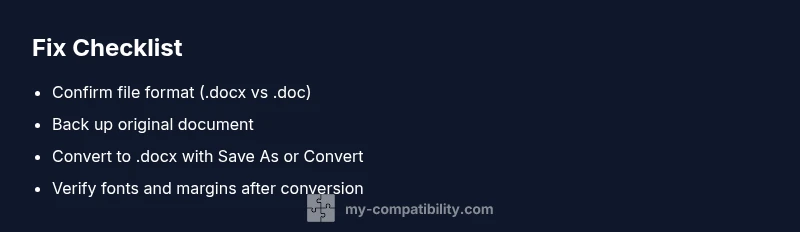
The fastest path is to convert to the current Word format (.docx). Start by choosing File > Save As and selecting Word Document (*.docx). If the option is available, choose Convert to update the file’s internal structure. For stubborn formatting, copy all content and paste into a new blank .docx, then reapply styles. Verify fonts, margins, and embedded objects after conversion. If you still notice gaps, consider rebuilding problematic sections in the modern format to ensure full feature support.
When to Seek Assistance and Safety Considerations
If your document includes macros, complex templates, or heavy formatting, conversion can alter behavior. Always back up the original before converting. Be mindful of shared documents and macro security settings; some macros may be blocked after conversion. Consider coordinating with teammates to standardize on .docx for future work to avoid compatibility prompts and ensure smoother collaboration. If data integrity is critical (legal or financial docs), consult IT or a trusted Word expert before large-scale conversions.
Steps
Estimated time: 15-25 minutes
- 1
Identify the file format
Open the document and review the title bar for [Compatibility Mode]. If present, note the last save format in File > Info. This helps confirm why the issue occurs and guides the conversion path.
Tip: Always note the original file name before converting. - 2
Create a backup
Save a copy of the original document with a distinct name or in a separate folder. Backups protect against data loss if formatting changes occur during conversion.
Tip: Store backups in a secure, versioned location. - 3
Convert to the modern format
Use File > Save As and choose Word Document (*.docx). If prompted, run the Convert option to upgrade the file's internal structure. Reopen to verify features are restored.
Tip: If Convert isn't available, use Copy-Paste into a new .docx document. - 4
Review formatting and features
Check fonts, margins, styles, and embedded objects. Some advanced features may shift during conversion; adjust as needed to ensure consistent appearance.
Tip: Compare the converted file to a known-good document to spot discrepancies. - 5
Document governance
Set a default save format to .docx and communicate standards to collaborators to prevent future compatibility prompts.
Tip: Create a shared guideline for team-wide document formats.
Diagnosis: Word document opens in compatibility mode unexpectedly
Possible Causes
- highDocument saved in older Word format (.doc or older template)
- highFile originally created in an older Word version
- mediumTemplate or add-in forces legacy behavior
- lowConversion prompts not completed or not saved as .docx
Fixes
- easyOpen File > Save As and select Word Document (*.docx)
- easyUse File > Convert to update the document to the latest format
- easyCopy all content to a new blank .docx and reformat to restore modern features
- mediumDisable or update problematic add-ins/templates that enforce compatibility mode
- mediumRun Check for Issues > Check Compatibility and address reported items
Questions & Answers
What is compatibility mode in Word and why does it appear?
Compatibility mode indicates the document was saved in an older Word format. Word preserves layout and features to avoid breaking the document when opened in newer versions.
Compatibility mode means the doc is in an older format; it preserves layout but limits newer features.
Will converting to .docx affect my formatting?
Converting to .docx typically preserves most formatting, but some fonts, styles, or objects may require minor tweaks after the upgrade.
Most formatting stays intact, but you may need minor tweaks after converting.
How do I convert quickly?
Use File > Save As and choose Word Document (*.docx). If available, also use Convert to upgrade the file structure in place.
Save as docx or use Convert to upgrade the document immediately.
Should I worry about macros after conversion?
Macros may be blocked or require re-authorization after conversion. Only enable macros from trusted sources and verify their safety.
Macros can be blocked after conversion; enable only if trusted.
Is there a difference between .doc and .docx?
.docx is the modern Word format offering broader compatibility and features; .doc is older and more prone to compatibility prompts.
Docx is modern; doc is older and may trigger compatibility mode.
How can I prevent this in future documents?
Save new documents as .docx by default and share a simple save guideline with teammates to promote consistency.
Save new docs in docx by default to avoid compatibility mode.
Watch Video
Highlights
- Convert to .docx to unlock full features.
- Check compatibility mode and switch to modern format when possible.
- Back up originals before converting to avoid data loss.
- Standardize on modern formats to improve collaboration.