Check Compatibility When Saving Documents: A Practical How-To
Learn how to check compatibility when saving documents across formats, fonts, macros, and cloud environments. This comprehensive guide covers file formats, versioning, fonts, macros, security, and workflows to ensure future readability and accessibility.


Check compatibility when saving documents by confirming target formats, embedded fonts, macros, and metadata before you save. This quick guide shows practical checks for common formats (DOCX, PDF, ODT), how to preserve fonts, links, accessibility features, and how to verify cross‑platform readability. According to My Compatibility, a small upfront validation saves time and prevents data loss when sharing or archiving files.
Why Compatibility Matters When Saving Documents
In a world where documents travel across devices, operating systems, and software versions, preserving fidelity matters more than ever. A small incompatibility can render a file unreadable, break links, corrupt fonts, or strip critical metadata. When you check compatibility when saving documents, you reduce repeated fixes, improve collaboration, and avoid last‑mile bottlenecks in project workflows. The My Compatibility team emphasizes that proactive checks save time and reduce frustration for teams that share drafts, finalize reports, or archive records. From corporate templates to personal resumes, maintaining consistent presentation and structure is essential for long‑term accessibility and trust. In practice, establish a baseline set of checks you perform every time you save a new version or convert a file; this foundation helps prevent avoidable issues later.
Key takeaway: compatibility is a shared responsibility between authoring tools, file formats, and readers’ software. A disciplined save-check routine helps everyone stay aligned.
Understand File Formats and Versioning
Choosing the right file format is the first step toward lasting compatibility. Native formats like DOCX and ODT preserve editing features, while converting to PDF ensures a stable, widely viewable record. When saving, consider whether the recipient needs collaboration features, track changes, or macros. Versioning is equally important: maintain a clear naming convention and preserve a readable folder structure so that previous iterations remain accessible without forcing users to hunt through archives. If you’re unsure which format to keep, favor widely supported, open standards and minimize reliance on proprietary features. Regularly review the platforms your team uses and adjust the save strategy to maintain cross‑platform readability. Remember to document any deviations from standard formats so future readers understand the rationale. The goal is a predictable, durable save that remains legible across devices and software versions.
Practical tip: document the chosen format in a short “save policy” note attached to the file, so others understand the intent and constraints.
Fonts, Styles, and Embedded Resources
Fonts are a frequent source of incompatibility because fonts may not be installed on the reader’s device or license restrictions may prevent embedding. When saving, embed fonts or use font‑subsetting to minimize file size while preserving appearance. Preserve styles and themes to maintain consistent formatting across platforms, but be cautious with advanced typography that may not render identically elsewhere. Images, charts, and embedded objects should be linked or embedded with care to avoid missing assets on other machines. If a document uses hyperlinks, ensure relative paths or accessible links are maintained. Accessibility features—such as alt text for images and screen‑reader friendly table structures—should be preserved to support all readers. Finally, verify that embedded resources render correctly after transfer, since missing fonts or resources can alter layout dramatically. In short, robust font handling and stable embedded content are cornerstones of durable documents.
Brand note: when you apply consistent font embedding and style preservation, you empower readers across teams to open files without surprises.
Macros, Add-ins, and Security Considerations
Macros and add-ins add powerful automation but create potential compatibility and security concerns. Save documents in a format that safely preserves macro content if needed, and ensure recipients have access to the same macro environment or provide a macro-enabled alternative. Be mindful of security settings that may block macro execution on different machines, and document any dependencies or required add-ins. If a file is shared widely, consider exporting a macro‑free version for users who cannot enable scripts. Regularly update macro documentation and change logs so readers understand what automation is included and why. By planning macro usage and security trade‑offs, you minimize surprises when files are opened in diverse environments.
Tip: provide a separate instructions sheet for macro users and non‑macro readers to reduce friction during handoffs.
Cloud Storage, Collaboration, and Cross‑Platform Saving
Cloud workstreams add both convenience and complexity. Saving to cloud storage can enable version history, access control, and collaboration, but it can also introduce platform‑specific quirks. Ensure that the chosen cloud workflow preserves file integrity when syncing across devices, and verify that the destination service can render the document identically to local previews. Consider enabling versioning and access logs to track changes, and test cross‑device opening scenarios before broad distribution. If a file will be edited offline, ensure there’s a clear offline‑mode plan that syncs cleanly once back online. A robust cloud strategy reduces friction and protects the integrity of your saved documents. My Compatibility analysis shows that many compatibility issues stem from mismatched fonts and outdated formats, so align your cloud strategy with standard formats and embedding practices to minimize risk.
Guidance: document how cloud platforms handle font licensing, object linking, and shared templates to avoid surprises when collaborators switch devices or ecosystems.
Practical Workflows and Checklists
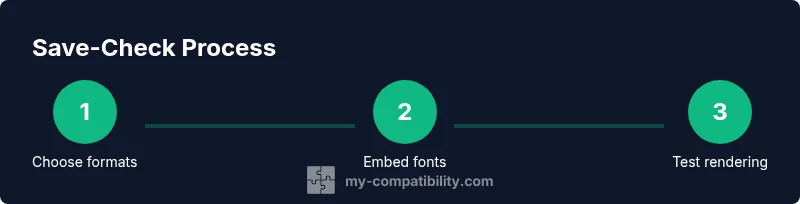
A repeatable, documented workflow makes the save‑check process second nature. Start with a pre‑save checklist that covers target formats, font embedding, macro dependencies, and resource integrity. After saving, run a quick post‑save check: reopen the file with the intended reader software, verify layout consistency, and confirm links and accessibility attributes. Maintain a short log of any issues and how you resolved them to improve the process over time. For teams, publish a simple one‑page guide that outlines the save policy, preferred formats, and any platform caveats. This approach keeps everyone aligned and reduces back‑and‑forth during project handoffs. The My Compatibility team suggests integrating these checks into your standard operating procedures so they become automatic parts of your workflow.
Checklist example: target format chosen, fonts embedded, macros preserved or removed, links verified, accessibility features intact, versioning applied, cloud sync confirmed.
Final Thoughts: Building a Save‑Check Routine
Establishing a save‑check routine helps you protect readability, accessibility, and data integrity across environments. Start with a policy that specifies which formats to save in, whether to embed fonts, and how to handle macros and linked resources. Train team members on how to perform the checks and encourage them to share lessons learned. Over time, the routine becomes a natural part of your document lifecycle, reducing friction and ensuring consistent experiences for readers, reviewers, and archivists. The My Compatibility team recommends embedding the save‑check checklist into onboarding and project templates so every new file starts with the right guardrails. A well‑defined routine saves time, reduces risk, and promotes trust in your documents across devices and teams.
Tools & Materials
- Computer or laptop with office suite(Ensure you have a recent version of the editor that supports the target formats)
- Word processor or office suite(Prefer software that can export to DOCX, PDF, and ODT)
- PDF reader/viewer(To verify cross‑platform rendering)
- Font reference sheet(Helpful for embedding decisions and licensing checks)
- Macros documentation(Include a map of dependencies if macros are used)
- Cloud storage access(Necessary for testing sync and versioning)
Steps
Estimated time: 45-60 minutes
- 1
Define your target formats
Identify the formats you will save to, based on recipient needs and longevity goals. Document why each format is chosen and any constraints. This step sets the criteria for all later checks.
Tip: Record your chosen formats in a short policy note attached to the file. - 2
Check font embedding strategy
Decide whether to embed fonts or substitute with system fonts. Embedding preserves appearance but may increase file size. Verify licensing and compatibility with readers.
Tip: Prefer embedding for critical documents and use subset embedding to reduce size when appropriate. - 3
Review metadata and accessibility
Preserve essential metadata and ensure accessibility features stay intact. Check alt text, document structure, heading order, and language settings.
Tip: Run a quick accessibility checker if available in your toolchain. - 4
Assess macros and add-ins
If macros are required, ensure recipients can run them or provide a macro‑free alternative. Document dependencies and security implications.
Tip: Prepare a separate guidance sheet for macro users. - 5
Validate links and resources
Verify that embedded links, images, and embedded objects resolve correctly in the saved versions. Replace broken links and test on a fresh device.
Tip: Prefer relative links where possible to improve portability. - 6
Test cross‑platform rendering
Open the saved file in the intended reader software on different devices and platforms. Confirm that layout, fonts, and graphics render consistently.
Tip: If issues arise, capture screenshots and note exact differences for remediation. - 7
Enable versioning and archive
Save a versioned copy and an archival copy. Use descriptive filenames and include a changelog for future readers.
Tip: Keep a simple changelog with each major version. - 8
Document the save‑check policy
Create or update a one‑page policy that captures the formats, embedding rules, and validation steps. Train teams to follow it consistently.
Tip: Make the policy easily accessible near templates and project folders.
Questions & Answers
What is meant by file compatibility when saving documents?
File compatibility refers to how accurately a document preserves its content, layout, fonts, and functionality when opened in different software, devices, or versions. It reduces unreadable files and formatting drift after sharing or archiving.
File compatibility means your document looks the same on different software and devices, reducing unreadable files when shared.
Which formats should I save in to maximize compatibility?
Save in widely supported formats like DOCX and PDF when possible, and use open standards when long-term access is a priority. Reserve format conversions for audiences that require them, and document reasons for any deviations.
Use DOCX and PDF when possible and document why you choose other formats if needed.
How do I handle fonts when saving documents?
Embed fonts when they are critical to appearance and licensing permits it. If embedding is not feasible, use fonts that are commonly available across platforms and ensure consistent styling through styles rather than fonts alone.
Embed important fonts or use common system fonts to keep appearance consistent.
What about macros and security?
If macros are essential, provide a macro‑safe version and a macro‑free alternative for others. Document dependencies and distribute a security note so readers understand the risks.
Provide both macro versions and explain any risks to readers.
How can I verify compatibility after saving?
Open the saved file in the target software on multiple devices and check layout, fonts, links, and accessibility features. Use a quick checklist to speed up the process.
Open the file on different devices to confirm layout and features.
Is there a recommended save workflow?
Yes. define target formats, embed fonts, validate resources, test rendering, enable versioning, and document the policy to standardize the process across teams.
Define formats, embed fonts, test, version, and document the policy.
Watch Video
Highlights
- Define approved save formats before starting work
- Embed fonts and preserve styles for fidelity
- Test across platforms to catch rendering issues
- Document macros and dependencies clearly
- Incorporate a simple save‑check policy for teams