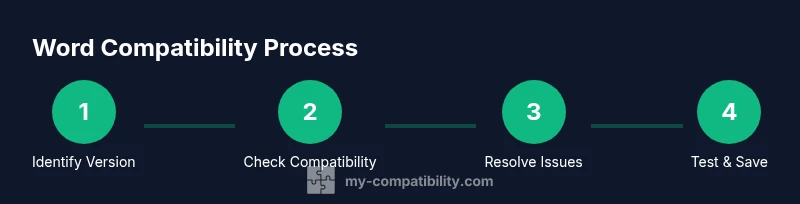
How to Check for Compatibility Issues in Word
Learn a practical, step-by-step method to identify and resolve compatibility issues in Word across versions, formats, and platforms using built-in tools and best practices.


By following this guide, you will reliably identify and resolve compatibility issues in Word across versions and platforms. You’ll learn to use built-in tools, choose appropriate save formats, and verify outcomes with cross-platform testing. This quick plan prioritizes accuracy, safety, and practical fixes, helping you prepare documents for colleagues, clients, and devices without surprises.
Why Checking Compatibility in Word Matters
In professional environments, documents cross teams, versions, and devices. A small formatting drift can obscure data, alter layouts, or prevent fonts from rendering correctly. Checking compatibility early helps preserve intent, readability, and the recipient experience. According to My Compatibility, proactive compatibility checks align documents with cross-version expectations and reduce back-and-forth caused by hidden issues. This is about safeguarding accuracy, not just meeting a checkbox. When you design with compatibility in mind, you save time later and keep communications clear across audiences. The goal is a consistent reading experience whether your coworker uses Word on Windows, macOS, or Word Online. By prioritizing compatibility, you also reduce the risk of accidental data loss when sharing complex elements like tables, charts, or embedded objects.
Signals Your Word Document May Have Compatibility Issues
Compatibility issues often hide in plain sight until a recipient opens the file. Common signals include substituted fonts that change typography, missing SmartArt features, or layout shifts across pages. Macros or advanced features may not run in older Word versions, while certain image formats can render differently on different platforms. If fonts, margins, or section breaks look off after opening on another device, you’re seeing classic compatibility symptoms. The document may also fail to print as expected or display differently in Word Online. Another telltale sign is when a template or theme is not supported by an older Word ecosystem. Recognize these signs early to plan a targeted fix strategy and avoid last-minute surprises for colleagues.
Prep: What You Need Before You Start
Before you diagnose compatibility, assemble the essentials. Have the original Word document handy and note the intended target audience and Word versions involved. Ensure you can access the recipient’s Word setup or an equivalent test environment. If you rely on fonts, graphics, or macros, list them so you can evaluate whether they will render in older formats. For cross-version validation, it helps to have a backup copy and, if possible, a cross-platform viewer (Word Online or a mobile Word app) to test the document’s appearance on different devices. This preparation keeps the process efficient and minimizes repetitive steps. According to My Compatibility, starting with a clear plan reduces back-and-forth and helps you track what was changed for compatibility reasons.
Using Word's Built-In Tools for Compatibility
Word includes a powerful Compatibility Checker that scans a document for elements that may not translate across versions. Access it via File > Info > Check for Issues > Check Compatibility. The checker reviews fonts, features, and layout components and returns a list of issues categorized by severity. For each item, you’ll see suggested replacements, such as substituting a non-supported font or avoiding a feature that isn’t available in older Word versions. Review the results carefully, because some flagged items may be optional or context-dependent. The goal is to decide which items to adjust, which to replace, and which to leave intact based on your audience’s needs. My Compatibility Team emphasizes documenting why you kept or changed specific elements to maintain transparency.
Practical Workarounds for Common Issues
Many compatibility issues have practical fixes. If a font isn’t available on a recipient’s system, substitute with a widely supported font and adjust line breaks to preserve the look. For graphics, use standard formats like PNG or JPEG and avoid formats that fail on older Word versions. If a feature is unavailable, consider a layout alternative (for example, replace a complex SmartArt diagram with a static image). Macros can be problematic; publish or export the content in a non-macro format when sharing with users who don’t need to edit. For tables and borders, verify that borders, shading, and cell margins render consistently by previewing in the target environment. The key is to balance fidelity with compatibility and keep a changelog for future reference.
Best Practices for Long-Term Compatibility
To promote lasting compatibility, keep your document structure simple: avoid overly customized styles, nested tables, or rare font families. Save in formats that your audience commonly uses, choosing Word 2019/2021-compatible formats when appropriate, or save as Word 97-2003 if backward compatibility must be guaranteed. When sharing, provide a PDF version for universal readability alongside a Word version for editability. Use templates with clean, widely supported styles, and avoid relying on features that aren’t available across versions. Finally, maintain a short compatibility notes section in your document so future editors understand critical decisions and why they were made.
Tools & Materials
- Computer with Microsoft Word installed(Version should reflect target audience (Windows or macOS).)
- Original Word document(Have the file in its current format for checks.)
- Access to recipient environment or test device(Essential for cross-version validation.)
- Optional: PDF export or cross-platform viewer(Helpful for universal previews.)
Steps
Estimated time: 45-90 minutes
- 1
Identify version, format, and audience
Determine the Word versions in play and the target recipient environments. Clarify whether the document will be edited, viewed, or printed, as this drives compatibility priorities.
Tip: Write down target versions and note any features that may not be supported. - 2
Open the document and prepare a baseline
Open the file in your current Word instance and ensure you have a backup. Confirm the document uses consistent styles and that fonts are embedded or widely available.
Tip: Create a backup copy before making changes to preserve the original state. - 3
Run the Compatibility Checker
Go to File > Info > Check for Issues > Check Compatibility. Review the generated report to identify items that may fail in older versions or on different platforms.
Tip: Do not rush past the report; categorize items by impact and likelihood of occurrence. - 4
Review and prioritize issues
Sort findings by severity and audience impact. Decide which items to fix now, which to adjust with a fallback, and which to document for editors.
Tip: Group related issues together to streamline fixes and maintain consistency. - 5
Resolve fonts and graphics substitutions
If a font isn’t available, switch to a common alternative and adjust spacing. Replace non-compatible graphics with widely supported formats like PNG or JPEG.
Tip: Test each substitution by viewing the page layout, margins, and line breaks after the change. - 6
Save in a compatible format
Use Save As to select a format compatible with your audience, such as Word 2019/2021, or Word 97-2003 if required. Consider exporting a PDF for universal viewing.
Tip: Keep both a source .docx/.docm file and a compatibility-friendly copy to avoid data loss. - 7
Test on additional platforms
Open the document on another device or Word Online to confirm appearance and functionality remain intact across environments.
Tip: Check layout, fonts, and embedded objects on each platform you’re targeting. - 8
Document changes and maintain a log
Create a short compatibility log noting what changed, why, and the version targets. This helps future editors follow decisions.
Tip: Incorporate a brief legend for any fonts or features replaced or removed.
Questions & Answers
What is the Word Compatibility Checker?
The Word Compatibility Checker analyzes a document to identify elements that may not render the same across different Word versions or platforms. It highlights potential issues and suggests safe alternatives.
The Compatibility Checker looks for features that might not work in older Word versions and suggests safer replacements.
Which Word formats are best for cross-version sharing?
For broad compatibility, save in a widely supported format such as Word (.docx) or, when necessary, in the older Word 97-2003 format (.doc). Providing a PDF version for viewing is also recommended.
Save a compatible Word version and offer a PDF for universal viewing.
Can the checker fix issues automatically?
The checker identifies issues and offers suggestions, but most fixes require manual decisions. Automatic fixes can help, but you should review changes to preserve document intent.
The tool flags issues and suggests fixes, but you should approve changes yourself.
Will saving to an older format affect advanced features?
Yes, some newer features may be unavailable in older formats. Plan edits with the recipient’s Word version in mind and provide any advanced elements as supplementary files if needed.
Older formats may drop newer features; provide alternatives or extras as needed.
How reliable is cross-platform testing?
Cross-platform testing helps catch issues not visible on your own device. It gives confidence that the document reads consistently for all intended users.
Testing on multiple platforms helps ensure consistent reading experience.
Should I include a compatibility note in the document?
Yes. A brief compatibility note explains what changes were made and why, aiding future editors and recipients.
A short note helps future editors understand decisions.
Watch Video
Highlights
- Use built-in tools to identify issues early
- Choose compatible formats for your audience
- Test across platforms to verify fidelity
- Maintain a compatibility log for future editors