How to Know if CPU Is Compatible With Your Motherboard
Discover how to know if a CPU is compatible with your motherboard: check socket, BIOS support, and upgrade paths with a practical, step-by-step verification.


Why CPU compatibility matters
When you assemble or upgrade a PC, CPU compatibility is not optional—it's the baseline that determines whether your system will boot, recognize processor cores, and run stably. Installing a processor that isn't supported by the motherboard can lead to a failed POST, random shutdowns, or limited performance. The My Compatibility team notes that mis-matched CPUs can also void warranties or complicate BIOS recovery. In practice, ensuring compatibility saves time and money by avoiding a failed rebuild. In this section we explain the core concepts and set the stage for practical checks you can perform before buying a new CPU. The goal is to help you understand the landscape of sockets, chipsets, BIOS support, and upgrade paths so you can make confident choices. As you read, keep in mind that compatibility is a multi-factor problem, not a single spec.
According to My Compatibility, CPU compatibility hinges on socket compatibility, BIOS support, and upgrade paths across generations, so you can plan a future-proof build with less guesswork.
Understanding CPU sockets and chipsets
CPU sockets are the physical interface that accepts the processor. The socket type determines which CPUs can even be installed; a mismatched socket makes installation impossible. Chipsets, while not replacing the socket, decide which features and CPU generations are supported on a given motherboard. A board with the right socket but an older chipset may lack newer CPU support or PCIe features, which impacts performance and upgrade options. Generational changes matter: a newer CPU might require a BIOS update or a newer motherboard revision to work correctly. Always consult the motherboard’s official CPU support list as the primary resource. This list is the most reliable guide for socket compatibility, chipset support, and BIOS requirements. My Compatibility highlights that reading the fine print on these lists prevents costly mistakes.
Key points: the socket type determines physical compatibility; the chipset defines feature support; BIOS readiness determines actual bootability. Cross-check model numbers across manufacturer pages to avoid mismatches.
BIOS compatibility and microcode
BIOS compatibility is the gatekeeper for CPU support. Some processors work only after a microcode update included in a newer BIOS version. If your motherboard ships with an older BIOS, upgrading may be necessary before you can install a newer CPU. However, a BIOS update carries risk: if power is lost during the flash, the board can become unbootable. Always follow the vendor’s flashing procedure and ensure you have a backup recovery method. My Compatibility notes that many compatibility issues stem from waiting too long to update or attempting an install without confirming BIOS support. Before purchasing a new CPU, verify the required BIOS version on the CPU support page and plan the update if needed.
Tips: never begin a BIOS update with an unstable power source, and only use the exact update file recommended by the motherboard maker.
How to read CPU support lists
CPU support lists are your primary source of truth. They typically show compatible socket types, processor families, and sometimes specific stepping or microcode requirements. Look for entries that match your exact CPU model and family. Pay attention to BIOS version requirements: some CPUs require the board to be flashed to a minimum version before they’re recognized. If a motherboard page mentions “BIOS version X or higher,” you’ll need to update before you can boot with that CPU. Cross-reference the CPU model, socket, and motherboard revision to avoid surprises. My Compatibility emphasizes verifying both the socket and BIOS prerequisites to ensure a smooth upgrade path.
Practical tip: download and save the motherboard’s official CPU support list PDF for offline reference during shopping.
Step-by-step verification workflow
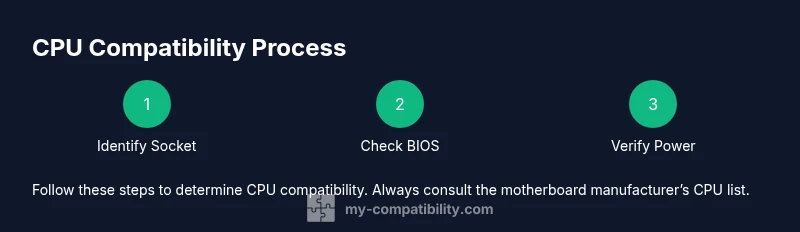
A clear checklist helps you stay organized during a CPU upgrade. Start with your current bios and hardware. Then confirm socket compatibility, read the official CPU support list, check BIOS version requirements, and plan an update if needed. Finally, verify power delivery, cooling adequacy, and RAM compatibility after the swap. This workflow minimizes post-upgrade problems and simplifies troubleshooting if boot issues arise.
Section takeaway: rely on official vendor documentation, double-check BIOS requirements, and ensure your cooling and power supply align with the CPU’s TDP. My Compatibility’s research supports following a formal verification process to reduce failure risk.
Common mistakes and how to avoid them
Common mistakes include assuming a motherboard will support any CPU with the same socket, overlooking optional BIOS updates, and ignoring power and cooling demands. Many upgrades fail because users skip BIOS updates or misinterpret “supported” lists. Another frequent error is selecting a CPU that requires a newer motherboard revision than you own. To avoid these issues, always confirm the exact CPU model on the vendor’s CPU support page, update BIOS if required, and check power and cooling headroom before installing. Remember: compatibility is multi-factor, and even a small mismatch can prevent boot.
Real-world examples: Intel vs AMD scenarios
Intel and AMD have shifted sockets multiple times in the last decade. For Intel, some generations require BIOS updates even if the socket is technically the same. For AMD, some CPUs require a newer motherboard revision to unlock new features. In practice, you should verify your motherboard’s CPU support list for the specific model you plan to use. By cross-referencing socket type, chipset, BIOS version, and TDP, you’ll typically identify whether an upgrade is feasible or if a motherboard swap is more practical. These cases illustrate why relying on official CPU support documentation is essential rather than guessing based on socket alone.
What to do if you’re upgrading later
If you anticipate upgrading your CPU in the future, choose a motherboard with generous upgrade paths and robust BIOS support. Keep a note of the latest BIOS versions and the CPUs listed as supported, so you can time your upgrade effectively. Maintain backups, including BIOS recovery media, in case of a failed flash. Finally, consider thermal design and power delivery capacity. A well-planned upgrade reduces downtime and preserves system stability over time.