How to Fix Compatibility Issues in Microsoft Edge
Discover practical, step-by-step strategies to resolve compatibility issues in Microsoft Edge—from updates and extensions to developer tools and site testing—boosting reliability across websites and apps.


Edge compatibility issues can usually be resolved with a short playbook: update Edge and Windows, disable conflicting extensions, clear browser data, adjust compatibility settings, and test affected sites with InPrivate and Developer Tools. This approach covers the most common blockers and stabilizes rendering across pages. If problems persist, capture error messages and note which sites fail.
Why Edge compatibility issues happen
Edge, like other modern browsers, evolves rapidly as developers push new features and standards. Sites may rely on older scripting patterns, deprecated APIs, or specific rendering paths that newer Edge builds no longer assume. According to My Compatibility, compatibility issues in Microsoft Edge often arise from a mix of outdated browser versions, conflicting extensions, and sites that rely on legacy technologies. You’ll see layout shifts, broken interactive elements, or missing fonts on some pages while others render correctly. Recognizing these root causes helps you choose fixes that improve stability without compromising security. This section frames the problem and sets the stage for reliable, proven remedies. As you work through the steps, maintain a simple log of changes and results to build a reproducible workflow that you can reuse for future fixes.
Get started with quick fixes
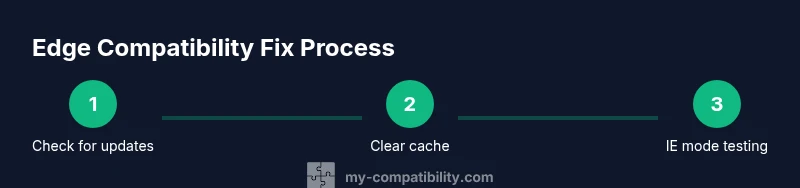
If you’re seeing one or two sites misbehave in Edge, start with quick, low-friction fixes. Update the browser and operating system to ensure you have the latest rendering engine and security patches. Restart Edge after updates to apply changes. Clear your cache and cookies to remove stale resources that might trigger layout issues. Disable recently added extensions one by one to rule out interference. Finally, try a private browsing session to confirm whether the issue is caused by extensions or cached data. This fast triage often resolves a surprising number of compatibility glitches without deeper debugging. Throughout, keep a record of which steps fixed or didn’t fix the issue for future reference.
Update Edge and Windows: the first line of defense
Most compatibility problems disappear when Edge and the underlying OS are fully up to date. In Edge, go to Settings, then About Microsoft Edge to check for updates. On Windows, open Settings > Update & Security > Windows Update and install any pending updates. A current browser and OS ensure your site rendering aligns with the latest standards and security protections. After updating, restart the machine and re-test the sites that were problematic to determine if the fixes took effect.
Clear cache and disable extensions
Cached resources and extensions can masquerade as compatibility problems. Clear browser data (history, cookies, cached images and files) from Edge’s Privacy, Search, and Services settings. Disable all extensions to see if a non-native script or a blocking extension is causing issues; re-enable them one at a time to identify the culprit. If you discover a problematic extension, check for updates or replace it with a safer alternative. This step helps isolate whether the root cause is local to your browser environment rather than the site itself.
Use InPrivate mode and test across sites
InPrivate mode runs Edge with minimal extensions and without cached data, providing a clean baseline. Use InPrivate windows to reproduce the issue and compare results against a normal window. Test multiple affected sites to determine whether the problem is site-specific or user-environment-wide. If only one site misbehaves in InPrivate too, the root cause is more likely on the site side or in a script that Edge misinterprets. If it behaves fine, the problem is likely related to cached data or extensions in your normal profile.
Edge flags and experimental features: what to adjust
Edge exposes experimental features under edge://flags that can influence rendering and scripting. While these flags are not recommended for everyday use, they can help identify compatibility blockers in a controlled way. Visit edge://flags, search for features tied to rendering, fonts, or JavaScript, and temporarily enable or disable them to observe changes. Remember to restart the browser after any change. Revert flags to default if you notice new issues. Use this approach only when you have a clear testing path and potential feature-related blockers.
IE mode for legacy sites: practical use cases
Some sites were designed for older browsers and may render poorly in modern Edge. Edge includes an Internet Explorer mode to render such sites using the IE rendering engine. Enable IE mode via Settings > Default browser > Allow sites to be reloaded in Internet Explorer mode. This is especially useful for internal business apps or intranets that rely on legacy ActiveX controls or older JavaScript patterns. Note that IE mode is intended for compatible sites and should be used selectively—not as a blanket solution.
Developer tools: diagnosing rendering and script issues
Edge’s Developer Tools (F12) are essential for diagnosing compatibility blocks. Use the Console to catch JavaScript errors, the Network panel to inspect failed requests, and the Elements panel to verify layout rules. Check for deprecated APIs in use by the site and inspect polyfills or shims that may be missing. The Network tab can reveal slow resources or 404s that break dynamic content. Use the Emulation tab to simulate different viewport sizes and user agents to understand how a site responds under various conditions.
Handling site-specific compatibility: polyfills and progressive enhancement
For a site you control or can influence, consider progressive enhancement and modern polyfills to improve compatibility with Edge. This means ensuring core functionality works with a baseline feature set while advanced features gracefully degrade on older engines. If you’re a site developer, report issues with a reproducible test case and provide a minimal polyfill or CSS fallback where needed. For users, encourage site developers to maintain standards-based code and avoid deprecated APIs whenever possible.
Enterprise and IT considerations: escalation paths
In corporate environments, compatibility issues may be tied to group policies, security suites, or managed browser configurations. If you notice systemic problems affecting many users, collaborate with your IT department to review policies, extension whitelists, and network-level controls. IT teams can deploy standardized configurations, test suites, and enterprise-specific IE mode rules. This coordination helps ensure consistent user experiences while maintaining security and compliance across the organization.
Long-term practices to prevent future compatibility issues
To minimize future headaches, adopt a proactive maintenance routine. Schedule regular updates for Edge and the OS, maintain a test suite for critical sites, and document fixes for recurring issues. Encourage progressive enhancement in ongoing development so sites work well across browsers, including Edge. Establish an internal knowledge base with checklists for triaging compatibility problems and a clear escalation path to developers or IT when needed.
Putting it all together: a reproducible workflow
Create a simple, repeatable workflow: (1) identify the failing site, (2) confirm the issue in InPrivate mode, (3) apply quick fixes (update, cache clear, disable extensions), (4) verify with DevTools, (5) try IE mode if applicable, (6) document results and next steps. This workflow helps you systematically isolate causes and implement fixes without guesswork. Save your test plan and outcomes so you can reuse it for future compatibility checks with Microsoft Edge.
Tools & Materials
- Microsoft Edge browser (latest stable)(Check for updates regularly; enable auto-updates.)
- Windows or macOS operating system(Ensure the latest OS updates are installed.)
- Reliable internet connection(Needed for updates and testing across sites.)
- List of affected sites or screenshots( helps replicate issues.)
- Developer Tools access (F12)(Used for diagnosing rendering/script problems.)
- Private/Incognito window(Isolates extension/data effects.)
- Access to edge://flags(For experimental testing (advanced users only).)
Steps
Estimated time: 60-90 minutes
- 1
Check for updates and install
Open Edge, navigate to Settings > About Microsoft Edge, and install any available updates. Then verify Windows updates are current. Restart after updating to apply changes.
Tip: Keep a changelog of versions you’ve tested. - 2
Clear cache and cookies
Go to Settings > Privacy, search, and services; clear browsing data for a clean slate. Choose cached images/files and cookies for the time range you’re testing.
Tip: Test after clearing to confirm improvements. - 3
Disable extensions
Disable all extensions from edge://extensions and reload affected sites. If the issue disappears, re-enable extensions one by one to locate the culprit.
Tip: Update or replace any extension causing conflicts. - 4
Test in InPrivate mode
Open an InPrivate window and reproduce the issue to rule out extension or cached data interference. If the issue disappears, it’s likely caused by a profile factor.
Tip: Repeat tests with and without extensions disabled. - 5
Reset Edge settings
If problems persist, reset Edge to default settings while preserving favorites if possible. This can resolve misconfigured options that block rendering.
Tip: Note which settings you changed to facilitate reversal. - 6
Enable Internet Explorer mode for legacy sites
If a site relies on older tech, enable IE mode via Settings > Default browser and test the site in IE mode.
Tip: Use IE mode selectively for critical legacy sites. - 7
Developer tools diagnosis
Use Console to catch JS errors, Network to inspect failed requests, and Elements to verify layout rules. Document findings.
Tip: Capture screenshots and logs for communication with developers. - 8
Re-test and document results
After applying fixes, re-run tests on multiple sites and document which fixes worked. Create a repeatable flow for future issues.
Tip: Share the results with your team to prevent regressions.
Questions & Answers
Why do compatibility issues occur in Edge?
Compatibility issues arise when sites rely on older technologies or when a browser update changes rendering behavior. Conflicting extensions and cached data can also contribute. Understanding these causes helps you apply targeted fixes.
Compatibility issues come from older site tech, browser updates, extensions, or cache.
Should I always update Edge first?
Yes. Updating Edge ensures you have the latest rendering engine and security fixes, which often resolves many rendering problems.
Update Edge first to ensure compatibility.
How do I disable extensions in Edge?
Open Edge > Settings > Extensions, then toggle off all extensions. You can re-enable them one by one to identify the culprit.
Disable extensions via Edge settings and test.
What is Internet Explorer mode and when should I use it?
IE mode renders sites with legacy technologies. Use it for intranet apps or pages that require older ActiveX controls or scripts, but prefer standard rendering whenever possible.
IE mode is for legacy sites that need old tech.
How can I test compatibility efficiently?
Use a mix of InPrivate mode, DevTools diagnostics, and testing across multiple sites to confirm fixes. Keep notes on each site’s behavior.
Combine InPrivate mode and DevTools for efficient testing.
What should I do if issues remain after fixes?
Reproduce the problem with a minimal test case and contact site developers or IT with documented findings. Consider temporary workarounds and plan for long-term fixes.
If issues persist, document and escalate to developers or IT.
Watch Video
Highlights
- Update Edge and OS first.
- Isolate issues using InPrivate mode.
- Disable extensions to find conflicts.
- Use IE mode for legacy sites when needed.
- Document fixes for future compatibility.