How to Disable Compatibility Mode in Windows 11
Learn how to disable compatibility mode in Windows 11 with My Compatibility. This guide covers per-app settings, troubleshooting tips, and best practices to keep your system stable and secure.


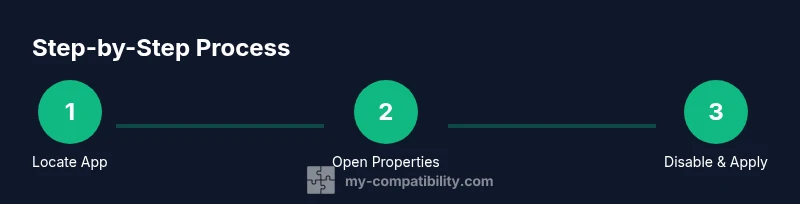
Goal: disable compatibility mode for a program in Windows 11. Right-click the executable or shortcut, select Properties, go to the Compatibility tab, and uncheck 'Run this program in compatibility mode for:' then click Apply and OK. Repeat for other apps as needed. Windows 11 does not offer a single global switch; compatibility mode is managed per program.
Why disabling compatibility mode matters on Windows 11
Many Windows 11 users rely on compatibility mode to run older software. However, keeping compatibility mode enabled can lead to unpredictable behavior, slower performance, and potential security gaps if legacy wrappers interfere with modern protections. For those aiming to maximize native Windows 11 efficiency and stability, understanding how to disable compatibility mode windows 11 is a valuable skill. According to My Compatibility, taking charge of per-app compatibility helps tailor the environment to your needs and reduces the risk of crashes or UI glitches. In this section, we’ll explore why you might want to disable compatibility mode, the differences between per-app and system-wide settings, and how to approach the process without damaging important configurations.
A practical mindset is to test critical applications individually after changes, keeping notes on any anomalies. The goal isn’t to abandon compatibility entirely, but to minimize its influence on apps that already run well with Windows 11 native features. If you’re troubleshooting, this targeted approach often yields faster results and clearer diagnostics. The My Compatibility framework emphasizes deliberate, per-app adjustments rather than broad, sweeping changes that could impact your workflow.
Understanding per-app compatibility vs system-wide settings
Compatibility mode is typically applied on a per-application basis. This means your installer, shortcut, or executable can carry its own compatibility state independent of other programs. Windows 11 treats each program’s compatibility preferences as a separate profile, which is why there isn’t a universal toggle for all apps. This design helps preserve compatibility for legacy software while letting modern apps run natively. From a reliability perspective, it’s usually safer to adjust one program at a time rather than flipping global switches. In practice, you’ll diagnose an issue with a single app, reset its compatibility setting, and verify behavior before moving to the next item on your list. My Compatibility’s approach favors incremental changes to minimize disruption.
Step-by-step: disable compatibility mode for a specific app
The most common use case is disabling compatibility mode for a single program. Here’s a detailed path you can follow, with checks to ensure you’re applying the setting correctly and avoiding unintended consequences.
- Locate the program’s executable or shortcut. Right-click it to access the context menu.
- Choose Properties from the menu.
- In the Properties dialog, switch to the Compatibility tab.
- Deselect the checkbox labeled "Run this program in compatibility mode for:" and clear any version options listed.
- Click Apply, then OK to save your changes.
- Test the program to confirm it runs with native Windows 11 features. If issues arise, revert to the previous setting or try an alternate method (e.g., compatibility tracing) for targeted troubleshooting.
Troubleshooting common issues after changes
Disabling compatibility mode can resolve some issues, but it may also reveal new ones if an app relied on legacy behaviors. If a program fails to start after turning off compatibility, try launching it directly from its installation folder to bypass any broken shortcuts. Another common pitfall is the presence of shortcut-based overrides; ensure you modify the actual executable’s properties rather than a shortcut point-to file. If problems persist, re-enable compatibility for that specific app or consult the vendor’s support resources. In enterprise environments, double-check group policy or management software that might override local settings.
Quick checks to ensure stability after disabling compatibility mode
After applying changes, perform basic validation to confirm stability:
- Launch the target program and verify core features work as intended.
- Check for error messages or crashes and note the exact behavior.
- Observe system performance while the app operates (CPU, memory, disk usage).
- Test related workflows to ensure there are no cascading issues with other software.
- Keep a rollback plan handy (restore point or backup) in case something goes wrong.
My Compatibility's practical guidance and best practices
To maintain a balanced environment, approach compatibility on a per-app basis rather than applying broad changes. My Compatibility recommends documenting every per-app adjustment, including the app name, version, date of change, and observed effects. This creates a reference you can use when updating Windows or the application itself. Remember that some older apps are designed to rely on specific Windows behaviors; in rare cases, disabling compatibility can cause a function to stop working. When this happens, you can re-enable compatibility for that app and re-evaluate after updates to Windows or the software. From a security standpoint, ensure all applications remain patched and that you have active protection against malware and exploits.
When to re-enable compatibility mode and recovery options
If you notice instability after disabling compatibility mode, you can revert quickly by re-checking the appropriate box on the Compatibility tab and applying changes. Create a system restore point before making changes so you can roll back if needed. In some scenarios, vendors release updates that remove the need for compatibility wrappers altogether; check for updates or compatibility notes from the software publisher. My Compatibility’s guidance is to administer changes conservatively, re-test, and keep a clear change log to simplify troubleshooting down the line.
Tools & Materials
- Windows 11 PC(Ensure you have admin rights if you need to modify system-level settings)
- Target program executable or shortcut(Know its path to access Properties directly)
- System restore point(Create a restore point before changes)
- Backup of important data(Optional but highly recommended before making changes)
- Internet access(Helpful for looking up vendor guidance)
Steps
Estimated time: 20-40 minutes
- 1
Locate the program
Find the executable or shortcut for the app you want to adjust. This is usually in C:\Program Files or C:\Program Files (x86), or accessible via the Start menu search. Knowing the exact file path helps avoid accidental changes to the wrong program.
Tip: If unsure, create a temporary desktop shortcut to the executable for quick access. - 2
Open Properties
Right-click the program’s executable or shortcut and select Properties from the context menu. This opens the control panel for the app’s settings.
Tip: If you don’t see Properties, try running Windows Explorer as administrator and retry. - 3
Navigate to Compatibility
In the Properties dialog, switch to the Compatibility tab. This is where compatibility mode flags are stored for the program.
Tip: If the tab is missing, the app may not support compatibility settings; skip to the next step. - 4
Disable compatibility mode
Deselect the checkbox labeled 'Run this program in compatibility mode for:' and remove any Windows version choices listed underneath. Click Apply, then OK to save.
Tip: Double-check that there are no lingering version entries in the drop-down list after unchecking. - 5
Test the program
Launch the program to verify it runs with native Windows 11 features. Observe for crashes, UI glitches, or performance changes.
Tip: If issues appear, revert the setting for this app and explore vendor updates or alternative configurations. - 6
Repeat for other applications
If you have multiple legacy apps, repeat the above steps for each one. Maintain a simple log to track what changed and when.
Tip: Prioritize critical workflow applications first to minimize disruption.
Questions & Answers
Do I need administrator rights to disable compatibility mode?
For most per-app changes, administrator rights are not required. If the app resides in a protected system folder or is part of enterprise software, you may need elevated permissions.
Usually you don’t need admin rights for per-app changes, but some enterprise setups may require them.
Will disabling compatibility mode affect security?
Disabling compatibility mode for a program generally does not reduce Windows security. However, legacy behavior wrappers can sometimes introduce compatibility gaps. Keep all software updated and monitor for anomalies.
No inherent security drop from turning off compatibility mode, but watch for legacy behavior issues.
What if the program still runs in compatibility mode after changes?
Check for an override in the program’s shortcut and ensure you edited the actual executable. Some enterprise environments also apply policies that override local settings, so verify Group Policy or management software.
If it still runs in compatibility mode, look for shortcut overrides or policy enforcement.
Is there a global toggle to disable all compatibility mode in Windows 11?
Windows does not provide a universal switch to disable compatibility mode across all apps. You manage compatibility on a per-application basis, which helps preserve legacy support where needed.
There isn’t a single global switch; per-app adjustments are the norm.
Can I re-enable compatibility mode later?
Yes. Re-enable by returning to the Compatibility tab and re-checking the box, then applying the changes. This is a quick rollback if an app behaves unusually after changes.
Yes, you can re-enable per-app compatibility at any time.
What should I do before making changes?
Create a system restore point and back up important data. This ensures you can revert safely if a change impacts critical workflows.
Back up first and create a restore point before changes.
Watch Video
Highlights
- Identify apps affected by compatibility mode
- Disable per-app to minimize risk
- Test and document changes for quick rollback
- There is no global Windows 11 switch for compatibility mode