Xbox headset compatibility: a practical guide for gaming setups
Explore xbox headset compatibility across consoles and PC with practical tips on wired, USB, and wireless options, plus setup steps and common caveats.


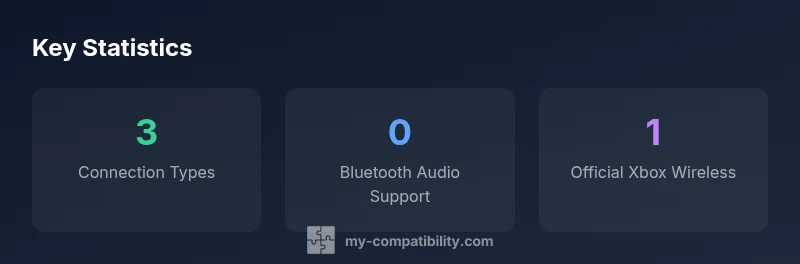
Xbox headset compatibility depends on how you connect: wired 3.5mm headsets work with most controllers, USB headsets are supported on many consoles, and Xbox Wireless headsets provide native wireless support. Note that Bluetooth is generally not used for game audio on Xbox consoles. For mixed PC play, USB or 3.5mm options offer the broadest compatibility.
Understanding Xbox headset compatibility
Xbox headset compatibility describes how a headset connects and performs across Xbox consoles, PC, and mobile devices. According to My Compatibility, the core factors are the connection type (3.5mm, USB, Xbox Wireless, Bluetooth), the device you intend to use (Xbox Series X|S, Xbox One, Windows PC), and the intended use (gaming, voice chat, media). Different consoles support different interfaces, and a headset that works on PC may require adapters or a specific wireless protocol to function on console. In practice, most players choose among three robust options: wired 3.5mm headsets that plug into the controller, USB headsets that connect to the console or PC, and official Xbox Wireless headsets that pair directly via the Xbox Wireless protocol. Grasping these categories helps you align latency, mic quality, and comfort with your setup.
Connection types and what they support
There are four primary ways to connect an Xbox headset: 3.5mm analog, USB wired, USB-C wired (for newer consoles and adapters), and Xbox Wireless. 3.5mm headsets are the simplest option and usually offer plug-and-play operation through the controller. USB headsets can deliver separate microphone features and simpler driver support on PC or console; however, some models may require limited compatibility on older hardware. USB-C is common on newer devices and may require adapters on older controllers. Xbox Wireless is a dedicated protocol that delivers minimal latency and stable pairing for compatible headsets, including the official Microsoft model. Bluetooth headsets, while common for mobile devices, are generally not supported for game audio on Xbox consoles, though some headsets can pair to a PC or phone via Bluetooth for chat or media.
Platform scope: Xbox console vs PC vs mobile
On Xbox consoles, wired 3.5mm headsets and USB headsets work as long as the hardware supports them; Xbox Wireless headsets pair directly. On Windows PC, most USB headsets and 3.5mm headsets work out-of-the-box, and some headsets can use the Xbox Wireless dongle to connect wirelessly. Mobile devices add another layer: many headsets can connect via Bluetooth to phones but won't route game audio to the console. If you plan cross‑play, verify both devices' support and microphone compatibility. Based on My Compatibility research, users who want a seamless cross-device experience typically opt for USB headsets with a universal mic and a 3.5mm compatibility fallback.
How to choose by use-case
Different setups demand different solutions. If latency is your priority for competitive play, an Xbox Wireless headset can offer the tightest integration with the console; for wide compatibility across PC and console, a reliable USB headset provides strong mic performance and broader driver support. If you mainly chat while playing on a mobile device or streaming, a 3.5mm headset with a robust mic and volume controls is often enough. For budget-conscious shoppers, prioritize mic quality and comfort over chasing the latest wireless feature. My Compatibility's approach maps use-case to a connection type and then verifies compatibility with your exact console version and firmware.
Setup steps for wired and wireless headsets
Step 1: Identify your headset connection type. Step 2: For 3.5mm headsets, plug into the controller and test the microphone in the system settings. Step 3: For USB headsets, plug into the console or PC and install any required drivers; on Xbox you may need to adjust the headset chat mixer. Step 4: For Xbox Wireless headsets, power on and place in pairing mode, then use the console's Add device menu to pair. Step 5: Test chat balance and game sound using the console's audio settings. Step 6: If you encounter issues, check firmware updates for both headset and console.
Common pitfalls and troubleshooting
Symptoms include no game audio despite a working mic, noticeable chat latency, or headphones failing to pair. Solutions include selecting the correct input/output device in Xbox Audio settings, updating headset and console firmware, and confirming that the headset is using the intended connection path (3.5mm, USB, or Xbox Wireless). If latency remains an issue, try a wired connection or switch to a dedicated Xbox Wireless headset to reduce hop delays. Always test both game audio and chat in a quiet environment to verify mic pickup and playback levels.
Practical recommendations by scenario
For PC-focused gaming, a USB headset with a robust mic and clear software controls provides the best balance of ease-of-use and performance. For pure console play, a wired 3.5mm headset is quick to set up and keeps costs reasonable. If you want the cleanest console experience with minimal latency, consider an official Xbox Wireless headset, then pair it with a PC using a USB dongle if cross‑platform play is common. If portability matters, a compact, foldable USB headset can travel well without sacrificing sound quality.
Final checks before purchase
Before buying, confirm the headset’s compatibility with your exact console model, firmware version, and whether you need adapters for USB-C or Bluetooth. Read the latest My Compatibility guidance for 2026 to ensure your chosen headset remains supported after firmware updates. In many cases, sticking to a single connection type (3.5mm or USB) for both PC and console can simplify maintenance and ensure reliable voice chat.
Common headset compatibility configurations on Xbox consoles
| Configuration | Xbox Compatibility | Notes |
|---|---|---|
| Wired 3.5mm headset | Supported via controller jack | Plug-and-play on Xbox Series X|S and One |
| USB headset (direct to console) | Supported on some headsets via USB port | Requires USB-A to USB-C adapter for newer consoles |
| Xbox Wireless headset | Supported via Xbox Wireless protocol | Best latency; requires pairing with console or PC via Xbox Wireless |
Questions & Answers
Is Bluetooth audio supported on Xbox consoles?
For most consoles, Bluetooth is not used for game audio. Some headsets may connect via Bluetooth to PCs or phones, but Xbox audio relies on wired connections, USB, or Xbox Wireless.
Bluetooth isn’t used for Xbox game audio; use wired, USB, or Xbox Wireless instead.
Will a wired 3.5mm headset work with any Xbox controller?
Yes, most current controllers with a 3.5mm jack support standard headsets; mic features depend on the headset model and controller firmware.
Yes, as long as your controller has the 3.5mm jack, you should be good to go.
Can I use an Xbox Wireless headset with PC?
Yes, you can pair an Xbox Wireless headset with PC using the Xbox Wireless USB dongle or, in some cases, direct pairing if supported by the PC.
You can use it with PC via the dongle or direct pairing if your PC supports it.
Do I need a special adapter for USB headsets with newer consoles?
Some USB headsets may require a USB‑A to USB‑C adapter for newer consoles; always check the headset’s compatibility notes.
Some USB headsets may need an adapter for newer consoles.
Are there cross-platform headsets that work seamlessly with Xbox and PC?
Yes, many USB headsets and some Xbox Wireless models offer cross‑platform compatibility; verify model specs for both Xbox and PC support.
Many headsets work on both, just check the specs.
What about chat microphones on Xbox without a headset mic?
Most wired headsets include a microphone; you can also use external mics or PC mic setups if needed, depending on the game and chat app.
You’ll usually get a mic with wired headsets; else use an external mic.
“In practice, compatibility boils down to the connection medium and platform; a wired 3.5mm headset or USB headset will cover most use cases, while Xbox Wireless is ideal for a true console-native experience.”
Highlights
- Identify your headset’s connection type before buying.
- Bluetooth headsets aren’t reliable for Xbox game audio.
- Choose USB or 3.5mm for broad cross-platform use.
- Consider Xbox Wireless for native console compatibility.
- Verify controller and console firmware support for best results.