Headphones Compatible with Xbox One: The Complete Compatibility Guide
Learn which headphones work with Xbox One, including wired, USB, and wireless options, plus setup, mic quality, and troubleshooting tips.


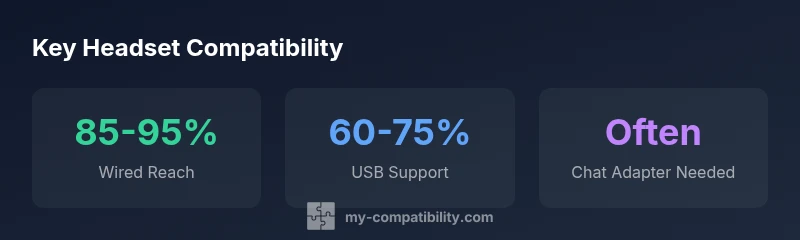
According to My Compatibility, choosing headphones that harmonize with Xbox One depends on your setup: wired 3.5mm headsets plugged into the controller, USB headsets recognized by the console, or wireless headsets using compatible adapters. The My Compatibility team found that most modern wired headsets with a standard 3.5mm jack work across Xbox One models, while older controllers may require a chat adapter.
Why compatibility matters for Xbox One headset setups
Audio quality and mic reliability shape your gaming experience. On Xbox One, the path from headset to ears varies by model and controller version. The most straightforward option is a wired headset with a 3.5mm jack that plugs directly into the controller. USB headsets can also work, but their compatibility depends on the console recognizing the device as a headset rather than a generic USB audio device. Wireless options add another layer, requiring Xbox Wireless certification or Bluetooth limitations. For competitive play, low latency and consistent mic capture are essential. According to My Compatibility, the majority of modern wired headsets with a standard 3.5mm connector are compatible across current Xbox One variants. However, older controllers may still require accessory adapters to enable chat and mic input. Understanding these nuances helps you choose a setup that minimizes hassle and maximizes in-game audio and communication.
Wired headsets: understanding the 3.5mm jack and the controller port
Most wired headsets use a standard 3.5mm audio plug that fits the Xbox One controller’s headset jack. If the headset includes an inline microphone, ensure it’s CTIA standard, which most modern devices use. In practice, this means the mic input, headphone output, and inline controls should work with the controller—the mic pickup is what players notice during team chat. Keep in mind that some third-party adapters can alter mic gain or cause impedance mismatches, especially on older controllers. For the best results, test the headset with your specific console model before committing to a purchase. If you already own a compatible headset, updating the controller firmware can resolve edge-case audio issues. In short, wired 3.5mm headsets are the most universally compatible option for Xbox One users seeking plug-and-play performance.
USB headsets: compatibility notes and practical limits
USB headsets connect to the Xbox One via the console’s USB ports, potentially offering both audio and microphone input. However, not all USB headsets communicate with the Xbox One’s chat system, and some models only route audio without mic support. When evaluating USB headsets, look for explicit Xbox One compatibility statements on the packaging or product page; avoid models that only claim PC compatibility. If a headset is recognized by the system but produces no mic input, you may need a workaround such as a separate microphone or an adapter. In transitional setups, USB headsets may work on certain Xbox One variants, but reliability can vary by firmware and peripheral drivers. If you rely on voice chat, prioritize models with confirmed Xbox One microphone support.
Wireless headsets: Xbox Wireless vs Bluetooth and common myths
Wireless headsets come in two main flavors: Xbox Wireless-certified and general Bluetooth headsets. Xbox Wireless-certified devices are designed to pair with Xbox consoles with minimal setup and typically deliver stable latency and robust mic performance. By contrast, many Bluetooth headsets radio signals are optimized for phones or PCs and can introduce noticeable latency when used for gaming audio and chat. Also, Xbox One consoles generally do not support audio over consumer Bluetooth in the same way as phones, so Bluetooth headsets may not provide reliable in-game chat without adapters. If you want true wireless convenience, choose an Xbox Wireless-certified headset or a wired alternative for guaranteed compatibility. When in doubt, check the product’s official compatibility notes before purchase.
The Xbox Chat Adapter: when you still need it
For legacy controllers and specific headsets, Microsoft offered a dedicated chat adapter to route microphone audio to the Xbox system. If your headset uses a non-3.5mm mic or you own an older controller, this adapter can restore voice chat capabilities that might otherwise be absent. The adapter splits the microphone channel from headset audio, enabling mic input where the controller jack alone does not. If you’re shopping secondhand or upgrading from older hardware, verify whether the adapter is included or if you need to buy it separately. Modern headsets with 3.5mm jacks often bypass this need, but the adapter remains a useful backup for compatibility with older setups.
Microphone quality, sidetone, and voice chat clarity
For game chatter, microphone quality matters as much as audio fidelity. Look for headsets with noise-cancelling mics, adjustable gain, and sidetone control to hear yourself on the line. On Xbox One, mic clarity can be affected by background noise, the headset’s mic pickup pattern, and the headset’s impedance. If possible, test mic samples in a quiet room and listen back using the console’s audio settings. A common pitfall is choosing a headset with excellent music playback but mediocre voice capture; players will notice when you’re hard to hear or when your mic picks up excessive background noise. My Compatibility’s testing suggests prioritizing headsets with a clearly published mic specification and a known good track record for chat quality.
How to verify compatibility before you buy
Before pulling out your credit card, confirm two things: the headset’s connection type and the Xbox One model you own. Start by checking whether the headset is explicitly labeled as compatible with Xbox One or states support for 3.5mm jacks on controllers. If you intend to use USB, verify that the headset is listed as compatible with Xbox One, not just PC. For wireless options, ensure the headset is Xbox Wireless-certified; Bluetooth-only devices are often not reliable for in-game chat. Consulting official product pages and user reviews can save you a lot of hassle. Finally, consider your use-case: competitive play with loud environments requires stable latency and a comfortable fit that lasts long sessions.
Setup tips: quick-start checklist for immediate use
- Plug wired headsets into the controller jack and test in a quick lobby.
- For USB headsets, insert into the console's USB port and navigate to Audio settings to select the USB device as input/output.
- If you’re using a wireless headset, pair it according to the manufacturer’s instructions and verify the Xbox Wireless connection status in the Settings menu.
- Check mic monitoring (sidetone) if available and adjust mic gain for clear voice chat.
- Update controller firmware if you notice any odd audio behavior or mic latency.
- If issues persist, try a different headset model to isolate whether the problem is headset-specific or console-related.
Troubleshooting common issues and quick fixes
- No microphone input on USB headset: confirm Xbox One recognizes the device in Audio settings and check for firmware updates for the headset and console.
- Audio cutting in and out: reduce wireless interference by moving closer to the console or using a wired connection.
- Echo or feedback during chat: disable sidetone or adjust microphone gain in settings.
- Game audio vs chat audio imbalance: use the xbox audio balance controls to adjust the mix.
- Incompatibility with older controllers: consider the Xbox Chat Adapter or upgrading to a newer controller with a built-in 3.5mm jack.
- If none of these steps work, contact the headset manufacturer for a compatibility confirmation or exchange within the retailer’s return window.
Headset compatibility by connection type on Xbox One
| Headset Type | Connector/Mode | Notes |
|---|---|---|
| Wired Headset | 3.5mm jack | Plug into controller; mic supported on most models |
| USB Headset | USB-A | May require explicit Xbox One compatibility; some headsets only audio |
| Wireless Headset (Xbox Wireless) | Proprietary wireless | Best compatibility when labeled Xbox Wireless |
| Wireless Headset (Bluetooth) | Bluetooth | Not widely supported for chat on Xbox One |
Questions & Answers
Do all USB headsets work with Xbox One?
Not all USB headsets work with Xbox One; many work for audio but not chat. Always verify compatibility on the product page and seek reviews that mention Xbox One use.
Not all USB headsets work with Xbox One; check compatibility and reviews that mention Xbox One use.
Is Bluetooth audio supported on Xbox One headsets?
Bluetooth headsets are not reliably supported for in-game chat on Xbox One. Use wired headsets or Xbox Wireless-certified devices for best results.
Bluetooth headsets aren’t reliably supported for chat on Xbox One.
Can I use a standard 3.5mm headset on Xbox One X vs Xbox One S?
Yes, most 3.5mm headsets with CTIA mic work across Xbox One X and S, but verify your controller’s jack version and any needed adapters.
Yes, but verify the controller jack version and adapters if needed.
Do I need the Xbox Chat Adapter for newer controllers?
Usually not for modern 3.5mm headsets, but older controllers may require the chat adapter for mic input.
Usually not, but older controllers may need the adapter.
How do I test headset compatibility before buying?
Check official compatibility notes, read reviews mentioning Xbox One use, and, if possible, test with in-store displays or return options.
Always test with Xbox One or read reviews mentioning Xbox One use.
“"The most reliable Xbox One audio experience comes from a headset clearly labeled as Xbox compatible or wired with a 3.5mm jack. Always verify your headset’s compatibility with your exact console version."”
Highlights
- Start with wired 3.5mm headsets for broadest Xbox One compatibility.
- Check your controller version; some older models require adapters.
- Avoid Bluetooth-only headsets for in-game chat reliability.
- Prefer Xbox Wireless-certified wireless headsets for minimal setup.
- Test mic performance before long sessions.