Microphone Compatibility with Xbox: A Practical Guide
Learn how to choose a microphone that works with Xbox, including USB, 3.5mm, and wireless options, setup steps, testing tips, and troubleshooting for Xbox Series X|S and Xbox One.


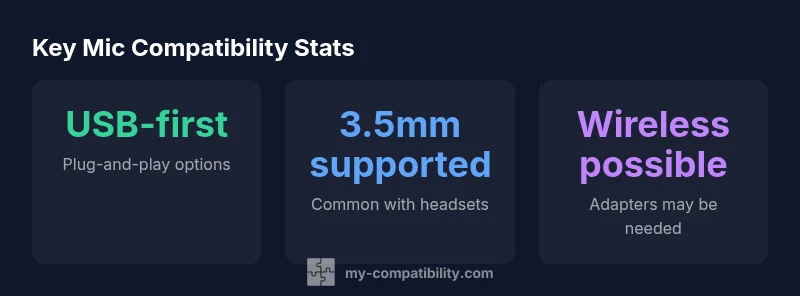
A microphone compatible with Xbox means a mic that can connect to Xbox consoles (via USB, 3.5mm, or a supported wireless adapter) and works reliably with chat and system audio. Most USB mics are plug-and-play on Xbox Series X|S and Xbox One, while 3.5mm mics require a compatible headset or adapter. Always verify compatibility with the official Xbox accessories catalog.
Why microphone compatibility with Xbox matters
According to My Compatibility, the right microphone can dramatically improve communication in games, streaming, and collaboration. When you pair a compatible mic with your Xbox console, you reduce clutter in your setup, avoid latency gaps, and ensure teammates hear you clearly. The landscape changes across Xbox Series X|S and Xbox One as inputs shift between USB, 3.5mm, and wireless adapters. By understanding these inputs, you can pick a mic that aligns with how you play, where you sit, and what other devices you own. In addition to direct voice chat, a good mic can enhance in-game communications during team-based modes, huddle sessions, and content creation. The key is to choose a microphone that is reliably detected by the console, offers straightforward gain control, and works with your preferred chat app.
Understanding Xbox mic standards and input options
Xbox supports multiple input options for voice capture, which means there isn’t a one-size-fits-all solution. USB microphones are typically recognized by the console as a dedicated audio device, providing straightforward setup without extra drivers. The classic 3.5mm microphone path usually goes through a headset or a controller with a built-in mic, and results can vary based on the headset’s own circuitry and the controller model. For wireless setups, you’ll often rely on official adapters or dongles that communicate with the console using a compatible wireless protocol. In practice, your selection should hinge on how you intend to game and whether you value portability, cable-free comfort, or the simplest plug-and-play experience.
USB mics: plug-and-play reality, caveats
USB microphones are widely favored on Xbox for their simplicity. When plugged into a USB port on the console, many mics appear in the audio settings as an input source, and users can adjust gain and monitoring directly without additional software. However, certain USB mics may draw more power than the console’s USB port can reliably supply, especially if you’re using a USB hub or many peripherals. In rare cases, firmware updates for the mic or console firmware may improve compatibility, so always check the latest console updates. When in doubt, prioritize USB mics with a straightforward, driver-free experience and good customer reviews confirming Xbox compatibility.
3.5mm mics: compatibility via headset or adapters
3.5mm mics are common through headsets and controller jacks, but results depend on the specific headset design and the controller version you own. Some controllers include dedicated mic electronics that affect signal quality, while others pass the analog signal more directly. If you’re using a standalone 3.5mm mic with a headset, ensure the mic portion is recognized by the controller and that the headset’s inline controls don’t suppress the mic signal. If you encounter inconsistencies, an adapter or a dedicated USB mic may provide more reliable results on Xbox.
Wireless mics: what works, what doesn't
Wireless mics range from USB dongles to official Xbox Wireless-compatible devices. Compatibility depends on the wireless standard and the adapter available on the console. While wireless can offer cleaner setups and more flexibility, latency and battery life are practical considerations that can impact voice timing in fast-paced games. To maximize reliability, use wireless mics with official adapters or those explicitly marketed as Xbox-compatible, and keep batteries charged. If your wireless mic carries its own app or software, you’ll typically want to avoid relying on it for core in-game voice while gaming.
How to test compatibility before buying
Before purchasing a mic, verify on the Xbox official compatibility pages and review aggregated user feedback. If possible, test the mic in a store or with a generous return policy to confirm that it is detected by the console and provides clear vocal capture. When evaluating, pay attention to:
- Detection in Settings > General > Volume & audio output
- Input level responsiveness at typical speaking volume
- Noise handling and mic proximity effects
- Whether the mic remains stable during sessions with multiple players Document how it performs in both casual and competitive modes so you’re prepared for different play styles.
Setup steps for Xbox Series X|S and Xbox One
Setting up a microphone on Xbox typically follows a straightforward path, but there are nuances depending on your device type. For USB mics, plug the mic into a free USB port, navigate to Settings > General > Volume & audio output to select the mic as the input device, and adjust input volume and mic monitoring. For 3.5mm mics, ensure the headset is properly connected to the Controller jack and verify the mic is active in the audio settings. Wireless mics require pairing with the appropriate adapter or dongle, then the same input selection applies. If you use multiple audio sources, setting a preferred chat mix can help balance game audio and voice chat.
Common issues and fixes
If your mic isn’t detected, try reseating cables, switching USB ports (prefer directly on the console rather than a hub), and ensuring the mic’s firmware is up to date. For low volume or noisy output, check gain settings and proximity (closer to the mouth usually helps), enable mic monitoring to gauge how you sound, and ensure no audio filters are muting your voice. Latency or echo can be mitigated by reducing background noise and ensuring your microphone input latency is minimized in the game’s settings. If issues persist, consult the console’s official support resources for device-specific guidance.
Best practices for long-term mic stability
To keep your Xbox microphone experience consistent over time, store mics in a dry, dust-free environment and avoid forcing incompatible adapters into ports. Maintain firmware and console software updates to preserve compatibility with new games and apps. Label devices for easy identification when you own multiple mics or headsets, and create a simple testing routine before major sessions to ensure you always have reliable voice input during gameplay.
Overview of mic connection types for Xbox
| Mic Type | Connection | Pros | Cons | Best For |
|---|---|---|---|---|
| USB Microphone | USB-A | Plug-and-play; clean audio | Power draw; hub dependency possible | Streaming and content creation |
| 3.5mm Microphone (headset mic) | 3.5mm TRS | Budget-friendly; widely supported | Quality varies by headset; may require adapter | Casual gaming and chat |
| Wireless Microphone (adapter) | USB dongle / wireless | Cordless freedom; flexible placement | Potential latency; battery management | Living room setups; couch co-op |
Questions & Answers
What makes a mic compatible with Xbox?
A mic is compatible with Xbox if it can connect to the console (USB, 3.5mm, or supported wireless) and is recognized in the system’s audio settings. Always verify compatibility with the official Xbox accessories catalog.
Most USB mics are plug-and-play on Xbox, and you can test 3.5mm mics with compatible headsets.
Will Bluetooth mics work on Xbox?
Bluetooth microphones are not commonly supported for game chat on Xbox. Use USB, 3.5mm headset mics, or official wireless adapters for reliable experiences.
Bluetooth isn't typically reliable for Xbox chat; stick to USB, 3.5mm, or supported wireless options.
Can I use a USB mic with Xbox Series X|S?
Yes. USB microphones are generally recognized by the console without extra software. Check the compatibility page and firmware updates if needed.
Yes—the USB mic usually works out of the box on newer Xbox consoles.
What if my mic isn’t detected?
Try a different USB port, disconnect other USB devices, and ensure the mic is selected in Settings. If still missing, consult Xbox Support for device-specific guidance.
Switch ports, unplug other devices, and select the mic in Settings. If it’s still not found, check Xbox Support.
Do I need a special adapter for 3.5mm mics?
Some 3.5mm mics require a compatible headset or controller adaptor. If the mic isn’t recognized, consider a USB mic for easier setup on Xbox.
Sometimes you need a special adapter; if not, a USB mic is a simpler option.
How can I optimize mic volume and clarity?
Adjust input gain in settings, keep the mic at an appropriate distance, and avoid background noise. Use mic monitoring to calibrate levels and ensure your teammates hear you clearly.
Tweak gain, sit closer for louder input, and test with mic monitoring.
“"Sound quality on Xbox comes down to compatibility, driver support, and proper input settings."”
Highlights
- Verify your connection type before buying
- Prefer USB mics for ease on Xbox
- Test mic in party chat to confirm clarity
- Check compatibility lists to avoid returns