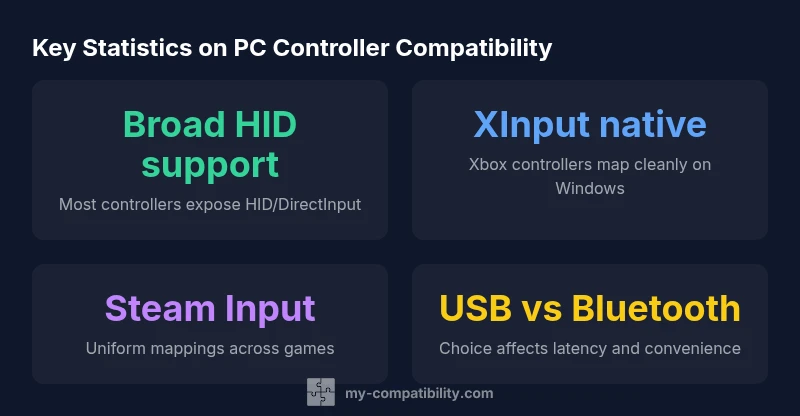
What Controllers Are Compatible With PC: A Practical Gamer's Guide
Discover which controllers work with PC gaming, including Xbox, PlayStation, Nintendo pads, and third-party options. Learn connection methods (USB, Bluetooth), driver needs, and setup tips for Windows, macOS, and Linux.


What type of controllers are compatible with pc? In short, most PC setups support HID controllers via USB or Bluetooth, with Xbox controllers enjoying native XInput support on Windows. PlayStation and Nintendo pads work too, often via USB or Bluetooth, though feature parity may vary by game and driver/software support. This guide breaks down compatibility across connection methods and platforms.
What type of controllers are compatible with pc
When you’re building or updating a PC gaming setup, the most reliable path to broad compatibility is to choose controllers that present standard input interfaces. The two main streams are HID (Human Interface Device) and XInput/DirectInput. HID is the umbrella that covers many inexpensive or generic gamepads and joystick accessories; it’s what Windows and most modern OSes recognize out of the box. XInput is the API used by most Xbox controllers and some modern third-party pads designed to emulate Xbox hardware. If a controller exposes XInput, you’ll typically enjoy smoother in-game integration and consistent button mapping with minimal configuration. On the other hand, DirectInput remains relevant for older controllers or devices that do not implement XInput. The good news is that a lot of devices present HID at the hardware level, which makes them work across Windows, macOS, and Linux—often with driver support provided by the device manufacturer or the OS itself. As you weigh options, think in terms of compatibility: HID-first devices for broadest support, XInput for native Windows integration, and DirectInput for legacy gear.
How PC compatibility works: HID, XInput, DirectInput
Across PC ecosystems, you’ll encounter three core input paradigms. HID is universal and hardware-based; it ensures the device can communicate with the host OS. XInput is a Windows-specific API that many modern controllers use, especially Xbox-branded pads, delivering consistent mapping and low-latency input. DirectInput predates XInput and remains relevant for older controllers or niche devices. The practical effect is: if your controller is HID and uses XInput, you’ll likely get plug-and-play operation on Windows with minimal setup. If it’s HID but only DirectInput, you may encounter some legacy games requiring manual mapping. For macOS and Linux, driver availability and community projects often fill in gaps, sometimes via Steam Input or third-party software to harmonize controls across games.
Connection methods: USB, Bluetooth, and wireless dongles
PC controllers leverage a mix of connection methods. USB wired connections are typically the most reliable for latency-sensitive titles and avoid wireless interference. Bluetooth offers convenient, cable-free play but can introduce marginal latency or pairing quirks, especially on laptops with constrained antennas. Some controllers ship with proprietary wireless dongles that pair quickly and reduce interference, but compatibility can be limited to specific brands. When planning a setup, consider your primary use case: console-style couch gaming with a dongle, or on-the-go play via Bluetooth on a laptop. Regardless of method, ensure your PC supports the chosen connection (USB ports, Bluetooth version 4.0+).
Native support by platform and driver considerations
Windows provides the most seamless PC gaming experience for standard controllers, with Xbox controllers enjoying native XInput integration. PlayStation and Nintendo pads often work out-of-the-box via USB or Bluetooth, but feature parity may depend on the game, platform storefront, or the presence of drivers or middleware. macOS and Linux vary more widely: some controllers map cleanly, while others require Steam Input, anti-curse wrappers, or community drivers. Steam has become a de facto bridge for many non-Windows platforms, offering uniform input mapping that improves compatibility across titles. When troubleshooting, check OS-level support first, then consult the game launcher for controller configuration options.
Popular controller types and setup tips
The most common PC-compatible controllers include the Xbox Series X|S controllers, which map cleanly via XInput on Windows. PlayStation 4 and PlayStation 5 controllers work on Windows and macOS with USB or Bluetooth; however, you may find benefits from Steam Input or third-party software to unlock full functionality (touchpad, vibration profiles, or advanced button remapping). Nintendo pads, such as the Switch Pro Controller, can be used on PC with USB or Bluetooth; their compatibility varies by game and driver. Third-party pads (e.g., 8BitDo, Retro-Bit) often present standardized inputs (XInput/DirectInput) and can be excellent value if you want cross-series compatibility. Finally, wired connections typically deliver the fastest response; if you’re gaming on a laptop, a compact dongle can be a clean, low-latency option.
Platform nuances: Windows, macOS, Linux
Windows remains the most forgiving platform for PC controller compatibility, thanks to native XInput and broad HID support. macOS users benefit from HID compatibility, though some devices may require Steam Input or vendor drivers to reach parity with Windows features. Linux introduces further variability; most mainstream controllers work via HID, but some special features (like touchpads or rumble profiles) may require community packages or Steam’s Input API. If you want universal behavior across multiple OSes, Steam Input often provides a reliable, centralized mapping layer, especially for indie titles and emulators. Always test a controller with your primary games first, then add or adjust mappings as needed.
Troubleshooting common problems
If a controller isn’t recognized, start with the obvious: try a different USB port, restart the game or launcher, and ensure the OS has the latest drivers for your device. For Windows, check device manager for HID/composite devices and update drivers if needed. If the device appears but doesn’t map correctly, use Steam Input or third-party utilities to remap buttons and calibrate axes. For Bluetooth devices, re-pairing can resolve pairing glitches; in some cases, updating Bluetooth drivers or firmware helps. When you’re dealing with obscure or older devices, consider sticking to standard HID/XInput devices or leveraging Steam’s controller configuration to achieve a consistent experience across titles.
Practical buying tips and quick-start steps
Before purchasing a controller for PC, confirm XInput support or at least HID compatibility with DirectInput fallback. If you primarily game on Windows, prefer an Xbox controller for native XInput mapping; for cross-platform play, look for devices that advertise XInput/DirectInput compatibility or offer Steam Input support. Verify the availability of drivers or configuration software from the manufacturer, and read user reviews about latency and reliability on PC setups similar to yours. Quick-start steps: 1) connect via USB for initial testing, 2) switch to Bluetooth if you need wireless use, 3) open Steam Big Picture or Steam Input to configure mappings, 4) assign per-game profiles and save them for future sessions, 5) consider a USB-C hub if you’re short on USB ports and want reliable performance.
Representative cross-platform controller compatibility overview
| Controller Type | Connection | OS Compatibility | Notes |
|---|---|---|---|
| Xbox Series X|S Controller | USB / Bluetooth / Wireless | Windows, macOS (partial), Linux (partial) | Native XInput; best Windows integration |
| PlayStation DualShock 4 | USB / Bluetooth | Windows 10/11, macOS, Linux | Basic controls; Steam/DS4Windows for full features |
| PlayStation DualSense (PS5) | USB / Bluetooth | Windows 10/11, macOS (via Steam/Steam Input) | Feature parity improves with Steam Input |
| Nintendo Switch Pro Controller | USB / Bluetooth | Windows 10/11, macOS, Linux | Broad HID support; Steam mappings helpful |
Questions & Answers
Which controllers have native PC support without extra software?
Xbox controllers have native XInput support on Windows. Other pads often work via USB/Bluetooth, but full feature parity may require Steam Input or drivers. Always test with your target games.
Xbox controllers work natively on Windows; others may need drivers or Steam Input.
Do Mac and Linux users need extra software to use controllers on PC?
macOS and Linux can recognize many HID controllers, but features vary by device. Steam Input or vendor drivers can help achieve broader compatibility across titles.
Usually works, but you may need Steam Input or drivers for full features.
Will Bluetooth support increase compatibility?
Bluetooth adds wireless convenience but can introduce occasional latency or pairing quirks. Ensure your PC’s Bluetooth is reliable and that the controller supports HID over Bluetooth.
Bluetooth is convenient but reliability varies; check your setup.
Are third-party controllers widely supported on PC?
Many third-party controllers (e.g., 8BitDo) emulate XInput/DirectInput and work well, often with Steam or platform settings. Verify compatibility with your games before buying.
Many third-party controllers work well, especially with proper mapping.
What should I do if my controller isn’t recognized?
Try different USB ports, update OS drivers, and use Steam Input or a mapping tool. If Bluetooth, re-pair and check for firmware updates.
Re-seat, update drivers, and map controls to fix common issues.
“For broad PC compatibility, the simplest path is choosing controllers that expose HID/XInput interfaces and solid driver support.”
Highlights
- Prioritize HID/XInput devices for broad PC support
- Wired USB usually offers the lowest latency
- Steam Input helps unify control schemes across games
- Check OS-specific driver notes for macOS/Linux compatibility