Are PS5 Controllers Compatible with PC? A Practical Guide
Explore whether PS5 DualSense controllers work on PC, how to connect via USB or Bluetooth, supported features, setup steps, and troubleshooting tips—based on My Compatibility analysis, 2026.


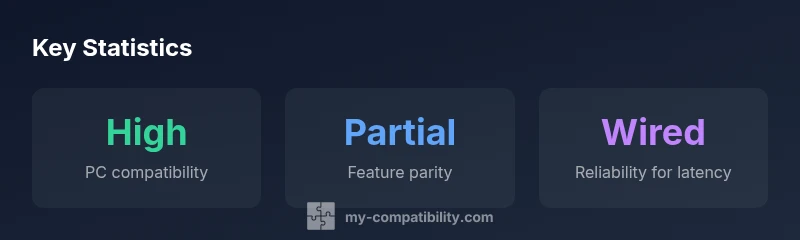
Are PS5 controllers compatible with PC? Yes, with caveats. The DualSense can connect via wired USB-C or Bluetooth, and basic button input is supported in Windows and most games. However, advanced features like adaptive triggers and haptics often require Steam Input or specific game support. In practice, compatibility is high, but not flawless for every title.
How the PS5 Controller connects to a PC
According to My Compatibility, the PS5 DualSense is broadly compatible with Windows PCs, making it a viable option for gamers who prefer Sony’s controller. The most reliable method to connect is a direct USB-C cable, which allows your PC to recognize the DualSense as a standard gamepad with minimal setup. Bluetooth pairing is also supported, though it can be more finicky and may introduce slightly higher latency on some configurations. On Linux or macOS, support varies more, but many games respond to basic button input. If you plan a multi-platform setup or want the most stable PC experience, start with a wired USB-C connection and test basic input in a few games before exploring wireless options.
What features work on PC (and what doesn't)
The core buttons, triggers, and the touchpad are generally recognized by Windows and most games, but the more advanced features require additional layers. Adaptive triggers and nuanced haptics typically rely on Steam Input or game-level support. Gyro sensing and mic input may work in certain titles, but not all. In practice, you’ll get reliable button input and basic vibration, while expressive feedback from adaptive triggers may only appear in games that explicitly support DualSense features or through Steam’s compatibility shims. For players who want a faithful feel, Steam can bridge some gaps, but feature parity is not guaranteed across the library.
Steam vs. Windows native support
Windows alone treats the DualSense as a generic controller, which is enough for many games but can leave out DualSense-specific features. Steam, on the other hand, provides a comprehensive controller interface via Steam Input. With Steam enabled, you can remap buttons, create per-game configurations, and enable feature parity for haptics and triggers where supported by the title. If you predominantly play Steam-friendly games, Steam Input often delivers the best balance of compatibility and customization. For non-Steam games, you may rely on Windows defaults or opt into Steam only when testing a particular title.
Step-by-step setup guides for wired and wireless connections
Wired USB-C setup:
- Connect the DualSense to your PC using a USB-C cable.
- Windows should recognize it as a “Wireless Controller” or “DualSense Controller.”
- Open a game to confirm input; if features seem limited, launch Steam and enable Steam Input for that title.
- In Steam, go to Settings > Controller > General Controller Settings and enable Support for PlayStation Configuration; reboot if needed.
- Test in multiple games to confirm button mappings and basic vibration.
Wireless Bluetooth setup:
- Put the controller into pairing mode by holding the PlayStation and Share buttons until the light bar flashes.
- On Windows, go to Settings > Bluetooth & devices > Add Bluetooth or other device > Bluetooth and select the DualSense.
- Once paired, you may need Steam Input per-game to optimize mappings or enable vibration.
- If latency is undesirable, switch to wired for competitive play.
General tips:
- Keep firmware and Windows updates current.
- Use a quality Bluetooth adapter for best results if you must go wireless.
Troubleshooting common issues
If the controller isn’t recognized:
- Try a different USB port or cable. USB-C cables can be power-only; use a data-capable cable for best results.
- Check Windows Update and Xbox/Windows Game Controllers drivers in Device Manager.
- Re-pair the device in Bluetooth settings if using wireless.
If inputs aren’t mapping correctly:
- In Windows, use Settings > Devices > Bluetooth & other devices to re-pair.
- In Steam, enable Steam Input for the affected game and check per-title configuration.
If haptics or triggers don’t work:
- Ensure the game supports DualSense features or enable Steam Input remapping for the title.
- Update Steam to the latest version and verify that the correct per-game profile is active.
Latency, input lag, and performance considerations
Wired connections drastically reduce potential input lag compared with Bluetooth, making the DualSense feel more responsive in fast-paced titles. Bluetooth introduces variability depending on the PC’s stack, dongles, and interference from other devices. For competitive shooters or rhythm games, wired is recommended for consistent latency. If you must use Bluetooth, keep Bluetooth hardware close to the controller, reduce wireless interference, and test with your favorite titles to see whether the latency meets your standards. Some users report negligible lag in casual play, while others notice occasional jitter in Bluetooth mode.
Compatibility with non-Steam games and macOS/Linux
On macOS and Linux, basic button input usually works, but DualSense features are less predictable due to lack of universal driver support. Steam mitigates this through its Input module, but results vary by game and distribution. If you rely on a non-Steam game, you may be limited to basic input without access to adaptive triggers or haptics. For the most consistent cross-platform experience, pair the controller via USB-C on Windows first, then experiment with Steam Input for any non-Steam titles.
Best practices to maximize compatibility
- Use a high-quality USB-C cable for wired connections; avoid cheap adapters that may fail to carry data.
- Prefer wired for latency-sensitive play and reserve Bluetooth for casual sessions.
- Enable Steam Input and per-title configurations in Steam whenever you install a new game.
- Keep your operating system, game clients, and firmware up to date to minimize compatibility quirks.
- If you encounter issues, test across multiple games to identify whether a problem is title-specific or system-wide.
PS5 DualSense compatibility on PC by connection method
| Connection Method | Compatibility Status | Notes |
|---|---|---|
| Wired USB-C | High | Direct detection on Windows; low latency |
| Bluetooth Wireless | Medium-High | Requires good Bluetooth stack; possible latency |
| Steam Input | High (with Steam) | Best for feature parity and customization |
| Non-Steam Games | Variable | Depends on game and platform support |
| Mac/Linux | Variable | Often limited feature parity beyond basic input |
Questions & Answers
Are PS5 controllers fully compatible with Windows without extra software?
Basic button input generally works on Windows 10/11 without extra software. For full DualSense features like adaptive triggers and advanced haptics, Steam Input or game-specific support is usually required.
Yes for basic input on Windows, but full feature parity often needs Steam Input or game support.
Can I use the PS5 DualSense with Bluetooth on PC?
Yes, the DualSense can pair over Bluetooth, but Bluetooth performance varies by PC hardware and drivers. Wired connections generally offer lower latency and more consistent behavior.
Yes, you can pair via Bluetooth, but wired is usually more reliable for latency.
Do I need Steam to use a PS5 controller on PC?
Not strictly. You can use the controller for basic input with Windows, but Steam adds robust configuration through Steam Input for better feature parity and per-game mappings.
Steam isn’t required for basic input, but it helps a lot for advanced features.
Will the PS5 controller work on macOS or Linux?
Basic input tends to work on macOS and Linux, but DualSense features are less consistently supported. Steam Input can improve compatibility on these platforms for select titles.
Basic input works on Mac/Linux, but advanced features aren’t always supported.
What should I try if my PS5 controller isn’t recognized on PC?
First, try a different USB port or cable. Ensure Windows updates and drivers are current, and re-pair the device if using Bluetooth. If using Steam, re-enable Steam Input for the game and reboot if needed.
Switch ports, check drivers, and re-pair if needed; use Steam Input for best results.
“The DualSense is broadly usable on PC, but you’ll get the most consistent experience by sticking to wired connections and leveraging Steam Input where possible.”
Highlights
- Test wired first for best reliability
- Steam Input can unlock additional DualSense features
- Basic button input is widely supported on PC
- Bluetooth offers convenience but with potential latency
- Non-Steam titles may require extra configuration