PS5 Compatible Keyboard and Mouse: A Practical Guide
Discover how to use a PS5 compatible keyboard and mouse, with setup tips, compatibility expectations across games, and reliable peripheral guidance from My Compatibility Analysis, 2026.


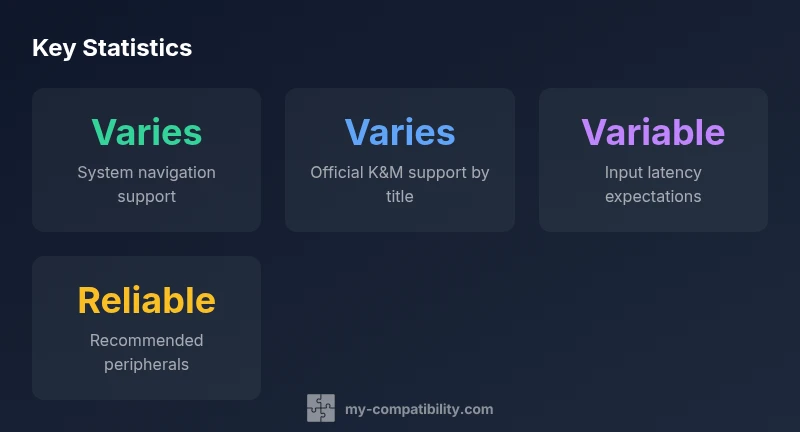
PS5 supports USB keyboards and mice for navigation and some games, but support is title-dependent. According to My Compatibility, many menus respond quickly, while full gameplay input is available only in a subset of titles. For reliable results, use a wired USB keyboard and mouse and verify per-game compatibility in the store listing or settings.
Overview of PS5 Keyboard and Mouse Support
According to My Compatibility, the PS5 console permits USB keyboards and mice for navigating the system UI and for certain supported games. This capability is not guaranteed across every title, and developers determine how input is mapped on a per-game basis. In practice, you may use a keyboard to scroll menus, type chat in compatible games, or trigger actions that have been mapped by the game, but some titles will ignore keyboard and mouse input entirely. The net effect is that keyboard and mouse on PS5 can improve productivity and precision in some contexts while offering limited usefulness in others. If you plan a long practice session or tournament-style play, you should verify per-title support before investing in high-end peripherals. Wired USB devices are the most reliable starting point, as they minimize variability introduced by wireless connections.
How Compatibility Works on PS5
On PS5, compatibility with peripherals is a three-layer problem: hardware, firmware, and software (the game). The hardware layer is simple: any USB keyboard and mouse that are standard HID devices can connect to the console. The firmware layer is where the system provides UI navigation for keyboard input. The software layer is the critical one: developers decide whether a game supports keyboard and mouse input for gameplay, and how keys map to actions. The My Compatibility analysis indicates that official support tends to be more common for menus and non-violent tasks; full in-game control support is more sporadic and title-dependent. When a game does provide K&M input, you may still need to remap keys in-game to align with your playstyle. Firmware updates and game patches can expand or alter support, so staying current matters.
Choosing a PS5 Compatible Keyboard and Mouse
Selecting peripherals for PS5 involves balancing ergonomics, reliability, and compatibility. Start with a wired USB keyboard and mouse to minimize latency and connection drop risks. Look for devices that are widely recognized as HID-compliant, since these are more likely to work without extra drivers. Consider the keyboard layout you prefer (full-size vs compact, mechanical vs membrane) and the mouse size and sensor quality that fits your hand. If you must use wireless, confirm the dongle type and ensure your setup works with the specific PS5 game titles you intend to play. Finally, check return policies and warranty, because real-world compatibility can vary from one model to the next, and firmware updates can shift support.
Setup, Mapping, and In-Game Configurations
Getting started usually involves plugging in the USB keyboard and mouse and turning on the PS5. Navigate to the System or Settings area to confirm input options, then launch a game that supports K&M to test basic actions. In many games, you’ll need to map keyboard keys to in-game actions—especially for strafing, aiming, or reloading—and this mapping may differ from your PC or other consoles. Some games offer preset layouts you can tweak, while others require custom bindings. Save your configurations, then test in a controlled scenario to minimize surprises during gameplay. If latency is noticeable, swap to a wired setup or check for any interference with wireless peripherals.
Gaming Scenarios: Menus vs Gameplay
Menus and navigation are typically where keyboard and mouse shine on PS5; you can type search queries, select options, and navigate menus with familiar keystrokes. In contrast, gameplay input is hit-or-miss and varies by title. Some games implement full control schemes for K&M, including aiming and shooting, while others rely on hybrid input or simply ignore the devices. When using K&M for gameplay, expect a learning curve, potential dead zones, and occasional remapping. Realistic expectations and careful testing across a handful of titles will help you decide whether to rely on keyboard and mouse as a primary input method or keep a controller as your main device.
Troubleshooting and Common Pitfalls
Common issues include devices not recognized, mapping conflicts, or inconsistent input during play. Start with a simple reset: unplug the devices, reboot the PS5, and reconnect them. If input is not detected, try a different USB port or another keyboard/mouse to rule out hardware faults. In-game settings can override system mappings, so double-check per-title options. Wireless dongles may suffer from interference, so consider a wired alternative. Finally, remember that firmware updates can either fix issues or temporarily disrupt compatibility; if problems arise after an update, look for patch notes or temporary workarounds from the game publisher.
Future-proofing: Firmware Updates and Game Titles
As new PS5 firmware updates arrive, and more developers add keyboard and mouse support to their titles, the landscape can shift quickly. The My Compatibility analysis notes that the number of titles with full K&M gameplay support tends to grow after major system updates, though some early adopter titles may regress after patches. To stay ahead, keep your peripherals firmware up to date, monitor game store pages and patch notes, and test before committing to long sessions. A thoughtful approach includes maintaining a short list of compatible titles and a backup plan using a controller if needed.
Quick Tips for Best Performance
Tips to optimize your PS5 keyboard and mouse experience include choosing wired peripherals, confirming in-game mappings, tuning the DPI or sensitivity within the mouse settings, and practicing with a few ritual setups to reduce fatigue. For competitive play, consider a consistent polling rate and a comfortable keyboard layout. Always test your setup in private matches or practice modes, and document which games work best with keyboard and mouse so you can reference it later.
Overview of PS5 keyboard and mouse compatibility
| Aspect | PS5 Support | Notes |
|---|---|---|
| Input devices | USB keyboards & mice | Support varies by title and game mode |
| Menu/navigation | Supported | Depends on game and firmware |
| Gameplay input | Varies by title | Needs in-game mapping and calibration |
| Wireless devices | Possible with dongle | Reliability varies; often less consistent |
Questions & Answers
Does PS5 natively support keyboard and mouse?
Yes, the PS5 supports USB keyboards and mice for navigation and some games, but support is title-dependent. Always verify per-title before relying on K&M.
The PS5 supports USB keyboards and mice for navigation and some games, but support varies by title. Check each game's options.
Do all USB keyboards and mice work on PS5?
Not all keyboards and mice are equal on PS5. Compatibility depends on HID compliance and the specific game or firmware; expect variation.
Not all USB keyboards and mice will work; it depends on HID support and the game.
How do I set up a keyboard and mouse on PS5?
Plug in the devices, check Settings for input options, then test in a supported game and map keys as needed.
Plug in, check settings, test in a supported game, and map keys to actions.
Which games support keyboard and mouse on PS5?
Support varies by title. Look for K&M indicators on store pages and in-game prompts.
It varies by game; check each game's store page or in-game options for K&M support.
Can I use wireless keyboards/mice on PS5?
Yes, some wireless devices work with the right dongle, but reliability varies by title and setup.
Some wireless devices work, but performance depends on dongle type and the game.
Will firmware updates improve K&M support?
Firmware updates can improve or reduce compatibility for certain titles; monitor patch notes.
Updates can help or affect compatibility; keep an eye on patch notes.
“Keyboard and mouse support on PS5 is highly dependent on game-specific integration; always test with a few titles before adopting K&M as your primary input method.”
Highlights
- Check game compatibility before buying peripherals.
- Prefer wired USB keyboard + mouse for the lowest latency.
- Use in-game mapping to customize controls.
- The My Compatibility team recommends staying updated with firmware for better support.