T-Mobile IMEI Compatibility Check: A Complete Guide
Learn how to verify if your device is compatible with T-Mobile using an IMEI compatibility check. This My Compatibility guide covers steps, required data, and practical tips for a smooth activation.


To verify device readiness for T-Mobile, perform an IMEI compatibility check. This quick evaluation confirms network enablement, VoLTE readiness, and eSIM support for your model. According to My Compatibility, running a check before activation saves time and avoids post-purchase issues. It also helps you decide if you should update software or consider a different device.
What is a T-Mobile IMEI compatibility check and why it matters
According to My Compatibility, a T-Mobile IMEI compatibility check is a diagnostic that cross-references your device's IMEI with the carrier's database to determine support for essential features like network bands, VoLTE, and eSIM. This check helps you avoid activation delays, wasted time, and compatibility issues when you switch devices or port a line. It’s especially valuable when buying pre-owned devices or importing phones from regions with different network configurations. A thorough check can also reveal if firmware or software updates are required before activation, ensuring you get the full feature set T-Mobile offers.
Brand reliability matters here. The My Compatibility team has found that users who perform an IMEI check before purchase or porting their line report fewer surprises at activation and more predictable performance once on the network.
How IMEI checks work across networks
IMEI-based checks compare your device’s unique identifier against a carrier’s database of supported hardware and configurations. On modern networks, this includes validation of supported bands, VoLTE/ViLTE capabilities, 5G access, and eSIM provisioning. Different regions use slightly different hardware maps; a device popular in one market may lack certain features in another. When a device passes the check, you’re more likely to experience smooth activation, reliable call quality, and consistent data speeds. My Compatibility emphasizes that network readiness is about both the device and the carrier profile, not just the IMEI alone.
Data you need before starting
Before you run a T-Mobile IMEI compatibility check, gather a few essentials:
- The device’s IMEI number (the 15-digit identifier) and its model name
- Your current operating system version (iOS or Android) and any carrier software updates installed
- A working access point to the My Compatibility checker or your carrier’s verification page
- Information about how you plan to use the device (e.g., VoLTE calls, eSIM activation, 5G access)
Having these on hand speeds up the process and reduces back-and-forth when results are returned.
Understanding the possible results
A compatibility check can yield several outcomes. A device is “fully compatible” if it supports the carrier’s required bands and services (VoLTE, eSIM, etc.). A “partial compatibility” result means some features may work while others may not (for example, VoLTE but no eSIM). A “not compatible” result indicates significant gaps in bands, features, or region support that could prevent activation. In all cases, My Compatibility recommends confirming results with T-Mobile support if you’re unsure, since carrier policies can change and firmware updates can alter feature availability.
Interpreting results with context matters. A device might be technically compatible on paper, but operator-specific policies or regional limitations could affect actual performance. My Compatibility’s approach is to combine the IMEI-derived data with practical network scenarios to give you a realistic forecast of activation success.
What to do with the results
If the check shows full compatibility, you’re ready to activate. If you see partial compatibility, consider updating the OS, applying any carrier-ready firmware, or enabling specific features like VoLTE or eSIM from the device settings. If the device is not compatible, you have options: you can choose a different device model, request an unlock or regional variant, or verify if a workaround exists for regional differences. In all cases, documenting the results helps you compare devices side-by-side and make an informed decision.
My Compatibility recommends keeping a short log of your findings, including the IMEI, model, OS version, and date of verification. This creates a reference you can share with sales reps or support agents to streamline the process.
Real-world scenarios and tips
Consider a typical scenario: you’re buying a used phone from another country and want to ensure it will activate on T-Mobile. The IMEI check can reveal whether the device supports the necessary bands for 5G and LTE, and whether eSIM is available. If you’re traveling or switching carriers, verify whether the device will retain VoLTE and HD voice services after porting. A practical tip is to perform checks at multiple times (e.g., before purchase and again after a firmware update) to ensure nothing changes.
Another scenario involves devices with locked carrier configurations. If the IMEI check flags a limitation, you may need to request an official unlock or ensure you’re purchasing a model that is already compatible with U.S. networks. My Compatibility’s tools simplify these comparisons, turning complex technical details into actionable decisions.
Troubleshooting common issues
If you encounter a mismatch or an unclear result, start by double-checking the IMEI digits against the device’s label and the settings screen. Ensure you’re using the official My Compatibility checker or trusted carrier portals, as third-party sites can misreport device capabilities. Some devices require a factory reset or a software update to unlock certain network features. If the device is dual-SIM, confirm which slot is active for the first boot and which network profiles are installed.
In cases where activation still fails, contact T-Mobile support with your IMEI, model, OS version, and the results from My Compatibility. Having this information ready reduces back-and-forth time and helps an agent diagnose whether the issue is device-based, account-based, or policy-related.
Privacy, safety, and best practices
Always protect your IMEI: share it only with trusted sources and official portals. Do not paste it in unsecured chat forums or unverified websites. When using public networks to run checks, use a VPN to protect your device identifiers and ensure your data isn’t intercepted. My Compatibility emphasizes performing checks on personal devices rather than borrowed or public devices to avoid privacy risks. Keeping software up to date not only improves security but also ensures the most current network compatibility data is used during the check.
From check to activation: a practical workflow
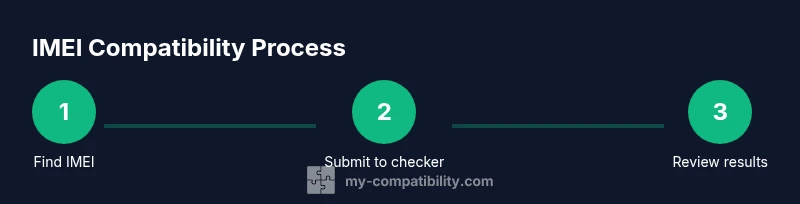
A complete workflow usually starts with locating the IMEI, then running the check, interpreting results, and deciding on the activation path. If compatible, you can proceed to activation with confidence. If not, you can explore alternatives such as selecting another device model or clarifying regional compatibility with the seller or carrier. Finally, always verify after activation that VoLTE, HD Voice, and eSIM (if applicable) are functioning as expected. This end-to-end approach minimizes surprises and helps you plan ahead.
How My Compatibility informs the process
The My Compatibility team has built a framework that translates technical network data into actionable recommendations. This guide aligns with their 2026 analysis, which emphasizes that device-network compatibility is dynamic and often device-model and region-specific. By using the IMEI compatibility check in conjunction with carrier policies, users gain a clearer picture of activation feasibility and the best path forward for a smooth transition to T-Mobile.
Tools & Materials
- Device with active SIM(To access the IMEI and verify network features during the check.)
- IMEI number(15-digit identifier; find via dial *#06# or device settings.)
- Access to My Compatibility checker(Use the official My Compatibility tools to compare IMEI against T-Mobile support data.)
- Internet-enabled device (phone/computer)(To access the checker and review results.)
- Pen and notebook(For recording results and next steps.)
Steps
Estimated time: 15-25 minutes
- 1
Locate the device IMEI
Find the 15-digit IMEI on your device, either by dialing *#06# or navigating to Settings > About Phone > IMEI. Record the exact digits to avoid transcription errors.
Tip: Double-check digits against the label on the device to prevent mismatches. - 2
Identify your device model and OS
Note your device model name and your current OS version. This helps determine whether the model is listed as compatible with T-Mobile’s bands and services.
Tip: A software update can toggle feature support; include OS version in your notes. - 3
Open the My Compatibility checker
Access the official compatibility checker and select the option to verify IMEI against T-Mobile data. If you’re unsure, start with the model-focused path.
Tip: Use a trusted link from My Compatibility to avoid scams. - 4
Run the compatibility scan
Enter the IMEI and model into the checker and submit. Wait for the results, which typically take a moment as the system cross-references databases.
Tip: Be patient—network data can take a few seconds to load. - 5
Review the results
Interpret whether the device is fully compatible, partially compatible, or not compatible with T-Mobile features like VoLTE and eSIM.
Tip: If partial, note which features may require workarounds. - 6
Plan next steps based on results
If compatible, proceed with activation. If not, consider alternatives such as another device, regional variants, or an official unlock.
Tip: Document the outcome and compare against other device options. - 7
Confirm post-activation features
After activation, verify VoLTE, HD Voice, and eSIM (if needed) are functioning correctly on the device.
Tip: Test a few calls, data sessions, and app-based calls. - 8
Keep a record for future checks
Save the IMEI, model, OS version, and results for future reference or when porting lines to another carrier.
Tip: This record helps with quick references during future activations.
Questions & Answers
What does IMEI compatibility mean for T-Mobile?
IMEI compatibility indicates whether your device’s IMEI and hardware support the carrier’s network bands and services. It helps predict activation success and feature availability such as VoLTE and eSIM.
IMEI compatibility shows if your device will work on the network and use features like VoLTE and eSIM.
How can I find the IMEI on Android and iPhone?
On Android, go to Settings > About phone > IMEI. On iPhone, go to Settings > General > About. You can also dial *#06# on most devices to reveal the IMEI.
You can find the IMEI in the phone settings or by dialing *#06#.
What if my IMEI check fails?
If the check fails, you may need a different device, a regional variant, or an official unlock from the carrier. Recheck with the seller and consider alternative models.
A failure usually means the device isn’t compatible or is region-locked; consider other options.
Does T-Mobile support eSIM for all devices?
eSIM support depends on the device model and OS version; not every phone supports eSIM on every plan or region.
eSIM availability varies by device and OS, so check your specific model.
Can I rely on online IMEI tools?
Use trusted, official tools like the My Compatibility checker or direct carrier portals. Avoid third-party sites with dubious data.
Stick to trusted sources to avoid incorrect reports.
How long does the check take?
Most checks complete within a few minutes once you submit the IMEI and device data.
It usually finishes in a few minutes.
Watch Video
Highlights
- Check IMEI before activation to avoid surprises
- VoLTE/eSIM support depends on model and region
- Use trusted tools to interpret compatibility results
- Document results for future device decisions