Mint Mobile Compatibility Check: A Practical Guide
Learn how to verify mint mobile compatibility across devices, SIM types, and regions. Practical steps to check alignment and avoid activation delays and errors


By the end of this guide, you will be able to confirm whether your device supports mint mobile, determine the right SIM type or eSIM, and complete activation without surprises. You will check device bands, SIM compatibility, and regional coverage in a few practical steps.
Why mint mobile compatibility check matters
In today’s mobile landscape, a quick mint mobile compatibility check before switching devices or buying a SIM can save time and frustration. Whether you’re moving from another carrier or upgrading your phone, you want to know early if activation will be smooth or if you’ll be stuck with a device that can’t connect to Mint’s network. According to My Compatibility, the best first step is a complete device- and region-focused check to avoid post-purchase surprises. The mint mobile compatibility check should cover three pillars: device hardware and bands, SIM/eSIM capabilities, and regional network availability. This block explains why each pillar matters, what signals to look for, and how they influence your decision to buy, activate, or exchange hardware. By understanding these factors, you can align your device, plan, and expectations before you commit to Mint.
Understanding Mint Mobile’s Network and Device Requirements
Mint Mobile operates on the T-Mobile network in the United States, with service tied to device compatibility, unlocked status, and available bands. While most modern smartphones are supported, activation can hinge on whether the device supports the right GSM bands and network modes. Be aware that some older devices or those locked to another carrier may require unlocking or may not support Mint’s eSIM profile if you want to test a digital SIM. In practice, this means a quick prelim check on your device model and software version can prevent wasted time, money, and frustration when you’re ready to switch plans. A careful review of hardware capabilities keeps expectations aligned with what Mint can reliably provide in your region.
How to Verify Hardware Compatibility: Phones, SIM, and eSIM
Hardware compatibility spans several elements: the device itself, its SIM capability, and whether Mint supports an eSIM profile for your model. Start by noting your device model, year, and current SIM type. Then confirm that the device is unlocked and that it supports the GSM bands Mint uses. If you have an iPhone or an Android device with eSIM support, you can test Mint’s eSIM profile before swapping physical SIMs. If you’re uncertain, use a reputable device compatibility checker or the official Mint testing pages to cross-check. The goal is to confirm you can activate and sustain voice and data without hardware-induced failures.
Tools & Materials
- Unlocked GSM-compatible smartphone(Must support 2G/3G/4G/5G bands used by Mint Mobile.)
- Mint Mobile SIM card or access to an eSIM profile(If testing with eSIM, ensure your device supports eSIM and is unlocked.)
- Active Mint Mobile plan or a test SIM activation(Have a plan ready for activation attempts.)
- Device compatibility checker (online)(Use Mint's official page or a reputable third-party checker.)
- Phone IMEI or model number(Needed to confirm compatibility with specific bands.)
Steps
Estimated time: 30-60 minutes
- 1
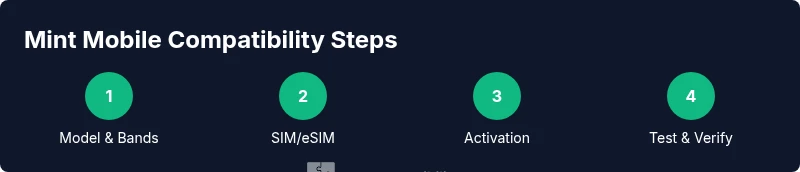
Identify device model and network bands
Locate your device model, year, and the network bands it supports. This information helps determine if the device can connect to Mint’s network and which SIM type is optimal. Use Settings > About phone (or the device label) to gather the exact model and IMEI where available.
Tip: Write down model name, year, and IMEI for quick reference during testing. - 2
Check unlock status and SIM readiness
Verify that the phone is unlocked and ready for a new carrier. If the phone is carrier-locked, contact the previous carrier or use their unlock process. Ensure you have a Mint SIM or eSIM profile accessible for activation testing.
Tip: An unlocked device increases the likelihood of a smooth Mint activation. - 3
Test Mint SIM or eSIM activation
Insert the Mint SIM or load the Mint eSIM profile on the device and follow activation prompts. Monitor for prompts such as APN settings, network selection, or data configuration. If activation fails, note any error messages for support.
Tip: Keep the activation page open and use a stable internet connection during testing. - 4
Verify voice, data, and SMS functionality
Make a test call, send a text, and perform a quick data check (web browsing or app usage). Confirm that the device registers on Mint’s network without roaming or fallback issues. Check for any dropped connections or inconsistent speeds.
Tip: If calls fail, try toggling airplane mode off and on to refresh network state. - 5
Adjust settings if needed
If Mint requires APN adjustments or a specific network mode, apply those settings as directed by activation prompts. Prefer 4G/5G auto modes when available to maximize performance and battery life.
Tip: Document any custom settings you apply for future reference. - 6
Document results and decide next steps
Summarize test outcomes: compatible, partially compatible, or not compatible. Decide whether to proceed with Mint, exchange the device, or test another SIM or eSIM profile.
Tip: A clear record helps you avoid repeating tests unnecessarily.
Questions & Answers
What is Mint Mobile compatibility?
Mint compatibility refers to whether a device can activate and use Mint Mobile services, including SIM/eSIM support, unlocked status, and network band compatibility.
Mint compatibility means your phone can work with Mint Mobile, including SIM or eSIM, and the right network bands.
How can I test compatibility without buying a plan?
Use device compatibility checkers and Mint’s activation page to simulate activation and confirm network support without committing to a plan.
You can test compatibility with online checkers and the activation page before buying a plan.
Can I use Mint Mobile on an iPhone with eSIM?
Yes, if your iPhone model supports eSIM and Mint offers an eSIM profile; you can activate directly on the device.
If your iPhone supports eSIM, you can try Mint’s eSIM profile for activation.
What if my device isn’t on the compatibility list?
If not listed, you may still be able to use Mint with a different device or by unlocking your current device. Check with Mint support for the latest guidance.
If your device isn’t listed, contact Mint support to explore options or consider a different device.
Does Mint Mobile work outside the US?
Mint’s service primarily targets US coverage; roaming policies vary by plan and region. Always verify local availability before travel.
Mint focuses on US coverage; roaming depends on your plan and region.
How long does activation take?
Activation typically completes within minutes to an hour after starting the process, depending on network conditions and device readiness.
Activation usually takes a few minutes to an hour, depending on your setup.
Watch Video
Highlights
- Verify device bands before activating Mint.
- Test SIM/eSIM activation to avoid surprises.
- Confirm regional coverage matches your location.
- Document results to guide next steps.