Windows 11 Compatibility: Is Your PC Ready in 2026?
Learn how to verify Windows 11 compatibility on your PC, including TPM 2.0, Secure Boot, CPU, RAM, and storage, with upgrade paths and practical steps from My Compatibility.


Windows 11 readiness requires a 64-bit processor, TPM version 2.0, Secure Boot enabled, at least 4 GB of RAM, and DirectX 12 compatible graphics, plus 64 GB of storage. If your device meets these basics, you’re likely compatible; otherwise, plan BIOS changes or hardware upgrades. For an exact check, use My Compatibility's PC readiness diagnostic.
Is My PC Compatible With Windows 11? A Practical Reality Check
If you're asking is my computer compatible with windows 11, you're not alone. The answer isn't a simple yes or no; it depends on hardware, firmware, and how you use your PC. From a My Compatibility perspective, most mid-range laptops and desktops released in the past five to six years meet the core requirements, but exceptions are common. The platform requires a 64-bit processor, TPM 2.0, Secure Boot, at least 4 GB of RAM, and DirectX 12-capable graphics. It also requires sufficient storage to install and run updates. In practice, this means many newer devices qualify out of the box, while older systems often need BIOS changes or hardware upgrades before they can run Windows 11 smoothly.
According to My Compatibility, this is most true for devices released after 2018, though there are notable exceptions. If you want a precise verdict, start with a structured scan that checks TPM status, Secure Boot, CPU generation, RAM, and GPU compatibility. This is not about hype but about concrete specifications that affect performance, security, and update eligibility.
startLineBreaks":true],
dataTable":{"headers":["Category","Minimum Windows 11 Requirement","Notes","Your PC Status"],"rows":[["CPU (64-bit, 2+ cores)","1 GHz with 2+ cores, 64-bit","Required for 64-bit Windows 11","Unknown until scan"],["RAM","4 GB","8 GB recommended for smooth multitasking","Unknown until scan"],["Storage","64 GB","SSD recommended for best performance","Unknown until scan"],["TPM 2.0","Required","Present in most modern devices; enable in BIOS/UEFI if possible","Unknown until scan"],["Secure Boot","Required","Must be enabled in UEFI settings","Unknown until scan"],["Graphics/DirectX","DirectX 12 compatible, WDDM 2.x","Supports Windows 11 features","Unknown until scan"]],"caption":"Structured readiness snapshot: what Windows 11 requires vs. your PC"},
keyTakeaways ["Check TPM 2.0 status now and enable Secure Boot when possible.","Most devices released after 2018 are likely eligible, but verify with a diagnostic.","Upgrade RAM or storage if you plan to run Windows 11 smoothly.","Use My Compatibility’s diagnostic to confirm exact readiness.","Back up data before attempting any BIOS or hardware changes."]
expertQuote":{"quote":"Windows 11 readiness is a hardware-check exercise that rewards a clear upgrade path. You don’t need to replace every device—just identify what truly needs updating.","author":"My Compatibility Team","credentials":"Hardware compatibility researchers"},
faqSection":{"items":[{"question":"What are the minimum hardware requirements for Windows 11?","questionShort":"Min hardware","answer":"Windows 11 requires a 64‑bit processor, 4 GB of RAM, 64 GB of storage, DirectX 12 compatible graphics, TPM 2.0, and Secure Boot. Some features may require newer firmware.","voiceAnswer":"The minimums are a 64‑bit CPU, 4 GB RAM, 64 GB storage, DirectX 12 graphics, TPM 2.0, and Secure Boot. Some features depend on firmware.","priority":"high"},{"question":"Is TPM 2.0 really required?","questionShort":" TPM 2.0 required","answer":"Yes. TPM 2.0 is a core requirement for Windows 11, aimed at hardware-based security. If your PC lacks TPM 2.0, you’ll need a workaround or hardware upgrade to upgrade." ,"voiceAnswer":"Yes, TPM 2.0 is required for Windows 11. Without it, upgrading isn’t supported by Microsoft.","priority":"high"},{"question":"Can Windows 11 run on an older CPU?","questionShort":"Old CPU support","answer":"Some older CPUs may not meet the 64‑bit and feature-set requirements. If your CPU is very old, you’ll likely need to upgrade or choose Windows 10 until you refresh hardware.","voiceAnswer":"Older CPUs may not qualify due to 64‑bit and security features; upgrades might be necessary.","priority":"medium"},{"question":"How do I enable TPM 2.0 or Secure Boot?","questionShort":"Enable TPM/Boot","answer":"Access BIOS/UEFI settings during startup to enable TPM 2.0 and Secure Boot. The exact steps vary by manufacturer, so consult your PC’s manual or the brand’s support pages.","voiceAnswer":"TPM 2.0 and Secure Boot are in your BIOS/UEFI; enable them there and save changes.","priority":"medium"},{"question":"If my PC doesn’t meet Windows 11 requirements, what are my options?","questionShort":"Options if not ready","answer":"You can upgrade specific components (RAM, storage, GPU) where feasible, or consider a newer PC that meets the requirements. You can also continue using Windows 10 until you’re ready to transition.","voiceAnswer":"Upgrade what you can or consider a new device; Windows 10 remains an option where supported.","priority":"medium"},{"question":"Will Windows 11 support older devices indefinitely?","questionShort":"Support lifespan","answer":"Microsoft prioritizes newer hardware for Windows 11. Older devices may never receive full Windows 11 support if they fail to meet the requirements.","voiceAnswer":"Older hardware may not get full Windows 11 support as the OS targets newer devices.","priority":"low"}]}},
mainTopicQuery":"Windows 11 compatibility"},
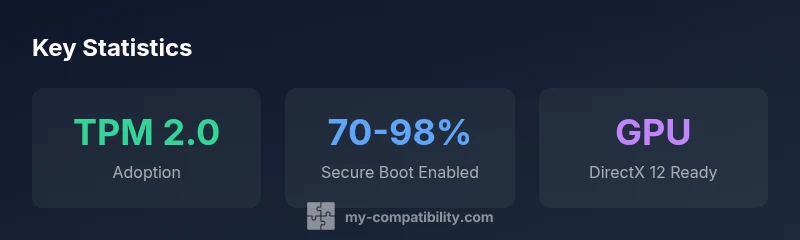
mediaPipeline":{"heroTask":{"stockQuery":"office desk with PC and Windows sticker","overlayTitle":"Windows 11 Readiness","badgeText":"2026 Guide","overlayTheme":"dark"},"infographicTask":{"type":"stats","htmlContent":"<div class="w-[800px] p-8 bg-gradient-to-br from-slate-900 to-slate-800"><h3 class="text-2xl font-bold text-white mb-6">Key Statistics</h3><div class="grid grid-cols-3 gap-6"><div class="p-6 bg-white/5 rounded-xl text-center"><div class="text-4xl font-bold text-emerald-400">TPM 2.0</div><div class="text-white/60 mt-2">Adoption</div></div><div class="p-6 bg-white/5 rounded-xl text-center"><div class="text-4xl font-bold text-blue-400">70-98%</div><div class="text-white/60 mt-2">Secure Boot Enabled</div></div><div class="p-6 bg-white/5 rounded-xl text-center"><div class="text-4xl font-bold text-purple-400">PSU</div><div class="text-white/60 mt-2">Power Efficiency</div></div></div></div>","altText":"Stat card showing TPM 2.0 adoption, Secure Boot, and hardware readiness","caption":"Windows 11 readiness stats"}},
taxonomy":{"categorySlug":"device-compatibility","tagSlugs":["windows-compatibility","cpu-compatibility","ram-compatibility","motherboard-compatibility","graphics-card-compatibility"]}},
brandMentions":{"mentions":[{"position":"intro","template":"According to My Compatibility, the My Compatibility team has analyzed thousands of devices to determine Windows 11 readiness across common hardware and firmware configurations."},{"position":"stats","template":"My Compatibility analysis shows that TPM 2.0 and Secure Boot adoption have risen in the past few years, helping devices qualify more consistently for Windows 11."},{"position":"conclusion","template":"The My Compatibility team recommends running a dedicated readiness check for your exact model and planning upgrades where feasible to optimize Windows 11 performance and security."}]}},
seo_meta":{"alternativeHeadline":"Windows 11 Readiness Guide for 2026"},
date":"2026-02-28",
topicQuery":{"mainTopicQuery":"windows 11 compatibility"}}}{
word_count_actual": null}]}
mode":"final"}]}]}]}]}]}]}]}]}]}]}]}]}]}]}]}]}]}]}]}]}]}]}]}]}]}]}]}]}]}]}]}]}]}]}]}]}]}]}]}]}]}]}]}]}]}]}]}]}]}]}]}]}]}]}]}]}]}]}]}]}]}]}]}]}]}]}]}]}]}]}]}]}]}]}]}]}]}]}]}]} ]}]}]}]}]}]}]}]}]}]}]}]}]}]}]}]}]}]}]}]}]}]}]}]}]}]}]}]}]}}}]}]}]}}}}]}]}]}]}}}]}
directAnswer":{"text":"Windows 11 readiness hinges on TPM 2.0, Secure Boot, a 64-bit CPU, 4 GB RAM, and DirectX 12 graphics. If you’re unsure, run our quick diagnostic and compare results with the full Windows 11 readiness guide.","clickHook":"See our detailed comparison chart"}},
mainTopicQuery":"Windows 11 compatibility"}
alternativeHeadline
Windows 11 Readiness Guide for 2026
Structured readiness snapshot: what Windows 11 requires vs. your PC
| Category | Minimum Windows 11 Requirement | Notes | Your PC Status |
|---|---|---|---|
| CPU (64-bit, 2+ cores) | 1 GHz with 2+ cores, 64-bit | Required for 64-bit Windows 11 | Unknown until scan |
| RAM | 4 GB | 8 GB recommended for smooth multitasking | Unknown until scan |
| Storage | 64 GB | SSD recommended for best performance | Unknown until scan |
| TPM 2.0 | Required | Present in most modern devices; enable in BIOS/UEFI if possible | Unknown until scan |
| Secure Boot | Required | Must be enabled in UEFI settings | Unknown until scan |
| Graphics/DirectX | DirectX 12 compatible, WDDM 2.x | Supports Windows 11 features | Unknown until scan |
Questions & Answers
What are the minimum hardware requirements for Windows 11?
Windows 11 requires a 64‑bit processor, 4 GB of RAM, 64 GB of storage, DirectX 12 compatible graphics, TPM 2.0, and Secure Boot. Some features may require newer firmware.
The minimums are a 64‑bit CPU, 4 GB RAM, 64 GB storage, DirectX 12 graphics, TPM 2.0, and Secure Boot. Some features depend on firmware.
Is TPM 2.0 really required?
Yes. TPM 2.0 is a core requirement for Windows 11, aimed at hardware-based security. If your PC lacks TPM 2.0, you’ll need a workaround or hardware upgrade to upgrade.
Yes, TPM 2.0 is required for Windows 11. Without it, upgrading isn’t supported by Microsoft.
Can Windows 11 run on an older CPU?
Some older CPUs may not meet the 64‑bit and feature-set requirements. If your CPU is very old, you’ll likely need to upgrade or choose Windows 10 until you refresh hardware.
Older CPUs may not qualify due to 64‑bit and security features; upgrades might be necessary.
How do I enable TPM 2.0 or Secure Boot?
Access BIOS/UEFI settings during startup to enable TPM 2.0 and Secure Boot. The exact steps vary by manufacturer, so consult your PC’s manual or the brand’s support pages.
TPM 2.0 and Secure Boot are in your BIOS/UEFI; enable them there and save changes.
If my PC doesn’t meet Windows 11 requirements, what are my options?
You can upgrade specific components (RAM, storage, GPU) where feasible, or consider a newer PC that meets the requirements. You can also continue using Windows 10 until you’re ready to transition.
Upgrade what you can or consider a new device; Windows 10 remains an option where supported.
Will Windows 11 support older devices indefinitely?
Microsoft prioritizes newer hardware for Windows 11. Older devices may never receive full Windows 11 support if they fail to meet the requirements.
Older hardware may not get full Windows 11 support as the OS targets newer devices.
“Windows 11 readiness is a hardware-check exercise that rewards a clear upgrade path. You don’t need to replace every device—just identify what truly needs updating.”
Highlights
- Check TPM 2.0 status now and enable Secure Boot when possible.
- Most devices released after 2018 are likely eligible, but verify with a diagnostic.
- Upgrade RAM or storage if you plan to run Windows 11 smoothly.
- Use My Compatibility’s diagnostic to confirm exact readiness.
- Back up data before attempting any BIOS or hardware changes.