HP Laptop Compatible Printer: Your 2026 Printing Guide
Discover how to pick an hp laptop compatible printer, with driver support, connectivity options, and setup tips for Windows, macOS, and Linux. Get practical steps and trusted recommendations.


An hp laptop compatible printer is any modern printer with up-to-date drivers for Windows or macOS and supports USB, Ethernet, or Wi‑Fi connections. For HP laptops, verify OS compatibility and use official drivers or HP Smart for easy setup. In 2026, most mainstream printers meet these criteria, making cross‑brand printing simple.
What does hp laptop compatible printer mean?
The term hp laptop compatible printer refers to devices that work reliably with HP laptops through current drivers and standard connection methods. In practice, this means printers with official Windows and macOS drivers, plus USB, Ethernet, or Wi-Fi options. For the HP ecosystem, consider printers that support HP Smart for streamlined setup, mobile printing, and easy cloud-based tasks. The phrase is less about brand rivalry and more about universal compatibility across operating systems, network environments, and printing needs. When you choose a printer advertised as compatible with HP laptops, you’re prioritizing broad driver support, straightforward installation, and robust connectivity. In 2026, most mainstream printers satisfy these criteria, enabling smooth printing experiences across brands.
- Expect solid driver support for Windows 10/11 and macOS Ventura through current vendor downloads.
- Look for compatibility notes such as Mopria or AirPrint to cover mobile printing from your devices.
- Verify basic tasks like printing, scanning, and duplexing work without extra software.
Tip: Start with a model that offers both USB-C and Wi‑Fi as standard ports for future-proofing.
How HP laptops connect to printers: USB, Wi‑Fi, and more
Connectivity choice drives reliability. A direct USB connection using the printer’s USB-B to USB-C or USB-A cable provides a simple, lossless link on desktops and laptops. For wireless printing, ensure the printer supports 2.4 GHz or 5 GHz Wi‑Fi networks and that your HP laptop is on the same network. Many HP printers also support Bluetooth pairing for quick, short-range tasks. When selecting, prioritize devices that list both Windows and macOS drivers, plus a universal print protocol like IPP or PCL/PS. If you frequently switch networks, consider printers with Ethernet and robust Wi‑Fi setup wizards to reduce initial setup friction.
- Wireless setup often involves temporary mobile apps; follow prompts to join your home network.
- For shared offices, ensure the printer supports standard print queues and multiple OS users.
- If you use Linux, check driver pages and community-supported options.
OS driver support you should expect in 2026
OS driver support remains a critical determinant of hp laptop compatibility. Modern printers ship with native drivers for Windows and macOS; Linux support varies by model and vendor. In general, most devices offer PCL/PS printing and IPP-based printing across platforms, which helps a lot for HP laptops running Linux-based distros. Always download the latest drivers from the manufacturer’s site or rely on OS-provided drivers when possible. If you rely on third-party printing tools, verify compatibility with your OS version and printer model. A robust setup also includes firmware updates and a functional scanner driver if you use multifunction devices.
- Check for auto-update features in Windows and macOS to keep drivers in sync with OS changes.
- Be aware that some premium features may require vendor software.
Choosing between inkjet and laser for your HP laptop
Your decision between inkjet and laser printers affects speed, cost per page, and long-term maintenance. Inkjet printers excel at color quality and photo printing, which is beneficial if your HP laptop workflows include images or graphics. Laser printers generally deliver faster text printing and lower per-page costs, ideal for heavy document use. In mixed environments, consider a color inkjet with duplexing or a compact monochrome laser for high-volume tasks. To maximize hp laptop compatibility, pick a model with universal drivers and a straightforward setup process, along with HP Smart or Mopria compatibility for mobile print tasks.
- Evaluate total cost of ownership, including ink or toner and replacement parts.
- Check color accuracy presets and driver controls for print quality.
- Ensure the device supports your primary OS and includes a simple setup flow.
Wireless setup and network considerations
Wireless printing adds flexibility but can introduce complexity. When both your HP laptop and the printer are on the same network, go through the printer’s wireless setup wizard and install the driver package on your laptop. If your network has guests or multiple subnets, you may need to configure a fixed IP address or a dedicated print server. Prefer printers that advertise easy enrollment with Windows, macOS, and Android/iOS devices, plus cloud print capabilities if you use remote printing. For office environments, ensure you have robust encryption and a secure password for the Wi‑Fi network.
- Keep firmware updated to reduce compatibility glitches.
- Use IPP or Mopria as standard printing protocols to minimize driver friction.
- Test print from multiple devices to confirm cross-OS compatibility.
Printer ecosystems: HP Smart, Windows, macOS, and beyond
Printer ecosystems shape a cohesive hp laptop compatible printer experience. HP Smart provides guided setup, status notifications, and cloud printing, while Windows and macOS drivers ensure regular printing without extra software. Mopria and AirPrint support extend cross-platform printing to Android and Apple devices, respectively. When evaluating models, look for multi-OS driver availability, consistent print quality, and reliable scanning functions if you need a multifunction device. The most future-proof options include USB-C, Ethernet, and strong wireless capabilities in a single package.
- Prefer models with universal drivers and active development from manufacturers.
- Check for app-based features like scanning to cloud storage and mobile photo printing.
- Assess long-term compatibility with your primary devices and OS versions.
Troubleshooting common compatibility issues
Even the best hp laptop compatible printer can stumble on occasion. Common issues include driver mismatches after OS updates, network discovery problems, and restricted feature sets on Linux-based systems. Start by reinstalling or updating drivers from the vendor site, then confirm the printer is set as the default device and accessible on the same network as your laptop. For wireless prints, verify the printer’s IP address and DNS settings. If you experience slow performance, check for firmware updates and confirm there’s no conflicting firewall rule. Finally, consult the manufacturer’s knowledge base for model-specific steps.
- Reboot and re-pair devices after updates.
- Use built-in OS printers settings to avoid vendor software bloat.
- Consider a USB backup if your network is unreliable.
Practical checklists before buying
Before purchasing, validate a printer’s hp laptop compatibility with your OS version and the devices you own. Create a short checklist: driver availability for Windows/macOS, USB-C/USB-A ports, Wi‑Fi support, and print/test tasks for photos and documents. Review product pages for Mopria and AirPrint support, then confirm return policies and firmware update history. If possible, test the printer in-store with an actual HP laptop, or examine online demos showing cross-OS printing and app-based setup. Keep a short list of must-haves to compare models quickly.
- Ensure both Windows and macOS drivers are listed.
- Confirm native mobile printing support (HP Smart, Mopria, AirPrint).
- Verify duplexing, color management, and scan-to-cloud features.
How to validate compatibility in practice
The best way to validate hp laptop compatibility is hands-on testing. Bring your HP laptop to a store or borrow a device to perform a live print test: basic documents, color photos, and duplex printing. Check driver installation steps and whether the device appears in the OS printer settings. If you print from mobile devices, verify AirPrint or Mopria compatibility. Finally, document any quirks (e.g., delayed start, color skew) and compare against a baseline printer. This approach gives you realistic expectations before a purchase.
- Create a short test suite of common tasks.
- Note setup steps and time to print.
- Compare results across Windows, macOS, and Linux if relevant.
Printer type compatibility snapshot
| Model Type | Driver Availability | Recommended Use |
|---|---|---|
| Inkjet (Color) | Broad for Windows/macOS; Linux variable | Home photo printing |
| Laser (Monochrome) | Broad for Windows/macOS | Office documents |
| Inkjet (Photo) | Broad for Windows/macOS | Photo printing |
Questions & Answers
What drivers do I need for Windows or macOS?
Most printers include drivers for Windows and macOS; install the latest from the manufacturer’s site or use OS-provided drivers. For Linux, check compatibility notes and community-supported options.
Most printers have Windows and macOS drivers; install the latest from the maker’s site or your OS. Linux may require extra steps.
Can I use third-party printer software with HP laptops?
Yes, standard printing protocols like IPP and PCL/PS are supported by many printers. However, official apps like HP Smart often provide the most reliable experience.
You can, but official apps usually offer the best reliability.
AirPrint or Mopria supported with HP printers on hp laptops?
Many HP printers support AirPrint (Apple) and Mopria (Android). Windows users rely on standard drivers; check the product page for supported protocols.
If you’re on Apple, AirPrint is usually available; Mopria covers Android devices.
Are there compatibility issues with Linux?
Linux driver availability varies by model. Look for PCL/PS compatibility and vendor pages with linux drivers; some features may require community drivers.
Linux options vary; check for Linux drivers and community support.
What is the best budget printer for hp laptop compatibility?
For a budget, seek an inkjet with broad OS drivers and a strong HP Smart app; compare total cost of ownership, including ink.
A basic inkjet with solid OS support is usually the best budget pick.
“In our testing, printers with broad OS driver support deliver the smoothest hp laptop compatible printer experience.”
Highlights
- Check OS driver availability before purchase.
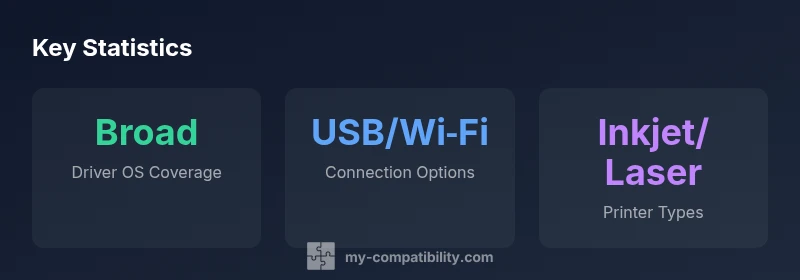
- Prioritize printers with USB and Wi‑Fi support.
- Use the official driver or HP Smart app for setup.
- Test print tasks across Windows and macOS.
- Verify Linux compatibility if applicable.