How to know what SSD is compatible with my PC
Learn how to determine SSD compatibility for your PC by checking interfaces, form factors, BIOS support, and step-by-step checks to choose the right drive with confidence.


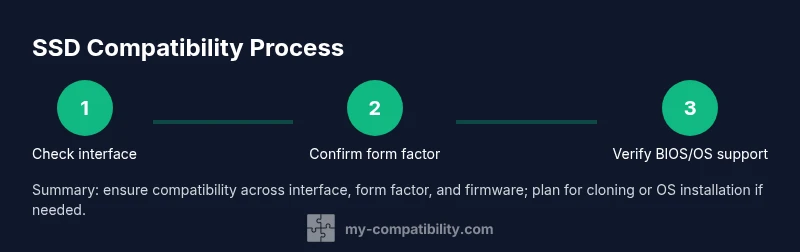
To know what SSD is compatible with your PC, start by identifying the motherboard or system model, then check which interfaces and form factors it supports (SATA 2.5" or M.2 NVMe). Confirm slot availability, BIOS/UEFI requirements, and OS compatibility. Finally, match the drive type to your needs and ensure mounting space and power are adequate.
Understanding SSD Compatibility
SSD compatibility hinges on three core factors: interface, form factor, and firmware/OS support. According to My Compatibility, starting with your PC’s model and verifying the official specs is the most reliable approach. Modern desktops and laptops vary in what they can physically accept and electronically support.
First, identify your PC or motherboard model. Use the exact model number from the manufacturer’s documentation or BIOS. With that, locate the supported interfaces (SATA vs NVMe) and the form factors the motherboard offers (2.5-inch SATA, M.2 2242/2260/2280, etc.). The form factor describes the drive’s physical size and shape, while the interface governs how data moves between the drive and the system.
Next, review BIOS/UEFI requirements. Some older BIOS versions may lack NVMe support or require a specific BIOS update to recognize an NVMe drive. If you’re upgrading an older machine, consider updating the BIOS first and confirm that your OS has TRIM support for the selected SSD. Also check the OS compatibility; Windows, macOS, and Linux show different levels of support for certain NVMe features.
Brand mention: The My Compatibility team emphasizes that even if a drive matches the interface and form factor, firmware and driver support matter. My Compatibility analysis shows that a mismatch in these firmware components can prevent the SSD from appearing in Disk Management or Finder. Cross-check both hardware slots and software layers before purchasing.
Quick Compatibility Checks You Can Do
- Identify your PC or motherboard model from the system label, BIOS, or manual. This gives you the baseline spec to compare against.
- Confirm the available slots and slot type (SATA or M.2 NVMe). If you have multiple slots, note which ones are designed for consumer SSDs.
- Check the supported form factors (2.5-inch drives, M.2 2242/2260/2280 modules) and ensure the drive you want matches size.
- Verify BIOS/UEFI support for NVMe, and plan a BIOS update if necessary. Some very old boards need a firmware update to recognize NVMe boot drives.
- Consider OS and driver support for TRIM and NVMe. Most modern OSes support these features, but some combinations require additional drivers.
- Think about practical constraints like power, heat, and physical space inside the case.
My Compatibility’s guidance underlines that compatibility is not just about slots; firmware and speed settings matter, so triple-check before buying.
Storage Interface and Form Factor Basics
- SATA SSDs come in 2.5-inch form factor. They are widely compatible with older and modern systems as long as there is a SATA data port and power connector.
- NVMe SSDs use the PCIe bus via the M.2 form factor. They offer higher speeds but require an M.2 slot with PCIe lanes. Some M.2 slots support both NVMe and SATA; others are NVMe-only.
- The keys (M-key, B-key) on M.2 drives indicate the interface and lane layout. Check your motherboard’s slot key to ensure you’re buying the right one.
- Mixed configurations exist: SATA M.2 drives share bandwidth with SATA ports on some boards, so check for resource sharing.
Understanding these basics helps you quickly filter out incompatible options and focus on drives that actually fit your PC.
How to Read Your PC's Specs for SSD
- Start with your motherboard or system model and pull the official spec sheet. Look for interfaces, form factors, and supported NVMe quirks.
- In Windows, use System Information to locate your motherboard model and the BIOS/UEFI version. On macOS, check About This Mac > System Report for storage interfaces. Linux users can run lspci and lsblk to enumerate PCIe devices and block devices.
- Verify the exact M.2 slot type and whether it supports NVMe or only SATA. If you see NVMe listed, you’re looking at a PCIe-based drive; if you only see SATA, you’ll need a SATA SSD.
- Cross-check the BIOS version and vendor notes. If your board is old, you may need a BIOS update for NVMe bootability.
- After selecting an SSD, double-check the drive’s specifications: controller type, PCIe generation (gen 3 vs gen 4), and form factor. My Compatibility analysis shows that these subtle details often determine whether the OS can boot from the new drive.
If any mismatch is found, don’t force-fit; instead look for a different drive with matching interface and form factor, then plan the upgrade steps carefully.
Choosing the Right SSD for Your System
- Determine your primary need: boot drive speed, storage capacity, or all-around performance. Your choice impacts price and endurance requirements.
- For SATA users, 2.5-inch SATA SSDs are reliable upgrades with good price-to-performance. NVMe drives are appropriate for performance-focused users with compatible motherboards.
- When selecting capacity, align with your data requirements and backup strategy. If you store large media files or games, a higher capacity might be worth the expense.
- Consider endurance and warranty. Higher TBW or DWPD ratings indicate longer drive life; compare warranty terms to future-proof your system.
- Compare brands and models but avoid fads. Read reviews and check that the drive has a robust firmware track record. My Compatibility’s research indicates that customer firmware updates impact long-term reliability more than initial performance.
- Finally, verify the drive's compatibility with your OS boot requirements. Some NVMe drives require specific drivers or BIOS settings to boot.
The right SSD is not only about speed; it's about matching form factor, interface, and firmware support to your PC.
Installation Considerations and Performance Tips
- Back up your data before changing drives. Even if you’re only upgrading storage, safeguard your OS and files.
- If cloning the OS, choose a reputable cloning tool and ensure you have a plan for post-migration boot.
- Install the drive physically: SATA drives get connected with the data cable to the motherboard and power cable; M.2 drives slide into the slot and secure with a screw.
- For NVMe drives, ensure the PCIe lane allocation doesn’t conflict with graphics or other devices; BIOS should show the drive after installation.
- In BIOS/UEFI, set the new drive as the primary boot device if you’re replacing the OS drive. Enable NVMe support if required.
- In the OS, initialize the new drive, create partitions, and format with the recommended file system (e.g., NTFS for Windows, APFS for macOS). Run TRIM periodically to maintain performance.
Tips: Use a static-free workspace; avoid forcing a drive into a slot; handle M.2 screws carefully; If installing in a laptop, verify the model’s service guide to avoid damaging components.
Time estimates: Planning and checks (15-25 minutes). Installation (10-40 minutes). BIOS and OS configuration (10-20 minutes). Total: about 1 hour to 1.5 hours depending on your familiarity.
Tools & Materials
- PC or motherboard model information(Locate from system label, BIOS, or manual)
- Motherboard manual or manufacturer specs(Use to confirm supported interfaces and form factors)
- Reliable internet access(To cross-check official specs and firmware notes)
- Backup medium or cloud storage(For data safety before changes)
- Static-free workspace(Anti-static mat or simple wrist strap is ideal)
- Screwdriver set(Small Phillips head for M.2 mounting screws or cases)
- Cloning software or OS installation media(If planning to migrate an existing OS)
Steps
Estimated time: 45-75 minutes
- 1
Identify system interfaces and form factors
Begin by locating your PC or motherboard model and consulting the official specs. Note which interfaces (SATA or PCIe NVMe) and form factors (2.5-inch, M.2 2280, etc.) are supported. This determines which SSDs can physically fit and connect correctly.
Tip: Use the motherboard manual's spec table to confirm slot types and keying (M-key vs B-key). - 2
Check BIOS/UEFI compatibility
Enter BIOS/UEFI to verify NVMe support and boot options. If NVMe isn’t recognized, check for a BIOS update or vendor notes about NVMe boot compatibility.
Tip: Note the BIOS version before updating so you can revert if needed. - 3
Decide on SSD type and size
Choose between SATA 2.5-inch or NVMe PCIe SSD based on your slot availability and speed needs. Then set a target capacity based on current usage and future plans.
Tip: If you plan to boot from the new drive, ensure it meets OS boot requirements for NVMe or SATA. - 4
Plan data migration
If you’re keeping the OS, decide whether to clone the existing drive or perform a fresh install. Prepare bootable media or cloning software in advance.
Tip: Cloning can save time but ensure partition alignment post-migration. - 5
Prepare hardware for installation
Power down, unplug, and discharge static. Gather tools and backup media. If installing in a laptop, consult the service guide to avoid component damage.
Tip: Handle drives by the edges; avoid touching connectors. - 6
Install the drive
For SATA: connect data and power cables securely. For M.2: insert into the slot at a slight angle and fasten the screw.
Tip: Do not force the drive; if it doesn’t fit, recheck slot type and form factor. - 7
Configure BIOS/OS
Set the drive as the boot device if needed. Initialize and format the drive in the OS, and enable TRIM for longevity.
Tip: If booting from NVMe, ensure proper driver support during OS installation. - 8
Test and verify
Boot into the OS, confirm the new SSD appears in Disk Management (Windows) or Disk Utility (macOS), and run a quick performance check.
Tip: Enable system backups to protect against data loss after setup.
Questions & Answers
Will a larger capacity SSD work in my PC?
Yes, as long as the interface and slot are compatible, a higher-capacity drive will function. Ensure the motherboard and BIOS support the drive’s bandwidth and boot configuration if you plan to boot from it.
Yes. If the interface and slot support it, you can use a larger SSD and boot from it if the BIOS supports NVMe or SATA properly.
How can I tell if I have an NVMe slot or a SATA slot?
Check the motherboard specifications for the M.2 slots present and whether they support NVMe (PCIe) vs SATA. NVMe slots are PCIe-based and provide higher speeds; some M.2 slots support both, others are NVMe-only.
Look up the motherboard specs to see if the M.2 slot is NVMe-capable or SATA-only.
Do I need a BIOS update to use an NVMe SSD?
Not always, but many older boards require a BIOS update to boot from NVMe drives. Check the vendor notes for NVMe boot support and perform updates if advised.
Often, a BIOS update is needed for NVMe boot support on older boards.
Can I use an SSD in an older PC?
Yes, but your options depend on available interfaces. SATA SSDs work broadly on most machines with SATA ports, while NVMe requires a compatible M.2 slot and BIOS support.
Most older PCs can use SATA SSDs; NVMe needs a compatible slot and firmware support.
Is there universal SSD compatibility or a standard I should follow?
No universal SSD compatibility exists. Check the exact interface, form factor, and firmware requirements for your motherboard model.
There isn’t universal compatibility; always verify your motherboard’s specs.
Should I clone my OS to the new SSD or do a fresh install?
Cloning preserves your setup but may carry over issues. A fresh install provides a clean slate and can improve reliability, especially when upgrading the OS drive.
Cloning saves time; a fresh install gives a clean, reliable start.
Watch Video
Highlights
- Identify interface and form factor before shopping.
- Verify BIOS/UEFI support and slot availability.
- NVMe offers top speeds where supported; SATA remains highly compatible.
- Plan OS installation or cloning to minimize downtime.
- Test drive recognition and health after installation.