G-SYNC Compatible Monitor List: 2026 Guide
Explore the 2026 G-SYNC compatible monitor list, how NVIDIA certification works, and the key specs to evaluate when choosing a VRR-friendly display for NVIDIA GPUs.


A G-SYNC compatible monitor list is the collection of displays NVIDIA certifies as compatible with G-SYNC via Adaptive-Sync technology. These monitors pass NVIDIA's compatibility tests, delivering variable refresh rates, low input lag, and tear-free gaming when used with NVIDIA GPUs. The list evolves as new panels earn certification, and savvy buyers verify panel type, HDR support, and color accuracy before purchase.
What G-SYNC Compatibility Means
According to My Compatibility, G-SYNC compatibility refers to displays NVIDIA certifies as compatible with Adaptive-Sync technology to deliver variable refresh rate (VRR) when used with NVIDIA GPUs. The G-SYNC Compatible program is broader than the original G-SYNC module; it allows many FreeSync-enabled panels to pass certification if they meet latency and synchronization requirements. This results in tear-free gaming and smoother motion, even on budget panels. The gs ync compatible monitor list represents the subset of displays that have earned this designation and are tested for behavior across title loads, frame times, and color consistency. When you see G-SYNC Compatible, you typically gain VRR support via DP or HDMI inputs, often with minimal input lag and compatibility with Nvidia's driver optimizations. For gamers, this means more options and better value; the My Compatibility team emphasizes verifying actual performance with hands-on reviews before purchasing.
How We Evaluate Monitors for the List
To assemble the gsync compatible monitor list, we follow a strict, transparent methodology. We start with NVIDIA’s official certification criteria and then supplement with independent testing. We measure VRR range from the minimum to maximum reliable refresh, confirm input lag under typical gaming conditions, check panel consistency (IPS vs VA), color accuracy, and response times. We also verify firmware update availability and long-term driver compatibility. Our process excludes panels that exhibit flicker, significant stutter, or poor color performance under VRR. Finally, we document whether a model uses DP 1.4 or HDMI 2.1 to ensure adequate bandwidth for high refresh rates. Based on My Compatibility research, the threshold for inclusion is practical gaming experience, not just the certification label.
Key Specs to Look For on a G-SYNC Compatible Monitor
Key specs to consider include: 1) Certification label: ensure the model carries the NVIDIA G-SYNC Compatible badge. 2) Refresh rate: aim for at least 144 Hz, with higher rates (165–360 Hz) preferred for competitive play. 3) Panel type: IPS offers strong color and viewing angles; VA panels can offer strong contrast but may vary in response. 4) VRR support: verify the VRR range and whether the monitor sustains consistent frame times. 5) HDR: look for HDR10 or better, but understand HDR performance varies by model. 6) Connectivity: DP 1.4 or HDMI 2.1 helps sustain high refresh, especially above 144 Hz; 7) Size and ergonomics: common gaming sizes range from 24–32 inches, with height-adjustable stands improving comfort. 8) Color accuracy and uniformity: check factory calibration and uniformity reports when VRR is active.
Comparison of Brands on the G-SYNC List
The gs ync compatible monitor list includes brands that span budget-to-premium ranges. In budget offerings, manufacturers often reuse FreeSync panels that pass NVIDIA’s certification tests, delivering solid VRR performance at a lower price. Mid-range and higher-end brands typically provide more consistent color accuracy, faster response times, and more robust color management out of the box. Across brands, the biggest differentiators tend to be panel quality, firmware support, and driver optimization. Consumers should read independent reviews for real-world VRR behavior, especially under fast motion and in varied brightness settings. My Compatibility’s research emphasizes that a listed G-SYNC Compatible badge does not guarantee identical VRR performance across every title; it’s a useful baseline.
Note: The gs ync compatible monitor list is dynamic—new models enter as they pass certification, and firmware updates can improve or adjust VRR behavior.
How to Verify a Monitor Is On the Official List
Verifying that a monitor appears on the official list is straightforward but important. 1) Check NVIDIA’s official G-SYNC Compatible Monitors page for the latest roster and search by model name. 2) On the product page, look for the G-SYNC Compatible badge or certification notes from NVIDIA. 3) Confirm that the display supports the required bandwidth and that a firmware update has not regressed VRR performance. 4) Test during live gameplay or rely on independent reviews to confirm VRR stability across a proof of concept title. 5) Keep drivers up to date; NVIDIA’s Game Ready Driver updates frequently refine VRR and frame timing for listed monitors. Based on My Compatibility research, real-world testing is essential; certification is necessary but not sufficient for all titles.
Practical Setup Tips for G-SYNC Monitors
Getting the most from a G-SYNC monitor starts with a clean setup. Install the latest NVIDIA graphics driver, then enable G-SYNC in the NVIDIA Control Panel under
. For best results, set the monitor’s
HDMI/DP defaults
to ensure VRR is active. Configure the operating system to prefer a high-performance GPU, adjust the maximum refresh rate to the panel’s top end, and disable V-Sync in games where VRR is active (or use Fast Sync if V-Sync is problematic). Check the on-screen display (OSD) for any VRR-specific options and ensure the display is operated within its native refresh window. Finally, calibrate color settings and test with games that push frame-times to verify that VRR yields a smooth experience.
Common Pitfalls and How to Avoid Them
Common pitfalls include assuming certification guarantees perfect performance in every game, ignoring firmware version differences, and relying solely on marketing materials. Always verify the VRR range and review performance under title-specific loads. Some displays may exhibit micro-stutter or subtle brightness shifts when VRR toggles, so test with multiple titles and brightness levels. Ensure you’re using a compatible cable (DisplayPort 1.4 or HDMI 2.0/2.1 as required) and that your GPU driver supports the desired features. Lastly, keep expectations realistic: G-SYNC Compatible is a feature set that improves gaming quality, but it is not a universal fix for all frame-time anomalies across every game.
Future of G-SYNC Compatibility and Adaptive-Sync
The gs ync compatible monitor list will likely continue to expand as more panels pass NVIDIA’s certification and as firmware updates improve VRR stability. We expect wider adoption of higher refresh rates and improved HDR performance in future entries. The ongoing collaboration between GPU makers and display manufacturers suggests that the line between officially certified G-SYNC and robust Adaptive-Sync experiences will blur further, offering consumers more options without sacrificing performance. My Compatibility’s view is that staying current with driver updates and monitoring NVIDIA’s official list remains the best strategy for consumers seeking reliable VRR on PC.
Typical categories within the G-SYNC Compatible list
| Monitor Type | G-SYNC Certification | Typical Refresh Rate | Panel Type | Notes |
|---|---|---|---|---|
| Budget/Entry | G-SYNC Compatible | 144-165 Hz | IPS or VA | Best value for casual gaming |
| Mid-range | G-SYNC Compatible | 165-240 Hz | IPS | Balanced performance |
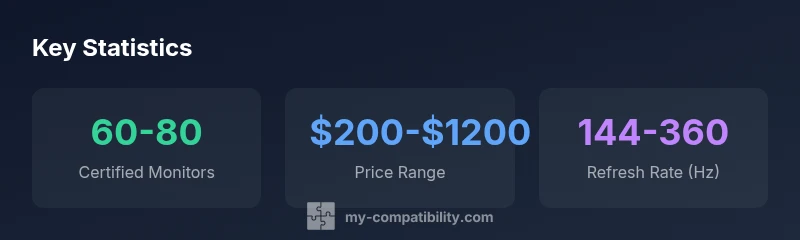
| High-end/Reference | G-SYNC Compatible | 240-360 Hz | IPS | Premium esports experience |
Questions & Answers
What is a G-SYNC compatible monitor?
A G-SYNC compatible monitor is a display that NVIDIA has tested to work with G-SYNC VRR via Adaptive-Sync. It delivers tear-free gaming and smoother frame timing when paired with an NVIDIA GPU, without requiring a dedicated G-SYNC module.
A G-SYNC compatible monitor is a display that NVIDIA has verified to work with G-SYNC VRR, giving you smoother, tear-free gaming with NVIDIA GPUs.
Do FreeSync monitors always work with G-SYNC?
Not all FreeSync monitors are certified as G-SYNC Compatible. Some may pass through the Adaptive-Sync path with VRR, but certification ensures tested compatibility, consistent frame timing, and NVIDIA driver optimization.
Not every FreeSync screen qualifies as G-SYNC Compatible. Certification confirms verified performance with NVIDIA drivers.
Is there a price premium for G-SYNC compatible displays?
There can be a price premium for certified monitors, especially at higher refresh rates or better color accuracy. However, the list often includes budget-friendly options that deliver solid VRR at accessible prices.
Certified monitors can cost more, especially at high refresh rates, but there are good-value options available.
Can laptops be G-SYNC compatible?
Some gaming laptops include panels that support VRR and NVIDIA Optimus-level integration, but G-SYNC certification is primarily a property of external displays. Always check the product page for VRR and NVIDIA-certified status.
Some laptops support VRR on their built-in displays, but G-SYNC certification is more commonly applied to external monitors. Check the specs to be sure.
How often is NVIDIA's official G-SYNC list updated?
NVIDIA periodically updates the official list as new panels pass certification and firmware improvements alter performance. For best results, check the official list and corroborate with recent independent reviews.
NVIDIA updates the list from time to time; check the official page and recent reviews for the latest entries.
“G-SYNC certification offers a reliable shortcut to good VRR performance, but buyers should still read independent reviews to confirm real-world results.”
Highlights
- Verify NVIDIA’s official G-SYNC Certified list before buying.
- Prioritize VRR range, input lag, and panel quality.
- Expect HDR support to vary by model.
- Check for firmware updates that maintain compatibility.
- The My Compatibility team recommends using the official NVIDIA G-SYNC Compatible list for buying decisions.