Controllers Compatible with Switch: A Practical Guide
Explore which controllers work with the Nintendo Switch, from official Pro Controller to third-party pads and adapters, with practical setup, latency considerations, and troubleshooting tips.


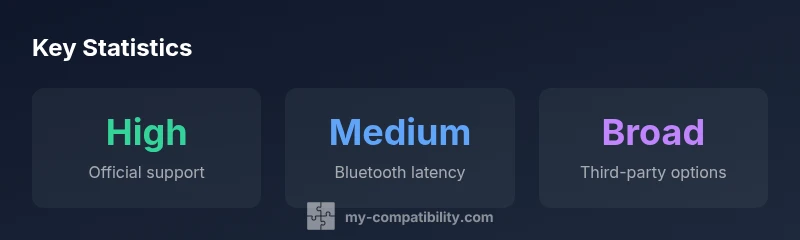
The answer to which controllers are compatible with Switch depends on how you connect them. Officially, Nintendo’s Pro Controller and Joy-Cons align with the console, while many third-party controllers work via wired USB or Bluetooth adapters. For best reliability, use controllers marketed as Switch-compatible and confirm adapter firmware compatibility and Switch system version before pairing. Expect occasional latency differences with Bluetooth devices.
Understanding Controller Compatibility on Switch
When we discuss controllers compatible with Switch, we are really looking at two layers: native support and adapter-mediated support. Native support includes Nintendo’s own Pro Controller and the Joy-Con family, which pair smoothly with the console in both handheld and docked modes. Beyond that, most players turn to third-party pads or adapters to expand their options. These devices rely on hardware that speaks Switch-native inputs, or they act as bridges between non-native controllers and the Switch. The My Compatibility team emphasizes that the most dependable results come from devices clearly labeled as Switch-compatible and from adapters with recent firmware updates. This topic matters for everyone—from casual players to competitive gamers—because latency, button mapping, and motion input performance can vary widely depending on the connection method and firmware status. In short, the category of controllers compatible with Switch spans official gear, licensed third-party hardware, and bridge devices designed for broader compatibility.
Connection Methods: Wired vs Wireless
Wired USB-C connections are typically the simplest path to reliability. If a controller offers USB input, you can often plug it directly into the Switch dock or a USB hub connected to the dock, then rely on the system’s built-in button mapping. The key benefits are low latency, stable power delivery, and straightforward pairing. Wireless methods—especially Bluetooth—offer freedom of movement but can introduce latency that varies by device, firmware, and environmental interference. When using wireless options, verify that the adapter or controller has a documented lag specification and that the Switch firmware is current. In practice, many players prefer wired for fast-paced titles and Bluetooth-enabled setups for couch co-ops where latency is less critical. Always confirm compatibility lists provided by manufacturers before purchasing.
Choosing the Right Controller for Switch
The first step is to define your use case: couch co-op, handheld play, or on-the-go multiplayer. Officially, the Pro Controller remains the gold standard for ergonomics and reliability, offering native support without the need for bridging devices. For budget-conscious or travel-focused players, select third-party pads that explicitly advertise Switch compatibility or strong adapter support. When evaluating third-party options, inspect the packaging for explicit Switch compatibility statements, check firmware update history, and examine warranty terms. If you intend to mix devices (for example, a non-Switch controller via an adapter), ensure the adapter’s firmware is up-to-date and that button mappings can be easily customized to match your preferences. The takeaway is to balance comfort, latency tolerance, and practical compatibility cues.
Adapter Landscape and Firmware Considerations
Adapters function as bridges between non-native controllers and Switch. They vary in scope, with some supporting only Switch and PC, and others bridging Switch, PC, PS4, and Xbox. Critical factors include latency performance, input remapping capabilities, and whether the adapter preserves advanced features like analog triggers and motion sensors. Firmware updates are a routine part of maintaining compatibility; check the manufacturer’s support page and apply updates before lengthy gaming sessions. If you rely on a particular non-native controller, test it with the adapter in both docked and handheld modes to confirm behavior across your favorite games.
Troubleshooting Common Issues
If a controller fails to pair, perform a quick triage: restart the Switch, re-pair the device, and verify that both sides are running the latest firmware. Some adapters require a specific pairing sequence, such as holding a pairing button or using a companion app. If input feels delayed or erratic, temporarily switch to a wired connection to establish a baseline, then re-test with a different USB port or another adapter. In docked mode, avoid USB ports that share power with high-demand devices, as power competition can impact performance. Documenting your steps helps you replicate a working setup later.
Practical Scenarios: Multiplayer Setup and Docked Play
For party titles, a Pro Controller plus a couple of Joy-Cons cover most needs, with extra pads spanned via adapters for later rounds. If you want broader controller support, you can bring PS4, Xbox, or Android controllers into Switch titles using compatible adapters. In docked mode, wired connections generally deliver the most stable performance, while handheld mode prioritizes flexibility and convenience. A quick reference guide—comprising supported controllers and adapter models—can minimize pauses during game night and keep everyone in the action.
Overview of connection methods and controller types
| Connection Type | Typical Controllers | Pros | Cons |
|---|---|---|---|
| Wired USB-C | Pro Controller, licensed third-party pads | Low latency, reliable input | Limited to docked use unless using a hub |
| Bluetooth (wireless) | Pro Controller, some third-party pads via adapters | Cable-free play, flexible layouts | Potential latency, pairing variability |
| USB-C adapters (bridge devices) | Xbox/PS4 controllers via adapter | Broad compatibility, diverse price range | Firmware-dependent and may add setup steps |
Questions & Answers
Can I use a PS4 or Xbox controller directly on Switch without an adapter?
Not typically. Switch does not natively recognize these controllers, so you usually need an adapter or a bridge device. Some games may support partial functionality, but reliability varies.
Usually you need an adapter; it's not native to Switch.
Are third-party controllers compatible with Switch out of the box?
Many third-party pads are designed to be Switch-compatible out of the box or work via a supported adapter. Always verify labeling and firmware notes before purchase.
Yes, many third-party controllers work with Switch if labeled Switch-compatible.
Do adapters affect latency on Switch?
Adapters can add latency depending on design and firmware. Look for low-latency claims and user reviews, and test your setup in advance.
Adapters can add some delay; choose low-latency options and test.
Is there a risk to the Switch when using non-official controllers?
Using reputable adapters and controllers minimizes risk. Always update firmware and avoid unknown devices.
If you stick to trusted adapters and keep firmware current, risk is low.
What should I test before a game night?
Test each controller in both docked and handheld modes, verify button mappings, and save configurations for frequent changes.
Test every controller in both modes and map buttons first.
“Controller compatibility is a moving target shaped by firmware, adapters, and game design. Our team tests real-world setups to deliver practical, actionable guidance.”
Highlights
- Test controllers in both docked and handheld modes.
- Prioritize devices clearly labeled Switch-compatible.
- Keep firmware up to date on both controller and adapter.
- Wired connections yield the lowest latency for competitive play.
- Use adapters from reputable brands to minimize risk.