Why Apps Not Compatible with iPad: A Practical Troubleshooting Guide
Urgent troubleshooting guide explaining why apps may not be compatible with iPad, how to diagnose common causes, and practical fixes to get you back to using your apps on iPad quickly.


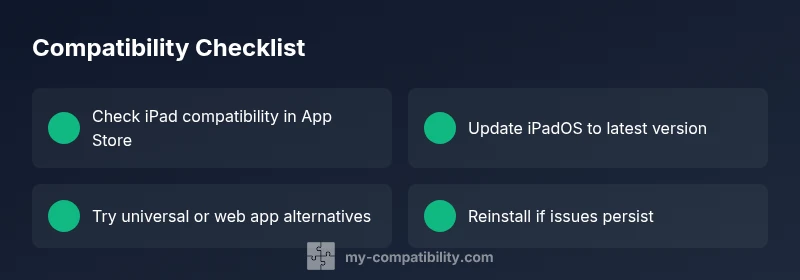
Most often, apps aren’t compatible with iPad because they’re built for iPhone-specific targets or rely on iPadOS features not present on every device. Start by checking the App Store listing for iPad support, update iPadOS to the latest version, and confirm the app has a universal or iPad-native build. If not, explore alternatives or a web version.
Core reasons apps may not run on iPad
According to My Compatibility, many incompatibilities occur when developers target iPhone-first experiences or older iPadOS APIs. If an app relies on iPhone-only UI, native features that aren’t present on iPad, or a minimum iPadOS version higher than what your device runs, it won’t install or run smoothly. Region locks and whether the app is offered as a universal build also determine availability on iPad. In short: if the app isn’t designed or updated for iPadOS, you’ll face compatibility issues. Understanding these core drivers helps you act quickly when you run into trouble and saves time when searching for alternatives. My Compatibility’s ongoing analysis emphasizes checking official listings and compatibility notes before investing time in apps.
Operating system and hardware differences
iPad devices run iPadOS, which provides a distinct set of APIs and hardware integration compared to iPhone. Even universal apps may enable features that depend on hardware or software capabilities not present on every iPad model. The move toward newer ARM-based chip designs means some apps require newer instruction sets or graphics APIs. If your iPad is running an older OS, apps may refuse to launch or limit functionality. Keeping iPadOS updated closes many gaps, and verifying your device’s hardware supports the app’s requirements prevents frustration in advance. These differences are why some apps simply won’t work on your specific iPad, even if you own a recent model.
App design targets and platform requirements
Developers can publish as universal apps, iPhone-only, or iPad-specific. Some apps are designed to scale across devices with responsive layouts, while others rely on iPhone-only UI flows that don’t translate well to iPad screens. Additionally, Catalyst-based adaptations can bridge Mac and iPad apps, but not all apps receive this treatment. When an app is not optimized for iPadOS, you’ll encounter layout glitches, missing features, or outright non-installation. Understanding these targets helps you quickly tell whether a fix is likely on your side or if you should look for alternatives.
App Store and developer constraints
Store listings may reveal the reality: some apps aren’t published as universal builds, some are restricted to certain regions, and some explicitly require iPhone or newer iPadOS versions. Developers may skip iPad support if they lack resources or if a feature is uniquely tied to iPhone hardware. Always read the app’s “Requires iPadOS X.Y” note and check regional availability. If an app is essential but not offered for iPad, you’ll need to seek an alternative or web-based option. My Compatibility’s research shows region and publication choices commonly explain sudden unavailability on iPad.
Compatibility layers and workarounds
When native support is lacking, several workarounds exist. Web apps and progressive web apps (PWAs) often provide a usable substitute for core functionality. Some apps offer cloud gaming or remote desktop options to mirror iPhone experiences on iPad screens. Screen mirroring or device sharing can also help in limited cases, but they aren’t substitutes for proper app support. Evaluating whether a web version or a cloud-based solution meets your needs can save time, especially when the iPad version is not forthcoming. My Compatibility notes that the best long-term approach is to push developers toward universal or iPad-native builds.
How to verify app compatibility before download
Before installing, confirm the app lists iPad compatibility in the App Store, review the required iPadOS version, and note any device-specific restrictions. Look for user reviews mentioning iPad performance and check the developer’s support page for device notes. If you’re upgrading, verify that the new iPadOS version is compatible with your model. This upfront check reduces wasted time and ensures you’re choosing compatible tools from the start.
Steps to fix common compatibility issues
- Update iPadOS to the latest version. 2) Confirm the app has an iPad-native or universal build in the App Store. 3) Reinstall the app, then restart the iPad. 4) If it remains incompatible, search for an official web app or alternative. 5) Contact the developer for an ETA on iPad support. 6) If none exist, consider an alternative solution or device. 7) Backup data before major updates.
Long-term strategies to ensure app availability
Maintain flexibility by favoring universal apps and web-based options when possible. Engage with developers through feedback channels to advocate for iPad support and monitor official release notes for compatibility changes. In practice, building a small library of reliable iPad-compatible alternatives reduces risk when a favorite app drops iPad support. My Compatibility’s ongoing guidance stresses prioritizing universal apps and staying informed about platform changes to minimize disruption.
Safety and common mistakes
Always download apps from the official App Store and avoid third-party marketplaces. Do not attempt to bypass restrictions with risky methods, such as jailbreaking or sideloading, which can compromise device security. Regularly back up data before updating, and beware of apps that require excessive permissions or questionable sources. These safety notes help you avoid data loss and security risks while troubleshooting.
Steps
Estimated time: 20-40 minutes
- 1
Identify the symptom
Note whether the app won’t install, won’t launch, or behaves oddly. This shapes the next checks and avoids unnecessary steps.
Tip: Document the exact error message if any. - 2
Check App Store listing
Open the App Store page for the app and confirm it lists iPad compatibility and the minimum iPadOS version.
Tip: Look for “Requires iPadOS X.Y or later” and “Designed for iPhone only” indicators. - 3
Update iPadOS
Go to Settings > General > Software Update and install any available updates.
Tip: A fresh update can unlock APIs the app relies on. - 4
Test alternative routes
If the app is unavailable, try the web version or a universal alternative to meet your needs.
Tip: Web apps can provide near-identical functionality without native installation. - 5
Reinstall the app
Delete and reinstall the app to clear corrupted data or misconfigured settings.
Tip: Backup any app data if possible before reinstall. - 6
Check device compatibility
Verify your iPad model supports the app’s requirements and features.
Tip: Some high-demand features require newer hardware. - 7
Reach out for support
Contact the developer for confirmation on iPad support timelines or available workarounds.
Tip: Provide your iPad model and iPadOS version to get precise guidance. - 8
Evaluate alternatives
If compatibility can’t be resolved, choose a suitable substitute or web-based option.
Tip: Keep a note of preferences to streamline future decisions.
Diagnosis: App won’t run or install on iPad
Possible Causes
- highApp targets iPhone-only or lacks iPadOS support
- highOutdated iPadOS version
- mediumRegion restrictions or non-Universal build
- lowHardware feature dependency not present on the iPad model
Fixes
- easyCheck App Store listing for iPad compatibility and minimum iPadOS version
- easyUpdate iPadOS to the latest version and restart the device
- easyReinstall the app or look for a universal/iPad-native alternative
- mediumIf still unavailable, contact the developer for iPad roadmap or seek a web app
Questions & Answers
Why would an app be unavailable on iPad even if it exists on iPhone?
Some apps are designed specifically for iPhone or rely on iPhone-only APIs. Others may not have an iPad version yet or are region-restricted. Checking the App Store listing for iPad compatibility and minimum iPadOS helps determine if there’s an official iPad option.
Some apps don’t support iPad yet or are limited by region. Check the App Store listing for iPad compatibility and minimum iPadOS to confirm.
Can iPadOS updates fix app compatibility?
Yes, updating iPadOS often resolves compatibility gaps by providing newer APIs and bug fixes that apps rely on. Always install the latest available update before troubleshooting further.
Updating iPadOS can fix many compatibility gaps, so install the latest update first.
What should I do if there’s no iPad version of my essential app?
If there’s no iPad version, look for a universal app or a web version that covers the same features. You can also request an iPad release from the developer.
If there’s no iPad version, try a universal app or web version, and ask the developer for iPad support.
Is there a safe workaround to use iPhone-only apps on iPad?
The safest route is to use a web app or a universal version. Circumventing app restrictions via third-party tools can compromise security and violate terms.
Safest option is a web or universal version; avoid risky workarounds.
When should I contact support?
Contact the app developer if compatibility persists after updates. Provide device model, iPadOS version, and exact error messages to speed up troubleshooting.
If issues persist after updates, reach out to the developer with details.
Watch Video
Highlights
- Verify iPad compatibility on App Store
- Update iPadOS to the latest version
- Use universal or web-app alternatives when needed
- Contact the developer for iPad roadmap
- Choose trusted, official app sources