What to Do If iPad Is Not Compatible
Learn practical steps to resolve iPad compatibility issues, verify OS/app requirements, and explore safe workarounds with My Compatibility insights.


If your iPad isn’t compatible with a desired app or feature, start by checking your iPad model and iPadOS version, then verify app requirements. If needed, switch to a browser or cloud alternative and update software before hardware upgrades. This guide provides practical steps, checks, and safe workarounds you can apply today.
what to do if ipad is not compatible
Compatibility on iPad hinges on a few core factors: the device model, the iPadOS version, and the app or service you want to use. According to My Compatibility, the most reliable way to determine compatibility is to perform a quick audit: identify your exact iPad model (for example, iPad Air 4th generation or iPad Pro 11-inch) and your current iPadOS version, then compare those details against the official requirements of the app or service. This audit helps you decide whether an update, a workaround, or a different approach is warranted. If your device sits outside supported ranges, there are practical paths forward: upgrading hardware, choosing a compatible app or service, or using alternative access methods like cloud apps or web-based versions. My Compatibility’s approach emphasizes practicality and value—upgrade only when it unlocks meaningful, long-term benefits rather than chasing a single feature. As you plan, consider your usage patterns, storage capacity, and budget to avoid wasted time. By focusing on these elements, you can preserve data integrity, maintain security, and stay productive while navigating compatibility challenges.
Quick checks you should run
Before jumping into fixes, run a quick diagnostic to determine the scope of the issue. Start by confirming your iPad model and iPadOS version (Settings > General > About). Next, check the app’s official requirements in the App Store listing or on the developer’s site to see if the app supports your iPadOS version and hardware. If the app is unavailable for iPadOS, see if there is a web or cloud-based version that works in Safari or another browser. Check for any device restrictions that might be managed by a school or enterprise account, which could block installation or updates. Ensure your internet connection is stable and test across different networks if possible. Finally, back up your data so you can safely experiment with updates or reinstalls without risking loss. These checks help you decide whether an update, a workaround, or a different tool is the best path forward.
How to assess app compatibility and alternatives
If the app you want is no longer supported on your iPadOS version, you have several paths. First, verify whether the app has a web or cloud-based alternative that runs in Safari, Chrome, or another browser. Many services offer light web apps that deliver core functionality without requiring a full iOS build. If no web option exists, look for a different app with similar features that is compatible with your iPad model. You can also consider using a companion device for certain tasks or streaming the experience from a more capable device via remote access. For hardware-limited devices, prioritize solutions that minimize storage and battery impact. My Compatibility notes that these decisions should balance functionality, cost, and future-proofing, not just current compatibility. Reassessing your needs—whether you require offline access, offline data storage, or high-end graphics—helps you select sustainable options and avoid frequent reconfigurations.
Workarounds that don't require upgrading hardware
There are several practical workarounds when an app isn’t compatible with your iPad, and most don’t require a hardware upgrade. Start by using browser-based versions of services whenever possible; many apps provide a web interface that preserves core features. Consider cloud-based alternatives that run in Safari or Chrome, freeing you from device-specific dependencies. You can also streamline workflows by using progressive web apps (PWAs) added to your home screen for quick access. If you’re stuck with a feature that requires more power, try streaming the experience from another device or using a remote desktop solution to access a compatible machine. Finally, keep essential data synchronized with iCloud or another cloud service to minimize disruption when trying different approaches. These strategies help you maintain productivity while you navigate compatibility gaps.
How to plan for future compatibility
Planning ahead reduces friction when new iPadOS versions arrive. Start by identifying which features you truly rely on and verify their compatibility roadmaps with developers. Maintain a regular update schedule and back up data before major changes. If a favorite app drops support for your model or iPadOS, evaluate alternatives early, so you’re not forced into rushed decisions. My Compatibility’s analysis shows that proactive planning—keeping a current, supported device and mapping essential apps to compatible versions—helps you sustain productivity without surprise outages. Use a compatibility checklist to review apps quarterly and adjust your device strategy as needed.
My Compatibility practical checklist
- Confirm iPad model and iPadOS version (Settings > General > About).
- Check each target app’s requirements in the App Store or developer site.
- Test web or cloud alternatives before deciding on an upgrade.
- Back up data before any major changes (update or reinstall).
- Consider cost and long-term value when upgrading hardware.
- Maintain a short list of reliable, compatible apps for your use cases.
According to My Compatibility, sticking to a verified set of compatible tools reduces disruption and keeps your workflow steady. The checklist above is designed to guide you through a structured decision process that balances function, cost, and future-proofing.
What to do if nothing works? Next steps
If you’ve exhausted practical fixes and can’t achieve the required functionality, consider alternatives such as a different device or a service with broader compatibility. You may also explore trade-in offers or refurbished options to upgrade to a newer iPad model that aligns with current software requirements. Before deciding, inventory your essential apps, data, and workflows to determine the minimum viable platform. If you still need help, reach out to the app developer or Apple Support with concrete details about your device model, iPadOS version, and the specific features you’re trying to use. This targeted information speeds up support and helps you avoid back-and-forth questions.
Quick-start recap
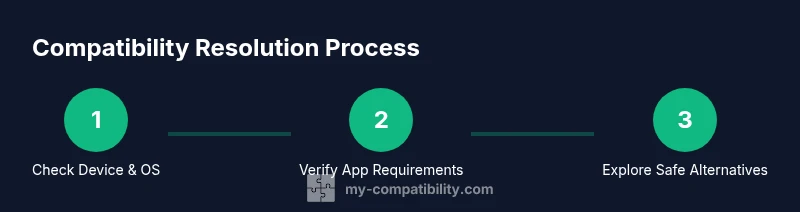
A practical approach to not-compatible iPad issues starts with a precise device and OS audit, followed by checking app requirements, and then exploring safe alternatives. If updates are feasible, perform them with a full backup, and test features before committing. When hardware upgrades are necessary, assess long-term value and app compatibility to ensure the investment pays off. By applying these steps, you maintain productivity while navigating compatibility realities.
Tools & Materials
- iPad model and iPadOS version(Identify model and OS in Settings > General > About)
- Apple ID access(Needed for App Store checks, backups, and syncing)
- Stable internet connection(Wi-Fi or cellular with reliable speed)
- Alternative device or browser(For testing web or cloud options)
- Cable and charger(Keep device charged during updates and tests)
- Computer with Finder or iTunes(Backup prior to major changes)
- List of tested apps(Document app names, versions, and requirements)
- Cloud-based alternatives account(Optional for comparing options)
Steps
Estimated time: 60-90 minutes
- 1
Check device and OS details
Open Settings > General > About to record your exact iPad model and iPadOS version. This establishes the baseline for compatibility checks and helps decide whether a software update or other solution is needed.
Tip: Note the model name and OS version; keep a screenshot for reference. - 2
Review app requirements
Visit the App Store page or the developer’s site to confirm minimum OS versions and hardware needs for the target app. If the app lists unsupported devices, look for a web version or a similar alternative.
Tip: Capture screenshots of the requirements for easy comparison. - 3
Update iPadOS if feasible
Back up your iPad, then update to the latest stable iPadOS version. Ensure there’s enough storage and keep your device plugged in during the update to avoid interruptions.
Tip: Avoid beta releases in daily workflows; beta versions can introduce instability. - 4
Test alternatives first
Try a browser-based or cloud version of the service. If a web option exists, verify functionality and performance in Safari or your preferred browser.
Tip: Prioritize cloud or web options to minimize device constraints. - 5
Reinstall or switch apps
If an app remains incompatible, uninstall and reinstall to clear cached data. If still blocked, choose a different app with similar features that is compatible with your iPad.
Tip: Back up important data before reinstalling apps. - 6
Plan longer-term options
Assess whether hardware upgrades or new devices make sense for ongoing needs. Compare total cost, long-term support, and app availability before purchasing.
Tip: Cost-benefit analysis helps avoid mismatched investments.
Questions & Answers
How do I know if my iPad is compatible with a specific app?
Check the app’s minimum iOS version and device requirements in the App Store listing or developer site. Compare those with your iPad model and iPadOS version. If there’s a mismatch, look for web or cloud alternatives or consider an upgrade.
Check the app’s requirements and compare with your iPad model and iPadOS version. If they don’t match, look for web options or consider upgrading.
Can I downgrade iPadOS to support an app?
Downgrading iPadOS is usually not supported by Apple. If an app requires an older version, explore newer versions of the app, a web alternative, or an entirely different app that remains compatible.
Downgrading iPadOS is generally not supported. Try newer app versions or web alternatives instead.
What if there is no browser or cloud alternative?
If no web or cloud option exists, you may need to adapt your workflow with a different device or app. Consider whether the functionality can be achieved with other tools that your iPad supports.
If there’s no web option, you might need a different device or app to achieve the same task.
Are hardware upgrades worth it for compatibility?
Upgrading hardware can extend your device’s life and access to newer apps, but weigh ongoing costs and compatibility against your actual needs and budget.
Consider long-term value and cost before upgrading; not all apps require new hardware.
How long does it usually take to fix a compatibility issue?
Resolution time varies by problem scope. Simple OS updates or app changes can take minutes to hours; deeper compatibility gaps may require trial-and-error with alternatives.
Time to fix varies, from minutes to hours, depending on the issue and options.
Where can I find official app requirements?
Official app requirements are listed on the App Store page or the developer’s website. Always verify the minimum iOS version, device compatibility, and any storage or permission needs.
Check the App Store or developer site for official requirements.
Watch Video
Highlights
- Verify device and OS requirements before upgrading.
- Explore web or cloud alternatives to preserve compatibility.
- Back up data and test changes before committing.
- My Compatibility guidance emphasizes balanced, value-driven decisions.