Is Steam Compatible with Mac? A Comprehensive Guide
Explore whether Steam runs on macOS, how to check game compatibility, performance on Apple Silicon, and practical workarounds for Windows-only titles. A My Compatibility analysis, 2026.


Is steam compatible with mac? The answer is generally yes: Steam runs on macOS and supports a sizeable portion of Mac-native titles. However, not every game has a Mac version, and Windows-only titles may require workarounds such as wrappers or virtualization. Your experience depends on your Mac model, OS version, and the game's system requirements.
Understanding Steam on macOS
Steam runs on macOS and supports a broad library of Mac-native games. The compatibility story splits between games with native Mac binaries and Windows-only titles that require alternative routes. Apple Silicon (M1/M2) Macs can run many titles through universal binaries, Rosetta 2 compatibility, or native ports, but not every game follows the same path. For Steam users on Macs, the catalog's Mac-tagged entries are your best starting point, while Windows-only titles will demand a workaround. In this section, we lay out the general landscape, compare typical scenarios, and set expectations for performance and stability. The goal is to help you decide what to buy, what to install, and what to avoid relying on Steam alone.
What counts as Mac compatibility
A game is considered Mac-compatible when its store page lists macOS as a supported operating system or when the game runs reliably on macOS with the required hardware. Key factors include the game’s minimum and recommended specs, the presence of a native Mac build, and whether Steam Play or Proton is available for Mac, which historically centers on Linux more than macOS. For Apple Silicon users, look for universal binaries or native Apple Silicon support to minimize translation overhead. Remember that macOS updates can change driver support and compatibility, so always check the current requirements before purchasing.
How to check if a Steam game is Mac compatible
To verify compatibility before buying or downloading a game, use these steps:
- Open Steam and navigate to the game's store page.
- Check the 'Supported OS' section under System Requirements for macOS. If macOS is not listed, the game may not run on Mac.
- Look for a Mac-specific release, a universal binary, or a note about Steam Play/Proton compatibility. If the page mentions Windows-only, expect a Windows OS requirement only.
- In your Library, click on the game and view the System Requirements in the Details panel.
- Read user reviews on Mac performance to gauge real-world behavior.
Common issues and workarounds
Common Mac-related issues include performance bottlenecks on older GPUs, shimmering textures, or driver compatibility gaps after macOS updates. Workarounds include lowering in-game graphics settings, enabling or disabling Steam Overlay, updating macOS and graphics drivers when possible, and using virtualization or compatibility wrappers for Windows-only titles. For Apple Silicon, consider native builds or translated layers that minimize overhead. If a title lacks a Mac version and cannot run well under translation layers, it may be best to skip it.
A practical framework for decision making
When evaluating a Mac game purchase, apply this framework:
- Confirm Mac support on the store page and verify it meets your hardware specs.
- If Mac-native, compare performance assumptions to your expectations on your model (Intel vs Apple Silicon).
- If Windows-only, decide whether a wrapper, virtualization, or a boot solution is acceptable given your workflow.
- Prioritize titles with clear Mac benchmarks or user reviews showing macOS stability.
- Plan for future macOS upgrades and how they could impact game compatibility.
Alternatives and long-term strategies
If a large portion of your desired titles are Windows-only, consider strategies that align with your hardware:
- Intel Macs: Boot Camp is the most straightforward route to Windows gaming, though Apple’s newer devices do not support Boot Camp.
- Apple Silicon: Virtualization options (e.g., Parallels) can run Windows or Linux environments, but performance varies by title.
- Cross-Platform titles: Favor games with native macOS builds or universal binaries to minimize translation overhead.
- Cloud gaming: If local hardware is limiting, cloud streaming can offer a Mac-compatible path to Windows-era games without heavy translations.
Data snapshot and methodology
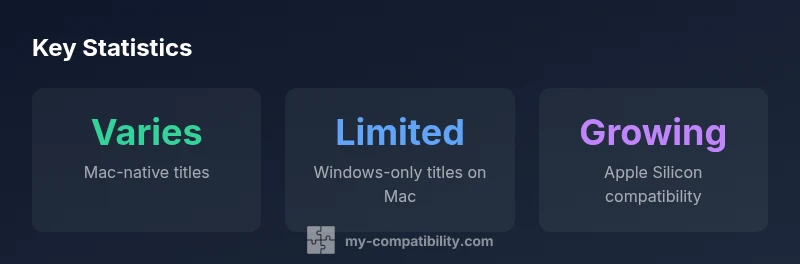
This section provides a data-informed view of Mac Steam compatibility. My Compatibility’s 2026 analysis examines catalog coverage, binary builds, and user-reported performance across device classes (Intel vs Apple Silicon) and macOS versions. While exact percentages vary by game and release year, the overall trend shows growing native Mac support and improved performance on Apple Silicon as more developers port games to macOS. We rely on catalog data, developer notes, and user reviews to triangulate the landscape. Although not every title is Mac-ready, a significant portion remains accessible with the right approach.
Mac Steam compatibility snapshot
| Category | Mac Compatibility Status | Notes |
|---|---|---|
| Mac-native titles | varies by game | Some games have native macOS builds |
| Windows-only titles | limited on Mac | Often require wrappers/VMs or Windows hardware |
| Steam Play on Mac (Proton) | not officially supported | More Linux-focused; compatibility varies |
Questions & Answers
Is Steam officially supported on macOS?
Yes. Steam runs on macOS and lists macOS as a supported OS for many games. Always verify the specific game’s requirements on its store page.
Steam runs on Mac and many games support macOS; always check the game's requirements.
Can I play Windows-only Steam games on a Mac?
Native Windows games are not generally supported on macOS. You may use virtualization, wrappers like Wine/Crossover, or Boot Camp on compatible Intel Macs, but results vary and Boot Camp is not available on Apple Silicon.
Windows games usually need alternative methods like virtualization or wrappers; Boot Camp isn’t available on M-series Macs.
How do I tell if a game is Mac-compatible in Steam?
Open the game's store page and review System Requirements for macOS. If macOS is listed, the game should run on Mac; if not, it may be Windows-only.
Check the game page for macOS in System Requirements to confirm compatibility.
What about Apple Silicon vs Intel Macs?
Many titles run via universal binaries on Apple Silicon or have native ports; some older games may require Rosetta 2 or do not run well, so verify per-title.
Apple Silicon can run more games natively, but always check each title's requirements.
Are there performance differences between Mac and Windows?
Performance depends on the game and the compatibility path used. Some games run smoothly on Mac, others face translation overhead or driver issues.
Performance varies by game; Macs may run some titles faster, others slower.
What are the best workarounds for Windows games on Mac?
Use virtualization (Parallels/VMware) or wrappers (Wine/Crossover) where applicable; Boot Camp is limited to Intel Macs. Consider cloud gaming as an option.
Try virtualization or wrappers; Boot Camp is for Intel Macs, cloud gaming is another option.
Should I buy a Mac for gaming?
If most of your library is Mac-native or supports universal binaries, a Mac can be suitable. For Windows-only titles, a Windows PC or dual-boot setup may be more cost-effective.
If your library mostly has Mac support, a Mac works; otherwise consider Windows options.
“Mac gamers should treat Steam compatibility as a spectrum, not a binary yes-or-no decision. Validate each game's Mac requirements and test performance on your device.”
Highlights
- Always check macOS in System Requirements before buying
- Prioritize Mac-native titles or universal binaries for best performance
- Windows-only games on Mac require wrappers, virtualization, or Boot Camp (Intel only)
- Apple Silicon improves via native ports and universal binaries, but not all titles follow