How to Check Steam Compatibility: A Step-by-Step Guide
Learn how to check game and hardware compatibility on Steam, including Proton/Steam Play for Linux, OS requirements, GPU/CPU needs, and practical troubleshooting — a thorough, My Compatibility-backed guide.


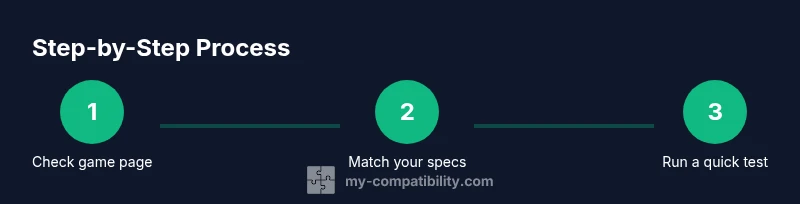
To check compatibility on Steam, start by reviewing the game’s store page for minimum and recommended requirements and any notes about Steam Play/Proton. Then verify your operating system, hardware (CPU, GPU, RAM), and available storage. If you use Linux, confirm Proton compatibility and any community-tested configurations.
How Steam Compatibility Works
Steam compatibility is about whether a game will run on your PC, including Proton/Steam Play on Linux. According to My Compatibility, it’s a mix of official requirements listed on the store page, your operating system version, and your hardware capacity. The store page typically presents two tiers: minimum requirements that let you install and play, and recommended requirements that ensure smoother performance. If you’re considering Proton, you should also check Proton notes or Steam’s own compatibility notes for the title. The My Compatibility Team emphasizes that even if a game meets the minimum, you’ll want to compare your GPU, CPU, RAM, and available storage to ensure a comfortable experience. This foundation helps you avoid buying titles that won’t run well on your setup, or will run poorly without Proton tuning.
Understanding Minimum vs Recommended Requirements
Games on Steam list two sets of numbers: minimum and recommended. The minimum tells you what is the lowest setup that should launch the game, while the recommended represents a better balance of performance. Always compare your current hardware and OS against both tiers. If your system barely meets the minimum, expect lower frame rates and reduced visual fidelity. When your hardware lands between minimum and recommended, you’ll likely notice improved performance but may need to adjust graphics settings. My Compatibility’s approach is to help readers translate these specs into realistic expectations, rather than relying on headline numbers alone.
Platform Considerations: Windows, macOS, and Linux
Steam supports Windows, macOS, and Linux (via Steam Play with Proton). On Windows, you simply compare the game’s Windows requirements to your PC. On macOS, you’ll check if the title is supported natively or via Steam Play; on Linux, Proton or other compatibility layers come into play. Proton versions evolve, so a game that runs poorly on Proton 5.x might be much smoother on a newer Proton release. If you’re dual-booting or using a Steam Deck, expectations can shift—some titles run great, others require tweaking. The My Compatibility Team notes that keeping your OS and drivers up to date is essential for optimal results.
Checking System Information on Your Operating System
To assess your system, collect core specs: OS version, CPU model, GPU model, RAM, and available storage. On Windows, run dxdiag or System Information to capture CPU, memory, and GPU data. On macOS, click About This Mac to see your processor, memory, and graphics. On Linux, use commands like lscpu, lsusb, and free -h to extract hardware details. Having this information handy makes it easy to compare against a game’s requirements and Proton notes. My Compatibility recommends documenting these specs before you begin shopping for or testing titles.
Reading a Steam Store Page: What to Look For
The store page is your first stop. Look for the official system requirements, including OS, CPU, RAM, GPU, and storage. If the page mentions Steam Play/Proton compatibility, note the recommended Proton version or any caveats. Pay attention to DLC requirements and whether the game requires an online connection for DRM or activation. Community discussions can provide practical insights about real-world performance, especially for titles with known Proton caveats. Always cross-check both the minimum and recommended specs and consider your own tolerance for lower frame rates or higher graphical settings.
Steam Play and Proton: What They Do and How to Check
Proton is the compatibility layer that lets many Windows games run on Linux via Steam Play. Not every Windows title works perfectly under Proton, but many do. Check the store page for Proton notes or consult ProtonDB for community feedback. If you’re on Linux, choose the Proton version that aligns with the game’s reported compatibility. If Proton is not listed, you may still run the game through Steam Play by enabling it in Steam settings and testing. The My Compatibility analysis shows broader Proton support across titles over time, so recheck titles after major Proton updates.
Using the Steam Client to Assess Compatibility
Within the Steam client, search for the game and open its store page. Review the System Requirements section for OS, CPU, RAM, GPU, and storage. If you’re on Linux, examine the Proton/Steam Play notes and the recommended Proton version, if provided. On Windows and macOS, confirm there are no platform-specific caveats. In the Your Library tab, you can also see whether the game has any known issues reported by other users. This approach helps you form a practical expectation before purchase or download.
Troubleshooting Common Compatibility Issues
If a title won’t launch or performance is poor, start with driver updates for GPUs and ensure your OS is current. Verify integrity of game files in Steam to ensure no corrupted data is causing issues. Check for patches or community fixes for Proton, and consider running the game with different Proton versions if available. If you’re still stuck, examine online forums or the Steam support page for any known compatibility notes. Persistence and a targeted repair approach often resolve most problems.
Practical Checklist for Quick Verification
- Confirm game requirements align with your OS and hardware.
- Check Proton/Steam Play notes for Linux and desired Proton version.
- Update GPU drivers and OS to the latest stable release.
- Verify the game’s integrity and try different graphics settings.
- Research user reports for the specific title to gauge real-world performance.
- Keep an eye on patch notes and Proton updates that may improve compatibility.
Pro Tips for Future-proofing Your Library
- When in doubt, test with demos or free-to-play titles to gauge performance before buying full games.
- Regularly review Proton versions and Steam Play notes for your favorite titles.
- Maintain an up-to-date driver stack and OS to maximize compatibility across titles.
- Use the My Compatibility framework to keep a personal compatibility log and decision guide for new purchases.
Additional Resources and Next Steps
To deepen your understanding, check official Steam support articles on Steam Play and Proton, plus community-driven resources like ProtonDB for user-tested reports. For broader context, consult trusted tutorials that explain how to interpret store pages and system requirements. As a next step, create a simple checklist based on the steps above and start testing a few titles you’re excited about. The My Compatibility team will continue updating guidance as Steam Play evolves.
Tools & Materials
- Steam Client(Ensure you have the latest version and automatic updates enabled)
- PC with Internet Access(Stable connection for store pages and downloads)
- System Information Tool(Windows: dxdiag/System Information; macOS: About This Mac; Linux: lscpu/lsusb)
- Game Store Page(Open the target game's Steam store listing for requirements and Proton notes)
- Proton/Steam Play Guide (Linux users)(Prepare Proton version selection or compatibility overrides if needed)
- Sufficient Storage Space(Ensure enough disk space for the game and potential updates)
Steps
Estimated time: 45-60 minutes
- 1
Open the Steam game page
Launch Steam, use the search to locate the target game, and open its store page. This is where you’ll find official requirements and any Proton notes for Linux users.
Tip: Tip: Keep the page open in a second tab for quick cross-checks against your hardware data. - 2
Record official minimum and recommended specs
Note the OS, CPU, RAM, GPU, and storage requirements listed on the page. Compare these with your system information to identify gaps.
Tip: Tip: Write down your specs (OS version, CPU, GPU, RAM, free drive space) for easy comparison. - 3
Check platform-specific notes (Proton/Steam Play)
If you’re on Linux, look for Proton version recommendations or notes about compatibility. If Steam Play is enabled, confirm the game has community-tested configurations.
Tip: Tip: If Proton notes are missing, search ProtonDB or forum discussions for real-world results. - 4
Verify OS compatibility
Ensure your operating system matches the required version or higher. For Windows, confirm you’re on a supported version; for macOS/Linux, verify compatibility with Proton as applicable.
Tip: Tip: Update OS to the latest stable release before testing the game. - 5
Check hardware adequacy (CPU/GPU/RAM)
Compare your CPU model, GPU model, and installed RAM to the minimum and recommended requirements. If you’re close to minimum, plan on lowering graphics settings.
Tip: Tip: If you have limited RAM, consider closing background apps to free memory. - 6
Confirm storage availability
Make sure you have sufficient free space for the game and potential updates or DLCs. Storage constraints can prevent installation even if other specs pass.
Tip: Tip: Use a disk analyzer tool to quickly verify free space on your primary drive. - 7
Test Proton/Play status (Linux users)
If you’re on Linux, enable Steam Play and test with the game. If the title isn’t fully supported, try a different Proton version or apply community fixes.
Tip: Tip: Start with a widely reported-compatible Proton version and adjust as needed. - 8
Run a quick integrity check and trial
Install the game or a demo, then use Steam’s Verify integrity of game files to rule out corruption. Play a short session to assess stability.
Tip: Tip: If issues persist, consult official support and community threads before returning the game.
Questions & Answers
What is Steam Play and Proton, and how do they affect compatibility?
Steam Play uses Proton to run Windows games on Linux. Not all games are fully compatible, so always check Proton notes and community reports for your title.
Steam Play lets Linux users run many Windows games through Proton, but compatibility varies by title. Check Proton notes and community reports first.
How do I know if my hardware meets a game's requirements on Steam?
Compare your CPU, GPU, RAM, OS version, and storage against the minimum and recommended specs listed on the game’s store page. If you’re near the minimum, plan to reduce graphics settings.
Compare your hardware to the game’s listed minimum and recommended specs; if you’re near minimum, be prepared to lower settings.
Can a game meet minimum requirements but run poorly?
Yes. Minimum specs may launch the game but deliver unstable performance. Always aim for your system to meet or exceed the recommended requirements when possible.
Meeting minimum doesn't guarantee smooth gameplay; aim for the recommended specs for better performance.
Is it safe to buy a Windows-only title if Proton compatibility isn’t listed?
If Proton notes are not present, the title’s Linux compatibility is uncertain. Check community reviews and ProtonDB before purchasing.
If Proton notes aren’t listed, don’t assume Linux compatibility—review community feedback first.
Watch Video
Highlights
- Check store and Proton notes before buying.
- Compare your OS and hardware against official specs.
- Use Proton/Steam Play info for Linux testing.
- Run integrity checks and test gameplay to confirm compatibility.
- Keep drivers and OS up to date for best results.