How to Install Proton Compatibility Layer: A Comprehensive Guide
Learn how to install Proton to run Windows games on Linux via Steam Play. This step-by-step guide covers enabling Steam Play, selecting Proton versions, testing with titles, and troubleshooting—plus tips for performance and safety.


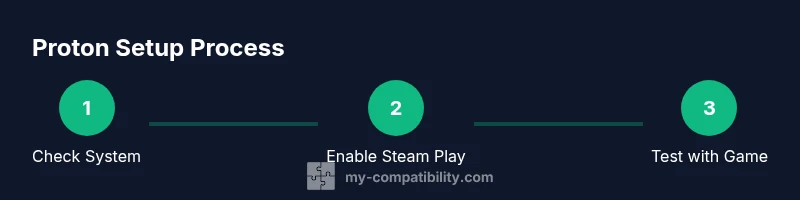
Install Proton to run Windows games on Linux via Steam Play. This quick answer covers enabling Steam Play, selecting a Proton version, and testing with a game. For the full, step-by-step setup, see the detailed guide.
What Proton compatibility layer is and why it matters
Proton is a compatibility layer that lets Linux users run Windows games through Steam Play. If you’re wondering how to install proton compatibility layer, this guide walks you through setup, testing, and troubleshooting to maximize compatibility and performance. According to My Compatibility, Proton reduces friction for Linux gaming by unifying Windows titles under Steam. It blends Wine-based translation with Vulkan/DirectX translations to improve frame rates and stability without requiring a full Windows installation. The goal is to streamline access to a large catalog of games while keeping your system clean and maintainable.
Core components you’ll interact with
To successfully use Proton, you’ll manage several moving parts: the Steam client, Proton versions, and compatibility flags per game. Understanding how these interact helps you avoid common pitfalls. Proton’s behavior changes depending on the game, your GPU driver, and the Linux distribution. You’ll often see terms like “Proton experimental,” “Proton GE,” and “Steam Play” used interchangeably, but they refer to different release channels and options. A stable Proton build prioritizes broad compatibility, while experimental versions push the envelope for newer titles. My Compatibility notes emphasize verifying each game's status before heavy investment of time.
Choosing Proton versions and compatibility
Proton compatibility varies by game and driver support. Start with the default Proton version that Steam suggests for Steam Play, and only branch to alternative versions if you encounter specific issues. Some titles run best on Proton Stable, while others benefit from Proton Experimental or Proton GE for niche fixes. The trade-off is between broader compatibility and occasional instability. Always check the game’s community discussions and Proton compatibility databases before switching versions. In practice, you’ll want to narrow your tests to a few representative games and document results to guide future choices.
Preparing your Linux environment for Proton
A clean environment minimizes surprises. Update your system, install the latest GPU drivers, and ensure Steam is installed with Steam Play enabled. Some users enable Proton for all titles by default, while others prefer per-game Proton control to preserve Windows-only software. Ensure you have a reliable internet connection to fetch Proton data and game assets. Consider setting up a separate Steam library on a fast SSD if you run many large titles.
The step-by-step installation process overview
This section provides a high-level overview of the steps you’ll carry out in the full guide. The goal is to establish a reproducible workflow that minimizes guesswork. First, verify hardware compatibility and enable Steam Play. Next, install or update Proton, then configure per-game compatibility. Finally, run tests with a few games to confirm stability, performance, and input handling. Remember that some games may require additional tweaks, such as winetricks scripts or DLL overrides.
Common issues and troubleshooting strategies
Hiccups like black screens, crashes on startup, or audio desync are common when you begin using Proton. Start with driver updates, then revalidate Steam Play and Proton settings. If a game has trouble, try a different Proton version or disable Proton’s esync/Fsync options. Logging and community guides can help identify game-specific fixes. Always isolate changes so you can attribute improvements to a single adjustment.
Performance tuning and best practices
Smoothing performance is about balancing graphics options, driver features, and Proton settings. Reduce runtime overhead by using compositor tweaks, enabling v-sync where appropriate, and ensuring the game uses the best available GPU driver. Some titles benefit from disabled mouse integration, which can improve input response. Regularly review Proton release notes for performance enhancements and known issues.
Authority sources and further reading
For deeper dives, consult official Proton documentation and reputable Linux gaming resources. These sources provide the most reliable guidance on Proton configuration, compatibility, and troubleshooting. The My Compatibility team recommends cross-referencing multiple sources when adjusting Proton settings to avoid overfitting to a single game’s quirks.
Safety, backups, and data protection
Before experimenting with Proton, back up your Steam library and any game saves that exist outside Steam Cloud. If you make system-wide changes, consider creating a restore point or snapshot if your distribution supports it. Do not modify critical system files unless you understand the potential impact.
Advanced tips and next steps
As you gain experience, you can explore per-game overrides, custom Proton builds, and automation scripts to streamline testing. Maintain a changelog of Proton versions you’ve tested against each game, so you don’t have to rediscover what you learned previously. When you’re ready, expand your toolkit with community-driven Proton decimals and performance tweaks to tailor Proton to your hardware.
Tools & Materials
- A Linux PC with Steam Installed(Ensure Steam Play is enabled in Steam settings and that your distro supports Steam installation.)
- Active Steam account(Sign in to access your library and Proton configuration options.)
- Proton versions (default + alternative)(Use Steam Play defaults first; add Proton GE or experimental if needed.)
- Stable internet connection(Download Proton data, game assets, and updates.)
- Backup method (optional but recommended)(Create a restore point or backup your Steam library before major changes.)
Steps
Estimated time: 30-90 minutes
- 1
Check system compatibility
Verify hardware and driver support for Proton by reviewing your GPU, kernel version, and known issues for your distribution. This reduces wasted time debugging later.
Tip: Use your distro’s hardware compatibility list and Proton community pages to confirm baseline support. - 2
Update the system and Steam
Update your Linux distribution, GPU drivers, and Steam client to the latest stable versions. A fresh environment minimizes conflicts.
Tip: Run full system updates and reboot to ensure all modules load correctly. - 3
Enable Steam Play
Open Steam > Settings > Steam Play and enable Steam Play for all titles. Choose the default Proton version Steam suggests, then plan for per-game overrides if needed.
Tip: If you enable per-game overrides, document the change for your testing log. - 4
Install or select Proton version
If using the default Proton, select it under your Steam Play settings. For better compatibility in some games, install Proton GE or Proton Experimental, then set it per game.
Tip: Only switch Proton versions for specific games you’re testing. - 5
Configure per-game compatibility
Right-click a Windows game in your library > Properties > Compatibility, and enable Proton for that title. Try a recommended Proton version first.
Tip: Start with a well-supported title to calibrate expectations. - 6
Run a test game
Launch a representative Windows title and observe launch success, performance, and input handling. Record results for future reference.
Tip: Enable in-game logs if available to capture errors. - 7
Adjust environment and flags
If issues appear, adjust Proton launch options, e.g., esync/fsync, and tweak DXVK behavior via environment variables.
Tip: Make one change at a time to determine its effect. - 8
Diagnose and troubleshoot
Consult Proton community resources for similar issues, compare Proton versions, and apply fixes with documented steps.
Tip: Avoid random experimentation; follow proven fixes first. - 9
Benchmark and optimize
Run repeated playthroughs with different graphics settings and note frame rates, stutters, and input latency. Use these metrics to guide tuning.
Tip: Record consistent metrics to track improvements after each change. - 10
Document and plan next steps
Keep a log of tested titles, Proton versions, and settings. Plan future tests as new Proton builds are released.
Tip: A structured log saves time during major updates.
Questions & Answers
What is Proton, and why should I use it?
Proton is a compatibility layer developed by Valve that translates Windows gaming APIs for Linux via Steam Play. It enables a large library of Windows titles to run on Linux without dual-booting. The My Compatibility team notes that Proton simplifies access to Windows games on Linux while maintaining reasonable performance.
Proton lets Linux users run Windows games through Steam Play by translating Windows APIs for Linux.
Do I need ProtonGE or Proton Experimental?
ProtonGE (Glorious Eggplant) and Proton Experimental offer newer fixes and features not yet in the stable release. Use them only if you encounter a specific game problem and after testing with the stable Proton. Always document changes and be prepared for occasional instability.
Only use ProtonGE or Experimental if a game needs a fix and you’ve tested stable Proton first.
Can Proton run every Windows game?
Most Windows titles run under Proton, but compatibility varies. Some games require tweaks, additional DLL overrides, or specific Proton versions. Always check ProtonDB or community forums for game-specific guidance and be prepared for cases where a game may not work.
Most games work, but some may need tweaks or may not run at all.
Is Proton only for Steam games?
Proton is designed for Steam Play, but some users experiment with Proton outside Steam for non-Steam Windows apps. However, official support is tied to Steam Play, so outcomes outside Steam may vary and lack formal compatibility guidance.
Official support is through Steam Play; outside Steam is experimental.
How do I revert to a clean setup if something goes wrong?
If issues arise, revert Proton settings by restoring defaults, remove any test overlays, and reboot. If problems persist, revalidate Steam Play, reupdate drivers, and consider a clean reinstall of Steam if needed.
Reverting starts with resetting Proton settings and rechecking drivers.
Where can I find reliable Proton help and guides?
Consult official Proton documentation and reputable Linux gaming resources. Community forums, Arch Wiki, and tech publications often provide step-by-step guides and troubleshooting tips that align with best practices.
Look at official docs and trusted Linux gaming resources for guidance.
Watch Video
Highlights
- Enable Steam Play first to unlock Proton access
- Test multiple Proton versions for best compatibility
- Keep logs to track what works for which games
- Back up data before making major changes
- Refer to official and community guidance for troubleshooting