How to Make Compatible Ink Cartridges Work: A Practical Guide
A comprehensive, educational guide on getting compatible ink cartridges to work reliably in printers, covering compatibility checks, safe installation, troubleshooting, and warranty considerations.


This guide shows you how to make compatible ink cartridges work in your printer, with step-by-step checks, installation tips, and troubleshooting. You’ll verify model compatibility, install cartridges correctly, run alignments, and resolve common issues without risking damage. Gather your printer model, cartridge set, soft cloth, and cleaning solution to start.
Understanding Compatible Ink Cartridges
According to My Compatibility, compatible ink cartridges come in three main categories: remanufactured cartridges that have been cleaned and refilled, renewed cartridges that are refurbished to factory specs, and officially licensed third-party cartridges designed to work with specific printer models. The key distinction from OEM cartridges is not just the price, but the way the cartridge communicates with the printer’s firmware, chip, and color-management settings. Most printers can accept at least some non-original cartridges, but compatibility is not universal. Before you decide, identify your printer model, cartridge family (for example, HP 63 or Canon PGI-270), and the type of ink (dye vs pigment). Print quality, sealing, and chip compatibility influence reliability. Always buy from reputable brands with clear return policies and tested compatibility lists. Inconsistent outputs often trace back to old seals, clogged chips, or improper storage; the remedy is often straightforward but requires careful handling.
Why Compatibility Is Not a Guarantee
Compatibility is largely a matter of firmware and chip communication. Even when a cartridge model is listed as compatible, printer firmware updates can change how cartridges are recognized. That’s why it’s essential to verify the exact cartridge family and color mapping before purchase, and to confirm with the seller’s compatibility list. When in doubt, start with a small test pack from a retailer that offers a return window. This cautious approach helps you avoid wasted ink and printer downtime.
Choosing Reputable Suppliers and Cartridges
The market for compatible cartridges ranges from budget refills to premium remanufactured options. The safest bet is to choose suppliers who provide clear compatibility matrices, documented testing, and a reasonable return policy. Look for cartridges that include genuine seals, intact chips, and stable ink formulations. Reading user reviews and checking return policies can save you from quality issues such as leaks, color inconsistencies, or clogging.
Verifying Chip and Firmware Compatibility
Many printers rely on microchips embedded in cartridges to report ink levels and identity. If a cartridge chip isn’t recognized or reports an error, the printer may refuse to print or degrade color accuracy. Confirm that the cartridge is designed for your specific printer model and firmware version. Some brands offer chips that auto-adjust to printer settings, while others require a manual reset or a compatible cartridge family. Always start with the vendor’s official guidance to avoid firmware conflicts.
Handling and Storing Compatible Cartridges
Proper storage preserves cartridge quality until first use. Keep unused cartridges upright in a cool, dry place away from direct sunlight. Before opening, gently roll the cartridge to mix the ink (do not shake vigorously). Once opened, install cartridges promptly and run a print head alignment after installation. Handling with clean hands or nitrile gloves reduces oil transfer from skin that could affect nozzle health.
The Print Quality Lifecycle with Non-OEM Cartridges
Even high-quality compatible cartridges can exhibit color shifts or subtle line artifacts if printer settings aren’t aligned with the ink type. After installation, run calibration and color alignment, then print a test page to validate output. If colors are off, adjust the printer’s color balance, perform another cleaning cycle, or swap to a different cartridge version from the same family. Consistency comes from a repeatable routine and careful observation of any deviations.
Tools & Materials
- Printer model and user manual(Have exact model name and firmware version ready)
- Compatible ink cartridge set (color-matched)(Use cartridges listed as compatible with your model)
- Lint-free cloth or microfiber wipe(For cleaning contacts and seals)
- Isopropyl alcohol wipes(70% or higher concentration for cleaning contacts)
- Nitrile gloves(Avoid fingerprints on cartridges)
- Soft brush or cotton swabs(Optional for dust removal around cartridge ports)
- Access to printer maintenance tools(Some printers offer built-in cleaning options)
Steps
Estimated time: 60-90 minutes
- 1
Identify compatibility
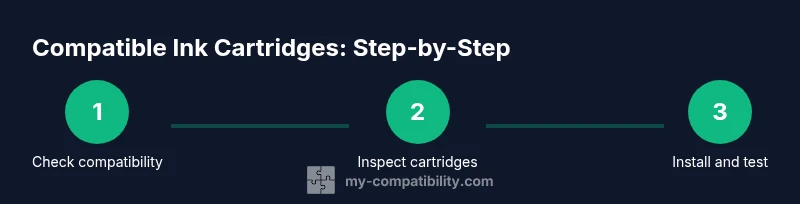
Look up your exact printer model and the cartridge family that is listed as compatible by the manufacturer or vendor. Confirm that the non-original cartridge you intend to use matches this family and color mapping. If compatibility information is missing, reconsider the purchase or contact support.
Tip: Double-check model numbers on both the cartridge packaging and printer label. - 2
Inspect cartridges
Examine packaging integrity, seals, and the cartridge body for signs of damage. Ensure the chip is intact and positioned correctly. Do not use cartridges with cracks, leaks, or swollen packaging.
Tip: Avoid touching the copper contacts; handle cartridges by the sides. - 3
Prepare workspace and printer
Power down and unplug the printer, then open the cartridge access area. Wipe down the area with a lint-free cloth lightly dampened with isopropyl alcohol to remove dust. Keep the workspace clean to prevent contamination of nozzles.
Tip: Allow the printer to cool if it was recently used before handling cartridges. - 4
Install cartridges correctly
Insert each cartridge into its matching slot until it clicks into place. Ensure the color mapping aligns with the printer's layout and that no cartridge is inclined or half-inserted. Do not force cartridges into slots.
Tip: Fingerprints on contacts can cause misreads; wear gloves for installation. - 5
Run alignment and cleaning tests
Power the printer back on and run the recommended cleaning cycle, followed by alignment or calibration. Print a test page to evaluate color balance and line sharpness. If misalignment occurs, repeat the alignment step once more.
Tip: Limit cleaning cycles to avoid ink wastage; excessive cleaning can degrade nozzle health. - 6
Evaluate the print and adjust
Review the test page for color accuracy, density, and any banding. If issues persist, reseat chips, re-clean contacts, or try a different cartridge from the same family. Document results for future reference.
Tip: If colors are off, adjust color balance settings in the printer software before trying new cartridges. - 7
Document results and plan next steps
Record the cartridge lot numbers, purchase dates, and observed performance. If reliability remains uncertain, consider returning the cartridges and sticking with OEM or seeking higher-grade remanufactured options. Plan periodic checks to maintain quality.
Tip: Keep receipts and packaging for warranty or return considerations.
Questions & Answers
Will using compatible ink cartridges void my printer warranty?
Warranty terms vary by brand and region. Using compatible cartridges does not automatically void a warranty, but damage caused by them may be excluded. Check your warranty documentation and consult the seller if you are unsure.
Warranty terms vary by brand and region. Compatible cartridges don’t automatically void a warranty, but damage caused by them may be excluded—verify your docs or ask the seller for clarification.
How do I know if a cartridge is compatible with my printer?
Consult the cartridge packaging and the printer’s official compatibility lists. Compare exact model numbers, color codes, and firmware requirements to ensure the cartridge is designed for your device.
Check the packaging and the printer’s compatibility lists. Match model numbers, colors, and firmware requirements so the cartridge is designed for your printer.
What should I do if the printer shows a cartridge error?
Power cycle the printer, reseat the cartridge, and clean contacts with an alcohol wipe. If the error persists, try a different cartridge from the same family or contact the retailer for support.
Restart the printer, reseat the cartridge, and clean contacts. If the error continues, try another cartridge from the same family or contact support.
Are remanufactured cartridges safe for my printer?
Remanufactured cartridges can be safe when purchased from reputable suppliers and used as directed. Avoid very low-quality refills and unreliable vendors to reduce leakage and clogs.
Remanufactured cartridges are generally safe if bought from reputable suppliers and used correctly. Avoid very cheap refills to minimize risks of leaks and clogs.
Can I mix different brands in the same printer?
Mixing brands or cartridge families can lead to color mismatches and communication issues. For best results, stick to the same brand or compatible family for all colors.
Mixing brands can cause color mismatches and recognition issues. It’s best to stay with the same brand or compatible family for all colors.
How often should I replace compatible cartridges?
Replace when print quality declines, or after shelf life limitations are reached. Store cartridges properly and perform regular maintenance to extend life.
Replace cartridges when print quality drops or after their shelf life. Keep them stored correctly and maintain the printer regularly.
Watch Video
Highlights
- Verify compatibility before purchasing cartridges.
- Install cartridges carefully to prevent leaks or errors.
- Run alignment and test prints to ensure color accuracy.
- Document results and understand warranty considerations.