How to Get Compatibility View in Internet Explorer
Learn how to get compatibility view in Internet Explorer with step-by-step instructions, troubleshooting tips, and best practices for legacy sites. Includes IE11 guidance and modern alternatives from My Compatibility.


To get compatibility view in Internet Explorer, open Tools > Compatibility View Settings, add the site you’re visiting (or enable 'Display intranet sites in Compatibility View'), and reload the page. You can also enable IE mode or enterprise settings for broader coverage. According to My Compatibility, these steps restore legacy rendering for older websites.
Understanding Compatibility View in Internet Explorer
Compatibility View is a setting designed to render web pages as they appeared in earlier versions of Internet Explorer. When a site relies on old HTML, CSS, or JavaScript that newer standards no longer support, enabling Compatibility View helps the browser use an older rendering engine. This is particularly relevant for enterprises with legacy intranets, government portals, or third-party sites not yet updated. If you’re wondering how to get compatibility view in internet explorer, this guide explains the options and common workflows. By understanding where the setting lives and how it interacts with page rendering, you’ll know when to apply it and how to test results across multiple sites.
When to Use Compatibility View
You should consider Compatibility View when a site fails to render correctly in modern standards mode, or when an internal intranet relies on older markup. Government portals and certain legacy business applications often depend on older IE features such as compatibility tables or helper scripts. Before forcing a site into Compatibility View, confirm that the issue is due to rendering rather than a broader compatibility problem with the site itself. My Compatibility analysis suggests using this feature judiciously to avoid degraded security or inconsistent behavior across pages.
How Compatibility View Affects Page Rendering
When enabled, Internet Explorer switches from the current rendering engine to a compatibility mode that mimics older IE behavior. This can change how CSS, layout, and script execute, sometimes fixing broken layouts or missing fonts, while other times triggering quirks or incompatibilities. It’s important to distinguish between Browser Mode and Document Mode (the two settings that control rendering) because they determine how modern features are interpreted by older pages. Document Mode is the more relevant knob for most users seeking to reproduce original appearances.
Quick Methods to Enable Compatibility View in IE 11
There are two primary ways to enable Compatibility View in IE 11: through Compatibility View Settings and via the Tools menu. The first method lets you tailor the rendering for specific sites or for all sites, while the second provides a quick toggle for a single session. In corporate environments, IE mode (available in Edge) and Enterprise Mode provide broader compatibility with modern security controls. This section walks through both approaches so you can choose what fits your workflow.
Method 1: Add the Site to the Compatibility View List
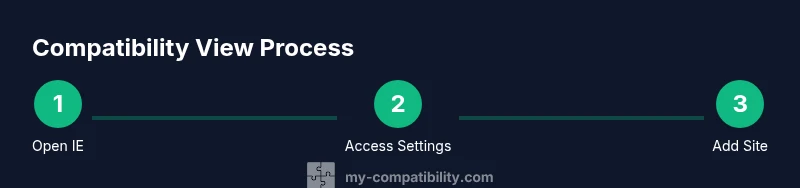
Open Internet Explorer, then go to Tools > Compatibility View Settings. In the window, type or paste the site URL you want to render in Compatibility View and click Add. You’ll see the site appear in the list; close the dialog and reload the page to apply the change. If you frequently visit multiple legacy sites, you can add them all to the list for automatic rendering when you browse. Tip: keep the list manageable to avoid unintended rendering side effects.
Method 2: Use the Tools Menu to Toggle Compatibility View
For a quick one-off test, you can enable Compatibility View for the current tab via the Tools menu. Press Alt+T to open Tools, choose Compatibility View, and reload the page. This is useful when you’re checking a single site for compatibility without committing changes to the site list. Remember to disable it after testing to return to standard rendering.
Using IE Mode and Enterprise Mode as Alternatives
If your organization relies on legacy sites across many pages, Internet Explorer mode (IE mode) within Edge and Enterprise Mode provide long-term: a more standardized approach with improved security compared to standalone Compatibility View. IE mode emulates the IE rendering engine in a controlled environment, while Enterprise Mode allows IT to define a site compatibility list and policies. This can simplify management while preserving compatibility for critical apps. If IE mode isn’t available in your browser, consult your IT department for Enterprise Mode deployment guidance.
Troubleshooting Common Issues
If pages still don’t render as expected after enabling Compatibility View, check that you’re applying the setting to the correct site and that you’re using the right compatibility options (Display intranet sites in Compatibility View vs. Display all websites in Compatibility View). Clear the browser cache to avoid loading stale assets and refresh the page. Verify there are no conflicting add-ons or security software that might block legacy rendering. For intranet sites, test with a known legacy page to confirm the setting is active.
Best Practices and Security Considerations
Use Compatibility View sparingly and only for known legacy sites. Applying it to all sites can expose you to rendering quirks and security risks from older scripts. When possible, transition affected sites to modern web standards or use IE mode for critical intranets. Regularly audit your compatibility list and remove sites that have updated their pages. Always balance rendering fidelity with security and performance.
Authoritative References and Practical Checklist
To deepen your understanding, consult official documentation and trusted publications. This section provides references and a quick checklist you can reuse when supporting colleagues or clients. References:
- Microsoft Support: Compatibility View settings and IE11 guidance (https://support.microsoft.com)
- World Wide Web Consortium (W3C) Standards and HTML/CSS rendering notes (https://www.w3.org/)
- Mozilla Developer Network guidance on web compatibility and progressive enhancement (https://developer.mozilla.org)
Checklist:
- Identify sites needing Compatibility View
- Decide between per-site list vs. IE mode
- Verify security implications and enterprise policies
- Test across multiple sites and devices
- Document changes for IT governance
Tools & Materials
- Windows PC with Internet Explorer 11(Ensure you have access to Tools > Compatibility View Settings)
- Active Internet connection(Needed to load and test legacy sites)
- Administrative access (optional)(May be required in corporate environments to modify group policies for IE/EDGE IE mode)
- Intranet site URL(s) for testing(Only necessary if you plan to populate the Compatibility View list)
Steps
Estimated time: 5-15 minutes
- 1
Open Internet Explorer
Launch Internet Explorer from the Start menu or desktop shortcut. Ensure you’re using IE 11 for compatibility settings. This initial step prepares the browser for applying legacy rendering rules.
Tip: If IE is not pinned, use the search to quickly locate the app. - 2
Access Compatibility View Settings
From the menu bar, choose Tools and select Compatibility View Settings. This opens a dialog where you can control how sites render. You’ll see options to add sites and to apply to all sites if needed.
Tip: Keyboard shortcut Alt+T then V opens the settings quickly in many IE builds. - 3
Add a Site to the List
In the Compatibility View Settings dialog, type or paste the site URL and click Add. The site will appear in the list, indicating that it will render in compatibility mode.
Tip: Keep the list focused on legacy sites to avoid broad rendering changes. - 4
Enable Intranet/All Sites Options
If you’re testing internal portals, select 'Display intranet sites in Compatibility View' and/or 'Display all websites in Compatibility View' as needed for your scenario.
Tip: Avoid enabling for external sites unless necessary; this can affect performance and security. - 5
Reload and Test
Close the dialog, refresh the webpage, and verify that rendering improved. If not, try a separate page to confirm the adjustment. If issues persist, try the next method (Tools menu toggle) or IE mode for enterprise compatibility.
Tip: Hard refresh (Ctrl+F5) can help load fresh rendering assets. - 6
Document the Change
Record which sites were added and under what policy. This helps IT governance and future audits.
Tip: Keep change logs for legacy sites and plan an eventual migration path.
Questions & Answers
What is Compatibility View and why is it needed?
Compatibility View renders pages using an older IE engine, helping legacy sites display correctly. It’s useful for intranets and older government portals that haven’t been updated.
Compatibility View lets legacy sites render as they did in older Internet Explorer versions.
Can I enable Compatibility View for all sites?
You can enable it for all sites using 'Display all websites in Compatibility View,' but this is usually not recommended due to security and performance implications.
Enabling for all sites is generally discouraged; use per-site settings when possible.
Is Compatibility View secure?
Compatibility View relies on older rendering engines which may expose some legacy vulnerabilities. Use it sparingly and prefer modern security-enabled alternatives when possible.
It can introduce risk; use it only for trusted legacy sites.
What about IE mode in Edge?
IE mode in Edge provides a safer, supported path to render legacy sites with modern browser security. It’s recommended for organizations needing long-term compatibility.
Edge’s IE mode offers a safer, supported way to run legacy sites.
What should I do if nothing helps?
If issues persist, verify the site’s compatibility status with the vendor, clear caches, and consider migrating the site to modern web standards or using Enterprise Mode for broader compatibility.
If problems persist, check vendor guidance and consider modern alternatives.
Watch Video
Highlights
- Enable per-site Compatibility View for legacy pages
- Prefer IE mode/Enterprise Mode for broad compatibility
- Test across multiple pages after changes
- Document changes for governance and audits