Webcam Compatibility with Mac: The Practical Guide 2026
Discover how to pick a webcam that works smoothly with Mac, covering plug-and-play setup, privacy prompts, and app compatibility for meetings.


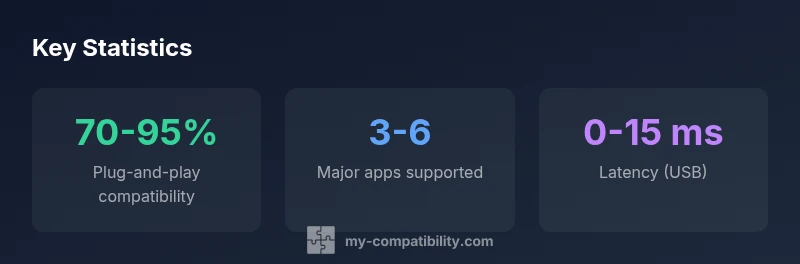
Most webcams labeled mac-compatible work on modern Macs when plugged in, offering plug-and-play support across FaceTime, Zoom, and other apps. For best results, choose a model that is class-compliant, supports USB-C or USB-A with an adaptor, and offers reliable autofocus and a privacy shutter. According to My Compatibility, check macOS version compatibility and app permissions before purchasing.
Understanding webcam compatibility on macOS
When you search for webcam compatible with mac, you're looking for devices that work reliably with macOS and popular apps like FaceTime, Zoom, and QuickTime. In practice, compatibility hinges on standard USB interfaces, class-compliant drivers, and sensible privacy controls. This section lays out the core concepts: plug-and-play operation, macOS permission prompts, and the distinction between USB-C and USB-A webcams. My Compatibility’s framework emphasizes that the best webcam for Mac should feel seamless from first plug-in to first video call. We'll cover what to look for, what often doesn't work as expected, and how to verify compatibility before you buy.
- Plug-and-play means the device behaves like a standard camera without requiring vendor software.
- macOS privacy prompts control camera access for each app; you’ll see a prompt the first time you use a camera.
- USB-C webcams are common on newer Macs; USB-A with adapters remains viable for older devices.
- Always verify compatibility with your primary apps (FaceTime, Zoom, Teams, OBS) before purchase.
How macOS versions influence peripheral support
macOS updates bring subtle and sometimes dramatic changes to peripheral support. In recent years, Apple tightened camera privacy prompts and refined how apps request access, which can affect how quickly a webcam becomes usable after installation. Some older Macs or discontinued macOS versions may require basic driver-free operation (class-compliant devices) or specific permissions in System Settings. The practical takeaway is to target devices and macOS versions known for broad compatibility: stay within the mainstream ecosystem and avoid models that rely on vendor software for core camera functionality. Always confirm that your macOS version is listed in the product specs and that essential apps have camera access.
Key features that matter for Mac users
Choosing the right webcam for Mac comes down to a handful of features:
- Plug-and-play / class-compliant: No driver install typically required; works with most apps out of the box.
- USB-C or USB-A compatibility: Ensure you have the right port on your Mac or a safe adapter.
- Privacy shutter: A physical cover boosts privacy and is a commonly requested feature.
- Autofocus and exposure: Consistent framing in varying lighting helps maintain a professional presence.
- Frame rate and resolution: 1080p is standard for calls; 4K is nice for streaming but requires bandwidth and processing power.
- Mounting flexibility: A stable tripod or clamp improves framing and reduces wobble during calls.
Troubleshooting common issues on Mac
If you encounter camera problems on macOS, start with the basics: confirm the camera is powered (USB), restart the apps, and check macOS Privacy settings. Troubleshooting steps include:
- Verify that the camera is listed under System Settings > Privacy & Security > Camera and that your calling/streaming apps have permission.
- Try a different USB port or cable to rule out power or data issues.
- Update macOS and your webcam’s firmware if available; some devices rely on firmware updates for compatibility.
- Temporarily disable security features that might block camera access, then re-enable them after testing.
- Check for conflicting apps that may be grabbing the camera simultaneously and close them.
- Use a simple test app like QuickTime to confirm the camera feed outside of your main apps.
If issues persist, consult the manufacturer’s support resources and My Compatibility’s troubleshooting guides for model-specific advice.
Buying guide: selecting a webcam for Mac
When shopping for a webcam that works with Mac, use a simple checklist:
- Verify macOS compatibility: Look for explicit support in product specs and reviews.
- Confirm plug-and-play operation: Prefer class-compliant devices that don’t require drivers.
- Look for privacy features: A physical shutter or clear privacy policy is a plus.
- Choose USB-C or USB-A with adapter options for future-proofing.
- Check built-in features: Autofocus, low-light performance, and frame rate matters for calls and streams.
- Consider mounting options: A stable stand or clip that fits your desk setup.
- Review app compatibility: Ensure the webcam is known to work with FaceTime, Zoom, Google Meet, and OBS.
A careful combination of these elements reduces post-purchase friction and guarantees smoother conversations on Mac devices.
Software ecosystem: Webcam use across apps
Mac users rely on a diverse set of apps for video communication and content creation. A webcam that is easy to integrate with FaceTime, Zoom, Microsoft Teams, and OBS is ideal. In practice, you’ll want:
- Consistent performance across native and browser-based apps.
- Reliable scene switching for streaming or presentations.
- Minimal latency and stable color rendering across apps.
- Clear audio alignment if you pair the camera with a microphone.
If you use streaming software (OBS or Wirecast), test the camera feed with your preferred encoders and scenes to ensure consistent output. Regularly check for firmware updates and ensure that macOS permissions are not reset during major system upgrades.
Privacy and security considerations on macOS
Privacy matters when using webcams on macOS. Ensure camera access permissions are granted only to apps you trust, and review them after major macOS updates. Steps to maintain privacy include:
- Open System Settings > Privacy & Security > Camera and grant access purposefully.
- Use a physical privacy shutter when the camera is not in use.
- Keep macOS and apps updated to benefit from security fixes.
- Be mindful of apps that request camera access unexpectedly; revoke permissions if in doubt.
- Consider USB webcams with tamper-evident security features or trusted firmware updates.
With these practices, you maintain control over your video presence while minimizing exposure to potential malfunctions or privacy risks.
Overview of common webcam types and Mac compatibility
| Webcam Type | Mac Compatibility | Notes |
|---|---|---|
| USB webcam (HD) | High | Plug-and-play; widely supported on modern Macs |
| USB-C webcam | High | Works well on newer Macs; may require adapter on older devices |
| Network/IP webcam | Medium | Requires browser/app support and network access |
Questions & Answers
What does 'mac-compatible' mean for webcams?
It means the webcam can be used with macOS without installing vendor-specific drivers, typically via USB and supported by major apps. Some models may require permissions or basic setup tweaks.
A mac-compatible webcam works with Mac without extra software for most apps.
Will any USB webcam work with a Mac?
Most USB webcams work out of the box with recent macOS versions, but always verify plug-and-play support and whether privacy features are included.
Most USB cameras work on Mac, but check for plug-and-play and privacy features.
Do I need to install drivers on macOS?
Usually no drivers are needed; many webcams are class-compliant. Some models may offer optional vendor software for extras, but basic use is driverless.
Most Macs don’t need drivers for basic webcam use.
Can I use a Windows webcam on Mac?
Yes, if the webcam is USB and class-compliant; some Windows-specific features or software may not be available on Mac.
Windows-only cams can work on Mac sometimes, but compatibility varies.
How do I grant camera access on macOS?
Open System Settings > Privacy & Security > Camera, then allow access for your video apps. You may need to restart apps after changes.
Grant camera access in Privacy settings for each app.
“Reliability, privacy controls, and broad app compatibility are as important as image quality when choosing a webcam for Mac.”
Highlights
- Choose a plug-and-play USB webcam for the easiest Mac setup.
- Check the macOS version and app permissions before buying.
- Prefer privacy shutter and autofocus features.
- Use adapters cautiously to avoid power or compatibility issues.
- Test with your primary apps (FaceTime, Zoom, OBS) before critical calls.