Screen compatibility with macbook pro: How to choose and connect an external monitor
Explore how to pick and connect a monitor that works with screen compatibility on macbook pro, including ports, resolution, color, and setup tips from My Compatibility.


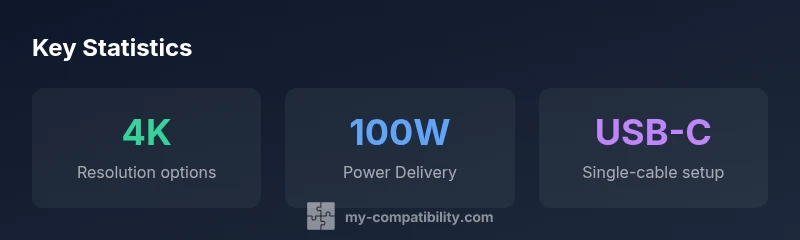
A screen compatible with macbook pro generally means a monitor with USB-C/Thunderbolt connectivity that can drive at least 4K at 60 Hz, or 5K at 60 Hz for higher-end setups. Modern MacBook Pros support DisplayPort over USB-C and up to 100W power delivery, allowing single-cable charging and video. Verify HDR support, color accuracy, and warranty before purchasing.
What "screen compatible with macbook pro" means in practice
According to My Compatibility, choosing a monitor for a MacBook Pro hinges on three pillars: connector type, supported resolutions, and color fidelity. In practice, you’re looking for a USB-C or Thunderbolt-enabled display that can carry power and video on a single cable, while offering crisp 4K or higher image quality. For professional work, color accuracy and reliable calibration are equally crucial. This section expands on those fundamentals and translates them into actionable steps for real-world setups.
Core requirements: ports, power delivery, and DisplayPort Alt Mode
The most seamless experiences come from USB-C or Thunderbolt-enabled displays that support DisplayPort Alt Mode. This allows video and power to flow through one cable to the MacBook Pro, minimizing desk clutter. If your monitor lacks USB-C, you’ll need a dock or adapter to convert USB-C to HDMI or DisplayPort. Power delivery is a key consideration: many MacBook Pros can deliver up to 100W, which means your monitor or dock should not starve the laptop during heavy workloads. Always verify the monitor’s PD profile and ensure the total power draw stays within your dock’s or hub’s capacity.
Resolution, scaling, and color: what modern MacBook Pros support
MacBook Pro models from recent generations handle 4K and 5K displays with relative ease, but actual performance depends on the GPU, macOS version, and the cable quality. For general productivity, 4K at 60 Hz offers sharp text and smooth scrolling, while 5K at 60 Hz delivers even tighter detail on large workflows. When color work is critical, prioritize displays with high color accuracy, low delta E, and a wide gamut (Display P3). Calibrating the monitor using built-in macOS tools or external hardware is recommended to maintain consistent color across applications.
Connectivity options: docks, hubs, and direct USB-C
Direct USB-C connections are ideal for simplicity and charging, but many users opt for docks or hubs to expand ports (HDMI, DisplayPort, USB-A, ethernet). If you rely on multiple displays, a Thunderbolt dock can simplify setup and improve bandwidth management. When choosing a dock, verify its power delivery rating, video output options, and compatibility with your MacBook Pro model. A well-chosen dock reduces adapter clutter and ensures reliable screen compatibility across sessions.
Practical setup: calibration and validating compatibility
After connecting your monitor, run a quick validation checklist: confirm the correct resolution, verify the refresh rate, and calibrate color with a reference target. Confirm that text appears crisp and color blocks render accurately in web and design tools. Keep your macOS display settings in mind: set the scaling to “Looks good on retina”—this keeps interface elements at comfortable sizes while preserving pixel-perfect video output. If color looks off, re-run a color calibration and compare against a known reference image.
Budget ranges and value picks (no brand names)
External monitors compatible with macbook pro span a broad price range. For budget-conscious users, look for 4K panels with decent color and solid build quality in the mid-range bracket. Designers and video editors may justify a premium 5K or 6K display with higher brightness, better HDR performance, and professional calibration capabilities. When budgeting, factor in a compatible dock if you need additional ports or multi-monitor support, as the total system cost can rise quickly.
Comparison of monitor connection types for MacBook Pro setups
| Monitor Type | Resolution | Connectivity | Notes |
|---|---|---|---|
| USB-C/Thunderbolt direct | 4K@60Hz | USB-C/Thunderbolt | One-cable setup with laptop charging |
| HDMI + DP docked | 4K@60Hz | HDMI 2.0, DisplayPort 1.4 | Requires a dock for MBP compatibility |
| USB-C Alt Mode only | 5K@60Hz | USB-C (DP Alt Mode) | Best for newer MBP with high-resolution needs |
Questions & Answers
Do I need a USB-C dock to use an external monitor with MacBook Pro?
Not always. If your monitor supports USB-C with DisplayPort Alt Mode and power delivery, you can connect directly and charge via a single cable. A dock becomes valuable when you need multiple ports or multiple displays.
You can often connect directly if your monitor supports USB-C, but a dock helps add more ports and displays.
Can I use an HDMI monitor with MacBook Pro without adapters?
Some MacBook Pro models include an HDMI output, but most newer models require a USB-C to HDMI adapter or a dock for HDMI displays. Check your model’s specs and choose accordingly.
If your MacBook Pro has HDMI, you can use it directly; otherwise you’ll need an adapter or dock.
What resolution should I aim for if I want a good general experience?
4K at 60 Hz offers sharp text and smooth motion for most tasks. 5K is ideal for color-critical work and large-scale design, but it comes with a higher price tag and hardware requirements.
For most users, 4K is a great balance; 5K shines for color work if you can afford it.
Is HDR worth it for Mac workflows?
HDR enhances contrast and color for supported content, but it requires a compatible monitor and source material. For general productivity, HDR is nice to have but not essential.
HDR helps if you work with HDR content and a compatible display.
How do I calibrate color for accurate results?
Use built-in macOS calibration tools or a hardware colorimeter. Adjust gamma, color temperature, and brightness, then verify with test images to ensure consistency across apps.
Calibrate with a color target and a dependable calibration tool.
Are there price ranges I should expect for good screen compatibility?
You can find capable 4K monitors in the mid-range, while 5K and HDR-grade displays sit at the higher end. Don’t forget to budget for a dock if needed.
Expect mid-range for 4K; higher-end for 5K HDR displays, plus dock costs if required.
“"In practice, screen compatibility comes down to connectors, power, and color accuracy. If you match those three, most setups will work smoothly."”
Highlights
- Verify ports before buying any monitor
- Prefer USB-C/Thunderbolt for single-cable power and video
- Choose 4K for balance; 5K for color and detail if budget allows
- Calibrate color to ensure accuracy for work
- Consider a dock for expanded ports and multi-monitor setups