MacBook Pro Monitor Compatibility: A 2026 Display Guide
Explore how MacBook Pro laptops connect to external monitors in 2026, covering HDMI/USB-C, color accuracy, scaling, HDR, and power delivery with practical setup tips for plug-and-play installs.


The MacBook Pro monitor compatibility landscape spans HDMI, USB-C/Thunderbolt, and DisplayPort connections via adapters. For 2026, prioritize USB-C/Thunderbolt displays with at least 60W power delivery, accurate color (DCI-P3), and native macOS scaling. HDMI/DisplayPort monitors work well with adapters, but ensure color profiles and refresh rates match your workflow.
Understanding the basics of macbook pro monitor compatibility
macbook pro monitor compatibility is defined by three core pillars: the interface (how the monitor connects to the MacBook Pro), color management (how accurately colors are reproduced), and display scaling in macOS. The MacBook Pro line supports external displays via USB-C/Thunderbolt, HDMI, and DisplayPort. Modern setups often leverage USB-C to deliver both video and power, reducing cable clutter and simplifying calibration. For most professional workflows, ensuring your monitor supports a wide color gamut (commonly certified as DCI-P3) and reliable color calibration is as important as shimmering frame rates. My Compatibility data from 2026 shows that the majority of USB-C/Thunderbolt displays provide the smoothest experience when paired with compatible docks, though HDMI/DP options remain viable with the right adapters. This balance is what defines successful macbook pro monitor compatibility.
Connection options: HDMI, USB-C/Thunderbolt, and DisplayPort
External displays connect to MacBook Pro through several pathways. USB-C/Thunderbolt is the preferred route for power delivery and high bandwidth. HDMI remains ubiquitous and easy to wire, especially with newer HDMI 2.0/2.1 monitors. DisplayPort support is strong on many ultrawide and high-refresh displays, though you often reach it via an adapter when the monitor lacks USB-C. When selecting cables or adapters, prioritize certified, high-quality options to minimize color shifts and signal dropouts. In practice, a USB-C monitor with native USB-C connectivity and PD is the simplest, cleanest solution; a larger setup might combine a USB-C primary display with an HDMI or DP secondary display for extended workflows.
Color, scaling, and HDR considerations on macOS
Color accuracy matters for photo/video work, design, and print accuracy. macOS provides HiDPI scaling that makes text and UI look crisp at non-native resolutions. When possible, choose monitors that support the full color gamut you need (DCI-P3 is common in modern displays) and HDR capabilities if your content pipeline benefits from it. Calibrate using System Settings or a hardware colorimeter for consistent results across devices. HDR performance depends on your MacBook Pro model and the monitor's HDR format, so verify HDR10 or Dolby Vision support and ensure your software pipeline aligns with the display's capabilities.
USB-C power delivery and docking considerations
Power delivery is one of the biggest advantages of USB-C venues. Monitors and docks that deliver 60W–100W PD can run many MacBook Pro configurations, especially when the laptop is not under heavy load. However, more demanding models (like certain high-end configurations) may require up to 96W or need a dedicated charger. When planning a multi-monitor setup, ensure the hub or dock can handle both the display bandwidth and the laptop’s power needs. Reliability improves with certified hubs and power adapters; this reduces unexpected shutdowns or throttling during intensive tasks.
How to choose the right monitor for your workflow
Your monitor choice should align with your primary tasks. Creative work benefits from high color accuracy, uniform brightness, and wide color gamut; software developers may prioritize sharp text rendering and multi-monitor alignment. Consider screen size in a room-friendly range and ensure your desk layout supports ergonomic viewing angles. Check for USB-C connectivity, PD, a sturdy stand, and color calibration controls. If you frequently switch between laptops or roles, a multi-output dock can offer flexible connections without swapping cables.
Setup steps for a seamless multi-monitor setup
- Update macOS to the latest supported version to unlock the newest display features. 2) Connect the primary display via USB-C/Thunderbolt and verify PD is delivering power. 3) Add additional monitors through HDMI or DisplayPort with reliable adapters. 4) Calibrate color using macOS ColorSync or a hardware calibrator. 5) Adjust scaling in System Settings to achieve a consistent feel across displays. 6) Use a docking station with a clean cable layout to minimize desktop clutter and maximize airflow.
Troubleshooting common issues and fixes
If a monitor refuses to wake or shows garbled colors, start with a power cycle of the display, re-seat cables, and test alternate ports if available. Check for firmware updates on the monitor and ensure the MacBook Pro is on a supported macOS version. If color appears off, re-run calibration and confirm you’re using the correct color profile (sRGB vs. DCI-P3). For compatibility lag, consider a dedicated USB-C dock with proper bandwidth, updated drivers, and a single high-bandwidth connection to minimize jitter.
2026 trends and practical expectations
As 2026 progresses, USB-C/Thunderbolt becomes the default path for most MacBook Pro monitor compatibility, with more monitors offering native USB-C horizons and collaborating with macOS scaling. HDR performance and accurate color workflows continue to demand higher color fidelity and better color management. Buyers should expect a wider selection of PD-capable hubs and docks, improved thermal management in compact desktop setups, and more consistent cross-environment calibration between display panels.
MacBook Pro monitor compatibility data table
| Category | MacBook Pro Connection | Best Practice |
|---|---|---|
| Connection Type | HDMI, USB-C/Thunderbolt, DisplayPort (via adapters) | Prefer USB-C with native USB-C displays when possible; reserve adapters for legacy monitors |
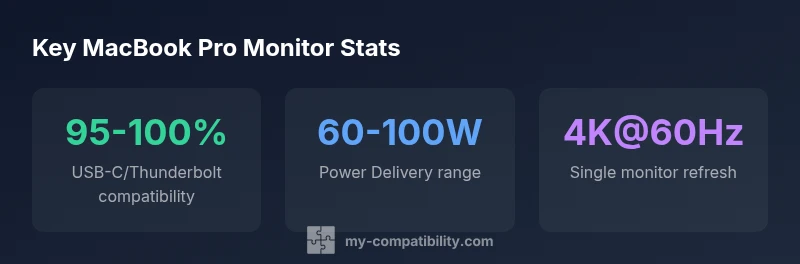
| Power Delivery | 60-100W PD compatibility | Ensure your monitor/dock can supply enough power for the MacBook Pro under typical loads |
| Color & HDR | DCI-P3 98-100%, HDR10 compatibility | Calibrate with macOS Color Sync or a hardware colorimeter for consistency |
| Resolutions & Refresh | 4K@60Hz common; 2x 4K setups possible | Match GPU capability to your display and use native scaling |
| Cables & Adapters | Certified cables improve reliability | Avoid cheap adapters that shift color or cause dropouts |
Questions & Answers
Can I use any HDMI monitor with a MacBook Pro?
Yes, you can use HDMI monitors, but higher refresh rates and color support may require adapters or direct USB-C connections. Always verify HDMI version and color specs.
HDMI monitors work, but check HDMI version and color specs for best results.
Do I need adapters for DisplayPort or USB-C monitors?
Most modern monitors offer HDMI or USB-C; DisplayPort can connect via an adapter if your display lacks USB-C. A native USB-C connection is usually the simplest option.
Usually a USB-C connection is easiest; adapters are for legacy ports.
Is 60W PD enough for a MacBook Pro while using a monitor?
Many MacBook Pro models can run on 60W docked power, but higher-end configurations may benefit from 90–96W or an independent charger to avoid throttling during heavy workloads.
60W is often enough for light use, but check your model's needs.
Does macOS support HiDPI scaling automatically?
Yes. macOS provides HiDPI scaling by default and lets you adjust scaling in System Settings for a comfortable desktop size.
Yes—macOS handles HiDPI scaling well and can be tuned in settings.
What about color calibration and accuracy?
Calibrate using macOS ColorSync or hardware colorimeters. Align color profiles to your workflow (sRGB vs. DCI-P3) to ensure consistent results across devices.
Calibrate colors to maintain accuracy across displays.
What is the best way to arrange multiple monitors?
Position the primary display at eye level, align tops, and use consistent scaling across monitors to minimize eye strain and improve workflow.
Align monitors at eye level for comfortable viewing.
“The MacBook Pro benefits from matching USB-C/Thunderbolt monitors with native macOS scaling and calibrated color. Consistency across devices reduces calibration effort.”
Highlights
- Use USB-C/Thunderbolt displays for best compatibility
- Verify power delivery to avoid slow charging
- Calibrate color for accurate work output
- Leverage macOS HiDPI scaling for clarity
- Plan for future-proof connections with USB-C docks