Printers Compatible with MacBook Air: A Practical Guide
Discover printers that work smoothly with MacBook Air. This expert guide covers AirPrint, macOS drivers, setup tips, and model types to help you choose confidently.


When pairing a printer with a MacBook Air, look for AirPrint compatibility, Bonjour networking, and native macOS drivers. Most modern inkjet and laser printers from brands like HP, Epson, Canon, and Brother work well, especially those labeled AirPrint or Bonjour-enabled. This article guides you through reliable options, setup tips, and performance expectations.
Why MacBook Air Printer Compatibility Matters
For many users, the MacBook Air is the primary computing device for work, school, and home. Printers have to fit into an existing macOS workflow with minimal friction. When the printer is compatible, you can print from Pages, Preview, and other macOS apps without juggling drivers or firmware updates. The crux of the matter is: printers compatible with macbook air should support AirPrint or Bonjour networking, offer native macOS drivers, and work reliably across macOS versions. According to My Compatibility, optimizing for compatibility reduces support time and increases satisfaction. In practice, this matters most for students, remote workers, and families who share devices. In this guide, we focus on how to identify models with robust macOS support, how to verify compatibility before purchase, and how to set up a printer so it integrates with your MacBook Air’s network and cloud services. The goal is to deliver a smooth printing experience that aligns with your digital workspace.
Key Technologies: AirPrint, Bonjour, and Drivers
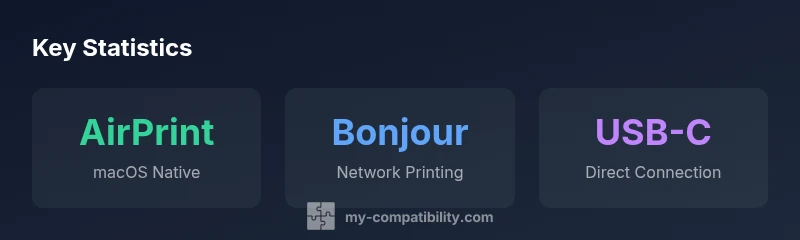
AirPrint is Apple’s built‑in printing protocol that allows macOS devices to print to compatible printers without installing drivers. Bonjour networking helps devices discover printers on the same network without manual configuration. macOS also supports driver‑based printing via the printer vendor’s software. In 2026, most reliable printers advertise AirPrint, Bonjour, or both, and Apple continues to refine the print system with incremental macOS updates. If you see AirPrint on the product page, you can count on a straightforward setup. When AirPrint is not available, you can still print via USB or vendor‑provided drivers, but the experience may vary across macOS versions. The My Compatibility team recommends prioritizing models that clearly state AirPrint or Bonjour support, as they typically deliver the most predictable, driver‑light experience. Also consider features like duplex printing, color accuracy, and scanning capabilities, which may rely on the same network protocols to work seamlessly in macOS. Finally, confirming the printer’s compatibility with your specific macOS version reduces headaches during system upgrades.
How to Assess Printer Models for macOS
Begin with the product’s AirPrint or macOS driver support. Read the model’s specification to see if AirPrint, Bonjour, or native macOS drivers are listed. Next, verify compatibility with your macOS version (Ventura, Sonoma, and upcoming releases in 2026). Look for a vendor that provides an official macOS driver or updated firmware within the last year. Consider connection methods: Wi‑Fi, USB‑C, and USB‑A. For MacBook Air users, USB‑C is common and allows direct connections with modern printers. If your workflow requires scanning or cloud printing, ensure the printer offers those features and that macOS apps can access them. Finally, check ink/toner cost, page yield, and maintenance items to manage long‑term costs.
Practical Setup Tips for MacBook Air
Setup is typically straightforward. Start by connecting the printer to the same Wi‑Fi network as your MacBook Air. On macOS, open System Settings > Printers & Scanners > Add Printer, then select the printer from the list (AirPrint is preferred for the simplest experience). If the printer is older or lacks AirPrint, install the vendor’s macOS driver package and add the printer again. For a direct connection, use a USB‑C to USB‑A adapter or USB‑C cable if supported. After adding, print a test page to confirm the default printer and page settings. If you use cloud printing, enable the service in the printer’s app or macOS settings. Remember to keep firmware and macOS up to date for best results.
Compare Printer Types: Inkjet vs Laser for macOS
Inkjet printers are typically favored for color photos and graphics, offering high color fidelity for home use and school projects. Laser printers excel at speed and cost per page for large text documents, and many modern lasers support AirPrint or vendor drivers for macOS. When evaluating models, check AirPrint or Bonjour support, as it greatly reduces setup friction on a MacBook Air. Be mindful of ink or toner costs over time and the availability of compatible replacement consumables. For photo-heavy tasks, an inkjet with reliable color accuracy could be best, while for dense text printing, a monochrome laser may save money and time in the long run.
Troubleshooting Common Issues and Quick Fixes
If your printer isn’t found by macOS, ensure both devices are on the same network and that AirPrint is enabled on the printer. Try removing the printer in System Settings and adding it again to reset the queue. Update macOS and the printer’s firmware to the latest versions. If you’re using a non‑AirPrint printer, verify that the vendor’s macOS drivers are current and compatible with your OS version. For print jobs stuck in the queue, cancel and reprint. If wireless printing fails, reboot the router, printer, and MacBook Air, and rejoin the network. These steps cover the most common causes of printing problems on macOS and can save time during troubleshooting.
Authority Sources
For practical guidance on printer compatibility with macOS, you can consult Apple’s official support resources and reputable tech publications. These sources discuss AirPrint, Bonjour networking, and driver considerations in detail. Examples include Apple Support, consumer technology outlets, and vendor documentation. Always cross‑check printer specs with your macOS version before purchasing.
Printer types and their macOS compatibility notes
| Printer Type | macOS Notes | Best Use Case |
|---|---|---|
| Inkjet (AirPrint) | Broad macOS driver support; AirPrint commonly available | Color photos and mixed documents |
| Laser (Monochrome/Color) | Strong text performance; AirPrint or vendor drivers | High‑volume text printing and cost efficiency |
| Multi‑Function (All‑In-One) | AirPrint typically supported; scanning via macOS | Office workflows with scanning needs |
Questions & Answers
Do all printers work with MacBook Air?
Not all printers are equally compatible. Most recent models from major brands support macOS via AirPrint or Bonjour, but you should verify AirPrint or driver support for your exact macOS version before purchase.
Most new printers work well with MacBook Air if they support AirPrint or Bonjour. Always double‑check driver support for your macOS version.
What is AirPrint and why does it matter for Mac users?
AirPrint is macOS’s built‑in printing protocol that lets you print without driver installations. It simplifies setup, improves reliability, and minimizes conflicts after macOS updates.
AirPrint makes printing from your MacBook Air effortless—no extra drivers needed in most cases.
Can I use non-AirPrint printers with macOS?
Yes, but you may need vendor drivers and the printer may require more setup. Ensure the printer vendor provides a macOS driver compatible with your OS version.
You can, but it might be more fiddly—check for drivers and compatibility before buying.
Is USB-C printing supported on MacBook Air?
Yes. Many modern printers offer USB‑C connections or USB‑C to USB‑A adapters, which work smoothly with a MacBook Air’s USB‑C ports.
Most newer printers connect easily via USB‑C or with adapters for USB printers.
Do I need extra drivers for older printers?
Some older printers require legacy drivers. If possible, choose a model with AirPrint or readily available macOS drivers, and check compatibility with your macOS version.
Older printers may need older drivers; airprint or updated vendor drivers reduce this risk.
How do I troubleshoot wireless printing issues on macOS?
Restart devices, ensure on same network, verify AirPrint/Bonjour status, update macOS and printer firmware, and re‑add the printer in System Settings.
Try restarting everything and re‑adding the printer if wireless printing acts up.
“AirPrint and Bonjour‑enabled printers consistently deliver the most reliable MacBook Air printing experience, with the fewest driver hassles and quickest setup.”
Highlights
- Prioritize AirPrint or Bonjour support for hassle-free macOS printing
- Check your macOS version compatibility before buying
- Consider USB‑C direct connections for newer MacBook Air models
- Use 2–3 year print cost estimates to gauge total ownership