Phone Compatibility Check: A Complete How-To Guide
Learn how to verify that your phone works with networks, apps, and devices. A step-by-step guide covering carrier support, OS requirements, SIM/eSIM readiness, and app compatibility for 2026.


By the end of this guide you will be able to perform a thorough phone compatibility check that covers carrier support, network bands, unlocking status, OS requirements, and essential app compatibility. You’ll have a practical, step-by-step process you can apply to any phone model or carrier in 2026, plus troubleshooting tips and clear safety notes.
Why a Phone Compatibility Check Matters
According to My Compatibility, a robust phone compatibility check goes beyond basic SIM compatibility. It involves network bands, carrier unlocking, OS requirements, regional restrictions, hardware support, and the apps you rely on daily. Without this check, you may encounter dropped calls, slow data, limited app access, or surprise charges after you switch carriers or upgrade devices. In 2026, phones and networks are more interconnected, making a thorough audit essential for stress-free usage across regions and services.
Key scenarios where compatibility matters include buying a new phone, switching carriers, traveling internationally, and deploying devices in small business or family plans. The My Compatibility team found that most compatibility issues arise from mismatched bands, non-unlock status, or outdated OS versions that block essential apps. By understanding these factors upfront, you can save time and avoid costly returns.
Core Factors That Influence Compatibility
- Network bands and radio support: phones have specific bands for 4G/5G; ensure the device supports the bands used by your carrier, in your country and abroad.
- Carrier unlocking and SIM compatibility: locked devices won’t accept external SIMs; verify unlock status or request from the carrier.
- OS version and software compatibility: recent OS versions bring security and app access; confirm your phone’s OS matches carrier and app requirements.
- Region and model variants: manufacturers ship region-specific variants; fact-check model numbers to avoid mismatches.
- eSIM readiness: some networks require eSIM; ensure your device and carrier support it.
- Warranty, policies, and returns: verify that compatibility checks align with warranty terms.
By evaluating these factors, you can create a compatibility profile for your device that you can reuse for future upgrades or plan changes.
How to Check Carrier Compatibility for Your Phone
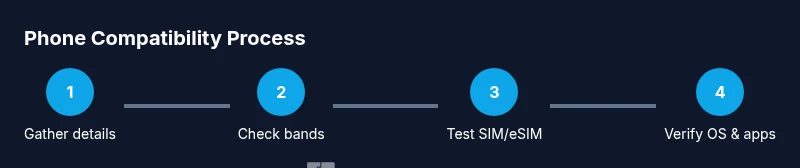
- Gather device details: model number, regional variant, and current OS version. This data ensures you are testing the right variant against the carrier’s network.
- Confirm carrier band support: consult the carrier’s official specs and compare them to the phone’s supported bands. This prevents slow data or no service in crucial areas.
- Verify unlocking status: if the device is carrier-locked, request an unlock code or confirm eligibility with the carrier. A locked phone cannot be used with another network.
- Test SIM/ESIM activation: insert the SIM or enable an eSIM and run live tests for calls, texts, and data, as well as network switching between 4G/5G where available.
- Check roaming compatibility: if you travel, ensure roaming settings and partner networks are supported to avoid unexpected charges.
- Review warranty and policy: ensure that unlocking or carrier changes won’t void the device’s warranty.
- Document test results and timeframes: keep a record of which bands work and where, so you can refer back for future upgrades.
Why these steps matter: real-world checks catch issues that specs alone may miss, and they give you a reference for future changes.
Software and App Compatibility Considerations
Phone compatibility isn’t only about networks; it also hinges on software ecosystems. An OS version should meet the minimum requirements of essential apps, security updates, and platform services. Some apps may refuse access on outdated OS versions or non-listed regions, leading to crashes or missing features. Check the app store listing for region restrictions, required permissions, and supported devices. If you rely on business applications or productivity tools, confirm their compatibility with your device’s OS type (iOS vs Android) and the latest security updates. For dual-SIM configurations, verify that the operating system supports multiple profiles without conflicts. Finally, remember that some carriers bundle software such as device management or security suites; make sure these tools won’t interfere with your workflows.
Hardware and Network Standards to Verify
Beyond software, hardware capabilities matter. Verify CPU, RAM, and storage are adequate for your expected workloads, but more importantly, confirm the device’s network radio hardware supports the frequencies used by your carrier. 5G and LTE coverage depend on both bands and modem technology. Newer devices often support NSA/SA 5G modes, carrier aggregation, and VoLTE/ViLTE features that improve call quality and data speeds. When traveling, check if the device supports the local carriers’ bands, as missing bands can turn high-speed data into a frustrating experience. If you use international roaming, ensure your device complies with international certification standards and that your SIM type (Nano, Micro, or eSIM) is supported.
Troubleshooting Common Compatibility Issues
- No service or weak signal: verify that the correct SIM is active and that the phone is set to the appropriate network mode or band. Restart the device and re-insert the SIM if needed.
- Apps crashing on launch: ensure OS version is up to date and that the app is compatible with your region. Clear cache or reinstall if necessary.
- Calls drop: check VoLTE status, roaming settings, and carrier network issues; test both voice over LTE and traditional networks.
- SIM not detected: verify SIM hardware integrity and ensure the eSIM profile is loaded correctly.
- Unlock problems: if the device claims it is unlocked but still rejects SIMs, contact the carrier for verification of unlock status and account restrictions.
Document issues and reproduce steps, so you can share precise error messages with customer support for faster resolution.
Maintaining Long-Term Compatibility Across Updates
Phones and networks evolve, and staying compatible requires ongoing checks. Before major OS updates, review the release notes for potential changes to network behavior or app compatibility. After updates, run quick operational tests: calls, texts, data, app access, and VPN or enterprise tools. Consider creating a compatibility log you can reference during future upgrades. If you plan device swaps, export or sync your settings and ensure your accounts are ready for re-authentication on the new device. Finally, keep a record of the carrier’s supported bands and regional variants you rely on, so you can compare them with future devices.
Tools & Materials
- Phone model and variant(Exact model number and regional variant (e.g., G991U for Samsung Galaxy S21 US))
- Current carrier plan details(Carrier name, plan type, and subsrv numbers)
- SIM card or eSIM(Active SIM or eSIM profile to test data/calls)
- Unlock status check(Confirm whether device is carrier-locked or unlocked)
- Official specs or carrier-supported bands(Manufacturer or carrier page with supported bands)
- A secondary device(Test roaming or cross-check with another device)
- Internet-enabled testing device(Smartphone or laptop to access carrier pages and tools)
- Carrier compatibility checker tool(Web tool or app to confirm band coverage)
Steps
Estimated time: 45-60 minutes
- 1
Gather device details and prerequisites
Collect the device model, regional variant, current OS version, and any existing unlock status. This ensures you test the correct variant against the carrier’s network and avoids chasing issues that don’t apply to your device.
Tip: Have the exact model number and OS version on hand before you start. - 2
Confirm current network bands and carrier support
Look up the carrier’s listed bands and compare them to the phone’s supported bands. Misalignment here is a frequent cause of poor performance or no service in certain areas.
Tip: If bands don’t match, create a short-side-by-side for quick reference. - 3
Verify unlocking status and SIM readiness
If the device is locked, request an official unlock. A non-unlocked device cannot be reliably tested with another network and will invalidate your test results.
Tip: Check for any remaining carrier account restrictions that could block unlocking. - 4
Test SIM/eSIM activation and network modes
Insert the SIM or enable an eSIM and perform live tests: calls, texts, data, and switching between 4G/5G where available. This validates practical usability, not just theory.
Tip: Restart after first activation to ensure settings apply properly. - 5
Check OS version and app compatibility
Ensure the OS version meets app requirements and region-specific availability. Install essential apps to verify permissions and login flows.
Tip: Monitor apps that demand newer security features or regional services. - 6
Run comprehensive operational tests
Conduct a round of tests including calling, messaging, internet browsing, GPS, and enterprise tools. Note any anomalies and reproduce where possible.
Tip: Use a controlled test environment (home, office, outdoors) to capture variability. - 7
Document results and plan next steps
Record tested bands, SIM results, OS/app versions, and any limitations. Use this log to guide future device changes or carrier updates.
Tip: Keep a digital copy and timestamp it for future audits.
Questions & Answers
Will my current phone work with a new carrier?
It depends on unlocking status, supported bands, and SIM compatibility. If the phone is unlocked and supports the carrier’s bands, it should work.
If your phone is unlocked and supports the new carrier’s bands, it should work. If not, you’ll need to unlock or consider a different device.
What if my phone is carrier-locked?
A carrier-locked phone can only be used with that carrier until an official unlock is granted. Request unlocking from the carrier and confirm eligibility.
A carrier-locked phone won’t work with other networks until unlocked. Contact the carrier for eligibility and unlock steps.
Do I need an eSIM to test compatibility?
Not always. If both the device and carrier support eSIM, it can simplify testing. If not, a physical SIM will work for testing.
eSIM is helpful if supported, but you can test with a physical SIM where possible.
How can I test app compatibility after changing devices?
Install essential apps, verify login and permissions, and check data access. If apps fail, confirm OS region support and update settings.
Install key apps and check that they run and sign in properly.
How often should I re-check compatibility?
Re-check when you upgrade devices, switch carriers, or perform major OS/app updates to avoid surprises.
Check whenever you upgrade or change carriers, or after big OS updates.
What should I do if issues persist after testing?
Consult official support, verify device eligibility, and consider a replacement if essential features remain blocked. Keep logs with error messages.
If issues persist, reach out to support and share your test logs for faster help.
Watch Video
Highlights
- Verify carrier band support before switching devices.
- Unlock status determines cross-network usability.
- OS version and app compatibility affect daily use.
- Document and test after updates for continuity.
- Rely on official specs to avoid false assumptions.