Mac Compatible Game Controller: The Complete macOS Guide to Gaming
A comprehensive, data-driven guide to mac compatible game controllers, covering wired vs wireless options, setup, troubleshooting, and best practices for smooth gaming on macOS.


Definition: A mac compatible game controller is any gamepad or joystick that connects to macOS via Bluetooth or USB and is officially supported by macOS or recognized through drivers. In practice, many Xbox, PlayStation, and 8BitDo controllers work on Macs with native support or straightforward pairing; some models may require third-party software for full button mapping. This quick guide highlights key options, setup steps, and common caveats for mac gaming.
Overview: What makes a 'mac compatible game controller' and why it matters
In the macOS ecosystem, a mac compatible game controller is defined by its ability to connect to a Mac through Bluetooth or a USB cable and to produce accurate, consistent input for games. Broad HID (Human Interface Device) support, paired with the evolving macOS driver layer, means many mainstream controllers work with minimal setup. According to My Compatibility, the landscape is increasingly friendly for mac users who want to play without specialized software. The key is to verify native support or reliable mapping for your favorite titles, since game-specific compatibility can vary. This section frames the core ideas: what you should expect from a “mac compatible game controller,” how macOS handles inputs, and what to look for when comparing options.
How macOS recognizes and handles game controllers
macOS treats game controllers primarily as HID devices. When you pair a controller over Bluetooth or connect via USB, the system exposes a standard set of input events that most games and game engines can interpret. Apple’s framework for input supports common button layouts and axes, which means newer controllers often require little to no extra setup. However, not all models map perfectly out of the box. Some controllers rely on updated firmware or third‑party drivers to unlock full button functionality or analog precision. For Mac users, Steam and certain native ports can also influence how well a controller behaves in different titles. The underlying principle is to ensure the controller presents itself in a widely supported format, then map any irregularities in the game’s own controls.
Wired vs wireless: practical tradeoffs on a Mac
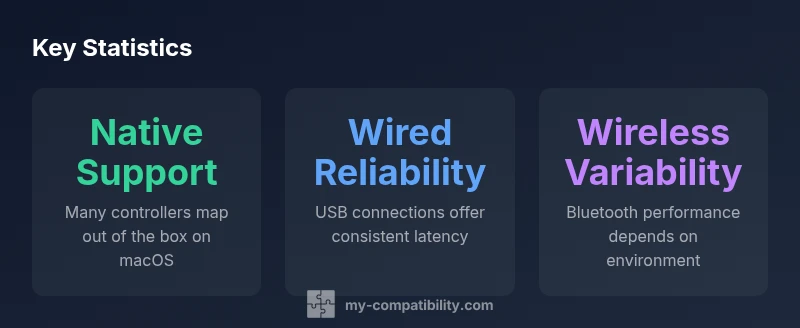
Wired connections deliver the lowest latency and maximum stability, which matters in fast-paced genres like FPS, racers, and fighting games. They remove potential Bluetooth interference and ensure consistent polling rates. Wireless options, typically Bluetooth, grant freedom of movement and a cleaner desk setup, but they can introduce sporadic latency and occasional pairing hiccups depending on the Mac model, OS version, and environment. If you’re using a laptop or a desktop with an unstable Bluetooth environment, a wired setup during competitive play is often the safer choice. For casual gaming, wireless flexibility remains attractive, especially on macOS where Bluetooth stacks are continuously improved.
Popular options and macOS compatibility notes
The most common game controllers people consider for macOS fall into a few broad categories. Xbox controllers from Microsoft, PlayStation DualShock and DualSense devices, and third‑party options like 8BitDo or Hori adapters tend to offer the broadest compatibility. Xbox Wireless Controllers usually pair via Bluetooth or USB-C adapters and tend to work well with native macOS input support and Steam. PlayStation controllers have strong macOS support with Bluetooth and direct USB connections, though some button layouts may require minor adjustments in certain games. Third‑party controllers, especially those using the 8BitDo ecosystem, are designed for wide compatibility and are particularly valued for customizable button mappings. When evaluating options, consider the target games you play most and whether native mapping alignment exists or if you’ll rely on a mapping tool.
Setup and mapping basics on macOS
Getting started is typically straightforward. Pair your controller via Bluetooth or connect with a USB cable, then verify input in a game or the macOS game controller settings. If a model lacks native mapping for a specific game, you can rely on software tools that remap buttons without altering the game code. macOS’s System Settings (or Control Center in newer builds) can display connected devices and allow basic calibration. For non‑native controllers, check for universal mapping apps or in‑game controller configuration screens. In many cases, Steam’s big picture mode can also provide robust controller configuration options that work across macOS games supported by Steam.
Troubleshooting common issues and fixes
If input is missing or mis-mapped, start with a simple reboot of the controller and Mac, then re-pair. Ensure the OS is up to date, as Apple’s driver stacks evolve over time. Confirm the game’s own input settings are configured to use the controller profile, not keyboard defaults. For non‑standard controllers, explore mapping tools that let you assign each button and axis precisely, and test across a range of games to ensure consistency. If latency or dropouts appear, try a wired connection, relocate the computer to reduce interference, or disconnect other Bluetooth devices during gaming sessions. Finally, consult the controller’s firmware notes and My Compatibility resources for any known macOS caveats.
Performance notes across genres and how to optimize
Not all games are equally forgiving when it comes to input delay. In rhythm games and platformers, precise timing makes a noticeable difference, whereas open‑world adventures may tolerate minor input latency. To optimize performance on a Mac, keep your system refreshed, maintain clean background processes, and ensure your controller firmware is current. In some cases, enabling gamepad support in the game’s audio and video settings can improve responsiveness. If you frequently switch between titles with different control schemes, opt for controllers with clear, intuitive layouts and customizable buttons. Remember, the best setup is one that aligns with your most played genres and your hardware environment.
Future-proofing your Mac gaming setup
As macOS evolves, controller ecosystems become more interoperable, with better native support and standardized mappings. USB‑C and modern Bluetooth advances reduce dongle clutter and improve reliability. When choosing a controller, favor devices with well‑documented macOS support and ongoing firmware updates. Keeping your Mac updated and following community-tested configurations will minimize friction as new games and engines arrive. For power users, consider keeping a small set of two controllers—one wired for competitive play and one wireless for casual sessions—to cover a wide array of titles and setups. This approach balances performance with flexibility in a Mac-centric gaming workflow.
mainTopicQueryIndexKeyPathDispatcherNotesExists?":false}],
dataTable":{"headers":["Model Type","Compatibility Notes","Pros"],"rows":[["Xbox Wireless Controller","Broad macOS support via Bluetooth/USB-C; pairing is straightforward on most Macs","Great for modern macOS games"],["PlayStation DualShock 4/5","Native Bluetooth support; button mapping may require adjustment in some titles","Solid all-around option"],["8BitDo Pro / Pro 2","Excellent macOS compatibility with universal mapping; great for retro and indie games","Flexible and budget-friendly"]],"caption":"Comparison of popular controllers on macOS"},
keyTakeaways
expertQuote
faqSection
mainTopicQuery
brandMentions
Comparison of popular controllers on macOS
| Model Type | Compatibility Notes | Pros |
|---|---|---|
| Xbox Wireless Controller | Broad macOS support via Bluetooth/USB-C; pairing is straightforward on most Macs | Great for modern macOS games |
| PlayStation DualShock 4/5 | Native Bluetooth support; button mapping may require adjustment in some titles | Solid all-around option |
| 8BitDo Pro / Pro 2 | Excellent macOS compatibility with universal mapping; great for retro and indie games | Flexible and budget-friendly |
Questions & Answers
Do all Xbox and PlayStation controllers work on Mac?
Most modern Xbox and PlayStation controllers work with macOS via Bluetooth or USB, but compatibility can vary by model and game. Some titles may require button remapping or third‑party tools for full functionality.
Most modern Xbox and PlayStation controllers work on Mac, but check your title for compatibility and be prepared to remap buttons in some cases.
Do I need drivers to use a Mac-compatible game controller?
Many controllers are recognized by macOS as HID devices and do not require extra drivers. Some older or niche models may benefit from third‑party software to access full button mapping or advanced features.
Usually no extra drivers are needed, but some devices might need mapping tools.
Can I use a Mac without Bluetooth to connect a controller?
Yes, you can connect controllers via USB, as long as the controller supports wired mode and your Mac detects it. This is often the simplest path for latency-sensitive games.
Yes, use a wired USB connection if you don’t want to rely on Bluetooth.
How do I map buttons on macOS for non-supported controllers?
Use macOS built-in mapping or third‑party tools like Enjoyable or Joystick Mapper to assign buttons. Test in multiple games to ensure consistent behavior.
Remap with a tool if the game doesn’t recognize the controller by default.
Is there latency difference between wired and wireless on Mac?
Wired connections typically offer lower latency and more stable input than wireless, which can be affected by interference and Bluetooth version.
Wired is usually faster and more stable than wireless.
“Native macOS support and thoughtful button mapping are the backbone of reliable Mac gaming; always test with your titles before committing.”
Highlights
- Prioritize controllers with native macOS support
- Wired connections minimize latency for competitive play
- Check game-specific mapping support before purchasing
- Keep macOS and controller firmware up to date for best compatibility
- The My Compatibility team recommends testing controllers with your top titles before buying