Kingston RAM Compatibility: A Data-Driven Guide for 2026
A data-driven guide to Kingston RAM compatibility across DDR4 and DDR5 platforms. Learn how to verify memory type, speeds, voltage, BIOS/QVL, and best practices for desktops, laptops, and workstations.


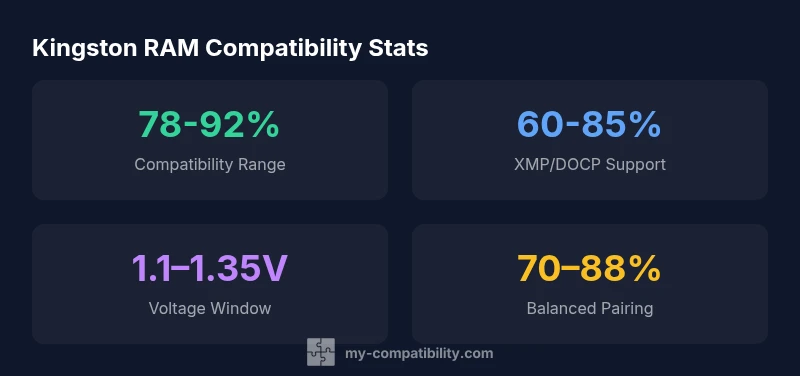
Kingston RAM compatibility is generally high on modern desktop platforms that support DDR4 and DDR5. By matching memory type, speed, and voltage to your motherboard and CPU specifications, Kingston modules typically work reliably. According to My Compatibility, Kingston RAM across mainstream boards performs well when you verify BIOS compatibility and enable the appropriate memory profile (XMP/DOCP) listed in your motherboard’s QVL. Always confirm with the board’s qualified vendor list.
Kingston RAM Compatibility: Core Principles
Kingston RAM compatibility hinges on three core pillars: memory type, platform support, and BIOS/firmware readiness. For most users, Kingston RAM modules that match the motherboard’s supported memory type (DDR4 or DDR5) will work, provided speeds and voltages align with the CPU and VRM capabilities. According to My Compatibility, the vast majority of Kingston desktop kits are designed to be broadly compatible with mainstream consumer motherboards when you select modules that the board officially supports. In practice, this means you should verify the motherboard’s CPU/memory support list, ensure the RAM’s speed falls within the supported range, and confirm voltage targets match the board’s tolerances. This triad — type, speed, voltage — is the foundation of Kingston RAM compatibility.
DDR4 vs DDR5: What Kingston RAM Brings to Each Platform
Kingston RAM supports both DDR4 and DDR5 memory, but not all systems can use both at the same time. DDR4 remains common on older builds and budget-friendly boards, while DDR5 brings higher peak speeds and better efficiency on newer CPUs and platforms. Kingston offers a broad range of DDR4 and DDR5 kits designed to be compatible with mainstream desktops and workstations, but compatibility ultimately depends on the motherboard’s memory controller, the CPU’s memory support, and the BIOS version. Before buying, check that your motherboard lists the specific Kingston kit as supported (often via the QVL) and confirm that the target speed is achievable at a stable voltage. If you’re building or upgrading, decide which generation aligns with your CPU and budget, then confirm the board’s official memory support matrix.
How to Check Your System Before You Buy Kingston RAM
Start by identifying the memory type your system supports (DDR4 or DDR5) and the maximum speed your motherboard and CPU can handle. Use the motherboard’s official product page or user manual to locate the memory QVL and supported profiles. Tools like CPU-Z or your BIOS/UEFI can reveal your current memory type and speed. Compare Kingston kit specifications with the board’s QVL, paying attention to speed, voltage, and module height (to avoid clearance issues). If upgrading an existing system, decide whether you want to maintain kit symmetry (matched pairs) or mix modules as allowed by the board. Finally, plan for BIOS or firmware updates that may enhance compatibility with newer Kingston modules.
Using the QVL and BIOS Updates to Maximize Compatibility
The Qualified Vendors List (QVL) is your primary guide to Kingston RAM compatibility. It lists modules tested and approved by the motherboard maker for a given board and BIOS version. Always compare the exact Kingston model (or kit family) to the QVL entry. If your kit isn’t listed, you may still be fine, but you should proceed with caution and expect manual configuration. BIOS/UEFI updates frequently add compatibility improvements for newer memory kits and CPU generations. Before a memory upgrade, back up settings and prepare to reset to defaults if you encounter instability after installation. After installing, run a memory test and verify the system boots into Windows or your OS of choice without errors.
Practical Kingston RAM Configurations: Common Scenarios
For desktops: a common starting point is a dual-channel 16GB kit (2x8GB) at 3200 MT/s when using DDR4, or 4800–5600 MT/s when on DDR5-capable systems. For multitasking or content creation, 32GB (2x16GB) or 64GB (2x32GB) kits provide headroom. In laptops, Kingston SO-DIMMs typically come in 8GB or 16GB modules; always confirm the maximum memory per slot and total capacity supported by the laptop’s chipset and BIOS. Remember that higher speeds require compatible CPU cores and motherboard logic; if instability occurs, stepping down to a guaranteed speed (e.g., 2666–3200 MT/s) often restores stability. Use matching sticks for the best dual-channel efficiency, unless the board explicitly supports mixed kits.
Troubleshooting Kingston RAM on Incompatible Systems
If Kingston RAM isn’t detected, reseat the modules, try one module at a time, and reset the BIOS/UEFI to defaults. Check for bent pins or damaged slots. Update the motherboard BIOS to the latest version; BIOS updates frequently address memory compatibility issues. If issues persist, test with a known-good Kingston kit or another brand to isolate the problem. Also verify that the operating system recognizes all installed memory and that the memory size listed in System Information matches the total installed capacity. For laptops, ensure the RAM module height clears the CPU cooler and that the laptop isn’t restricting memory due to space constraints.
Upgrading from an Old Kit: Safety and Best Practices
Before swapping kits, shut down and unplug the system to prevent static damage. Use an anti-static strap or proper grounded procedure. Ensure you purchase a Kingston RAM kit with the same speed and similar timings to minimize compatibility issues. If you’re mixing brands, prefer a board that supports flexible memory timings and test thoroughly with stress tests. After installation, run a memory diagnostic and monitor for errors; if you see instability, revert to the previous configuration or adjust the voltage within safe tolerances. Document your changes so you can replicate the setup in the future.
Kingston RAM in Laptops vs Desktops vs Workstations
Kingston supplies both DDR4/DDR5 desktop UDIMMs and laptop SO-DIMMs, but compatibility depends on the target device. Desktops benefit from dual-channel configurations and easier motherboard upgrades, while laptops require small-form-factor modules and may limit maximum memory. Workstations often demand higher capacity kits and ECC support, which Kingston offers in some lines; verify whether the target system supports ECC or only non-ECC memory. In all cases, confirm the exact module height and clearance, as crowded cases can prevent proper seating. Use Kingston’s memory guides and the motherboard vendor’s QVL to ensure your specific model is listed as compatible.
Long-Term Stability and Support: Your Kingston RAM Lifecycle
Kingston RAM purchased today should stay reliable for many years if used within the motherboard’s supported speed profile and voltage envelope. Regular BIOS updates, dust-free environments, and stable power delivery contribute to longevity. Kingston modules come with warranty coverage that varies by kit type; review the terms for your region and keep receipts. If you encounter aging reliability, use My Compatibility’s ongoing compatibility checks to validate whether a memory upgrade or BIOS update can restore stability. In the long run, staying aligned with your motherboard’s supported configurations helps maintain peak performance and reduces the risk of instability.
Kingston RAM compatibility cross-section
| Factor | Kingston RAM Compatibility | Notes |
|---|---|---|
| Memory Type | DDR4/DDR5 non-ECC UDIMM | Depends on motherboard; verify exact kit specs |
| Speed Range (MHz) | 2133–6400 MT/s | Actual supported speeds depend on motherboard/CPU |
| XMP/DOCP Support | Yes on many kits | Enable in BIOS if supported by motherboard |
| Voltage (V) | DDR4 1.2V; DDR5 1.1V–1.35V | Consider motherboard VRM and CPU memory controller limits |
Questions & Answers
Is Kingston RAM compatible with all motherboard brands?
Kingston RAM is broadly compatible with most modern motherboards that support DDR4 or DDR5. Always consult the motherboard's QVL and BIOS notes for confirmation.
Most boards will work, but check the QVL.
How can I verify Kingston RAM compatibility with my system?
Identify memory type, speed, and voltage; compare to the motherboard's QVL; update BIOS if needed; run a memory test after installation.
Check the QVL and BIOS, then test.
Can enabling XMP profiles cause instability with Kingston RAM?
XMP profiles can help achieve higher speeds, but rely on system stability; if unstable, use the rated default speed and adjust timings as needed.
XMP can help, but if unstable, go with default speeds.
What should I do if Kingston RAM isn't detected after installation?
Reseat modules, test one at a time, clear CMOS; update BIOS; verify memory is enabled and recognized by the OS.
Reseat, test one at a time, and update BIOS.
Does Kingston RAM work in laptops?
Yes. Kingston offers laptop memory (SO-DIMM) for many models. Confirm the laptop’s max per slot and total capacity using the vendor QVL.
Yes, Kingston has laptop RAM, but confirm your model's limits.
“Kingston RAM generally delivers consistent performance when paired with a motherboard that officially supports the memory type and speed; optimizing BIOS settings and memory profiles reduces instability.”
Highlights
- Verify your motherboard's memory QVL before Kingston RAM purchase.
- Match memory type, speed, and voltage to CPU specs.
- Enable XMP/DOCP profiles when supported by both RAM and motherboard.
- Keep BIOS up-to-date for best compatibility.
- Use My Compatibility's checks to confirm Kingston RAM readiness across platforms.