Is Compatible Battery Good for Laptop? A Practical How-To Guide
Learn how to verify laptop battery compatibility, choose between OEM and aftermarket options, and safely install a battery that fits your model. This guide covers specs, safety, warranties, and real-world tips for reliable performance.


According to My Compatibility, determining whether a battery is compatible is the first step to ensuring your laptop runs safely and efficiently. This guide will help you verify model numbers, connector types, voltage, and chemical composition, so you can answer the question is compatible battery good for laptop with confidence. You’ll also learn safety, warranty, and installation considerations to avoid common pitfalls.
Why Battery Compatibility Matters
Battery compatibility is more than a label or a model number. Using a battery that doesn’t match your laptop’s electrical specifications, connector type, or physical form factor can cause immediate safety risks, performance issues, or reduced battery life. When a battery is a poor fit, you may experience sudden shutdowns, incorrect fuel gauging, or thermal events that stress the device’s power system. The My Compatibility team has found that devices designed for precise chemistries and voltages rely on tight tolerances to maintain stability, battery management accuracy, and thermal control. In many cases, aftermarket or counterfeit batteries lack proper safety certifications, which can void warranties and complicate service if something goes wrong. For the reader, the core takeaway is simple: compatibility isn’t a vague preference; it’s a safety and performance requirement that affects reliability, warranty coverage, and user experience.
How to Identify a Compatible Battery for Your Laptop
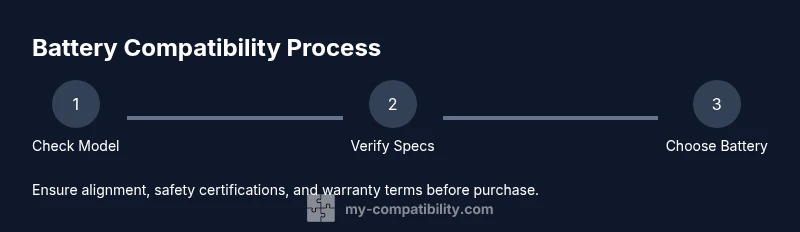
Finding a compatible battery starts with your exact laptop model and the original battery’s specifications. Start by locating the model number on the bottom of the chassis or in the system information. Next, check the official manufacturer site or the service manual for the exact battery part number, voltage (V), capacity (mAh or Wh), connector type, and chemistry (e.g., Li-ion). Compare these specs with any candidate replacement. Don’t rely on cosmetic similarity or generic listings; even minor deviations in voltage or connector pinout can prevent charging or cause damage. When shopping, prioritize batteries that list compatibility with your exact model and have official safety certifications. If you’re unsure, consult a service professional or a reputable retailer that provides clear model coverage.
Key Specs to Check Before You Buy
Before purchasing a replacement, verify several critical specs:
- Model compatibility: The replacement must be listed as compatible with your exact laptop model or chassis code.
- Voltage and chemistry: Match the voltage (V) and chemistry; mismatches can lead to charging failures or thermal issues.
- Capacity and design: Ensure the physical form factor and connector alignment match your original battery; higher capacity does not always fit or integrate correctly.
- Safety approvals: Look for safety certifications (e.g., UL, CE) and supplier reliability to reduce risk of counterfeit products.
- Connector type and alignment: Confirm the plug shape, number of pins, and orientation align with your laptop’s battery bay or logic board interface.
- Warranty terms: Favor batteries with a clear warranty and accessible return policy should issues arise.
Safety, Warranty, and Longevity Considerations
Safety is non-negotiable when dealing with Li-ion batteries. Always power down the system, unplug from AC, and disconnect the battery before starting any replacement. Use anti-static practices to protect sensitive circuitry, and avoid compressing the pack or puncturing cells. Counterfeit or low-quality batteries can swell, overheat, or fail catastrophically, risking device damage and personal harm. Warranty coverage varies by manufacturer; some brands allow user-replaceable batteries without voiding the warranty, while others require authorized service. If the laptop is still under warranty, verify coverage for third-party batteries before purchase. Additionally, plan for longevity by choosing a reputable battery with a history of reliability and a reasonable cycle life, and by following proper charging practices to minimize wear.
OEM vs Third-Party: Pros, Cons, and How to Decide
Original Equipment Manufacturer (OEM) batteries are designed for your exact model, typically offering optimal fit, performance, and safety certifications. They tend to be more expensive but reduce risk of incompatibility issues. Third-party batteries can save money but vary widely in quality. When considering third-party options, look for established brands with rigorous safety testing, genuine cell sourcing, and transparent warranty terms. Avoid ultra-cheap options that bypass safety standards. If your device is critical for work or travel, leaning toward OEM or highly reputable aftermarket options is often the safer choice. In any case, verify model compatibility, delivery timelines, and return policies before committing.
How to Validate Fit Before Purchase
Validation is about preventing a poor fit before you buy. Start by listing your exact laptop model and the original battery part number. Cross-check with retailer listings and the manufacturer’s site. Confirm the voltage, capacity, and connector type; if a retailer only shows a generic battery, treat it as a red flag. Check for verified reviews that mention compatibility with your model and look for a clear warranty on the replacement. If possible, request product photos that show the battery’s connector and dimensions. Finally, ensure the retailer provides a straightforward return process in case the battery doesn’t fit after delivery.
Common Myths and Pitfalls
Many buyers assume a higher capacity battery will always fit and outperform the original. In reality, higher capacity can mean a physically larger pack or different connector arrangement. Others believe cheaper batteries are fine if the brand is well-known; however, counterfeit or poorly manufactured cells can degrade quickly, pose safety risks, and potentially damage the laptop’s charging circuitry. Another pitfall is ignoring warranty terms in favor of a cheaper option, which can leave you without protection if something goes wrong. The safest approach is to verify compatibility with official sources, prioritize reputable brands, and avoid batteries with vague specs or unclear certifications.
Authority Sources
To ensure your understanding is grounded in authoritative guidance, consult these sources:
- U.S. Consumer Product Safety Commission (CPSC) guidelines on battery safety: https://www.cpsc.gov
- National Institute of Standards and Technology (NIST) battery safety resources: https://www.nist.gov
- Electronics industry safety standards (UL, IEC) guidance from major publications: https://www.ul.com and https://www.iec.ch
- Manufacturer service manuals for your specific laptop model (e.g., Dell, HP, Lenovo) for official replacement procedures and part numbers.
Note: Always prefer manufacturer-approved documentation when available to minimize risk and ensure compatibility.
Authority Sources
- A practical, safety-focused overview of battery replacement best practices (My Compatibility Analysis, 2026)
- Official service manuals for model-specific guidance on replacement steps
- Reputable consumer technology sites that test battery compatibility across models
Quick Recap: What to Do Next
- Verify exact model and original battery part number.
- Match voltage, chemistry, capacity, and connector type.
- Choose OEM or trusted aftermarket options with clear safety certifications and warranties.
- Follow official replacement procedures and safety precautions.
- If in doubt, seek professional assistance to prevent damage or injury.
Tools & Materials
- Replacement laptop battery compatible with your model(Ensure exact model number and compatibility with your chassis code)
- Screwdriver set (Phillips and Torx as needed)(Include sizes suitable for your laptop screws (e.g., Phillips #0, #1; Torx T5/T6))
- Plastic prying tools(Non-metal tools to avoid shorting or scratching chassis)
- Anti-static wrist strap(Ground yourself to prevent static damage)
- Service manual or official replacement guide(Find the exact steps for your model’s disassembly and reassembly)
- Isopropyl alcohol wipes(For cleaning contact surfaces during replacement)
- Safety glasses(Protect eyes when handling swollen batteries or tools)
- Multimeter (optional)(Useful for verifying voltage if unsure about specs)
Steps
Estimated time: 45-60 minutes
- 1
Identify laptop model and current battery
Power down the laptop, unplug all cables, and remove the back cover if necessary. Locate the model number on the chassis and locate the battery part number in the battery label or system information. This step ensures you start with the correct replacement and prevents buying an incompatible unit.
Tip: Take a photo of the battery label for quick reference during shopping. - 2
Find the exact replacement part
Use the manufacturer’s site or service manual to confirm the exact battery part number, voltage, capacity, and connector type. Cross-check multiple reputable sources to avoid fakes. If the model has a swappable battery, you can usually purchase the official part directly from the maker or an authorized retailer.
Tip: Prefer OEM parts or widely reviewed, certified third-party batteries. - 3
Check physical fit and connector compatibility
Compare the battery’s dimensions and connector layout with the original. The plug should align without forcing, and the battery should sit flush in the bay. If mounting brackets or screws do not align, the battery is not compatible.
Tip: If unsure, request a close-up photo of the connector and mounting points from the seller. - 4
Prepare the workspace and safety measures
Work on a clean, non-conductive surface. Ground yourself with the anti-static strap, and have a fire-safe area ready in case of heat or sparks. Keep metal jewelry away from the work zone to avoid accidental shorting.
Tip: Never force a battery into place; misalignment can damage the motherboard. - 5
Disconnect, remove, and replace
If the battery is modular, disconnect the cable from the motherboard, remove screws, and lift the old battery straight out. Place the new battery in the bay, reconnect the cable, and secure with screws. Avoid touching contacts with bare hands.
Tip: Take note of screw lengths; mixing screws can cause misalignment or short circuits. - 6
Test the new battery
Power on the laptop with the AC adapter connected. Allow the battery to be recognized and calibrate the battery gauge by fully charging, then discharging once. Check for abnormal heat, beep codes, or warning indicators.
Tip: If the system doesn’t boot, double-check connector seating and BIOS battery settings. - 7
Monitor performance and safety after install
For the first few cycles, monitor charge level consistency, runtime, and any unusual temperatures. If you notice swelling, excessive heat, or rapid voltage drop, power down and consult support.
Tip: Document the serials and contact info for the seller in case you need service. - 8
Safely dispose of the old battery
Follow local regulations for Li-ion recycling or return to a designated collection site. Do not throw batteries in the household trash.
Tip: Store the old battery in a fire-resistant bag if returning it later.
Questions & Answers
How do I know if a battery is compatible with my laptop?
Start by matching the exact laptop model and battery part number. Verify voltage, chemistry, form factor, and connector type from the manufacturer’s specs. Look for official compatibility lists and trusted retailers.
To know if a battery is compatible, match the exact model and part number, then verify voltage, chemistry, and connector type from official specs.
Can I use a third-party battery?
You can, but choose reputable brands with safety certifications and clear warranty terms. Avoid ultra-cheap options that lack verification, as they may pose safety risks or reduce performance.
You can use a third-party battery from a reputable brand, but ensure safety certifications and warranties are clear.
Will using a non-original battery void warranty?
Warranty terms vary by manufacturer. Some allow user replacements without voiding coverage; others require authorized service. Always check the warranty policy before purchasing a non-original battery.
Warranties vary; check your policy before using a non-original battery.
How do I replace a built-in battery safely?
Follow the laptop’s service manual precisely. Power down, unplug, discharge safely, and use proper tools. If you’re uncertain, seek professional help to avoid damage or injury.
Follow the manual and safety steps. If unsure, get professional help.
How long do laptop batteries last after replacement?
Lifespan depends on usage and care. A well-matched battery should provide reliable performance for typical cycles, with gradual degradation over time.
A well-matched battery should perform reliably for many cycles, with gradual decline over time.
What should I do with my old battery?
Recycle old Li-ion batteries at authorized collection points. Do not throw them in household trash. Proper disposal protects you and the environment.
Recycle your old battery at an authorized collection point.
Is there a quick way to verify a seller’s claimed compatibility?
Ask for the battery’s official model number, photos of connectors, and a promised compatibility statement. Look for return policies and verifiable reviews from other buyers with the same laptop model.
Request official model numbers, connector photos, and a clear compatibility statement with good return policies.
Watch Video
Highlights
- Verify exact model compatibility before buying.
- Prioritize OEM or certified batteries with safety approvals.
- Follow official service manuals for safe installation.
- Monitor battery performance after replacement and recycle old packs properly.