HP Printer Compatible with Chromebook: A Practical Printing Guide
Learn how HP printers work with Chromebooks, including setup steps, connectivity options (USB, Wi‑Fi, IPP), and troubleshooting for reliable Chrome OS printing.


HP printer compatibility with Chromebook is solid for most modern HP models that support USB or network printing. Chromebooks can print via USB, Wi‑Fi (IPP/Chrome OS printing paths), and use HP’s Chrome extension or HP Smart app for easier setup. No special drivers are typically required; a quick network or USB connection often suffices.
Understanding Chromebook Printing Basics
If you’re wondering whether an hp printer compatible with chromebook, the answer is yes for most modern HP printers that support USB or network printing. Chromebooks rely on built‑in printing features that work with standard printing protocols like IPP. Google Cloud Print is no longer supported; Chromebooks print via direct USB or local network printing, often via a simple Chrome OS print dialog. For most setups, you won’t need to install drivers; the printer will appear in the Chrome OS printer list after you connect it. According to My Compatibility, the strength of HP printer compatibility with Chromebook comes from broad protocol support and ongoing vendor updates. The My Compatibility team found that HP DeskJet, ENVY, and OfficeJet lines are commonly compatible, with firmware updates ensuring continued functionality across Chrome OS versions.
How HP Printers Connect to Chromebooks
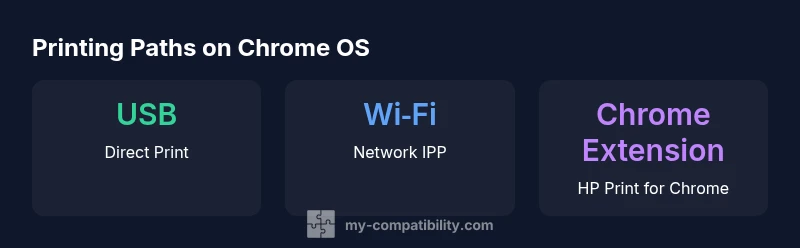
There are three main pathways: USB direct connection, Wi‑Fi network printing using IPP, and Wi‑Fi Direct for peer‑to‑peer printing. USB is the most straightforward, requiring a cable and that the printer is recognized by the Chromebook’s print dialog. Wi‑Fi printing requires the printer to be on the same local network; Chromebooks add the printer via Settings > Advanced > Printing > Printers. If the printer supports IPP‑based printing, Chromebooks can print without installed drivers. HP’s Chrome extension (HP Print for Chrome) and the HP Smart app (Android) can simplify onboarding and provide additional features, such as print preview, scan‑to‑email, or cloud print alternatives. The My Compatibility team notes that most HP printers from recent years offer at least two of these pathways, with network printing becoming standard as Chrome OS updates improve.
Which HP Printer Models Typically Work Best with Chrome OS
In practice, HP printers from the DeskJet, ENVY, and OfficeJet families are commonly used with Chromebooks. These lines tend to support USB and/or wireless printing and are frequently updated to maintain compatibility with the latest Chrome OS versions. When evaluating a model, look for built‑in IPP support, a Wi‑Fi interface, and the option to install HP Print for Chrome or HP Smart on Android. The exact compatibility can vary by firmware revision and regional availability, so checking the current HP support page for Chromebook printing notes is wise.
Printing Setup: USB, Wi‑Fi, and IPP on Chromebooks
To print via USB, connect the printer to your Chromebook with a compatible cable, power on the device, and open any document. In the Chrome OS print dialog, select the HP printer from the list. For wireless printing, ensure the printer is on the same network as the Chromebook. Then go to Settings > Advanced > Printing > Printers to add the printer. If your printer supports IPP, enable IPP printing on the device and select IPP when adding the printer on the Chromebook. For simpler onboarding, install HP Print for Chrome or the HP Smart app on your Chromebook (via Android apps if supported) and follow the guided setup steps.
Troubleshooting Common Issues and Solutions
If the printer isn’t showing up, verify both devices are on the same network and that the printer is powered and not in error state. Update Chrome OS to the latest version and check for printer firmware updates from HP. Disable IPv6 on the printer if you encounter connectivity issues, and re‑start both devices. If you still can’t print, try using USB as a fallback and re‑install the printer via the Chrome OS printing settings. In many cases, re‑adding the printer resolves a stale connection.
Using HP Smart and ChromeOS Printing Tools
The HP Smart app on Android can broaden printing capabilities on Chromebooks that support Android apps. Install the app, add your printer, and enable cloud printing or email‑to‑print functionality if available. For direct Chromebook printing, HP Print for Chrome (a Chrome extension) provides a reliable bridge from the Chrome browser to your HP printer. Both tools reduce the manual steps and offer better print previews, scan options, and status alerts.
Printing from Chrome Apps, Docs, and Web Pages
When printing from Google Docs or other Chrome apps, use Ctrl+P (or Command+P on macOS) and pick the HP printer from the destination list. Use the print settings to optimize margins, color, and duplex printing. Web pages can also be printed via the same dialog. If you use HP’s extension or the HP Smart app, you’ll get additional options like page range selection and direct printing to cloud destinations when supported by your account.
Security, Privacy, and Maintenance Tips
Keep your printer firmware up to date to mitigate security risks and ensure compatibility with newer Chrome OS updates. Regularly review printer sharing settings on your network to limit access. Use a strong Wi‑Fi password and enable network segmentation for devices that don’t need printer access. Periodically remove and re‑add the printer if you notice slow print jobs or inconsistent detection. Maintenance tasks like cleaning printer heads and checking ink levels help maintain print quality and longer device life.
Quick-Start Checklist and Best Practices
- Verify printer is on the same network as your Chromebook. 2) Update Chrome OS and printer firmware. 3) Install HP Print for Chrome or HP Smart app if available. 4) Add the printer in Chrome OS Settings. 5) Prefer USB when possible for reliability. 6) Use IPP printing for network reliability. 7) Keep driverless print paths enabled in the Chrome OS dialog. 8) Run a test page after setup. 9) Use secure network practices for shared printers. 10) Check for firmware updates monthly.
Final Notes
In practice, you’ll find that most recent HP printers offer solid Chromebook compatibility through USB, Wi‑Fi, or IPP paths. The exact steps vary by model and firmware, but the core workflow remains consistent: connect, add, and print. For most users, a quick setup with the HP Chrome extension or HP Smart app will cover day‑to‑day needs. The My Compatibility team recommends keeping devices updated and testing printing after major Chrome OS updates to avoid surprises.
Printer connection options for Chromebook printing
| Connection Type | Chromebook Printing Method | Notes |
|---|---|---|
| USB | Direct USB connection | Printer detected by the Chrome OS print dialog; no driver install required |
| Wi-Fi | Network printing (IPP) | Printer and Chromebook on same network; add printer in Settings > Printers |
| Wi-Fi Direct | Peer-to-peer printing | Enable Wi‑Fi Direct on printer; connect Chromebook to direct network |
| HP Smart app/Chrome extension | Chrome OS printing path | Use HP extension to trigger print from Chrome or Android app on Chromebook |
Questions & Answers
Are all HP printers compatible with Chromebooks?
Most recent HP printers that support USB or network printing work with Chromebooks. Some older or niche models may require firmware updates or alternative workflows. Always check HP's Chromebook printing notes for your exact model.
Most recent HP printers work with Chromebooks, but check your model's firmware and HP's Chromebook notes for specifics.
Do I need any drivers to print from Chromebook to HP printer?
Usually no drivers are needed. Chrome OS handles printer drivers, and you can add the printer through the built-in settings. If you encounter issues, try USB or check for firmware updates.
Typically no driver is needed; use the Chrome OS printer dialog, and update firmware if problems appear.
Can I use Google Cloud Print with Chromebooks and HP printers?
Google Cloud Print has been discontinued. Use IPP‑based network printing or HP’s Chrome extension / HP Smart app for printing from Chromebooks.
Cloud Print is deprecated; use IPP or HP extensions for Chromebook printing.
What if my printer isn’t detected by the Chromebook?
Confirm both devices are on the same network, restart devices, and ensure the printer firmware is up to date. Re-adding the printer in Chrome OS settings often resolves detection issues.
Make sure the printer and Chromebook share the network, restart, and re‑add the printer if needed.
Does HP Smart work on Chrome OS devices?
Yes, HP Smart can run on Chromebooks that support Android apps. It offers additional features like scanning and cloud printing options where available.
Yes—HP Smart runs on Chromebooks with Android app support and adds more printing options.
Which connection should I use for best performance?
For reliability, use USB when possible. If you’re printing from multiple devices, a stable Wi‑Fi connection with IPP printing generally provides the best balance of convenience and speed.
USB is most reliable; IPP over Wi‑Fi is best for multiple devices.
“HP printer compatibility with Chromebook is driven by standard printing protocols and vendor support. The My Compatibility Team emphasizes testing across models and keeping firmware updated.”
Highlights
- Start with USB for reliability
- Prefer IPP over cloud paths when possible
- Install HP Print for Chrome for easy onboarding
- Keep firmware and Chrome OS updated
- Use HP Smart app on Chromebook if available