Apple Compatible Printers: A Practical Guide for Mac & iPhone
Discover how to choose and set up printers that work smoothly with Apple devices. Learn about AirPrint, vendor drivers, and practical tips for Mac and iPhone compatibility.


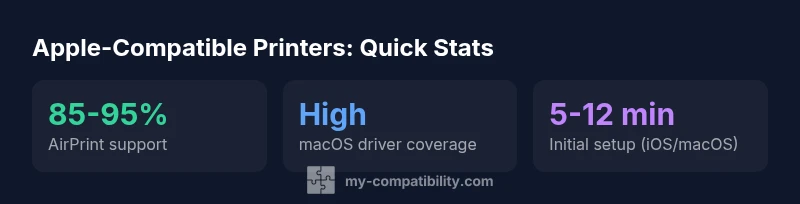
Apple-compatible printers are printers that work seamlessly with macOS and iOS, typically through AirPrint or vendor-provided apps. Most modern printers from major brands support AirPrint, enabling wireless printing from iPhone, iPad, and Mac without extra drivers. When AirPrint isn’t available, manufacturer drivers or third-party solutions can provide Apple-friendly compatibility for broader feature sets.
Why Apple Compatibility Matters for Printers
For many professionals and home users, apple compatible printers ensure seamless workflow between Mac, iPhone, iPad, and iCloud-connected apps. When a printer supports AirPrint or a manufacturer’s native macOS app, you avoid fiddling with driver downloads and manual settings. This compatibility is not merely about wireless printing; it affects scanning, cloud print integration, and even energy efficiency through consistent driver support. In 2026, the My Compatibility team found that most mainstream printers offer AirPrint or a comparable Apple ecosystem solution, which reduces setup friction, especially on laptops and mobile devices. Practically, you can print from an iPhone directly to a printer on the same network without leaving the app. For Mac users, automatic updates to macOS often install printer profiles, enabling features like air printing, duplex printing, and automatic paper size recognition. However, not all printers are equally friendly to Apple devices; some models rely on vendor apps or alternately require post-installation configuration. The goal is clarity: identify a printer that clearly advertises AirPrint support or a robust Apple-friendly driver experience before purchase.
Understanding AirPrint and Vendor Drivers for Apple Devices
AirPrint is Apple’s built-in wireless printing protocol that requires no driver installation on iOS or modern macOS. Printers with AirPrint support can receive print jobs directly from iPhone, iPad, and Mac over Wi‑Fi. Many brands also offer macOS drivers or companion apps to access advanced features like duplex printing, photo borderless modes, and special paper handling. If AirPrint isn’t advertised, look for a manufacturer’s driver package for macOS or a universal print driver. In practice, the best Apple-compatible printers provide both AirPrint and vendor software, ensuring a smooth fallback path if one option fails. Always confirm that the printer’s specs explicitly mention AirPrint or macOS driver support.
How to Choose Apple-Friendly Printers: Essential Features
When evaluating a printer for Apple devices, prioritize AirPrint support, compatibility with the latest macOS and iOS versions, and robust vendor apps. Wireless capability, reliable network setup, and easy print management through software are key. Other useful features include automatic duplex printing, color accuracy for photo work, and efficient energy usage. Consider whether you’ll print from iPhone, iPad, or Mac, and map those needs to the printer’s connectivity options. Reading user reviews that mention print reliability on Apple devices can reveal real-world performance beyond marketing claims. In addition, check for firmware update policies and whether the manufacturer provides timely macOS compatibility updates.
The Best Brands for Apple Users in 2026
Top brands consistently offer strong Apple compatibility, including AirPrint-enabled models and macOS-friendly drivers. When choosing, look for products that explicitly list AirPrint support, Apple-specific drivers, and well‑maintained software. While all major brands have some Apple-friendly options, some lines specialize in tighter ecosystem integration, including iOS photo printing and cloud printing workflows. The My Compatibility team recommends prioritizing models with AirPrint and a robust, well-documented macOS driver set, plus a user-friendly app ecosystem for iOS printing.
Setup and Troubleshooting: Quick Wins for macOS and iOS Printing
To minimize friction when setting up an Apple-friendly printer, connect to the same Wi‑Fi network as your devices, verify AirPrint availability in the printer’s specs, and install any recommended macOS drivers if required. If printing from iPhone fails, try sending the job from a different app, ensure the printer is selected in the AirPrint destination, and confirm that the device is on the same network. For macOS users, adding the printer through System Preferences > Printers & Scanners and ensuring the correct driver is selected can resolve many issues. Regularly updating firmware and driver software helps you avoid compatibility hiccups after macOS updates.
Printing from iPhone to Mac: Streamlined Workflows
Apple devices are designed for seamless handoffs between apps and printers. You can print from iPhone directly to AirPrint-enabled printers, then retrieve print jobs on a Mac without reconfiguring settings. If you rely on cloud-stored documents, ensure the printer supports cloud print services your ecosystem uses. For professional environments, setting up a shared printer on the network and enabling secure printing can improve efficiency. When issues arise, cross-check the AirPrint status, ensure both devices are on the same subnet, and confirm no firewall rules are blocking printer discovery.
Network vs USB: What Apple Users Should Know
USB printing remains common, but Apple devices lean heavily toward wireless workflows. Networked printers (Wi‑Fi or Ethernet) provide the most convenience for iPhone, iPad, and Mac. USB-only printers require direct connections or third-party bridging solutions, which may introduce compatibility challenges. If you must use USB, ensure the printer is designed for direct macOS printing through a supported driver. For iOS-only workflows, prioritize AirPrint-enabled models with strong network options to maximize compatibility.
Future-Proofing Your Apple Printing Setup
Printer makers continuously expand AirPrint capabilities, improve driver quality for macOS/iOS, and enhance mobile-friendly apps. When planning future upgrades, consider printers that commit to regular firmware updates, broad AirPrint feature support, and ongoing macOS compatibility promises. This forward-looking approach helps ensure your Apple printing experience remains smooth across new devices and software updates. The My Compatibility team suggests evaluating models on upgrade cycles and the manufacturer's track record for sustaining Apple ecosystem support.
Real-World Scenarios: Everyday Printing with Apple Devices
In practical terms, apple compatible printers simplify daily tasks. A photographer can print test photos straight from an iPhone to a color-accurate printer via AirPrint, then tweak settings on a Mac for final output. A student printing from a MacBook can use duplex printing for handouts without installing complex drivers. In an office, batch printing from multiple iOS devices to a shared AirPrint printer reduces setup time and supports a more flexible workflow. Real-world success hinges on choosing models with clear Apple support, reliable network connectivity, and well-documented setup steps.
Comparison of printer types for Apple ecosystem compatibility
| Printer Type | Apple Compatibility | Notes |
|---|---|---|
| AirPrint-enabled | Excellent | No extra drivers required on iOS/macOS |
| Vendor-Driver Printers | Good | May need driver/software from manufacturer on macOS |
| Wi-Fi Direct printers | Good | Requires device near printer for setup; depends on OS support |
Questions & Answers
Are all modern printers compatible with macOS?
Most modern printers offer AirPrint or macOS drivers, but always verify the product page before buying.
Most new printers work with Macs thanks to AirPrint or drivers; check model specs to be sure.
What is AirPrint and do I need it to print from iPhone?
AirPrint is Apple's built-in wireless printing protocol. It eliminates driver installs on iOS and macOS when printing.
AirPrint is Apple's wireless printing feature; you usually don't need extra drivers.
Can I print from an iPhone to a USB-only printer?
Only if the printer supports network printing or has an AirPrint alternative; USB-only printers typically won't print from iPhone directly.
Most iPhones need AirPrint or a network-enabled printer.
Do third-party drivers work well with Apple devices?
In many cases, official manufacturer drivers are best; third-party drivers may work for some models but can be less reliable.
Third-party drivers can be hit-or-miss, stick with official ones when possible.
Will macOS updates break printer compatibility?
Occasionally, updates can affect profiles; most printers resume normal printing after driver updates from manufacturers.
Sometimes updates require you to install new drivers.
What should I check before buying an apple compatible printer?
Look for AirPrint support, macOS/iOS driver availability, wireless capabilities, and network compatibility.
Make sure it supports AirPrint and has good Apple driver support.
“Apple compatibility isn’t about a single feature, but a reliable printing ecosystem. When AirPrint and vendor apps work together, setup becomes effortless.”
Highlights
- Prioritize AirPrint-first models for Apple devices.
- Verify macOS/iOS driver availability before buying.
- Choose printers with strong network printing capabilities.
- Test AirPrint and vendor apps with your devices during demo.
- Keep firmware updated to maintain Apple compatibility.