AHCI vs Compatibility Mode: A Practical Comparison
Explore AHCI vs Compatibility Mode for SATA drives. Learn definitions, performance impacts, and OS implications. Practical guidance for Windows, Linux, and macOS users.


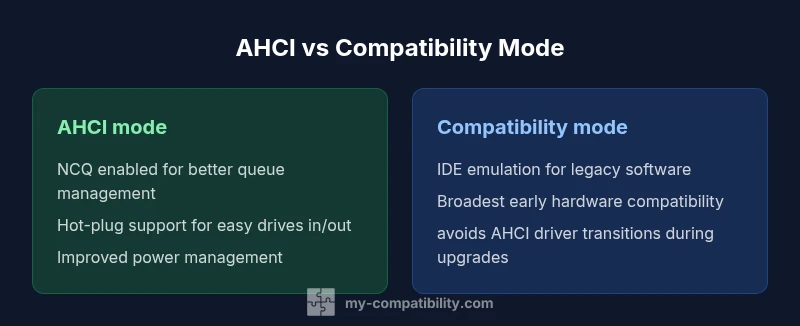
AHCI mode is the modern SATA controller setting that enables features like NCQ, hot-plug, and advanced power management. Compatibility mode emulates legacy IDE behavior, turning off those features to maximize legacy OS compatibility. For most users with SSDs or recent OSes, AHCI delivers better performance and reliability. Switch to AHCI when possible, and reserve Compatibility mode for legacy systems or recovery scenarios.
What AHCI and Compatibility Mode Mean
ahci vs compatibility mode are two distinct SATA controller configurations that determine how your motherboard talks to connected drives. AHCI, or Advanced Host Controller Interface, is designed for modern SATA devices and provides features like Native Command Queuing (NCQ), hot-plug support, and enhanced power management. Compatibility mode, often labeled IDE or Legacy in BIOS/UEFI, mimics older IDE behavior and disables these advanced features. For most contemporary systems, AHCI is the recommended choice because it unlocks better performance, higher reliability, and improved OS interoperability. When you read ahci vs compatibility mode, you should keep in mind that the setting affects how the drive controller negotiates with drives, how data is scheduled, and how devices wake up from sleep.
In practical terms, AHCI helps your system make smarter use of solid-state drives, whereas compatibility mode prioritizes compatibility with older software stacks and drivers. This is especially important for users who run vintage operating systems or legacy hardware that may not have AHCI drivers available. Throughout this article, we’ll explore the core differences, practical outcomes, and how to choose the right setting for your setup. The My Compatibility team emphasizes that, in most cases, AHCI is the better baseline choice for modern PCs and laptops.
How SATA Controller Modes Work
To understand ahci vs compatibility mode, it helps to know what the controller does on a hardware level. SATA controllers manage the communication between the CPU, memory, and storage devices. In AHCI mode, the controller exposes features that modern drives rely on, like NCQ, which optimizes command order to reduce seek times on HDDs and improve sequential throughput on SSDs. Hot-plug capability allows drives to be connected or removed without powering down the system, which is essential for external enclosures and service scenarios. Power management is also more granular under AHCI, enabling lower idle power for certain SSDs and reducing heat in busy workstations. In contrast, Compatibility mode essentially turns the controller into an IDE-compatible interface. It disables NCQ, hot-plug, and some power-saving features, and it presents drives in a more traditional, older handshake. This can improve compatibility with legacy software but at the cost of some performance and efficiency gains. In ahci vs compatibility mode terms, the choice determines whether the OS and firmware can leverage modern SATA features.
Performance Implications: SSDs vs HDDs
When evaluating ahci vs compatibility mode, the most noticeable differences appear with storage media type. For solid-state drives, AHCI generally delivers smoother I/O patterns, lower latency in real-world tasks, and better random access performance due to optimized queuing. With hard disk drives, the benefits are still meaningful—NCQ can reduce head movement, improve throughput under mixed workloads, and shorten response times for multitasking environments. In ahci vs compatibility mode discussions, the upshot is that AHCI aligns with how contemporary drives and operating systems expect to operate. The performance delta is often most visible under heavy multi-threaded workloads, database operations, or when multitasking while large files are being read or written. It’s important to note that the exact gains depend on the drive model, firmware, and system design, so your results may vary depending on your hardware mix.
OS and Driver Considerations
Choosing ahci vs compatibility mode is not only about the drive but also about the operating system and drivers in use. Windows, Linux, and macOS generally aim for AHCI by default because it supports modern storage stacks. Some older operating systems, or certain hardware RAID configurations, might require Compatibility mode for stability during the transition period. In the ahci vs compatibility mode context, you should verify that your OS has AHCI drivers available and that any storage controller firmware is up to date. If you’re building a new system, AHCI is typically the safer, longer-term choice because it reduces the risk of driver conflicts and simplifies future upgrades. If you’re preserving an old machine, Compatibility mode can save compatibility headaches, but you may pay in performance and features over time.
BIOS/UEFI and Switching Modes: Pre-OS vs Post-Install
The decision between ahci vs compatibility mode is often made in the BIOS or UEFI firmware, not within the operating system. For new builds, enabling AHCI before first boot ensures the OS installs the correct drivers from the start. If your system is already installed, switching from Compatibility mode to AHCI can require a reboot, and in Windows you may need to adjust registry keys or perform a safe boot to avoid boot errors. Conversely, moving from AHCI to Compatibility mode is technically possible but can simplify the drive interface at the cost of features. In the ahci vs compatibility mode landscape, the pre-boot configuration matters a lot: once the OS binds to a particular storage stack, changing modes becomes more fragile and may necessitate troubleshooting, reinstall, or driver updates.
Boot Time and Detection: Impact on System Start
Boot-time behavior is another dimension where ahci vs compatibility mode shows up in practical ways. AHCI can lead to faster recognition of new drives and more predictable boot sequences on modern hardware, particularly with SSDs. In legacy setups, Compatibility mode may yield shorter boot initialization in some rare cases if the older BIOS scans are particularly slow with AHCI stacks. The real-world takeaway in the ahci vs compatibility mode comparison is that the majority of modern systems benefit from AHCI, both in boot stability and subsequent performance. If you are troubleshooting slow boot times, this difference is worth examining as part of a broader diagnostic.
Real-World Scenarios: When to Use AHCI
In most modern desktops and laptops, ahci vs compatibility mode decision clearly favors AHCI. If your motherboard and processor support AHCI and your operating system has up-to-date drivers, AHCI will typically unlock best performance and reliability. For gamers, content creators, and professionals who regularly run large datasets, AHCI provides smoother storage behavior and better multi-tasking responsiveness. AHCI is especially important when you enable features like hot-plug with external docks or use multiple drives in a RAID with proper driver support. The only time you should consider Compatibility mode is when you are working with a legacy OS or hardware that has known AHCI driver issues. In that case, you might temporarily switch modes to maintain access during a transition, while planning a longer-term upgrade.
Real-World Scenarios: When to Use Compatibility Mode
There are legitimate reasons to rely on ahci vs compatibility mode as a transitional step. If you are restoring an old PC that cannot boot with AHCI due to driver gaps, Compatibility mode can help you recover data or operate essential drives. Some users running very old operating systems may not have AHCI drivers included, making compatibility emulation necessary. Another scenario involves certain enterprise environments with custom storage stacks or specialized BIOS features that are only validated in IDE emulation. In the ahci vs compatibility mode context, if you encounter boot loops, missing drive detection, or driver conflicts after enabling AHCI, you might temporarily revert to Compatibility mode while planning a proper upgrade path. Always back up data before attempting mode changes.
Troubleshooting Common Issues in ahci vs compatibility mode
When experimenting with ahci vs compatibility mode, several issues may arise. First, ensure that the drives and the motherboard firmware are up to date. If you change from Compatibility mode to AHCI after Windows installation, you may need to boot into Safe Mode to let Windows install AHCI drivers properly. If a drive becomes unreadable after a mode switch, check the BIOS configuration for SATA port modes and ensure the correct boot device order is preserved. Some systems require a complete power cycle after the switch to fully reinitialize the controller. If you use RAID, verify the RAID controller’s documentation for how AHCI affects the array, as misalignment can disrupt data integrity. Finally, consult the motherboard vendor's knowledge base for any known quirks with specific firmware revisions when evaluating ahci vs compatibility mode.
How to Switch Modes Safely: Step-by-Step Guidance
Transitioning between ahci vs compatibility mode should be planned and executed carefully. For a clean AHCI enablement, start by backing up all data. Enter BIOS/UEFI, locate the Storage Controller or SATA Operation setting, and switch to AHCI. Save changes and boot into Windows. If Windows doesn’t boot, boot into Safe Mode or use a recovery drive to re-enable AHCI drivers via registry edits. If you must revert, follow the same procedure in reverse and ensure your OS has compatible drivers. In professional environments, consider testing changes in a non-production system or using virtualization to validate behavior before applying to a live PC. This approach minimizes risk while ensuring you maximize ahci vs compatibility mode benefits for modern workloads.
Best Practices and Recommendations for 2026
The final advice on ahci vs compatibility mode emphasizes a standard approach: enable AHCI on new builds, keep firmware and drivers current, and only use Compatibility mode for verified legacy needs. Regularly review storage performance reports and boot diagnostics to validate that AHCI is granting the expected benefits. When upgrading across OSs or hardware generations, plan a staged transition to AHCI to minimize downtime and data risk. By following these guidelines, you ensure that ahci vs compatibility mode choices align with your workloads, hardware, and long-term maintenance strategy. If a user asks for a concise conclusion, AHCI mode is the safest long-term default for most users, with Compatibility mode reserved for rare recovery scenarios or legacy compatibility challenges.
Common Mistakes to Avoid in ahci vs compatibility mode
Avoid leaving the system in Compatibility mode if you value modern performance and hot-plug functionality. Do not switch modes on a running system without a proper backup and a clear recovery plan. Forgetting to enable AHCI in BIOS before Windows installation can complicate later transitions and require registry edits. Finally, neglecting firmware updates for the SATA controller can reduce the potential gains of AHCI, making ahci vs compatibility mode less noticeable in daily tasks.
Comparison
| Feature | AHCI mode | Compatibility mode | |||
|---|---|---|---|---|---|
| Definition | Modern SATA controller with NCQ, hot-plug, and advanced power management | Legacy IDE emulation; disables NCQ and hot-plug features | |||
| Key Features | NCQ, hot-plug, aggressive power management, efficient queueing | Basic, widely compatible but lacks NCQ and hot-plug | |||
| Performance Impact | Typically higher throughput and lower latency on SSDs/HDDs | Lower performance on modern tasks; stability with older software | Best For | values=[ |
Positives
- Unlocks modern SATA features (NCQ, hot-plug)
- Improved SSD performance and responsiveness
- Better power management and reliability
Cons
- Potential boot or driver hiccups when switching modes
- Compatibility mode may be necessary for very old OS/drivers
- Switching modes after OS installation can require additional steps
- RAID configurations may require matching controller mode
AHCI mode is generally the better default for modern systems; use Compatibility mode only for legacy needs.
AHCI offers the best balance of performance and future-proofing for SATA storage. Reserve Compatibility mode for recovery or legacy scenarios where AHCI support is unavailable. The My Compatibility team recommends enabling AHCI on new builds and testing thoroughly before retiring Compatibility mode in older systems.
Questions & Answers
What is AHCI mode and why is it recommended?
AHCI mode enables modern SATA features such as NCQ, hot-plug, and advanced power management. It is the recommended default for most contemporary systems because it typically improves performance and reliability with SSDs and newer operating systems.
AHCI mode enables advanced features that improve speed and reliability on modern drives. It’s usually the best default choice for current systems.
Is AHCI faster than IDE/Compatibility mode for all drives?
In general, AHCI provides better performance, especially with solid-state drives, due to features like NCQ and improved power management. The exact gains depend on your hardware and workloads, but for most users AHCI is the faster option.
Yes, AHCI is typically faster on modern drives, especially SSDs, thanks to NCQ and smarter power use.
Can I switch to AHCI after installing Windows, and how to do it safely?
Yes, but it requires careful steps. Enable AHCI in BIOS, boot into Windows in Safe Mode, and use registry edits or a provided tool to switch the driver to AHCI. Then reboot normally and verify drive detection.
You can switch to AHCI after installation, but back up first and follow a guided BIOS-to-OS switch process.
What about RAID configurations and AHCI?
RAID configurations require matching controller mode. If you switch to AHCI on an existing RAID array, you may disrupt the array unless you follow vendor-specific guidance. Check your RAID controller documentation before changing modes.
If you’re using RAID, confirm the controller’s guidance before changing modes to avoid data loss.
How do I enable AHCI in Windows 10/11?
In Windows, enable AHCI in BIOS, then allow Windows to install AHCI drivers on first boot. If Windows can’t boot after the change, use Safe Mode or a recovery option to re-enable the AHCI drivers.
Enable AHCI in BIOS and let Windows install the proper drivers on first boot.
Do Linux or macOS systems require special steps for AHCI?
Linux generally detects AHCI automatically; macOS uses AHCI-compatible stacks. Most modern installations will work without manual changes, but verify your kernel and firmware support.
Most Linux and macOS setups work with AHCI by default; verify firmware compatibility if issues arise.
Highlights
- Prefer AHCI for modern systems and SSDs
- Use Compatibility mode only for legacy OS or recovery
- Switching modes safely requires backups and BIOS changes
- Verify drivers and firmware before changing modes
- Plan transitions in non-production environments when possible
- Check RAID implications when operating drives under AHCI