Difference Between AHCI and Compatibility Mode: A Practical Guide
An analytical comparison of AHCI and Compatibility (IDE) mode, covering performance, features, OS compatibility, and practical recommendations for choosing the right SATA controller setting.


What are AHCI and Compatibility Mode?
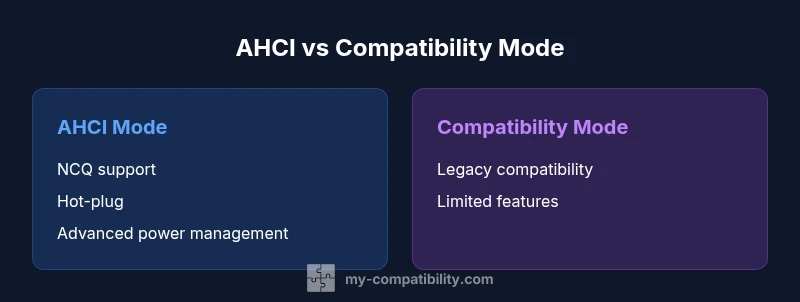
AHCI is a modern SATA controller mode that enables features such as native command queuing (NCQ), hot-plug support, and advanced power management. Compatibility mode (often called IDE or Legacy mode) offers basic SATA operation designed to maximize compatibility with older OS versions and drivers, sometimes at the cost of performance and features. Understanding these modes is essential when configuring a system drive, installing a fresh OS, or upgrading hardware. The difference between AHCI and compatibility mode isn't just a setting—it's a choice that affects performance, reliability, and future upgrade paths. This article explains both modes in practical terms and helps you decide which to enable in different scenarios.
Why the difference matters for system performance
Choosing AHCI over Compatibility mode can influence how the processor, memory, and storage subsystem communicate. AHCI allows native command queuing, which can streamline I/O requests and improve throughput on SSDs that support the feature. It also supports hot-plugging, which makes it easier to service drives without powering down the entire machine. In contrast, Compatibility mode emphasizes broad OS compatibility and might bypass newer SATA features to ensure that older software can access the drive. The net effect is often a trade-off between cutting-edge performance and broad compatibility. For modern desktops and laptops with up-to-date operating systems, AHCI is typically the better default.
OS and driver considerations
Most current operating systems ship with AHCI drivers built in, so enabling AHCI generally requires no additional software. Some older OS versions or embedded systems may not include AHCI drivers, making Compatibility mode the safer option. If you install Windows, Linux, or macOS on a system with AHCI enabled, you typically gain improved performance and reliability; if the OS was installed with Compatibility mode enabled, you may need to switch modes before changing to AHCI to avoid boot issues. The key takeaway is: set the SATA mode before an OS installation when possible, and keep a recovery plan in place if you must switch later.
How SATA mode interacts with SSDs and HDDs
SSDs generally benefit from AHCI because the mode supports NCQ and optimized read/write scheduling, reducing random access latency. HDDs can also benefit from AHCI, especially in multi-tasking environments where queue depth matters. In Compatibility mode, these advantages are reduced or absent, though the drive remains accessible. Some drives perform differently under various chipsets, so it's worth testing. If you run mixed workloads (OS, applications, and data storage), AHCI usually delivers more consistent performance and simpler future upgrades, while Compatibility mode can minimize compatibility headaches in legacy environments.
Booting, power management, and long-term maintenance considerations
AHCI often provides better power management on modern platforms, allowing components to enter low-power states during idle periods. This can contribute to longer overall battery life on laptops and reduced heat generation in desktops. For data integrity and boot reliability, AHCI is generally robust on systems that properly support it, but a mode mismatch can prevent a system from booting if the OS was installed under a different setting. Regular firmware updates for motherboard chipsets can further improve compatibility and performance in AHCI mode. In short, consider your hardware's age, the OS environment, and your long-term upgrade plans when deciding which SATA mode to favor.
Practical decision guidelines for common scenarios
If you have a modern PC with Windows 10/11, macOS, or a recent Linux distribution, AHCI is usually the recommended default. For older hardware, especially pre-2010 era laptops or desktops where the OS lacks AHCI support, Compatibility mode can help maintain accessibility. When upgrading storage or migrating OS installations, document the current SATA mode and plan a controlled switch to avoid boot issues. For servers or workstations that rely on hot-swapping or NVMe migration paths, AHCI remains compatible with traditional SATA devices, but always verify motherboard BIOS/UEFI settings and drive firmware. By mapping your use case to the mode's strengths, you can minimize troubleshooting and maximize uptime.
How to change SATA mode in BIOS/UEFI (high-level steps)
Access the BIOS/UEFI setup during boot, usually by pressing a key such as F2, Del, or Esc. Locate the SATA configuration section, then choose AHCI or IDE/Legacy (Compatibility) mode. Save your changes and reboot. If Windows fails to boot after a mode switch, you may need to adjust registry settings or reinstall drivers, or revert to the previous mode and perform a clean OS installation. Always back up data before making changes, and consider performing a clean OS install on new mode to avoid driver conflicts. If unsure, consult your motherboard's manual or seek professional guidance.
Troubleshooting common issues when switching modes
Boot failures are the most common risk when changing SATA mode after OS installation. If you must switch, prepare a recovery drive and have a plan to repair boot records. If the system detects missing drivers, install the AHCI drivers during boot or use a driver package from the motherboard vendor. Some configurations require a registry tweak or a reinstallation of the OS to ensure the system recognizes the current mode. Keep in mind that mixing SSDs and HDDs under specific drivers can complicate cache and scheduling features. In most cases, a well-planned mode switch with backups reduces risk and preserves data.
My Compatibility's recommendations for most users
Based on our analysis at My Compatibility (2026), AHCI is generally the better default for modern devices and operating systems due to its richer feature set and improved performance. Compatibility mode remains relevant when supporting legacy hardware or non-standard OS builds. Before making a switch, verify that critical applications and drivers will function correctly, and always perform a full backup. The My Compatibility team emphasizes testing the new configuration in a controlled environment before rolling it out to production systems.