How to Use Backwards Compatibility on PS5
Learn how to use backwards compatibility on PS5 to play PS4 games, transfer saves, and optimize performance. This expert guide explains supported titles, how to run discs or digital games, and troubleshooting tips.


According to My Compatibility, this guide walks you through how to use backwards compatibility on PS5 to play PS4 games, manage saves, and optimize performance. You'll learn which titles are supported, how to run disc or digital games, transfer data, and apply system settings for the best experience. This overview also covers common quirks and troubleshooting tips.
how to use backwards compatibility on ps5
According to My Compatibility, backwards compatibility on PS5 is designed to make PS4 games feel familiar while benefiting from enhanced loading, faster boot times, and improved stability where supported by the hardware and software. In practical terms, most PS4 titles can be played directly on PS5, with minimal changes to your control layout or save system. The core idea is straightforward: your PS5 acts as a modern host that translates older code to run on a newer architecture. The following sections walk you through what to expect and how to act to get the most from your library. As you explore, remember that the My Compatibility team has studied common scenarios to help you navigate everything from disc-based games to digital downloads with confidence. If you already own a PS4 library, you can expect a smoother transition with faster load times and occasional performance improvements on many titles.
What backward compatibility on PS5 covers
PS5 supports the vast majority of PS4 titles, including many popular exclusives and third-party games. Most games boot directly from the PS5 home screen, and saves can flow between consoles via cloud storage if you have PS Plus. However, a handful of titles may require patches or may not run identically due to old engine quirks. It’s important to check the publisher’s notes for each game and visit Sony’s official support resources for any title-specific caveats. In addition, some PSVR-enabled games and experiences may have unique setup requirements when played on PS5. This section clarifies expectations, including which game types typically behave best and where you should check for exceptions. For the most part, you should plan to treat PS4 games as native PS5 experiences, with minor tweaks occasionally needed.
Run PS4 discs on a PS5 (disc edition)
If you own a PS5 with a disc drive, you can insert PS4 discs and start playing almost immediately. The console will verify the game, install any required data, and update as needed. If a disc is not recognized, ensure it’s clean and free of scratches, and confirm you’re using the compatible PS5 model. It’s also wise to keep the system software up to date, because firmware updates often improve compatibility with a wider range of PS4 titles. If you experience extended load times or stability issues, re-boot the console and reinsert the disc to reinitialize the game data. Do note that some very old PS4 titles may exhibit quirks that require patches from the publisher or patches via PSN downloads.
Run PS4 digital titles on PS5
Digital PS4 titles are typically available from your Library or the PS Store. Sign in to your PSN account, go to Library, and locate PS4 apps or games you own. Download and install them on your PS5. If a digital title isn’t showing up, try refreshing the library, re-linking your account, or re-downloading the game license. Keep in mind that some titles may require additional data installation or patches before they run optimally. With digital titles, saves can leverage cloud storage (PS Plus) for seamless transfer across consoles.
Saving and transferring game data
Save data is a crucial part of the PS5 experience when switching from PS4. Cloud saves via PlayStation Plus offer a convenient path to keep your progress across both systems, while USB transfers provide a local copy. To enable cloud saves, ensure your PSN account is active and that cloud storage is configured in the settings. For USB transfers, copy the save files from your PS4’s storage to a USB drive, then insert the drive into the PS5 and import the saves. Note that some games store saves in the game’s own cloud or require a local migration; always check the game-specific options for the most reliable transfer.
Performance and display settings for PS4 games
PS5 allows you to tailor output for PS4 titles using options like Performance Mode (favoring higher frame rates) or Resolution Mode (favoring higher image quality). You can also tweak HDR, color depth, and screen refresh rates to optimize the experience. Some titles include in-game options for additional boosts, such as Anti-Aliasing or frame-rate caps. If your TV supports HDMI-CEC or VRR, enabling these features can reduce screen tearing and improve responsiveness. Remember that not every PS4 game supports every feature, so experiment with the settings to find the best balance for each title.
Troubleshooting common issues
If a PS4 game won’t run or behaves oddly on PS5, start with a few basic steps: restart the console, reinsert the disc if applicable, and ensure the game and system software are updated. Check for patches from the publisher, and consult the PS5 backward compatibility page for any known issues. If you still have trouble, try transferring saves again or launching the game from a new user profile to rule out account-specific problems. In some cases, clearing cache or performing a full system rebuild may help, but back up important data first. When in doubt, consult official guidance or the publisher’s support resources.
Official support and staying updated
Sony’s official backward compatibility page is the primary resource for updated lists of supported games, known issues, and system requirements. For broader guidance, major publications and trusted tech outlets periodically publish compatibility roundups and troubleshooting tips. You should also monitor Patch Notes from publishers and Sony’s PS5 firmware updates, as these updates can expand compatibility and fix edge-case issues over time. By staying current with the latest information, you maximize your PS5’s ability to run your PS4 library smoothly.
Quick-start checklist for new PS5 users
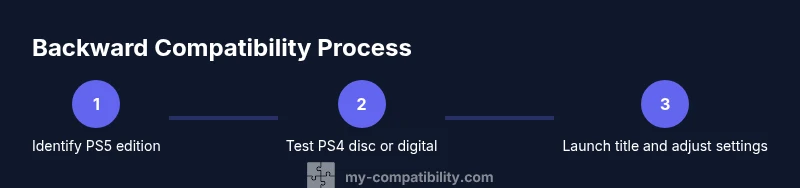
- Confirm you have a PS5 model suitable for your game format (Disc Edition for discs, Digital Edition for digital downloads).
- Sign in to your PSN account and connect to the internet for updates and cloud saves.
- Test a PS4 disc or digital title to verify basic compatibility.
- Enable cloud saves if you plan to switch between PS4 and PS5 executions.
- Explore Performance vs Resolution settings per title to optimize visuals and responsiveness.
- Bookmark official support pages and major publications for ongoing guidance.
Tools & Materials
- PS5 console with disc drive(Disc Edition required to play PS4 discs.)
- PS5 console (digital edition if using digital PS4 games only)(Digital Edition cannot read PS4 discs.)
- PS4 game discs (optional)(For testing physical disc compatibility.)
- PS4 digital games or licenses (optional)(Use your existing PSN library.)
- HDMI cable(Connects PS5 to TV.)
- Broadband internet connection(Needed for updates and cloud saves.)
- PSN account(Required for cloud saves and licenses.)
- External storage (optional)(Use forPS4 game storage if needed.)
- USB drive for saves (optional)(Used for USB save transfers.)
- PS Plus membership (optional)(Needed for cloud save transfers.)
Steps
Estimated time: 25-40 minutes
- 1
Check PS5 edition and game format
Identify whether you have the PS5 Disc Edition or Digital Edition. This determines whether you can use PS4 discs and affects how you access your PS4 library. Confirm that your console firmware is up to date before proceeding.
Tip: If possible, note down your most-played PS4 titles to prioritize testing them first. - 2
Test a PS4 disc (Disc Edition only)
Insert a PS4 disc into the PS5 and observe whether the game loads. If prompted, install updates. Clean the disc if it fails to read properly. This test confirms basic disc compatibility.
Tip: Handle discs carefully to avoid scratches that could hinder loading. - 3
Sign in to PSN and connect to the internet
Ensure your account is active and connected. A stable internet connection helps with updates, patches, and cloud saves, which are often essential for a smooth PS4 game experience on PS5.
Tip: If you share a PS5 with others, use a primary account for automatic updates. - 4
Update PS5 system software
Check for and install the latest system software. Firmware updates can improve compatibility and performance for PS4 games on PS5.
Tip: Enable automatic updates to ensure future improvements install without delay. - 5
Launch a PS4 title from the library
Navigate to your Games Library, locate a PS4 title, and start it. Confirm that it loads, acknowledges saves, and runs without major issues.
Tip: If a title doesn’t appear, refresh the library or re-download the license. - 6
Transfer saves via cloud or USB
Use cloud saves (PS Plus) to sync progress, or copy saves via USB. Ensure the saves correspond to the same user profile for proper loading.
Tip: Always back up saves before performing transfers. - 7
Adjust display settings for the title
Change between Performance and Resolution modes based on your title: some titles benefit from higher frame rates, others from sharper visuals. Fine-tune HDR if your TV supports it.
Tip: Try both modes to see which yields smoother gameplay for each game. - 8
Test multiple titles and assess stability
Open several PS4 games to check consistency. Some titles may require patches or show quirks; document any issues for later reference.
Tip: Create a short list of gaming titles to monitor for future patches. - 9
Consult official resources if issues persist
If problems persist, review Sony’s backward compatibility page and the publisher’s support notes for known issues and recommended fixes.
Tip: Keep a record of any error codes you encounter to aid support.
Questions & Answers
Does PS5 support every PS4 game?
Most PS4 games are playable on PS5, but some titles may have issues or require patches from publishers. Always check the publisher notes for title-specific guidance.
Most PS4 games work on PS5, but a few titles may have issues or need patches. Check publisher notes for specifics.
Can I play PS4 discs on a PS5 Digital Edition?
No. The PS5 Digital Edition does not support PS4 disc playback. You can still play digital PS4 titles if you own them in your library.
No, you can't play PS4 discs on the Digital Edition, but digital PS4 titles will work if owned.
How do I transfer saves from PS4 to PS5?
Save transfers can be done via cloud saves with PS Plus or by using a USB drive to move local saves. Ensure you’re signed into the same PSN account on both consoles.
Use cloud saves with PS Plus or USB transfer to move saves between PS4 and PS5.
Will PS5 settings affect PS4 games?
Yes. You can choose between Performance and Resolution modes for most games and adjust HDR/display settings to improve visuals. Some games may not support all options.
Yes, you can adjust performance and visual options for PS4 games on PS5.
Where can I find official guidance on backwards compatibility?
Sony’s official backward compatibility page is the primary resource, complemented by publisher notes and major publications for practical tips.
Check Sony’s official backward compatibility page for guidance and known issues.
Watch Video
Highlights
- Verify your PS5 edition before testing titles.
- Test both discs and digital titles to gauge compatibility.
- Enable cloud saves to simplify transfer of progress.
- Adjust performance settings per title for best results.
- Consult official support for persistent issues.