How to Use Backwards Compatibility on Xbox One
Learn how to use backwards compatibility on Xbox One, verify compatible titles, install games, and troubleshoot common issues with our practical, step-by-step guide.


Backwards compatibility on Xbox One is built into the system; you don’t install it separately. To play older games, ensure your console is updated to the latest OS, then insert a compatible Xbox 360 or original Xbox disc, or select a digital title from the library. If a title is listed as compatible, it will run when installed.
Why Backwards Compatibility on Xbox One Matters
According to My Compatibility, backwards compatibility on Xbox One is a meaningful bridge between generations, letting you revisit classic titles without buying new hardware. The feature is built into the system, but support is curated, not universal. Understanding what works helps you protect your library and keep playing favorite games from the Xbox 360 and original Xbox eras.
How Backwards Compatibility Works on Xbox One
Backwards compatibility relies on a software layer that translates legacy game code to run on Xbox One hardware. This means games aren’t emulated in the classic sense; instead, they are integrated into the Xbox OS, with performance improvements and occasional upscaling. The library grows over time as Microsoft certifies more titles, and firmware updates can expand compatibility.
Checking Compatibility: Which Titles Qualify
To know if your game is supported, start with the official compatibility catalog and search by title, region, or format. You can also visit the Xbox Store page for the title and look for a clear 'Backward Compatible' badge. If the game is not listed, it may not be supported on Xbox One. Always verify before purchasing or transferring a disc.
Preparing Your Console to Play BC Titles
Make sure your Xbox One is connected to the Internet and updated to the latest OS version. Sign in to your Microsoft account, free or paid, and ensure you have enough storage for installation. Have a compatible disc or a digital copy ready so you can access the title quickly. If you plan to play online, confirm your network settings and Xbox Live status.
Step-by-Step Path to Play a Backwards Compatible Title
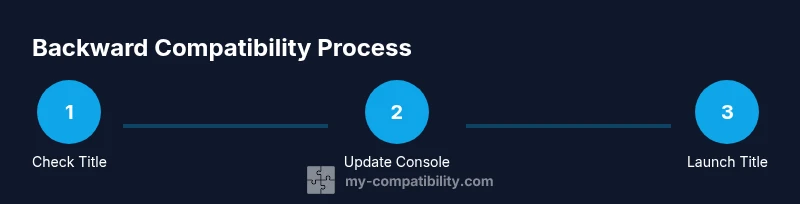
This section describes a typical path to play a supported game. Start by locating the title in your library or insert the disc if you have a physical copy. If prompted, install the game and wait for the download or installation to finish. Launch the game from the Home screen and adjust any in-game settings for optimal performance.
Troubleshooting Common Issues
If a game won’t install or run, first check that the console firmware is current and that you selected a compatible title. Clear local cache, restart the console, and reinsert the disc or reselect the digital title. Some titles require an initial patch; verify you have network access to download updates. If problems persist, consult the official catalog or support.
Maximizing Your BC Experience: Tips & Best Practices
To get the most out of backwards compatibility, keep your console OS up to date, maintain clean discs, and use external storage if you’re running multiple games. Enable auto-updates for games and firmware, and review the official catalog periodically to see newly supported titles. Remember that performance can vary by game age and original hardware demands.
Tools & Materials
- Xbox One console(Must be connected to the internet and updated to the latest OS)
- Compatible game disc or digital title(Have the physical disc or a digital license ready)
- Controller(For navigating menus and launching games)
- Stable internet connection(Needed for OS updates and digital titles)
- External USB storage (optional)(Used to store large or multiple games)
- HDMI cable(Connects console to TV/display)
- Active Xbox Live account(Required for online features and updates)
Steps
Estimated time: Total time: 25-40 minutes
- 1
Check compatibility status
Open the official compatibility catalog and search for your game to confirm it is supported on Xbox One. If it isn’t listed, don’t proceed with a purchase or offline attempt. This prevents wasted time and potential installation issues.
Tip: Tip: Use a second device to cross-check the title in the catalog while you’re on the console. - 2
Update your Xbox One OS
Navigate to Settings > System > Updates and install any available updates. Updates often expand compatibility and fix bugs affecting legacy titles.
Tip: Pro tip: Perform updates over a reliable Wi‑Fi connection or wired Ethernet to avoid interruptions. - 3
Prepare the game title
If you have a disc, insert it and allow the system to recognize the title. For digital titles, locate the game in My Games & Apps and ensure it is owned and ready to install.
Tip: Pro tip: If the disc spins loudly, clean the disc with a soft microfiber cloth before reinstalling. - 4
Install or launch the title
Follow on-screen prompts to install the game if needed, then launch from the Home screen once installation completes. Some titles may require a small patch after launch.
Tip: Pro tip: Keep installation on the internal drive for best loading times; move to external storage if you’re storage-constrained. - 5
Play and adjust settings
Enter the game and review display and audio settings; tweak resolution, aspect ratio, or V-Sync to optimize performance based on your display and preferences.
Tip: Pro tip: Enable auto-updates for both the game and system to ensure ongoing stability.
Questions & Answers
Is backwards compatibility available for all Xbox games on Xbox One?
No. Backwards compatibility on Xbox One is limited to a curated list of Xbox 360 and original Xbox titles.
Backward compatibility on Xbox One is limited to a curated list of supported titles.
How do I know if a specific game is backwards compatible?
Check the official compatibility catalog or the game's store page for a backward compatible badge.
Check the catalog or store page for a backward compatible badge.
Do I need Xbox Live Gold to play these games online?
Online multiplayer for compatible titles generally uses Xbox Live; some games require a subscription for online play.
Online play may require a subscription, depending on the title.
Can I play original Xbox games on Xbox One without the disc?
Typically you need the disc to launch the game on Xbox One, though some titles are available as digital purchases.
Usually you need the original disc to launch an Xbox title on Xbox One, unless a digital version exists.
What should I do if a game won’t install or run?
Ensure the console is updated, the title is compatible, and that you have network access to download patches. Restart if needed.
Check compatibility, update the system, ensure network access, and restart if issues persist.
How often does Microsoft add more backwards compatible titles?
The catalog expands periodically with system updates and new approvals.
The catalog grows over time with OS updates and new title approvals.
Watch Video
Highlights
- Backwards compatibility is built into Xbox One, not a separate install.
- Always verify titles in the official compatibility catalog before purchase or playback.
- Keep OS and game patches up to date for best results.
- Storage and network reliability influence installation and play